An Xbox controller not connecting usually comes down to a few things: weak batteries, a pairing that got stolen by another device, a cable that only carries power, or a Bluetooth quirk on Windows. The Xbox button blinking and never settling is the most common sign. This guide starts with the two quick checks to try first, then walks through fixes for an Xbox console, a Windows PC, Bluetooth and a controller that will not turn on or update.
How to Fix Xbox Controller Not Connecting to Xbox Series X|S
Start here before any other troubleshooting, even if you think the batteries are fine.
Check the batteries. Put in fresh AA batteries, or fully recharge a rechargeable pack. Low batteries can cause connection problems even when the controller still has some power.
Power cycle the controller. Press and hold the Xbox button for 5 to 10 seconds until the controller turns off. Wait a few seconds, then press and hold the Xbox button again to turn it back on.
Also look at the light. A rapidly flashing Xbox button means the controller is in pairing mode, a slowly flashing one means it is searching for a device it was paired with before, and a solid light means it is connected.
Xbox Controller Not Connecting to Xbox Series X|S or Xbox One
If the controller will not link to your console, work through these steps in order. They apply to Xbox Series X|S and to Xbox One controllers on either console.
Power cycle the console. Hold the Xbox button on the front of the console for about 10 seconds. After it powers down, unplug the power cable for 30 seconds, plug it back in, then press the Xbox button to restart.
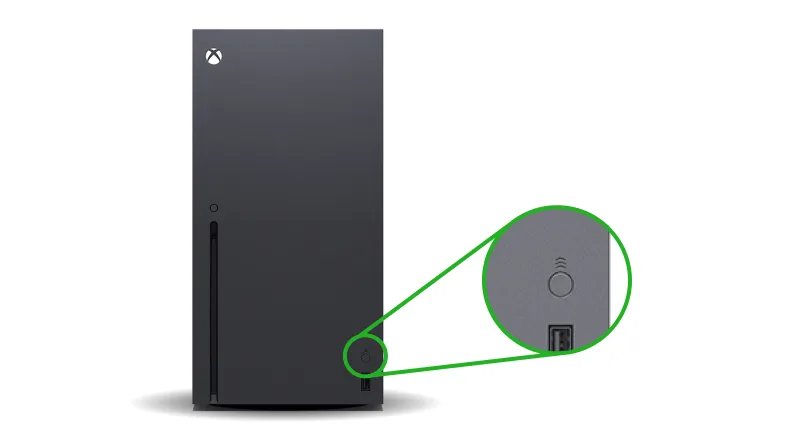
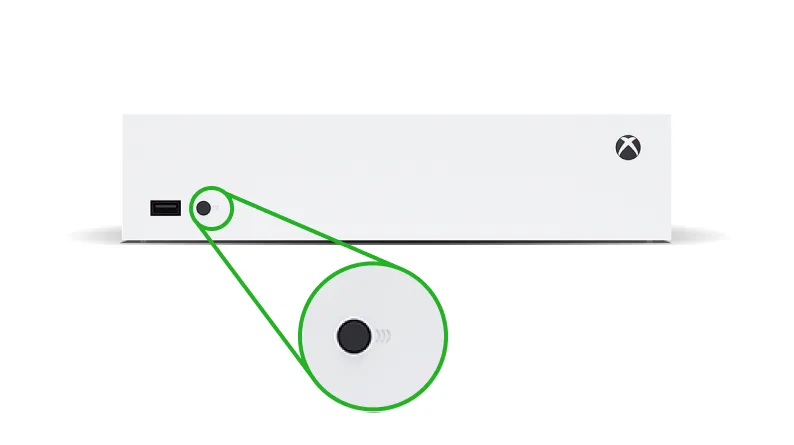
Re-pair the controller wirelessly. Turn the controller on, then press and release the Pair button on the console.
The Pair button on Xbox Series X sits on the front right, above the USB port. (Image: Xbox Support)
On Xbox Series X the Pair button is on the front right, above the USB port. On Xbox Series S it is on the front left, to the right of the USB port.
On Xbox Series S the Pair button is on the front left, right of the USB port. (Image: Xbox Support)
Within 20 seconds, press and hold the Pair button on top of the controller (the small round button on the raised edge) until the Xbox button flashes a few times. It stays lit once the connection is made.
Alternatively, press the Xbox button to open the guide and go to Profile & system > Settings > Devices & connections > Controllers & headsets > Connect a device, then follow the on-screen instructions.
On an Xbox One X or Xbox One S, the Pair button is on the front right, below the power button. On the original Xbox One it is a round button on the side of the console, around the corner from the disc tray. A console supports up to eight wireless controllers.
Connect the Controller With a USB Cable
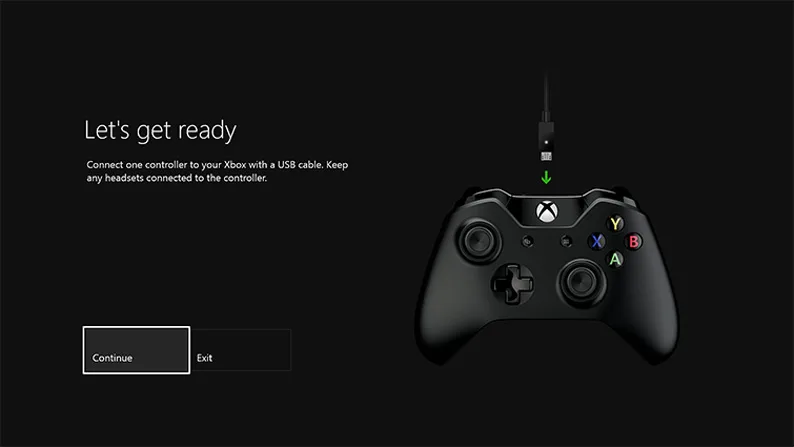
Plug a USB-C cable into the port on top of the controller (a micro-USB cable for an Xbox One controller) and the other end into the console.
The controller should light up and work right away. Standard AA batteries are not used to power the controller while it runs wired.
If nothing happens, swap the cable or the console USB port. Use a cable that supports data transfer, because a charge-only cable will power the controller without letting the console see it.
If the controller works on a cable but not wirelessly, the problem is the wireless pairing or the firmware. If it fails on a cable that is known to be good and in a port that is known to work, the controller itself may need to be replaced. Our guide to connecting an Xbox controller to an Xbox covers the standard pairing process in more detail.
Xbox Controller Flashing and Not Connecting
A flashing light that never goes solid means the controller keeps searching without finding what it paired with. Try these in order.
Replace the batteries with fresh AA cells, or swap in a charged rechargeable pack. A failing pack can cause the controller to blink and then turn off.
Turn off other devices the controller may be reaching for. If it was used recently with a Windows PC, a phone, a tablet or Steam, it may be trying to reconnect there. Turn off Bluetooth on nearby devices or re-pair it directly with the console.
Reset the controller. Hold the Xbox button until it turns off, remove the batteries for a few minutes, put them back in and press the Xbox button.
Re-pair with the console using the Pair button steps above.
Connect the controller to the console with a USB cable and check for a firmware update (see the firmware section below).
A controller can only keep one wireless link to a device at a time. If you used it on a PC, pairing it back to the console is the fix. Pressing the Pair button on the console and then the controller re-syncs it.
Xbox Controller Not Connecting to PC
A Windows PC can connect to an Xbox controller by USB cable, the Xbox Wireless Adapter or Bluetooth. Start with the cable, because it tells you whether the controller itself works.
Restart your PC.
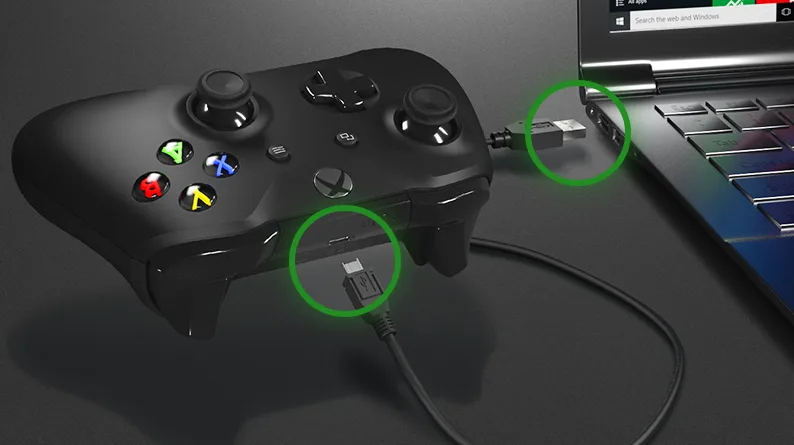
Connect the controller with a USB-C cable (micro-USB for Xbox One controllers). Use a cable that supports data transfer.
If the controller works on the cable, the controller is fine and the wireless link is the problem. If it does not work, try another cable or port, or another device. If cable and port are both confirmed good and it still fails, the controller needs to be replaced.
Update the controller firmware by installing the Xbox Accessories app from the Microsoft Store and connecting the controller while the app is open.
Install the latest Windows updates under Settings > Windows Update > Check for updates.
Connect the controller to your PC with a data-capable USB cable. (Image: Xbox Support)
If the PC does not detect the controller after waking from sleep, press the Xbox button on the controller or unplug the cable and plug it back in. For the full setup, see our guide to connecting an Xbox controller to a PC, or connecting one to a Mac.
Xbox Wireless Adapter Not Connecting
Plug the Xbox Wireless Adapter into your PC.
Turn on the controller by pressing the Xbox button. It starts flashing.
Press and hold the Pair button on the adapter until its small light flashes for several seconds.
Press and hold the Pair button on top of the controller. The Xbox button flashes faster while it searches and stays lit once connected.
Xbox Controller Not Connecting via Bluetooth
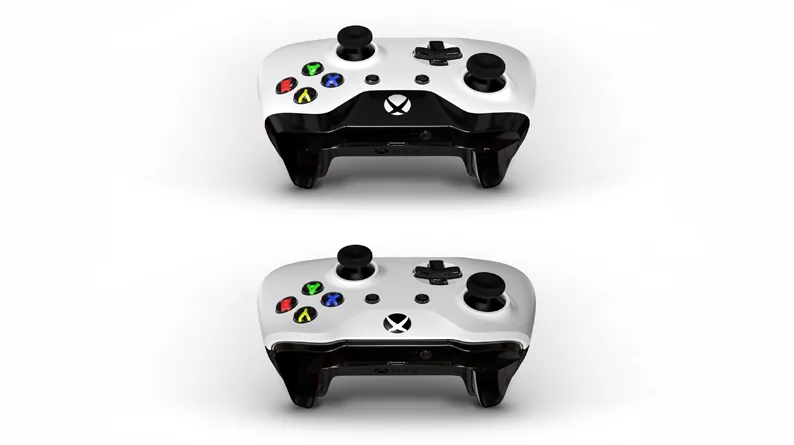
Bluetooth only works on newer controllers. Look at the plastic around the Xbox button: on a Bluetooth controller it is part of the face of the controller, and on an older one without Bluetooth it is part of the top, where the bumpers are. The controller that came with Xbox Series X|S supports Bluetooth, and the PC needs Windows 10 Anniversary Update or later.
The bottom controller supports Bluetooth. (Image: Xbox Support)
To pair over Bluetooth:
Turn on the controller by pressing the Xbox button.
Press and hold the Pair button for 3 seconds. The Xbox button flashes rapidly.
On your PC, open Settings > Bluetooth & devices (Windows 10: Settings > Devices > Bluetooth & other devices) and make sure Bluetooth is on.
Select Add device and choose Bluetooth.
Pick Xbox Wireless Controller from the list and wait for the confirmation. If you use the Xbox Wireless Adapter on the same PC, choose Everything else in the add-device menu instead.
Connect one controller at a time over Bluetooth for the best results. If the PC is busy it can take up to two minutes to recognize and pair the controller, so wait before you assume it failed.
If Bluetooth Pairing Fails or Keeps Dropping
Run the Windows troubleshooter: select Start, type Bluetooth, and choose Find and fix problems with Bluetooth devices.
Restart your PC.
Move closer and remove interference from phones and other Bluetooth devices.
Restart the controller. Hold the Xbox button for 6 seconds to power it off, then press it again.
Re-pair the device. Open the Bluetooth device list, select the controller, choose Remove device, press the Pair button on the controller, then add it again.
If Windows asks for a passcode, restart the controller, then connect it with a USB cable or the Xbox Wireless Adapter. A controller connected over Bluetooth also does not support rumble, headsets or chatpads, so a controller that connects but acts oddly may be fine and simply limited by Bluetooth.
Xbox Controller Connects but Does Not Work
If the Xbox button is lit but buttons do nothing, try the controller in a different game or app. If it works elsewhere, the first app may not support Bluetooth input. Next try a USB cable. If it works wired, the issue sits with the Bluetooth connection, so remove the controller and pair it again. A controller whose buttons are mapped wrongly, for example a bumper acting as the Menu button, most likely needs a firmware update.
How to Update Xbox Controller Firmware
Outdated firmware is a common reason a controller connects badly. Update it on a console or a PC.
On an Xbox, connect the controller by USB cable, or leave it wirelessly connected on newer controllers. Press the Xbox button to open the guide.
Go to Profile & system > Settings > Devices & connections > Controllers & headsets and select your controller.
Select the three dots to check the firmware version. If it says Update, select Firmware version and follow the prompts. Keep the cable connected during the update, which can take up to 3 minutes.
The controller update screen on Xbox. (Image: Xbox Support)
On Windows, install the Xbox Accessories app, open it, connect the controller by USB cable or the Xbox Wireless Adapter, and install the update when it shows Update Required. Updating over Bluetooth is not supported. If the update keeps failing, try a different data cable.
Controller Will Not Turn On at All
If the controller will not power on after you have checked the batteries, connect it to your console or PC with a USB cable. If it turns on with the cable, update the firmware as above. If it will not power on even when connected by cable, or still fails without the cable after an update, it likely needs to be replaced.
When to Replace the Controller
If a known-good cable and port, fresh batteries, a re-pair and a firmware update all fail, the controller is probably faulty. Microsoft lets you request an Xbox controller replacement and check warranty status through Xbox Support, so check that before you buy a new one.
Still Have an Xbox Controller Not Connecting? Your Next Move
For an Xbox controller not connecting, work from the cheapest fix to the costliest: batteries, a power cycle, a re-pair and a data-capable USB cable. Console owners should start with the Pair button steps, PC players with the cable and firmware update, and Bluetooth users with removing and re-adding the device. If the controller fails every one of them, it is time for a replacement, and our list of the best Xbox controllers shows what to look at next.
I'm Iain, and I write the step-by-step guides on GameCuki. I cover game tips and walkthroughs, PC gaming how-tos like settings, performance and troubleshooting, and practical guides for Steam, PlayStation, Xbox and Nintendo Switch. I build each guide from official game and platform documentation, write the steps in plain language and check them against the source before publishing. When a game or platform changes how something works, I update the guide. You can read my full process on our How We Review page.