Teleporting players, shots that do not register and a connection that stutters even though your speed looks fine are the classic signs of lost data. If you want to know how to fix packet loss, the good news is that most cases come from your own home network and can be cleared with a cable, a restart or a couple of settings. This guide shows how to check your loss rate first, then walks through the fixes in order for PC, PS5 and Xbox.
Packet loss means some of the small data packets your device sends never reach the game server (or the server’s replies never reach you), so they have to be sent again. That causes rubber-banding, freezes and delayed hits. It is different from high ping, which is slow but complete delivery. If your main symptom is a high number rather than skips, see our guide on how to lower ping.
Short on time? This video covers the common network fixes for any game:
How to FIX Packet Loss in ANY GAME! – Improve your Network Settings!
Measure before you change anything, so you can tell which fix worked. Anything above about 1% starts to hurt online play, and above 5% is a serious problem. Zero is the goal, but a reading under 0.5% is considered normal.
Check Packet Loss on PC
Press the Windows key, type cmd and press Enter.
Type ping -n 50 www.cloudflare.com and press Enter. The command sends 50 packets.
When it finishes, read the summary at the bottom. The line Lost shows how many of the 50 packets did not come back and the percentage in brackets.
For a closer look, type pathping www.cloudflare.com. It lists each hop between you and the server and shows where packets drop, which takes a few minutes to finish.
Run the check once while the problem is happening and once when the network is quiet, so you can compare.
Many games also have a network statistics option in the settings that shows a packet loss icon or percentage while you play. That reading reflects your real connection to the game server, so trust it over a generic website.
Check Packet Loss on Xbox
Open Settings from the Home screen, then go to General and Network settings.
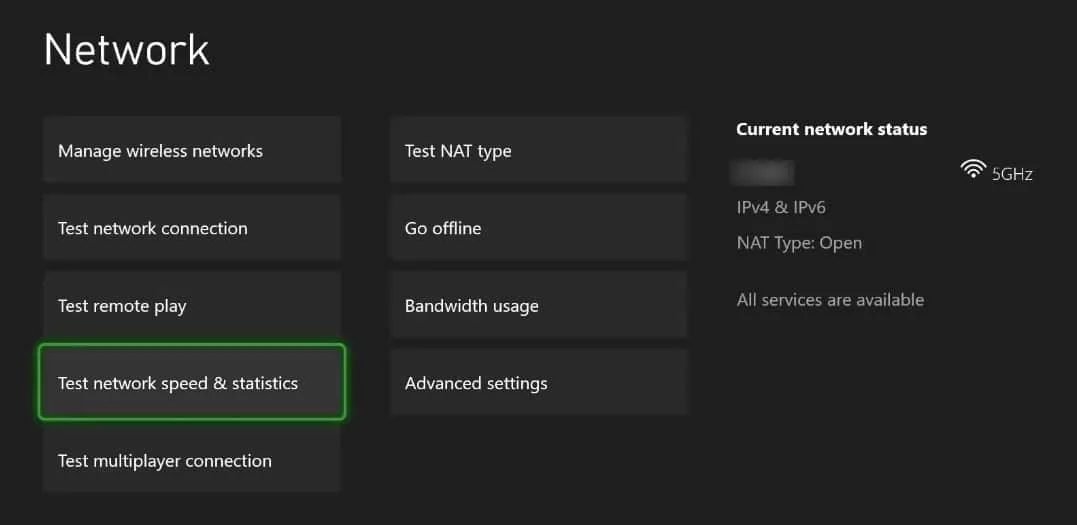
Select the network speed and statistics option.
Open the network speed and statistics option in Network settings. (Image: Comparitech)
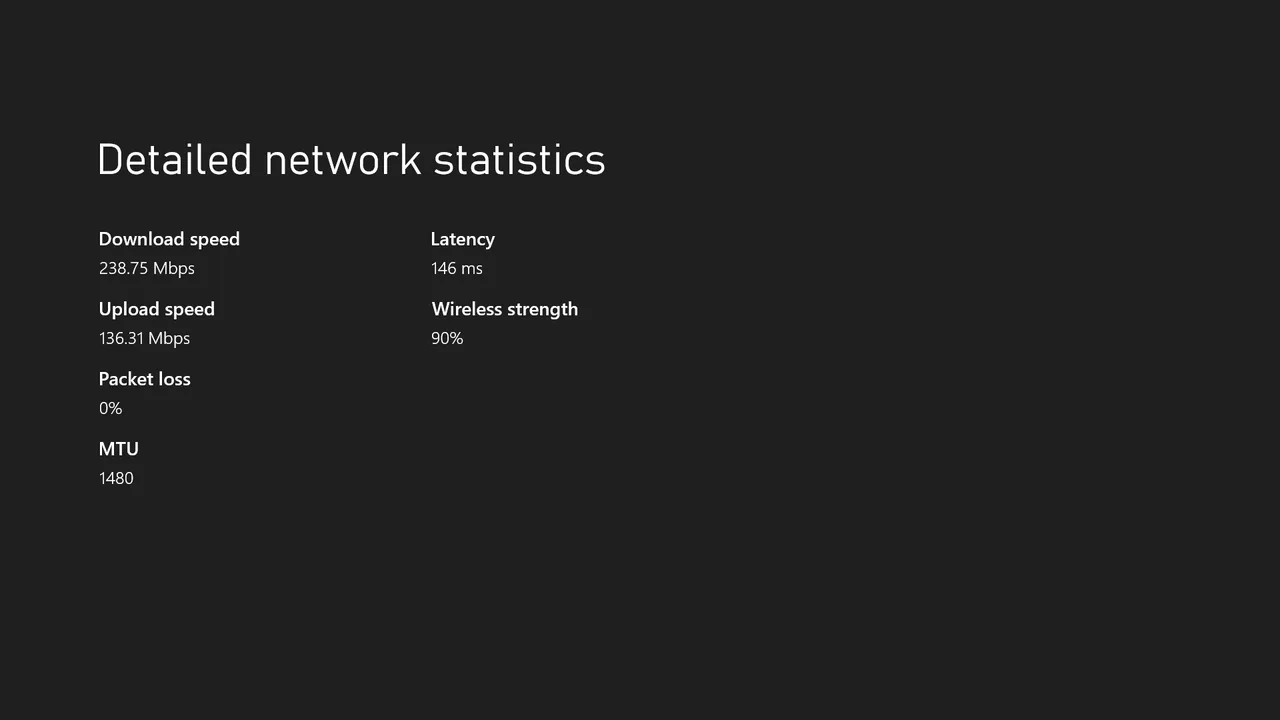
On the Detailed network statistics screen, read the Packet loss value. Anything above 0% on a stable connection is worth fixing.
The Packet loss value on the Detailed network statistics screen. (Image: Noyafa)
Check Packet Loss on PS5
Go to Settings, then Network, then Connection Status.
Choose the option that checks your internet connection.
Read the result. It confirms the console can get online and reach PlayStation Network and shows download and upload speed and NAT type, but it does not give a packet loss figure.
Because of that, use the in-game network display where the game has one, or run the PC check above from another device on the same router while the console is playing. If that device shows loss, the console will too.
How to Fix Packet Loss: Quick Fixes First
These cost nothing and clear the most cases. Check your loss after each one so you know what worked.
1. Restart Your Router and Modem
Close the game and turn off your PC or console.
Unplug the modem and the router from power.
Wait at least 30 seconds.
Plug the modem in first and wait one to two minutes for it to reconnect to your provider.
Plug the router in and wait until its lights settle, then start the game.
2. Stop Other Traffic on Your Network
Pause game downloads, app updates and Windows updates on your PC or console.
Close cloud backup apps and browser tabs that stream video.
Ask others in the house to pause large downloads or 4K streams while you play.
3. Switch From Wi-Fi to Ethernet
Wi-Fi loses packets more often than a cable, especially through walls or in a crowded apartment building. Wired is the single most reliable fix.
Plug one end of an Ethernet cable into a LAN port on your router.
Plug the other end into the Ethernet port on your PC or console.
Wait for the connection to show as active and run your check again.
If the loss disappears on a cable, your wireless environment was the cause. When the router is too far away for a cable, a powerline adapter kit is the usual workaround. Our guide to the best Ethernet cables for gaming helps if you need a new one.
4. Replace the Cable and Try Another Port
Swap your Ethernet cable for a spare. Use Cat5e or Cat6 if yours is old, bent or damaged.
Move the cable to a different LAN port on the router.
Check your loss again. A bad cable or a faulty port can drop packets on its own.
How to Fix Packet Loss on Wi-Fi
If you cannot use a cable, these steps cut loss on a wireless connection.
Move closer to the router or remove obstacles between you and it.
Connect to the 5 GHz band. It is faster over short range and less crowded than 2.4 GHz.
If you must use 2.4 GHz, open your router settings and set the channel to 1, 6 or 11, which do not overlap.
On a PC, forget the network and join it again.
How to Fix Packet Loss on PC
Update Your Network Driver
Right-click the Start button and choose Device Manager.
Expand Network adapters.
Right-click your Ethernet or Wi-Fi adapter and choose Update driver.
Choose Search automatically for drivers and restart your PC if it installs one.
Update Your Router Firmware and Check QoS
Find your router’s IP address in its manual or on its label. Common ones are 192.168.1.1 and 192.168.0.1.
Enter the address in a web browser and sign in with the router’s admin login.
Look for a firmware or update section and install any update, following the maker’s instructions.
Find QoS (sometimes called prioritization) and compare your in-game loss with it on and off. If your router has a gaming mode, try that.
Turn Off Your VPN
A VPN adds extra hops and can drop packets on some routes. Disconnect it and check again. If loss stops, try a closer VPN server or leave it off for gaming.
How to Fix Packet Loss on Xbox
After the cable and router fixes above, these Xbox settings are worth trying. Go back to Settings, General, Network settings, then:
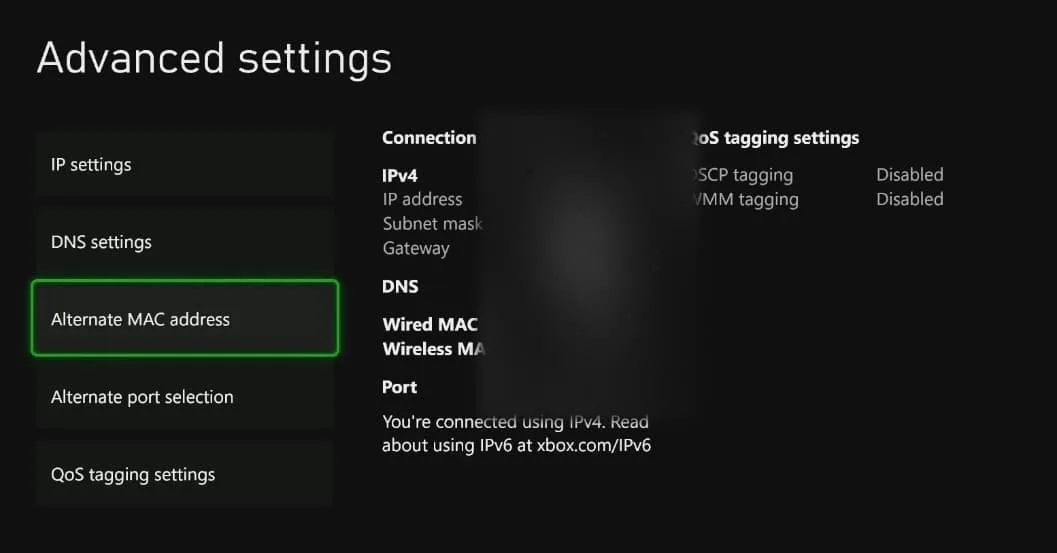
Select Advanced settings, then Alternate MAC address, and choose Clear. Restart the console when asked.
Select Alternate MAC address, then Clear. (Image: Comparitech)
If you are on Wi-Fi, open Manage wireless networks, remove your saved network and set it up again.
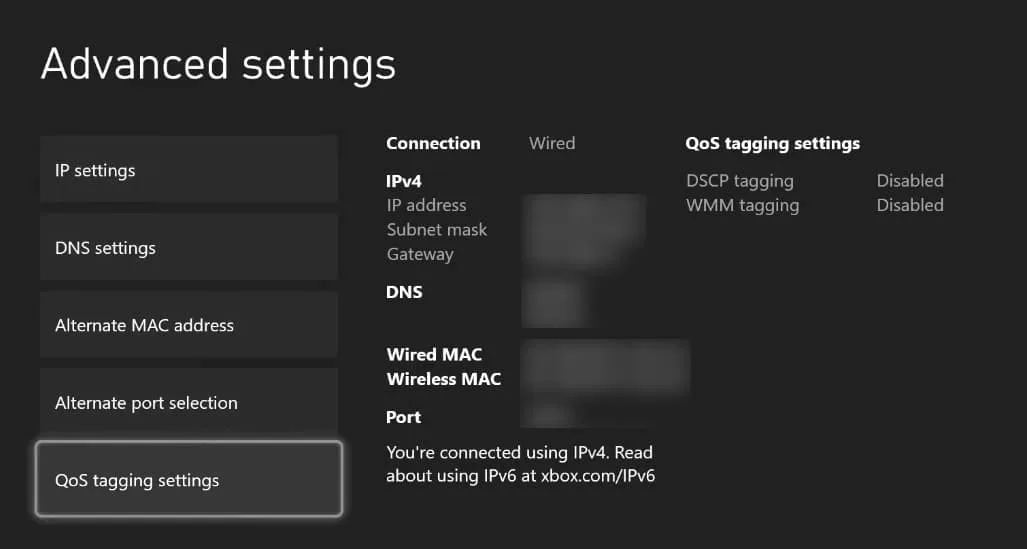
Back in Advanced settings, open QoS tagging settings, try one option at a time, restart and check packet loss after each change.
QoS tagging settings sit at the bottom of Advanced settings. (Image: Comparitech)
How to Fix Packet Loss on PS5
Connect the console to the router with an Ethernet cable if you are on Wi-Fi.
Restart the router and modem as shown above, then restart the PS5 fully.
Go to Settings, Network, Connection Status and run the connection check again. If it reports a strict NAT type, enable UPnP in your router settings.
If the check points to a DNS problem, set a DNS manually under Settings, Network, Settings, Set Up Internet Connection, Advanced Settings, DNS Settings. Common choices are 8.8.8.8 and 8.8.4.4.
When the Packet Loss Is Not Your Fault
If loss stays high on a cable, with a new cable, after a router restart and with no other traffic, the cause is likely outside your home. The signs are loss that appears mostly in the evening, loss on every game and website, or a pathping result that shows loss starting at a hop outside your router.
Run the PC check at different times of day and write down the results.
If you can, connect a PC straight to the modem, skipping the router, and check again.
Contact your internet provider with those results and ask them to check the line and the modem signal.
If a different device or a spare router fixes it, replace the failing one.
Loss that only happens in one game usually points to that game’s servers, so check the game’s status page and try a different server region.
Common Questions About Packet Loss
How do I fix packet loss?
Start with a wired connection, restart the router and modem, stop other downloads, swap the cable and update your network driver and router firmware. If it continues, contact your provider.
Is 2% packet loss a lot?
Yes for online games. Under 0.5% is normal, and above 1% you start to notice problems. At 2% you will likely see rubber-banding and missed hits.
Can a VPN fix packet loss?
Sometimes, when the loss is on your provider’s route to the game. More often a VPN adds hops and makes it worse, so turn it off first when troubleshooting.
Can packet loss be fixed completely?
Not always. A small amount can happen on any network and you cannot fix a problem inside your provider’s network yourself, so the goal is to get it as close to zero as you can.
Final Thoughts on How to Fix Packet Loss
For most players, learning how to fix packet loss starts with getting off Wi-Fi: a good Ethernet cable fixes more cases than any setting. If loss continues, work through the router restart, driver and firmware updates, and the console steps, then take your results to your provider. Once your loss is near zero, move on to lowering your ping for the rest of the lag.
I'm Iain, and I write the step-by-step guides on GameCuki. I cover game tips and walkthroughs, PC gaming how-tos like settings, performance and troubleshooting, and practical guides for Steam, PlayStation, Xbox and Nintendo Switch. I build each guide from official game and platform documentation, write the steps in plain language and check them against the source before publishing. When a game or platform changes how something works, I update the guide. You can read my full process on our How We Review page.