Your shots land late, enemies teleport and the ping counter in the corner of the screen sits in red. If you want to know how to lower ping, the fix usually comes down to a handful of things in your own home network, and you can work through them in order in under an hour. This guide starts with PC, adds short notes for PS5 and Xbox where the steps differ, and also covers how to fix high ping when the cause is outside your house and what a good ping for gaming looks like.
Want to see the basics first? This video walks through quick ways to cut ping:
Ping is the round-trip time, in milliseconds (ms), between your device and the game server. A lower number means your actions reach the server and come back faster. Ping is not the same as download speed: a fast plan can still have a high ping if the signal takes a long route or your home network is congested.
Guides from internet providers draw the lines in slightly different places, so treat these as rough ranges rather than hard rules:
Under 50 ms: a good target for a smooth experience in most online games.
Around 10 to 25 ms: the range often described as ideal for fast competitive play.
50 to 100 ms: playable, with some lag you can notice in fast shooters.
100 ms and above: high for competitive shooters, still workable for casual matches.
Around 150 ms and above: poor, with rubber-banding and delayed hits likely.
A ping of 0 is not realistic. The best you can expect is single digits to low double digits on a wired connection to a nearby server. Distance matters too, so a server on another continent will always read higher than one in your region.
How to Check Your Ping First
Measure before you change anything, so you can tell which fix worked. Start with the in-game network display, since that shows the ping to the actual game server. Most online games have a ping or network stats option in the settings or the scoreboard.
For a second reading outside the game on PC, use Command Prompt:
Press the Windows key, type cmd and press Enter.
Type ping 1.1.1.1 -t and press Enter. Each line shows the round-trip time to that address in ms.
Open a second Command Prompt window, replace the address below with your router’s address (often 192.168.1.1) and run ping 192.168.1.1 -t.
Compare the two. If the router line stays low and steady but the outside line spikes, the problem is likely beyond your home network. If both spike together, the problem starts in your house.
Press Ctrl+C in each window to stop.
How to Lower Ping on PC: Fixes in Order
Work through these from top to bottom. The early fixes cost nothing and solve the most cases, and the later ones are for stubborn problems. Check your ping after each one.
1. Switch to a Wired Connection
Wi-Fi adds delay and drops packets when walls, distance or neighbors’ networks get in the way. A cable removes all of that.
Plug one end of an Ethernet cable into a LAN port on your router or modem.
Plug the other end into your PC’s Ethernet port.
Wait for Windows to show the network as connected, then restart the game.
If the router is too far away, a powerline adapter kit that sends the signal through your home wiring is the usual workaround, and it still beats Wi-Fi in many homes. A good cable also matters, so see our best Ethernet cables for gaming if yours is old or damaged.
2. Restart Your Router and Modem
A full power cycle clears temporary routing glitches.
Turn off your PC or at least close the game.
Unplug the router and the modem (if separate) from power.
Wait at least 30 seconds.
Plug the modem in first, then the router, and wait until the lights settle.
Launch the game and check your ping.
3. Stop Other Traffic on Your Network
Downloads, streams and cloud backups compete with your game for bandwidth, and that competition shows up as ping spikes.
Pause game downloads and Windows updates on your PC.
Close cloud sync apps and browser tabs that stream video.
Ask others in the house to pause large downloads or 4K streams while you play, or disconnect devices you are not using.
4. Pick the Closest Game Server
Distance sets the lowest ping you can reach. In the game’s settings or lobby, choose the server or region nearest to you instead of Auto if Auto is picking a far one. Playing on a distant server for friends will always cost you ping.
5. Change Your DNS Server
DNS is your internet’s address book. Switching to a public DNS can help when your provider’s DNS is slow or out of date. Windows 11 steps:
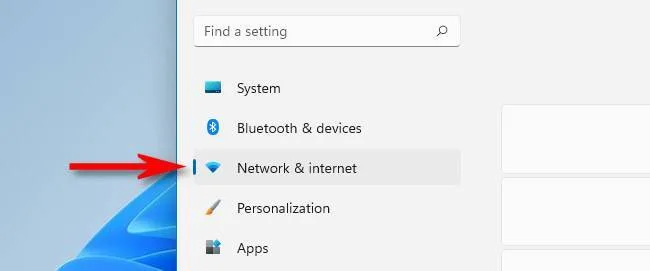
Press Windows+I to open Settings, then select Network & internet in the sidebar.
Open Network & internet in Windows Settings. (Image: How-To Geek)
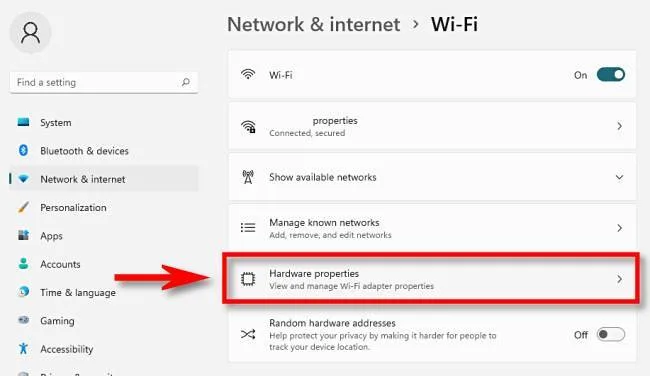
Select your connection, either Wi-Fi or Ethernet, then choose Hardware properties.
Choose Hardware properties for your connection. (Image: How-To Geek)
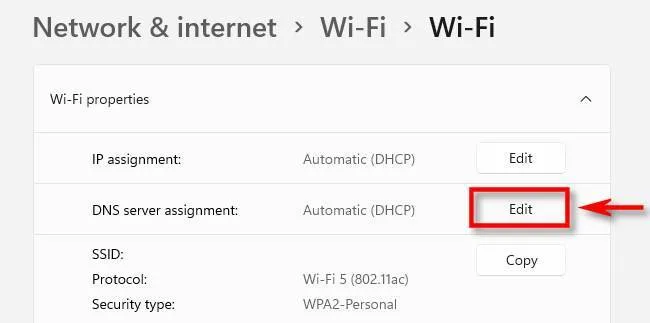
Next to DNS server assignment, click Edit.
Click Edit beside DNS server assignment. (Image: How-To Geek)
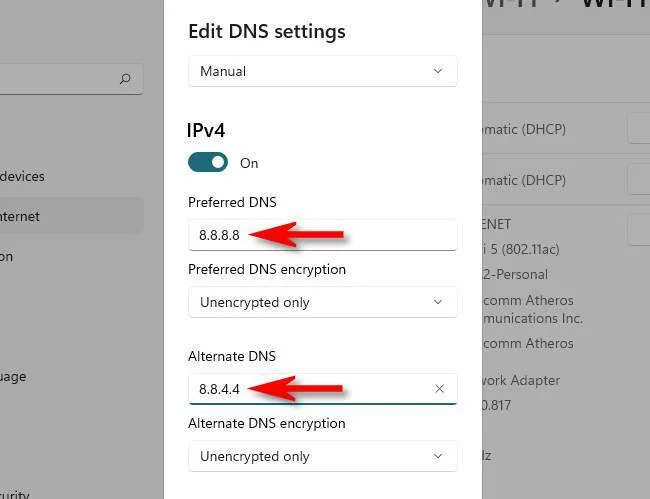
Set the drop-down to Manual and turn on IPv4.
Enter 8.8.8.8 as the Preferred DNS and 8.8.4.4 as the Alternate DNS (Google Public DNS). Cloudflare’s 1.1.1.1 is another common choice.
Click Save.
Enter the Preferred and Alternate DNS addresses. (Image: How-To Geek)
On Windows 10, open Control Panel, then Network and Sharing Center, then Change adapter settings, right-click your adapter, choose Properties, select Internet Protocol Version 4 (TCP/IPv4) and open Properties to enter the same addresses. Afterward, open Command Prompt as administrator, run ipconfig /flushdns and restart the PC. If the internet stops working, recheck that you typed the addresses correctly.
6. Reset TCP/IP
This clears network configuration problems that sit between your PC and the game.
Open the Start menu and type Command Prompt.
Right-click it and select Run as administrator.
Enter netsh int ip reset and press Enter.
Enter netsh winsock reset and press Enter.
Restart your PC, then check your ping again.
7. Turn Off VPNs and Proxies While You Play
A VPN or proxy routes your traffic through an extra stop, which can add delay. Turn yours off in Windows or in the VPN app and see whether the ping changes. If your ping is better with the VPN off, leave it off for gaming.
8. Improve Your Wi-Fi if You Cannot Use a Cable
Move closer to the router or clear the line of sight between you and it.
Use the 5 GHz or 6 GHz band instead of 2.4 GHz.
Switch the router to a less crowded channel in its admin page.
If the router is several years old, a newer dual-band model may help. The router in the box above is an example of an affordable Wi-Fi 6 option.
9. Set Up QoS on Your Router
Quality of Service (QoS) tells the router which device gets priority when the connection is busy.
Open your router’s admin page or app.
Find the QoS, traffic prioritization or gaming section.
Run a speed check and set the QoS bandwidth to about 90% of your actual speed.
Give your gaming PC or console the highest priority and save.
Play a few matches and see whether ping stays steadier.
10. Update Network Drivers, Games and Router Firmware
Install any pending game patches and update your network adapter driver through Windows Update or your PC maker’s support page. Also check your router’s admin page for a firmware update, and back up its settings before you install one.
11. Close Background Apps with a Clean Boot
If something on your PC is using the network in the background, a clean boot starts Windows with only the essentials so you can find it. Riot’s support page on performing a clean boot explains the steps. If the game still lags, make sure your firewall allows the game’s launcher through.
12. Contact Your Internet Provider
If your ping is fine to your router and still spikes to outside addresses at the same times every day, the cause is likely your provider’s network or routing. Note the times and results from the checks above, then call your provider and ask them to look at your line.
How to Fix High Ping When It Comes and Goes
If your ping is mostly fine and then spikes, work out where the delay starts. Use the two-window ping check from earlier and watch for a pattern:
Router ping spikes: the problem is in your home. Move to a cable, restart the router, stop other devices and check your Wi-Fi signal.
Router ping is steady but outside spikes: the problem is beyond your router. Try a different server, change DNS and contact your provider if it repeats.
Spikes only in one game: check the game’s server status and try another region.
Spikes only at certain hours: evening congestion in your area is a common cause. A wired connection and QoS help, but only your provider can fix the line.
To see where on the route the delay appears, run tracert -d playstation.com (swap in the game’s server or website). One slow hop does not prove a problem if the hops after it look normal.
How to Lower Ping on PS5
Most of the fixes above apply to PS5 too: use a cable, restart your router, pause other downloads and pick a nearby server. The console-specific steps:
For a cable, go to Settings, then Network, then Settings, then Set Up Internet Connection, and choose Set Up Wired LAN, then Connect.
Go to Settings, Network, Connection Status and run the internet connection check to see your NAT type and whether sign-in works.
If your router is set to IPv6 only, switch it to IPv4, because PS5 does not support IPv6-only networks.
Stop downloads and cloud transfers before you play online.
The PS5 does not show ping on its own, so use the game’s in-game network display.
How to Lower Ping on Xbox
Xbox does show latency, which makes it easy to see whether a change helped.
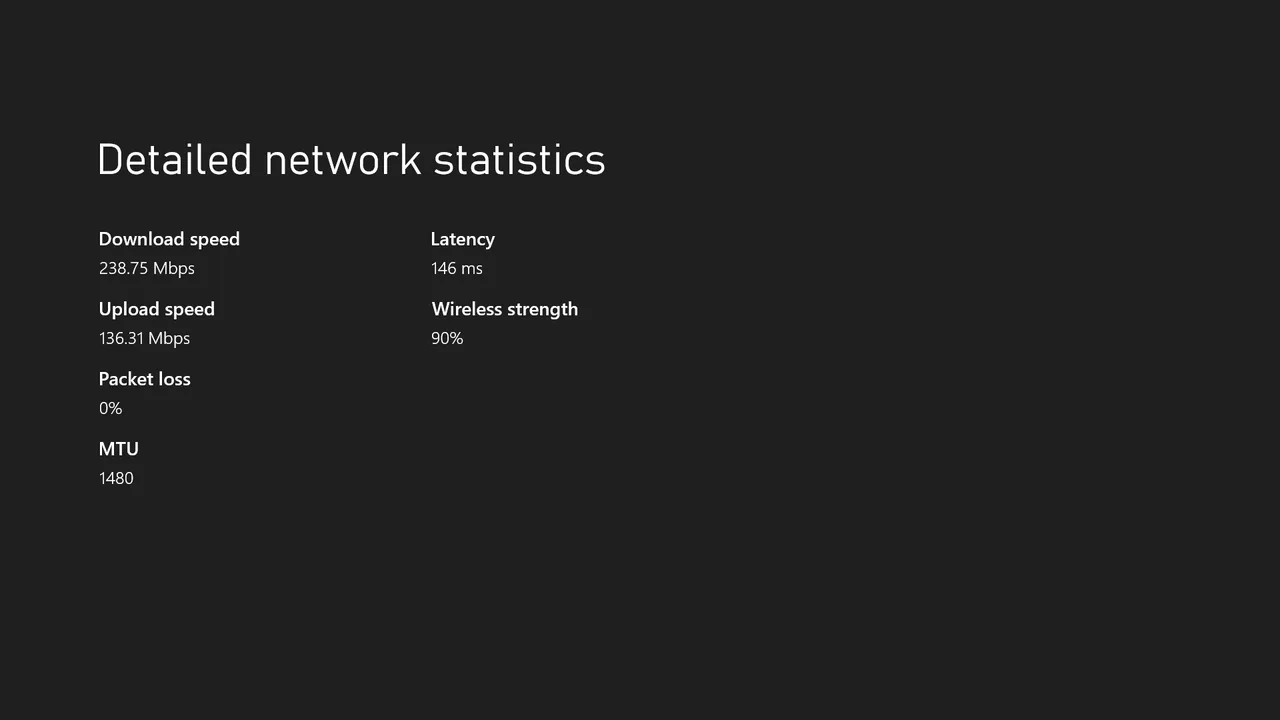
Go to Settings, then General, then Network settings.
Open the network speed and statistics option on that screen and note the latency, in ms.
The Detailed network statistics screen lists latency and packet loss. The values shown are an example. (Image: Noyafa)
Connect an Ethernet cable from your router to the console’s Ethernet port, then check the statistics again.
If you must use Wi-Fi, use the 5 GHz band and move the router closer.
To set a DNS manually, go to Network settings, Advanced settings, DNS settings, choose Manual and enter 8.8.8.8 and 8.8.4.4 (or 1.1.1.1 and 1.0.0.1).
Strict or Moderate NAT can also make matchmaking slower, so read our guide to changing your NAT type on Xbox if the statistics screen shows it.
Common Questions About Lowering Ping
Is 100 ping bad?
It is high for fast competitive shooters, where lower is better, but it is still playable for casual matches. If you want to get under it, start with a wired connection and a nearby server.
Is 400 ping bad?
Yes. At 400 ms you will see heavy lag and rubber-banding. Check the fixes above, and if the number stays high on a cable to a nearby server, contact your provider.
Can I get 0 ping?
No. Data always takes time to travel, so the realistic goal is the lowest stable number you can reach, often single digits to low double digits on a wired connection to a nearby server.
Final Thoughts on How to Lower Ping
For most players, how to lower ping starts with one change: get off Wi-Fi and onto an Ethernet cable. If a cable is not possible, a powerline kit or a better router comes next, and DNS, QoS and a closer server are free tweaks that can add up. If your ping stays high even on a cable to a nearby server, the cause is most likely your provider, so keep a note of when it spikes and take it to them.
I'm Iain, and I write the step-by-step guides on GameCuki. I cover game tips and walkthroughs, PC gaming how-tos like settings, performance and troubleshooting, and practical guides for Steam, PlayStation, Xbox and Nintendo Switch. I build each guide from official game and platform documentation, write the steps in plain language and check them against the source before publishing. When a game or platform changes how something works, I update the guide. You can read my full process on our How We Review page.