Strict or Moderate NAT on your Xbox usually shows up as failed party chat, long matchmaking waits or players who cannot join your lobby. This guide shows how to change NAT type on Xbox, starting with how to read your current result, then moving from the quickest fix to the more advanced ones. The steps apply to Xbox Series X, Xbox Series S and Xbox One, and most of the work happens on your router, not the console.
Want to see the setup first? This video shows the process:
How to Change NAT to OPEN & Fix Strict Internet on Xbox Series X|S (Best Method)
Xbox reports one of three results: Open, Moderate or Strict. Open is the least restrictive, so your console can connect to most players and host sessions without limits. Moderate works for most multiplayer sessions, but hosting and connecting with other Moderate or Strict players can be harder. Strict is the most restrictive, and a Strict console can only connect to players who have an Open NAT.
For most online games, Moderate is workable and Open is the goal if you host lobbies, use party chat often or keep getting kicked from sessions. Your result can also change when you move to a different network, so check it again after you switch Wi-Fi or router.
How to Check Your NAT Type on Xbox
Check first, so you know what you are fixing and can confirm the change later. The menu path below matches current Xbox Series X|S and Xbox One consoles.
Press the Xbox button on your controller to open the guide.
Go to Profile & system, then Settings.
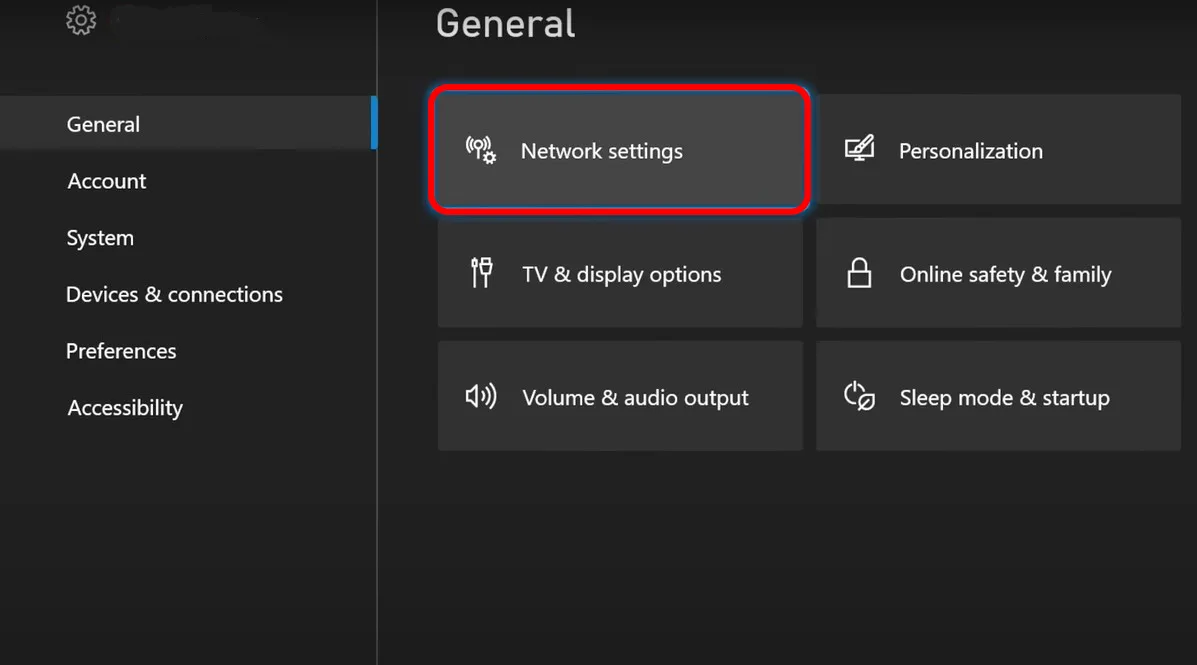
Select General, then Network settings.
Open Network settings under General. (Image: Alphr)
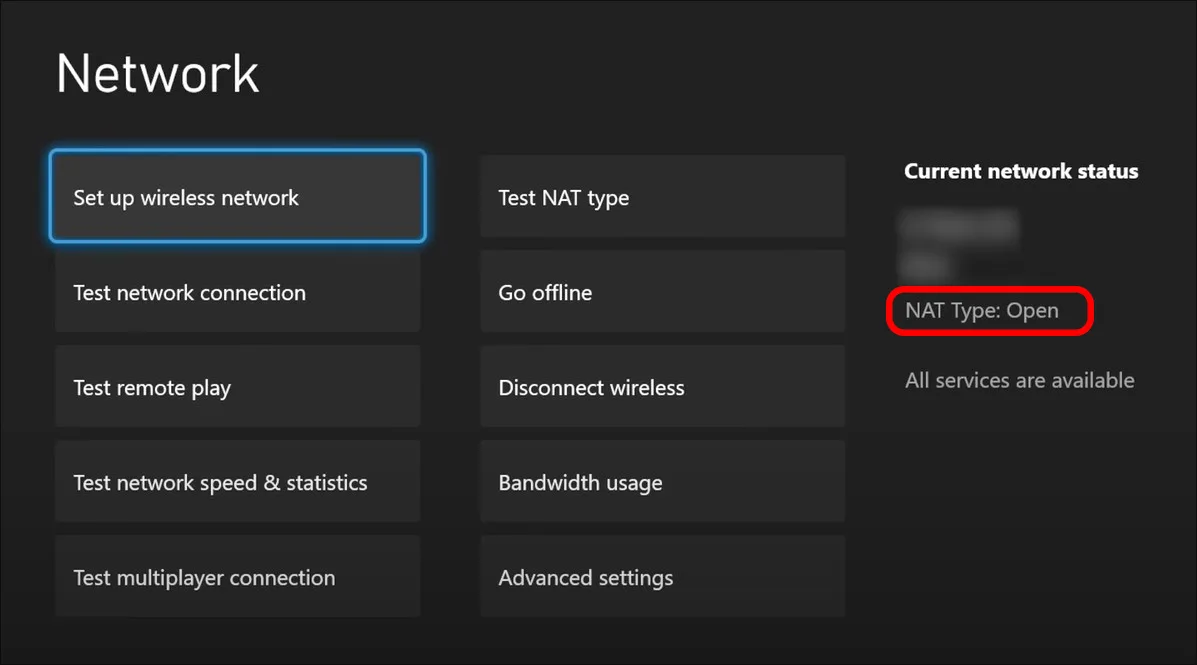
Look under Current network status. Your NAT type appears there as Open, Moderate or Strict.
Select the NAT type check option on that screen to refresh the result. Also look for “Double NAT detected,” “UPnP not successful” or “NAT type unavailable” on the same screen, because those point to the cause.
The NAT type is listed under Current network status. (Image: Alphr)
If the screen says NAT type is unavailable, restart the router and the console first, then check again. Microsoft covers that error on its Xbox support page for NAT errors.
Fix 1: Restart Your Router and Console
A full power cycle makes the console and router negotiate again, which clears many temporary Moderate and Strict results.
Turn off the Xbox completely.
Unplug the Xbox power cable.
Unplug the router (and modem, if you have a separate one).
Wait about 30 seconds.
Plug in the router and wait until it finishes booting.
Plug in and turn on the Xbox, then check your NAT type again.
Fix 2: Turn On UPnP on Your Router
UPnP (Universal Plug and Play) lets the Xbox ask your router to open the ports it needs automatically. It is the easiest route to an Open NAT, and it is the fix to try before any manual setup.
On a phone or PC connected to your network, enter your router’s IP address in a web browser and sign in to the admin page.
Find the UPnP setting. It is usually under Settings, Network Settings or Advanced Settings, and the label varies by router brand.
Make sure UPnP is enabled and save the change.
Restart the router, then restart the Xbox.
On the Xbox, go to Settings, General, Network settings and select the NAT type check option.
If UPnP is already on and the result is still Moderate or Strict, switch UPnP off, save, restart the console and network hardware, then switch it back on and restart again. This forces a fresh handshake. Some routers also list a “Zero Config” option, which is worth turning on if you see it. Updating the router and console firmware first can also help. UPnP does carry a security trade-off, since software on your network that you did not intend could use it to open a port, so keep the router firmware current.
Fix 3: Switch the Xbox to Energy Saver Mode
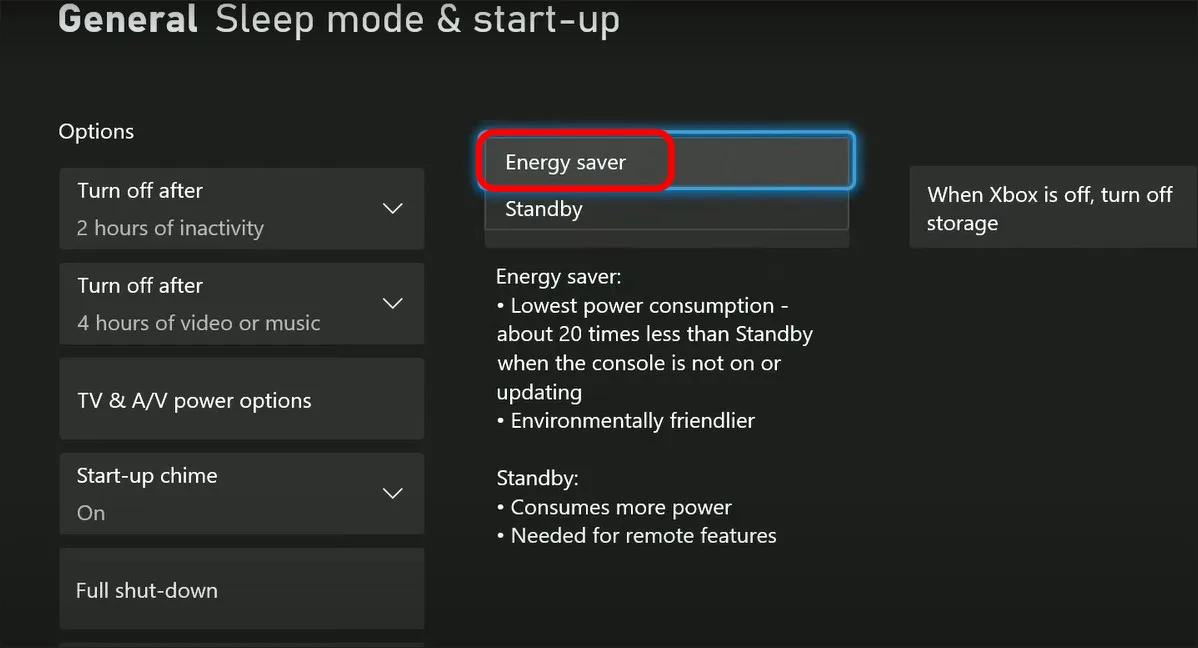
Energy saver power mode makes the console renew its UPnP connection each time it starts, which can make an Open result more likely. The trade-off is a slightly slower start-up.
Press the Xbox button, then go to Profile & system and Settings.
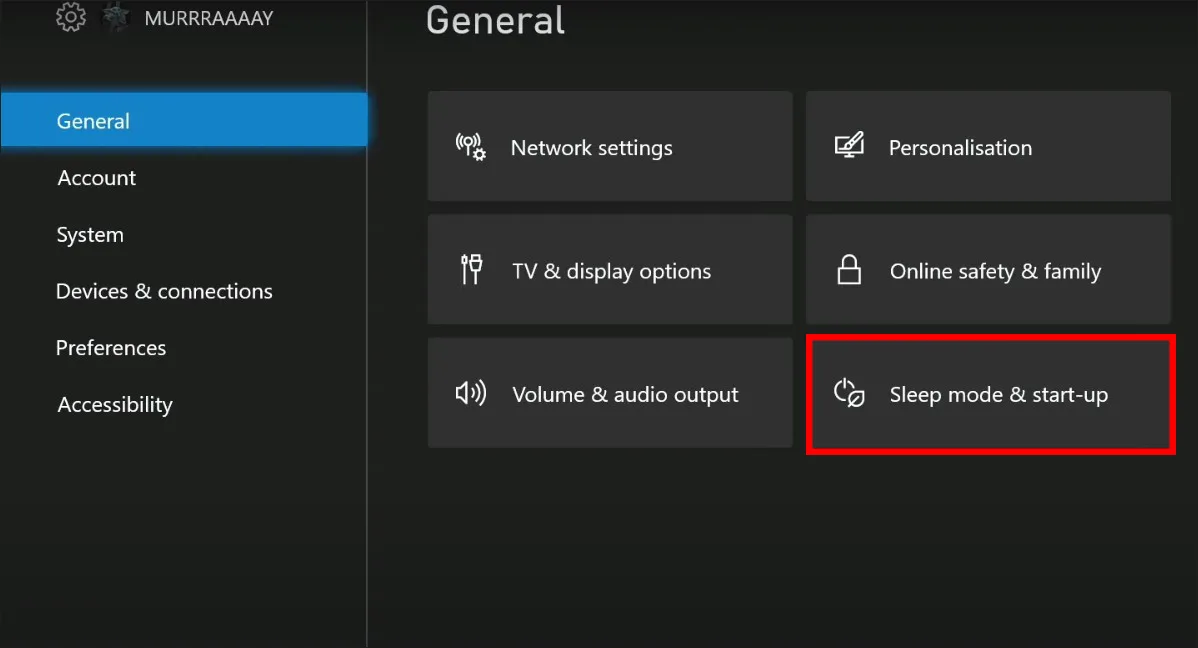
Select General, then Sleep mode & start-up.
Open Sleep mode & start-up under General. (Image: Alphr)
Set the power mode to Energy saver. On older software, also switch off Instant On.
Restart the console and check your NAT type again.
Choose Energy saver as the power mode. (Image: Alphr)
Fix 4: Forward the Xbox Ports Manually
If your router does not support UPnP or UPnP will not produce an Open NAT, forward the ports by hand. Give the Xbox a fixed IP address first so the rule keeps pointing to it.
On the Xbox, go to Settings, General, Network settings, then Advanced settings, and write down the IP address.
Sign in to your router’s admin page and open the port forwarding section.
Create rules that send these ports to the Xbox IP address: UDP 88, UDP and TCP 3074, UDP and TCP 53, TCP 80, UDP 500, UDP 3544 and UDP 4500. Choose “both” where the router offers it.
Save the rules, restart the router and the Xbox, then check your NAT type and run the multiplayer connection check.
Do not put the console in the router’s DMZ as a shortcut. It exposes the Xbox directly to the internet, and it should not be combined with UPnP or port forwarding.
Fix 5: Check for Double NAT, Hotspots and Carrier NAT
If every step above fails, the problem may sit upstream of your router.
Double NAT: an ISP modem/router combo plus your own router can create two layers of NAT. Put one device in bridge mode, or connect the Xbox to the device that holds your public IP address. The Network screen shows “Double NAT detected” when this is the cause.
Carrier-grade NAT: some ISPs, including some 5G home internet and satellite plans, share one public address between many customers, so router settings cannot open your NAT. A WAN address in the 100.64 to 100.127 range suggests this. Contact your ISP and ask about a public IP address.
PC hotspot: sharing a laptop connection adds a second NAT layer and often leaves the Xbox on Strict or Moderate.
IPv6: if your ISP supports it, enabling IPv6 on the router can avoid many NAT problems.
Why Is My Xbox NAT Still Strict?
If you worked through the fixes and the result has not changed, go through this short list. Confirm UPnP is actually on and saved, restart both devices after every change, and check that the port rules point to the console’s current IP address. A wired connection to the router removes Wi-Fi variables when you are chasing a stubborn result. If Double NAT or a carrier-grade address is the cause, only a modem setting or your ISP can change it.
Final Thoughts on How to Change NAT Type on Xbox
For most people, turning on UPnP and restarting the router and console is all it takes to change NAT type on Xbox from Strict or Moderate to Open. Move to manual port forwarding only if UPnP fails, and treat Double NAT or carrier-grade NAT as the likely culprit when nothing sticks. Moderate is fine for casual play, so stop once your party chat and lobbies work.
I'm Iain, and I write the step-by-step guides on GameCuki. I cover game tips and walkthroughs, PC gaming how-tos like settings, performance and troubleshooting, and practical guides for Steam, PlayStation, Xbox and Nintendo Switch. I build each guide from official game and platform documentation, write the steps in plain language and check them against the source before publishing. When a game or platform changes how something works, I update the guide. You can read my full process on our How We Review page.