Hardware accelerated GPU scheduling is a Windows graphics setting that lets your graphics card manage its own work queue instead of leaning on the CPU. It sits behind one toggle, it is a single restart away from being on or off, and it behaves differently from one PC to the next. This guide covers what HAGS does, how to switch it in Windows 11 and Windows 10 (including the registry method), whether you should leave it on for gaming, and what to try when the option is missing or your games start stuttering.
This Windows Setting Boosts Your FPS! – HAGS ON vs OFF Hardware Acceleration GPU Scheduling
What Is Hardware Accelerated GPU Scheduling (HAGS)?
Normally, the CPU gathers frame data, assigns the commands, and prioritizes them one by one so the GPU can render each frame. The older design relies on a high-priority CPU thread that coordinates GPU work from every app, with commands buffered across frames to hide the cost of submitting them. That buffering adds a little input latency.
With hardware accelerated GPU scheduling, a dedicated scheduling processor on the graphics card takes over most of that work, including managing time slices and switching between GPU engines. Windows still decides which apps get priority. The goal is lower CPU overhead and slightly better latency, though for most people the change is meant to be invisible rather than a dramatic speed boost.
The feature arrived with the Windows 10 May 2020 Update and needs a WDDM 2.7 or newer graphics driver that exposes it. It shipped as opt-in and off by default on Windows 10 because it changes how the driver model works.
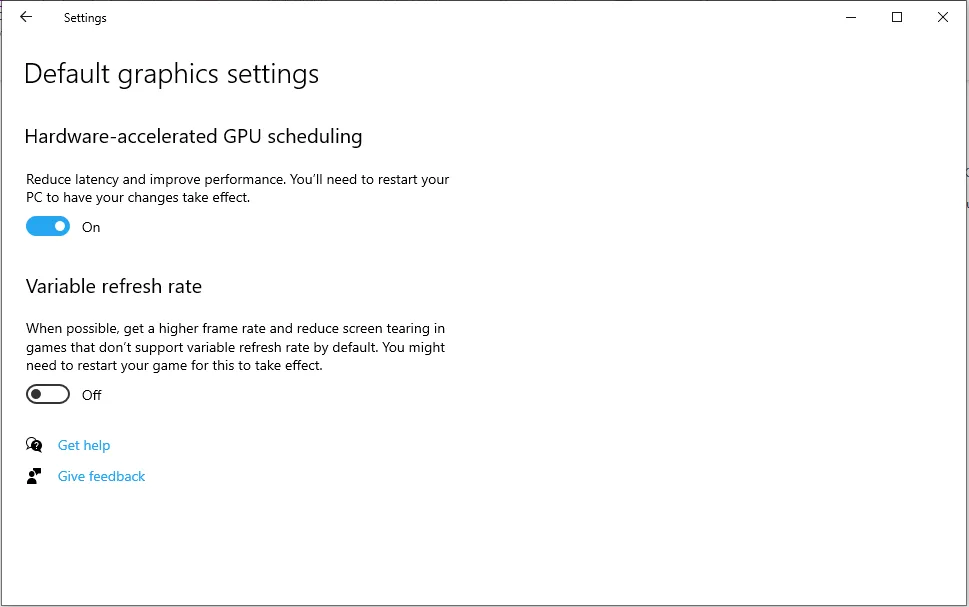
The HAGS toggle on Windows 10, with its on-screen description. (Image: Microsoft)
What You Need Before You Turn HAGS On
Windows: Windows 10 version 2004 (May 2020 Update) or later, or Windows 11. Fresh installs of Windows 11 usually come with it enabled, while a Windows 11 upgrade from Windows 10 tends to keep whatever you had before.
GPU: an NVIDIA GeForce GTX 10-series or newer, or an AMD Radeon RX 5600 series or newer.
Driver: the latest driver from NVIDIA or AMD, which must support WDDM 2.7 or higher. Update it first, since an old driver is the most common reason the toggle never shows up.
How to Turn On Hardware Accelerated GPU Scheduling in Windows 11
Press Windows + I to open Settings.
Go to System, then select Display.
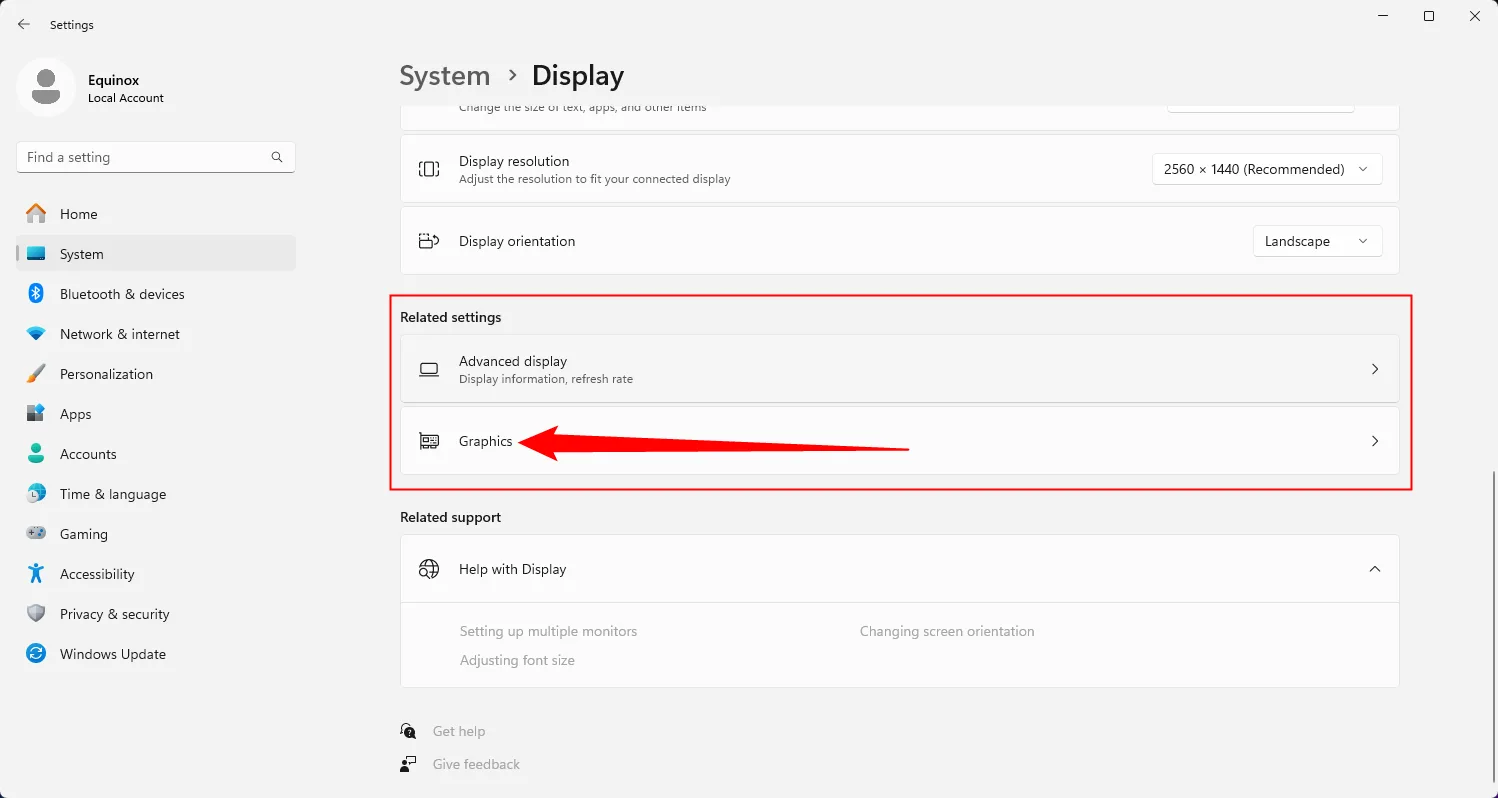
Under Related settings, select Graphics.
Open Graphics under Related settings. (Image: How-To Geek)
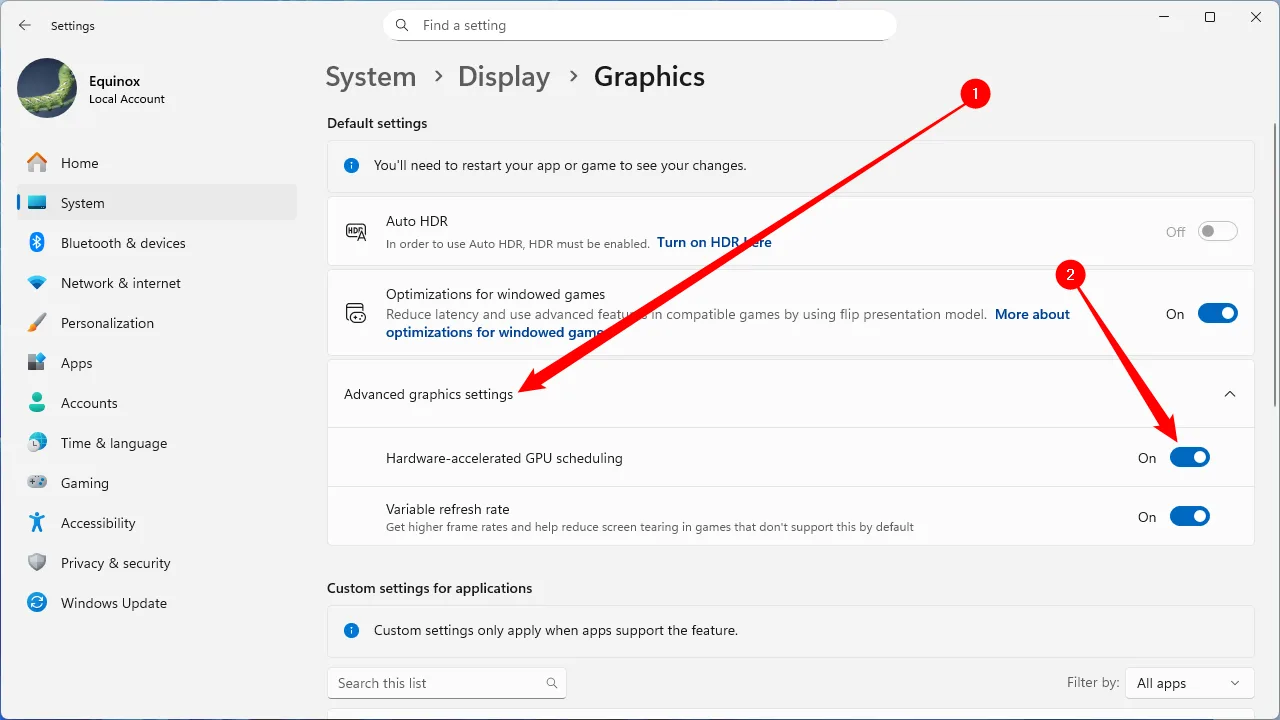
Open Advanced graphics settings, then switch the Hardware-accelerated GPU scheduling toggle to On. Approve the User Account Control prompt if one appears.
Expand Advanced graphics settings and switch the toggle to On. (Image: How-To Geek)
Close Settings and restart your PC so the change applies.
To turn it off again, follow the same steps and flip the toggle to Off, then restart.
How to Turn On Hardware Accelerated GPU Scheduling in Windows 10
Method 1: Settings app
Press Windows + I and select System.
Click Display in the left sidebar.
Scroll to the bottom of the right pane and choose Graphics settings.
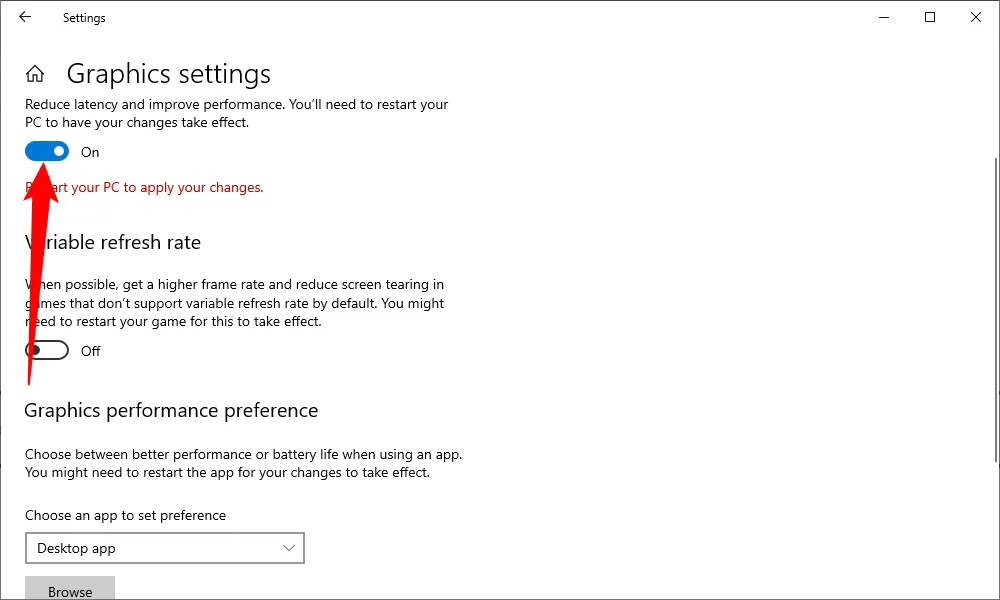
Switch the toggle on, then restart. (Image: How-To Geek)
Switch Hardware-accelerated GPU scheduling to On.
Close Settings and restart your PC.
Method 2: Registry Editor
Use this route if you prefer the registry or the toggle will not respond. Back up the registry or create a restore point first, since a wrong edit can cause problems.
Press Windows + R, type regedit, press Enter, and click Yes on the User Account Control prompt.
Paste this path into the address bar and press Enter: ComputerHKEY_LOCAL_MACHINESYSTEMCurrentControlSetControlGraphicsDrivers
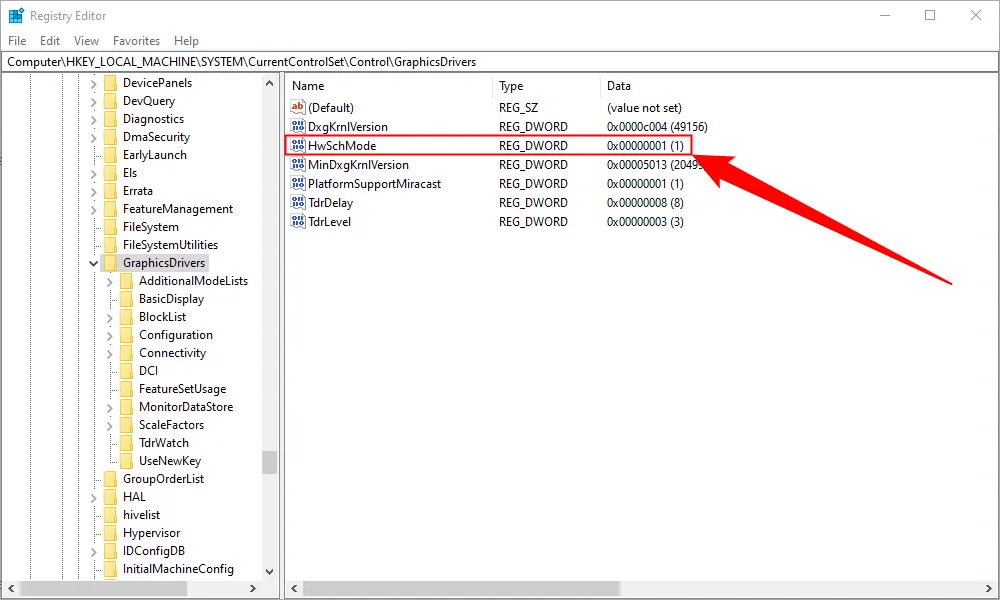
In the right pane, double-click HwSchMode. If it does not exist, create a new DWORD (32-bit) value with that name.
Double-click HwSchMode in the GraphicsDrivers key. (Image: How-To Geek)
Set Value data to 2 with the Base set to Hexadecimal, then click OK.
Set Value data to 2 to turn HAGS on. (Image: How-To Geek)
Close Registry Editor and restart your PC.
Use 2 to enable HAGS and 1 to disable it. The registry method works on Windows 11 too. It only has an effect on a GPU and driver that actually support the feature.
How to Check Whether HAGS Is On
Open Settings, go to System, then Display, then Graphics (on Windows 10, Graphics settings) and look at the Hardware-accelerated GPU scheduling toggle. If it reads On, the feature is active. If the toggle is missing entirely, your hardware or driver does not support it.
Should You Turn Hardware Accelerated GPU Scheduling On or Off?
If your graphics card supports it and everything runs fine, leaving it on is reasonable. It can reduce CPU overhead in demanding work such as gaming and video editing, though results depend on the CPU, GPU, driver, and the game, and no particular hardware combination is known to benefit most.
Turn it off if you notice problems that started after enabling it: apps that stop working, graphics glitches, random freezes, or stutter. On some systems HAGS can cause lockups during video playback or video calls, with the System Interrupts process spiking to 100% CPU, and disabling it stops the problem. Turning it off is a one-toggle fix, so the cost of trying both is small. Change one setting at a time and play the same game for a while in each state before you decide.
Hardware Accelerated GPU Scheduling Not Showing or Not Working?
The toggle is missing: the GPU or its driver does not support WDDM 2.7 or higher. Update your graphics driver from NVIDIA or AMD first. Integrated graphics on some laptops and handhelds do not support the feature, and a registry edit will not force it on.
Check your GPU model: open Device Manager, expand Display adapters, and compare the card against the requirements above.
The change does not stick: confirm the registry path and the HwSchMode value name, make sure it is a DWORD, and restart the PC.
Stutter, crashes, or inconsistent performance after enabling it: turn HAGS off, update the GPU driver or roll back to a stable one, and restart.
Windows will not load after a registry edit: boot into Safe Mode, then delete or correct the HwSchMode value, or restore your registry backup.
Is Hardware Accelerated GPU Scheduling Worth Using?
For most PC gamers with a supported NVIDIA or AMD card and a current driver, hardware accelerated GPU scheduling is worth leaving on, since it is built into Windows and can lighten the load on your CPU. Treat it as a setting to verify rather than a guaranteed upgrade: if your frame pacing gets worse or a game starts crashing, switch it off and move on. If you are chasing more performance from the same card, our guide on how to overclock your GPU is a good next step.
I'm Iain, and I write the step-by-step guides on GameCuki. I cover game tips and walkthroughs, PC gaming how-tos like settings, performance and troubleshooting, and practical guides for Steam, PlayStation, Xbox and Nintendo Switch. I build each guide from official game and platform documentation, write the steps in plain language and check them against the source before publishing. When a game or platform changes how something works, I update the guide. You can read my full process on our How We Review page.