

You have probably seen a “Vertical Sync” toggle in almost every PC game’s video menu and wondered what it actually changes. So, what is VSync? It is a setting that makes your graphics card hold each frame until your monitor is ready to show it, which stops the picture from splitting into mismatched slices. This guide explains how VSync works, what it costs you, how it compares to G-Sync, FreeSync and Fast Sync, and when to leave it on or switch it off. If tearing is already bugging you, our screen tearing fix guide walks through the fixes.
What Is VSync and Should You Turn It On for Gaming?
Table of Contents
What Is VSync?
VSync is short for vertical synchronization. It is a graphics setting that locks the rate at which your game delivers frames to the refresh rate of your monitor. A 60 Hz monitor refreshes 60 times per second, so with VSync on, the game is held to roughly 60 frames per second on that screen.
The reason it exists is screen tearing. Tearing shows up when the graphics card produces frames faster than the monitor can display them, so the monitor ends up drawing parts of two different frames in one refresh. You see it as a horizontal break where the top of the image and the bottom no longer line up, most noticeably during fast camera movement.
How Does VSync Work?
With VSync enabled, the graphics card waits for the monitor to finish its current refresh cycle before sending the next frame. Only complete frames reach the screen, so there is no seam to see. The trade is that the GPU sometimes sits idle waiting for its turn, and your frame rate can never exceed the monitor’s refresh rate.
That waiting is also where the downsides come from. If the game cannot keep up with the refresh rate, VSync can push the frame rate lower still to stay in step, which looks like stutter. And because frames are held back, the gap between a mouse click and the result on screen can grow.
VSync Pros and Cons
Pros
- Removes screen tearing in most games.
- Gives a smoother, more consistent look when your GPU can hold the refresh rate.
- Can improve frame pacing.
- Limits the frame rate to the monitor’s refresh rate, which can reduce GPU load and heat.
- Works on almost any monitor, with no special hardware required.
Cons
- Can add input lag, so it is a poor fit for fast competitive shooters.
- Can cause stutter when your frame rate falls below the monitor’s refresh rate, so it is a poor fit for a GPU that struggles to keep up with a game.
- Caps frame rate at the refresh rate, so players who want the highest possible FPS will not like it.
VSync vs G-Sync vs FreeSync
G-Sync (Nvidia) and FreeSync (AMD) solve the same tearing problem in the opposite direction. Instead of making the GPU wait for the monitor, they let the monitor change its refresh rate on the fly to match the frames the GPU sends. That removes tearing without the fixed cap and without most of the input lag, but it needs a monitor that supports adaptive sync. FreeSync is built on an open standard, and a G-Sync only monitor needs an Nvidia graphics card.
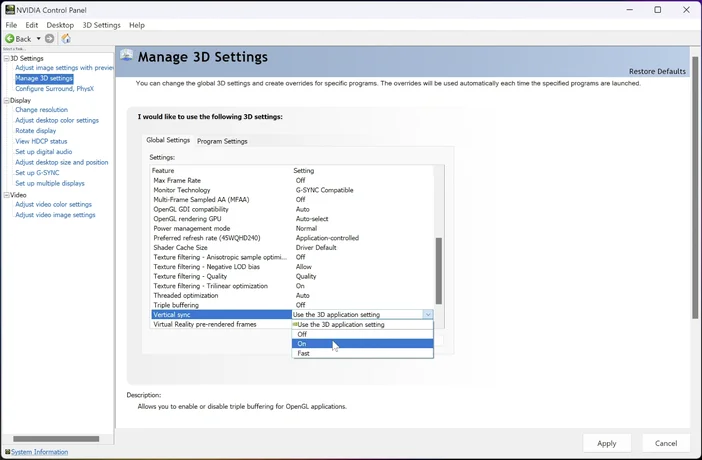
If you have a compatible monitor, adaptive sync is generally the better first choice. VSync still has a role as a backup. A common setup with G-Sync is to enable VSync in the Nvidia Control Panel (not in the game), so G-Sync handles low frame rates while VSync catches anything above the monitor’s maximum refresh rate. With FreeSync, leave VSync off to start and only add it if you still see tearing, knowing it may add input lag.
VSync vs Fast Sync and Enhanced Sync
Fast Sync is Nvidia’s alternative that lets the GPU render frames faster than the monitor refreshes and then shows only the newest complete frame. Enhanced Sync is the comparable option from AMD. Both aim to keep tearing down while avoiding some of the input lag of standard VSync. Adaptive VSync is a different variation that turns VSync on only while your frame rate is at or above the refresh rate and off below it.
| Option | How it works | Needs special monitor? | Main trade-off |
|---|---|---|---|
| VSync | GPU waits for the monitor’s refresh | No | Input lag, possible stutter |
| Adaptive VSync | VSync on at or above refresh rate, off below | No | Tearing can return below refresh rate |
| Fast Sync / Enhanced Sync | GPU renders freely, newest full frame is shown | No | Works best when FPS is well above refresh rate |
| G-Sync / FreeSync | Monitor refresh follows GPU output | Yes | Needs a compatible monitor and GPU |
Should You Turn VSync On or Off?
Turn it on when you see tearing, when you play single-player or story games where visuals matter more than split-second response, or when your frame rate stays above your monitor’s refresh rate.
Turn it off in fast competitive games where every millisecond counts, when you notice stutter with it on, when your frame rate sits below your refresh rate, or when you would rather have the highest FPS than a tear-free picture. On a very high refresh rate monitor (144 Hz or 240 Hz) tearing is also less noticeable, so many players skip it.
VSync is a per-game setting in most titles, and your graphics driver’s control panel lets you set it per game or for everything. In the Nvidia Control Panel, open Manage 3D Settings and find the Vertical sync entry.
What is VSync? (and should you turn it on?)
VSync FAQ
Does VSync reduce FPS?
It can. VSync caps your frame rate at the monitor’s refresh rate, so a GPU that could render more will be held back. It does not make the game run faster.
Does VSync cause input lag?
It can add some, because frames wait for the monitor before they are shown. The effect matters most in fast competitive games.
Can VSync cause stuttering?
Yes, especially when your frame rate drops below the monitor’s refresh rate and VSync forces it lower still to stay in sync.
Is VSync better on or off?
On for single-player games with visible tearing, off for competitive play or when it causes stutter. With a G-Sync or FreeSync monitor, adaptive sync is usually the better primary fix.
Is VSync the same as limiting FPS?
No. A frame limiter only caps how many frames the GPU renders. VSync also synchronizes frame delivery with the monitor’s refresh cycle.
Can I use VSync on a laptop or with multiple monitors?
Yes, as long as your graphics card and display support it. With several monitors, it can affect performance across the connected displays.
Is VSync Worth Using? Our Take
So, what is VSync good for today? It is a simple, universal fix for tearing that costs nothing but some responsiveness. Use it for story-driven and slower games on a standard 60 Hz or 75 Hz screen, skip it in competitive shooters, and if you own a G-Sync or FreeSync monitor, let adaptive sync do the work and keep VSync as a backup. If it makes a game feel sluggish, turning it off is always one click away.