in one line give me all the keywords for this blog
Screen tearing is the horizontal split where the top of the picture shows one moment and the bottom shows the next, and it is easiest to spot when you swing the camera sideways. Learning how to fix screen tearing usually takes a few minutes in your settings, because the cause is almost always a timing mismatch between your graphics card and your display. This guide covers the fixes in the order worth trying them, with exact steps for Windows, NVIDIA, AMD, PS5 and Xbox.
How to REMOVE ALL screen tearing WITHOUT using Vsync
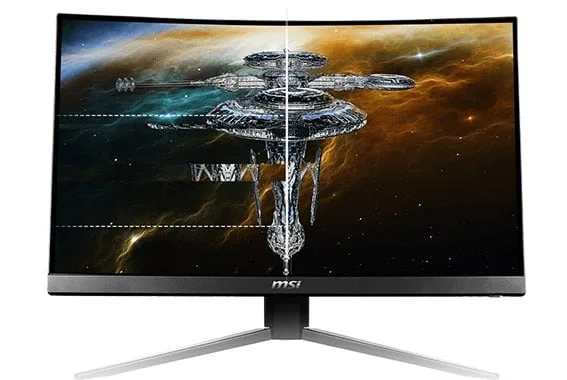
Your graphics card renders frames at a speed that changes from second to second, while a standard monitor redraws the screen at a fixed rate, such as 60 times per second on a 60Hz panel. Tearing happens when the GPU hands over a new frame while the monitor is still drawing the previous one, so two frames end up on screen at once.
An example of screen tearing: parts of the picture are offset where two frames meet. (Image: Display Ninja)
The usual triggers are a frame rate well above the refresh rate, a wrong refresh rate or resolution setting, an outdated or buggy graphics driver, and a monitor that cannot keep up. A cable that is loose or the wrong type can also cause display glitches. If you only want the short version of what VSync does, our explainer on what VSync is covers it. Here the focus is on fixing the problem.
Quick Fixes to Try First
These take a couple of minutes and often solve the problem.
Push the monitor cable in firmly at both ends. If you have a spare, swap the cable to rule out a faulty one.
Use the monitor’s on-screen menu to confirm the right input is selected.
Close apps you do not need in the background, since heavy memory use can hurt performance.
Check that the game runs at your monitor’s native resolution.
How to Fix Screen Tearing on Windows
Start by confirming Windows is driving your monitor at its full refresh rate.
Open Settings, then System, then Display, then Advanced display.
Next to Choose a refresh rate, pick the highest rate your monitor supports. A rate with an asterisk does not support your current resolution and will change it.
Look at the same panel for the line that says whether your display supports variable refresh rate (VRR).
If your display and drivers support VRR, open Settings, System, Display, Graphics, then Advanced graphics settings, and turn on Variable refresh rate. This helps tearing in some DirectX 11 games that do not support VRR on their own. The toggle only shows up when your drivers and monitor are VRR capable.
Update or Roll Back Your Graphics Driver
Outdated drivers are a common cause of display problems, so install the newest driver for your GPU from NVIDIA, AMD or Intel. If tearing appeared right after an update, install the previous driver version to see if the new one is the culprit.
How to Fix Screen Tearing With NVIDIA G-Sync
G-Sync lets the monitor change its refresh rate to match your frame rate, which removes tearing without the delay VSync adds. Use a DisplayPort connection, since G-Sync is not available over older HDMI on PC monitors.
Right-click the desktop and open the NVIDIA Control Panel.
Under Display, click Set up G-SYNC.
Tick Enable G-SYNC, G-SYNC Compatible.
Choose Full screen mode, or Windowed and full screen mode if you play windowed games.
Go to Manage 3D settings and make sure Monitor Technology is set to G-SYNC Compatible.
Apply the changes.
FreeSync monitors can run in G-Sync Compatible mode on GTX 10-series and newer cards over DisplayPort. If the option never appears, your monitor may not support VRR, or its menu may need Adaptive-Sync turned on.
How to Fix Screen Tearing With AMD FreeSync
AMD Software turns FreeSync on automatically for compatible cards and displays, so the job is mostly checking that it is not blocked.
Open AMD Software: Adrenalin Edition from the Start menu.
Search for Display and open Display Settings.
Under Global Display, check that AMD FreeSync shows as enabled and note the tier your monitor reports.
For a single game, go to Gaming, then Games, select the game and set AMD FreeSync to On.
If FreeSync is missing, open the monitor’s own menu and turn on FreeSync or Adaptive-Sync. Some color or media presets disable it.
Cap Your Frame Rate Just Below Your Refresh Rate
VRR only works up to your monitor’s maximum refresh rate. Above that, tearing returns, so limit your frame rate a few frames under the maximum, for example 141 FPS on a 144Hz monitor.
Open the game’s video settings and look for a Max FPS or frame limiter option. Set it a few frames below your refresh rate.
If the game has no limiter, use the Max Frame Rate setting in the NVIDIA Control Panel, or Radeon Chill in AMD Software.
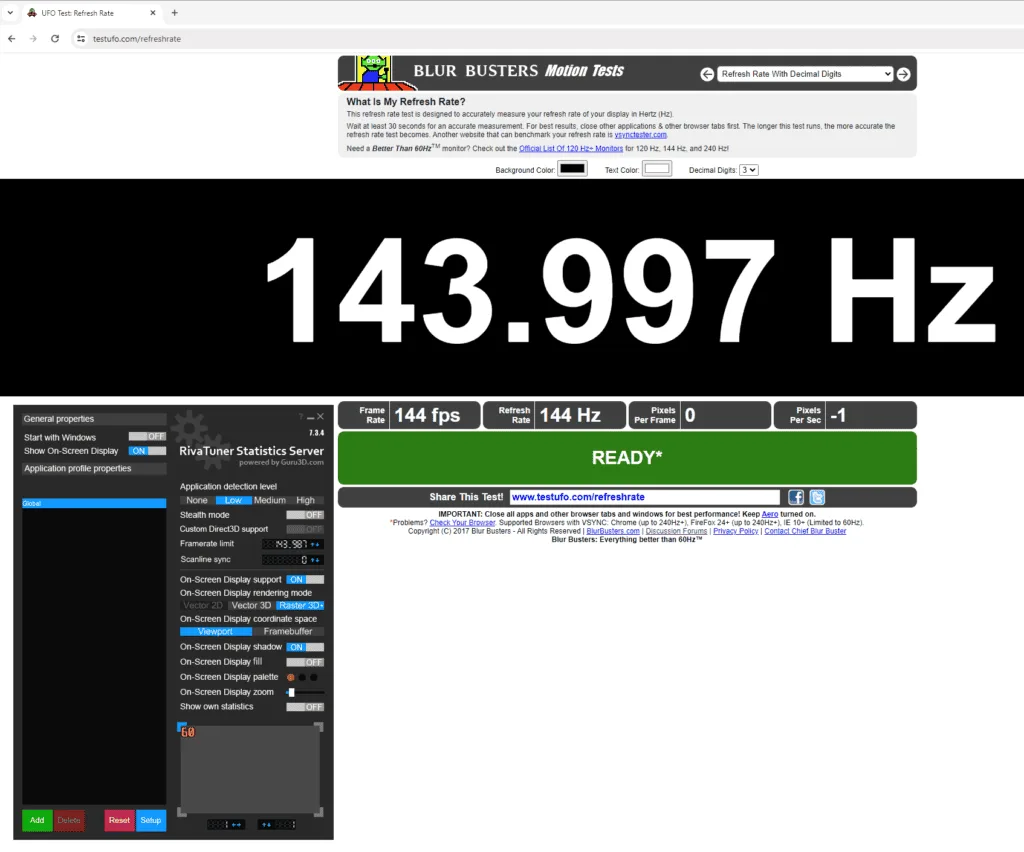
For the most precise limit, use RivaTuner Statistics Server (RTSS) and enter the cap in the Framerate limit box.
RTSS with the Framerate limit box set just under the monitor’s 144Hz refresh rate. (Image: Display Ninja)
VSync, Adaptive VSync, Fast Sync and Enhanced Sync
If your monitor has no VRR, VSync is the classic fix. It makes the GPU wait for the monitor, which removes tearing but adds input lag. It can also cause stutter when your frame rate drops under the refresh rate. Turn it on in the game’s video settings, or force it in the NVIDIA Control Panel or AMD Software.
Other options may work better depending on your hardware:
NVIDIA Adaptive VSync: keeps VSync on while your FPS is at or above the refresh rate, then switches it off below that, trading stutter for slight tearing. It needs a GTX 650 or newer.
NVIDIA Fast Sync and AMD Enhanced Sync: show the most recent complete frame instead of capping your FPS, so lag is lower than with VSync. They work best when your FPS is at least double the refresh rate, and they need a GeForce 900 series or AMD GCN card or newer.
In competitive shooters, many players leave VSync off for the lowest input lag and rely on a high refresh rate display to hide any tearing.
Other Settings That Can Cause Tearing
FreeSync or G-Sync conflicts: if tearing continues with VRR on, the GPU and display may not be fully compatible. Turn the feature off and see if the picture improves.
Frame limiter in one game: if tearing shows up in only one title and it has its own frame limit, try turning that limit off, provided your GPU can handle the higher frame rate.
Laptop power mode: on a laptop, switch to the high performance power plan so the GPU is not throttled.
How to Fix Screen Tearing on PS5
The PS5 supports variable refresh rate over HDMI 2.1, so you need a TV or monitor with HDMI 2.1 VRR.
Switch your TV or monitor to Game Mode. The PS5 may not detect VRR otherwise.
On the PS5, open Settings, then Screen and Video.
Set VRR to Automatic.
Turn on Apply to Unsupported Games so VRR also works in games without a dedicated patch.
If the VRR option does not show up, restart the console.
How to Fix Screen Tearing on Xbox
Xbox One S, One X, Series S and Series X support VRR, and your display must support FreeSync or Adaptive Sync.
Open Settings, then Video modes.
Tick Allow variable refresh rate.
Make sure your display supports FreeSync or Adaptive Sync, since the console looks for it on the display.
When a Monitor Upgrade Is the Answer
If tearing stays after every setting above, the display may simply be unable to keep up with your graphics card. A higher refresh rate makes tearing harder to see, though it will not remove it on its own, so pair it with VRR or a frame limiter.
Which Screen Tearing Fix Should You Use?
For most PC players with a G-Sync or FreeSync monitor, the answer to how to fix screen tearing is simple: turn on VRR over DisplayPort and cap your frame rate a few frames under the refresh rate. If your monitor has no VRR, use VSync in slower, single-player games and leave it off in fast competitive ones. Console players should switch VRR on in the console settings. Work through the list in order and stop as soon as the tearing is gone.
I'm Iain, and I write the step-by-step guides on GameCuki. I cover game tips and walkthroughs, PC gaming how-tos like settings, performance and troubleshooting, and practical guides for Steam, PlayStation, Xbox and Nintendo Switch. I build each guide from official game and platform documentation, write the steps in plain language and check them against the source before publishing. When a game or platform changes how something works, I update the guide. You can read my full process on our How We Review page.