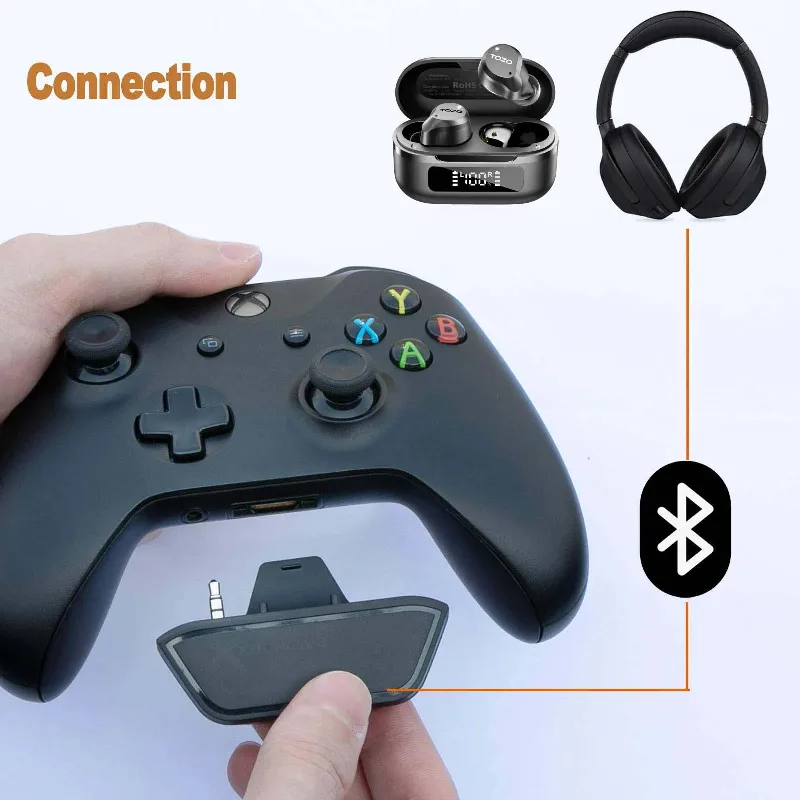
If you tried to figure out how to connect Bluetooth headphones to Xbox by opening the console settings, you probably found no Bluetooth menu for audio at all. Xbox consoles do not pair with standard Bluetooth headphones directly, but you can still get wireless sound by routing it through a small adapter, your TV, or your phone. This guide walks through each method for Xbox Series X, Series S and Xbox One, plus what happens to voice chat.
Want to see the setup first? This video shows the process:
How to Connect Any Bluetooth Headphones with Xbox Series X & S
Why You Can’t Connect Bluetooth Headphones to Xbox Directly
Xbox consoles do not support Bluetooth audio. Microsoft uses its own wireless protocol for controllers and headsets, so a regular pair of Bluetooth headphones has nothing on the console to pair with. The limit sits in the console, not in your headphones, which is why every working method below puts something between the Xbox and the headphones that handles the Bluetooth link for you.
PlayStation has the same limit, as our guide to connecting AirPods to PS5 explains. Each Xbox option has a trade-off. Adapters and TV routing can add audio delay, and phone and TV methods often lose the headphone microphone, so pick the one that fits how you play.
Method 1: Connect Bluetooth Headphones to Xbox With a Controller Adapter
A Bluetooth transmitter that plugs into the controller’s 3.5 mm headset jack is the closest thing to a direct connection. It receives the game audio from the controller and sends it to your headphones over Bluetooth. Check that your controller has the 3.5 mm jack first, because some early Xbox One controllers do not have one.
Charge the adapter if it has its own battery.
Plug the adapter into the 3.5 mm headset jack on the bottom of your Xbox controller.
Hold the adapter’s power button to turn it on, then hold it again to enter pairing mode. The light blinks rapidly when it is searching.
Put your headphones in Bluetooth pairing mode.
Wait for the adapter and headphones to connect. The light usually stops blinking once they are paired.
Start a game and check that sound comes through your headphones.
The adapter plugs into the controller headset jack and pairs with your headphones over Bluetooth. (Image: TOZO)
Turn off the adapter’s built-in microphone if you do not need it, and switch the adapter off when you finish to save battery. Cheaper adapters can compress audio or add static, and many do not carry your headphone microphone, so use a headset mic or the Xbox app for party chat.
Method 2: Use a Bluetooth-Enabled TV
If your TV can send audio to Bluetooth headphones, the sound path becomes Xbox to HDMI to TV to headphones. You need no extra hardware, but you will usually lose the headphone microphone, and some TVs leave game mode when Bluetooth audio is active.
Keep the Xbox connected to the TV over HDMI and set the TV to that HDMI input.
Put your headphones in Bluetooth pairing mode.
Open the TV’s Bluetooth or sound settings and choose the option to add a new device.
Select your headphones from the list.
Play a game and confirm the audio now comes from the headphones, not the TV speakers.
If your TV has no Bluetooth, a Bluetooth transmitter connected to the TV’s audio output can do the same job.
Method 3: Connect Bluetooth Headphones to Xbox With the Xbox App
The Xbox app on your phone or tablet can stream the game with Remote Play, so the audio plays on the phone and you can listen through Bluetooth headphones paired to the phone. It is a workaround and takes a little fiddling.
Install the Xbox app on your iOS or Android device and sign in with your Microsoft account.
Make sure your Xbox and your phone are on the same network and that remote features are enabled on the console.
Pair your Bluetooth headphones to the phone, and make sure the volume is up and the phone is not muted.
Start Remote Play from the Xbox app.
Play with the stream on your phone, and the game audio comes through the headphones paired to it.
Streaming adds some delay, so this method suits slower games better than fast shooters. You can also join party chat from the Xbox app and use your Bluetooth headphones for voice.
Method 4: Use a Wired Connection or a Headset Made for Xbox
If your headphones also have a 3.5 mm input, plug a cable from the headphones into the controller’s headset jack. It is wired, not Bluetooth, but it gives game audio and chat with the lowest delay of any option here.
For a fully wireless setup with a working microphone, a headset built for Xbox is the cleaner fix. These headsets connect through Xbox’s own wireless link or a USB 2.4 GHz transmitter instead of Bluetooth, which keeps latency low and supports chat. Some also include Bluetooth for your phone, so you are not choosing between console audio and calls.
Bluetooth Headphones on Xbox: Quick Comparison
Method
Extra gear
Microphone
Main drawback
Controller adapter
Bluetooth adapter
Often not supported
Possible delay and lower audio quality
Bluetooth TV
None
Usually not supported
Can leave TV game mode
Xbox app
Phone or tablet
Chat through the app
Stream delay, phone must stay on
Wired or Xbox headset
Cable or headset
Supported
Not Bluetooth
Bluetooth Headphones Not Working on Xbox? Quick Fixes
Nothing to pair with: Do not look for Bluetooth in Xbox settings. Pair the headphones with the adapter, TV or phone instead.
Adapter will not pair: Switch the headphones off, restart pairing mode on both devices and keep them close together.
Silence after pairing: Confirm the adapter is fully seated in the controller jack and check the volume on the headphones, adapter and controller.
Audio lags behind the picture: Try a different adapter or switch to a wired or Xbox headset, since Bluetooth adds delay.
People cannot hear you: Most adapters carry sound only, so use a separate microphone or party chat through the Xbox app.
Which Way Should You Connect Bluetooth Headphones to Xbox?
For casual play, a controller adapter is the simplest way to connect Bluetooth headphones to Xbox, as long as you accept delay and a separate mic for chat. If you play competitive games or talk a lot in party chat, skip Bluetooth and use a wired connection or a headset made for Xbox. The TV and phone methods are best kept as backups for quiet late-night sessions.
FAQ
Does Xbox Series X or S support Bluetooth headphones?
No. Xbox consoles do not support Bluetooth audio, so you need an adapter, your TV, your phone or a headset built for Xbox.
Can you connect Bluetooth headphones to Xbox without an adapter?
Not directly. You can route audio through a Bluetooth TV or the Xbox app on your phone, or plug wired headphones into the controller jack.
Will a Bluetooth adapter affect audio quality?
It can. Cheaper adapters may add delay, static or reduce bass, and many do not support the headphone microphone.
Can I use AirPods on Xbox?
Yes, through the same workarounds. Pair the AirPods with a controller adapter, a Bluetooth TV or your phone.
I'm Iain, and I write the step-by-step guides on GameCuki. I cover game tips and walkthroughs, PC gaming how-tos like settings, performance and troubleshooting, and practical guides for Steam, PlayStation, Xbox and Nintendo Switch. I build each guide from official game and platform documentation, write the steps in plain language and check them against the source before publishing. When a game or platform changes how something works, I update the guide. You can read my full process on our How We Review page.