Xbox controllers work with any Windows PC, and that includes the Xbox Elite Series 2. If you are not sure how to connect Xbox controller to PC, there are three ways to do it: a USB cable, Bluetooth, or the Xbox Wireless Adapter. Each one takes a minute or two, and the steps below walk through all three with pictures.
Want to see each method in action? This video covers USB, Bluetooth and the wireless adapter step by step:
How to Connect Xbox Controller to PC – ALL METHODS
1. Connect an Xbox Controller to PC With a USB Cable
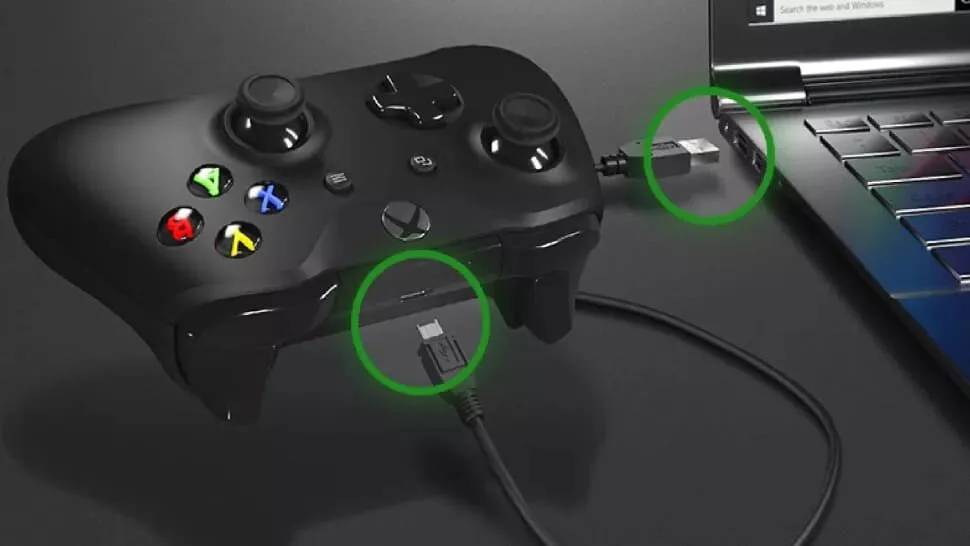
Plugging in a cable is the simplest method, and it works with every Xbox One and Xbox Series X|S controller. You only need a cable that fits your controller: micro-USB for Xbox One pads, USB-C for Xbox Series X|S pads.
Plug the small end of the cable into the controller.
Plug the USB-A end into your PC. Windows recognizes the controller on its own once it is connected.
One end goes into the controller, the other into a USB port on the PC.
Tip: if the PC does not pick up the controller after you plug it in, press the Xbox button to turn the controller on. If it still does not show up, try another cable or USB port, since a charge-only cable or a loose port is the usual cause. Need a new pad? Our best Xbox controller picks cover the current options.
2. Connect an Xbox Controller to PC Over Bluetooth
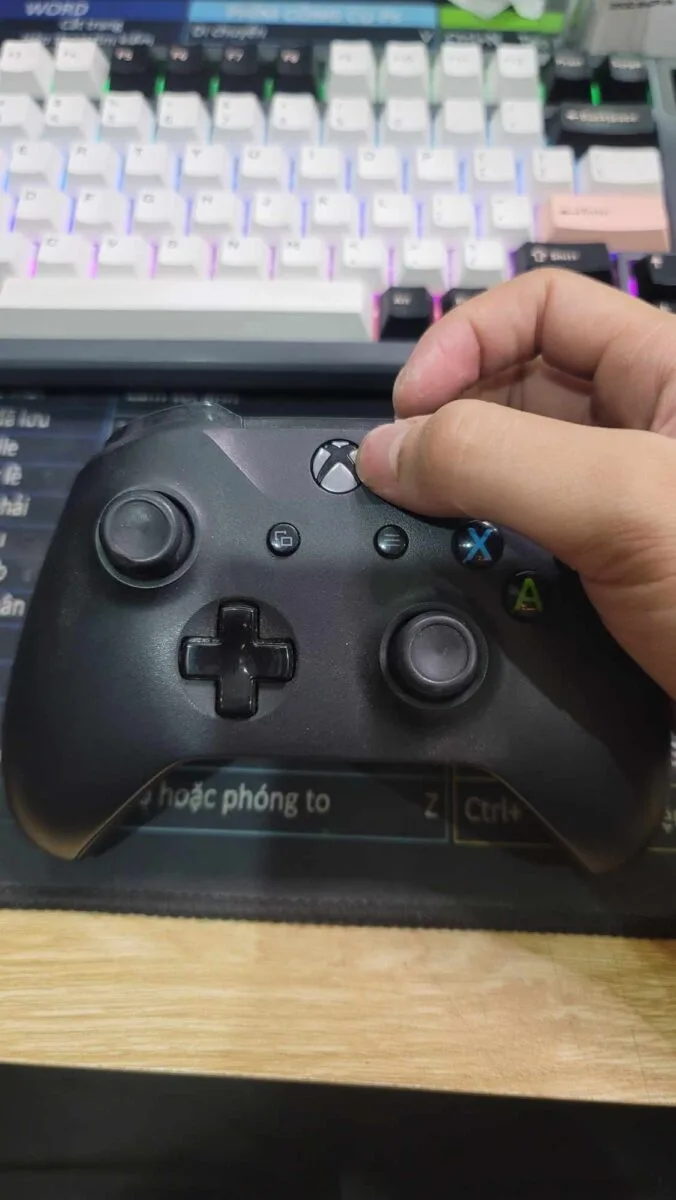
Step 1: Press the Xbox button on the controller to turn it on.
Press the Xbox button to power the controller on.
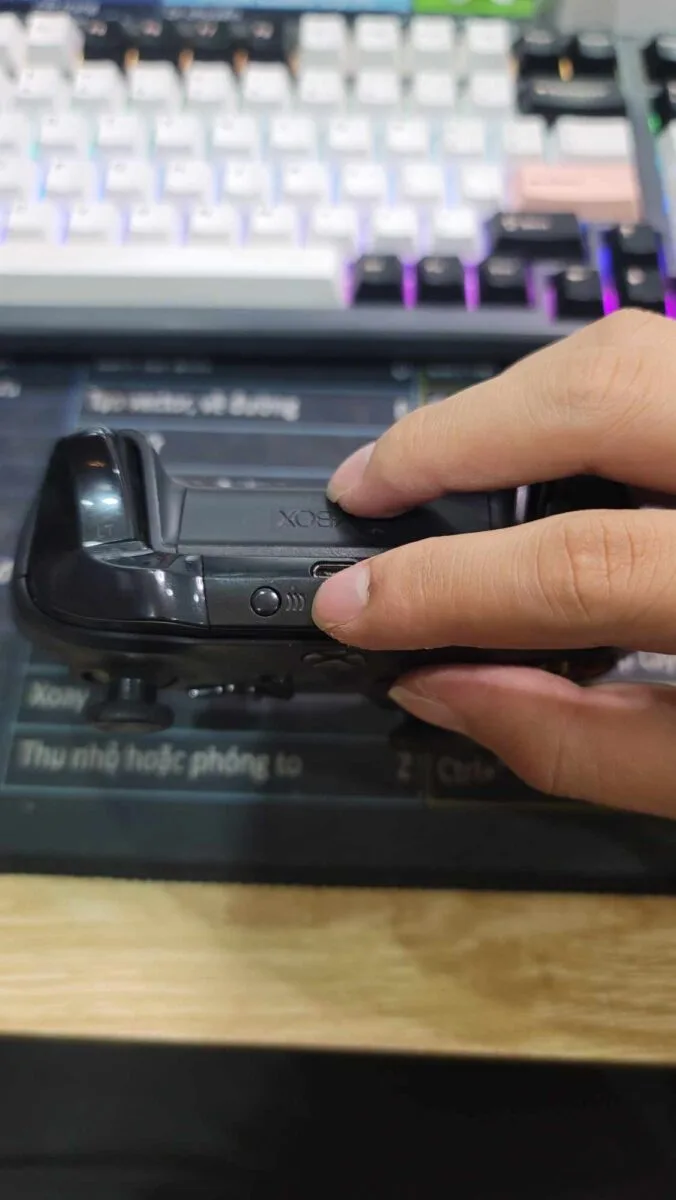
Step 2: Find the small Pair button on the top edge of the controller, next to the USB port. Hold it for 2 to 3 seconds until the Xbox button starts flashing. The controller is now in pairing mode.
Hold the Pair button until the Xbox button flashes.
Step 3: Type Settings into the search bar on the Windows taskbar and open it.
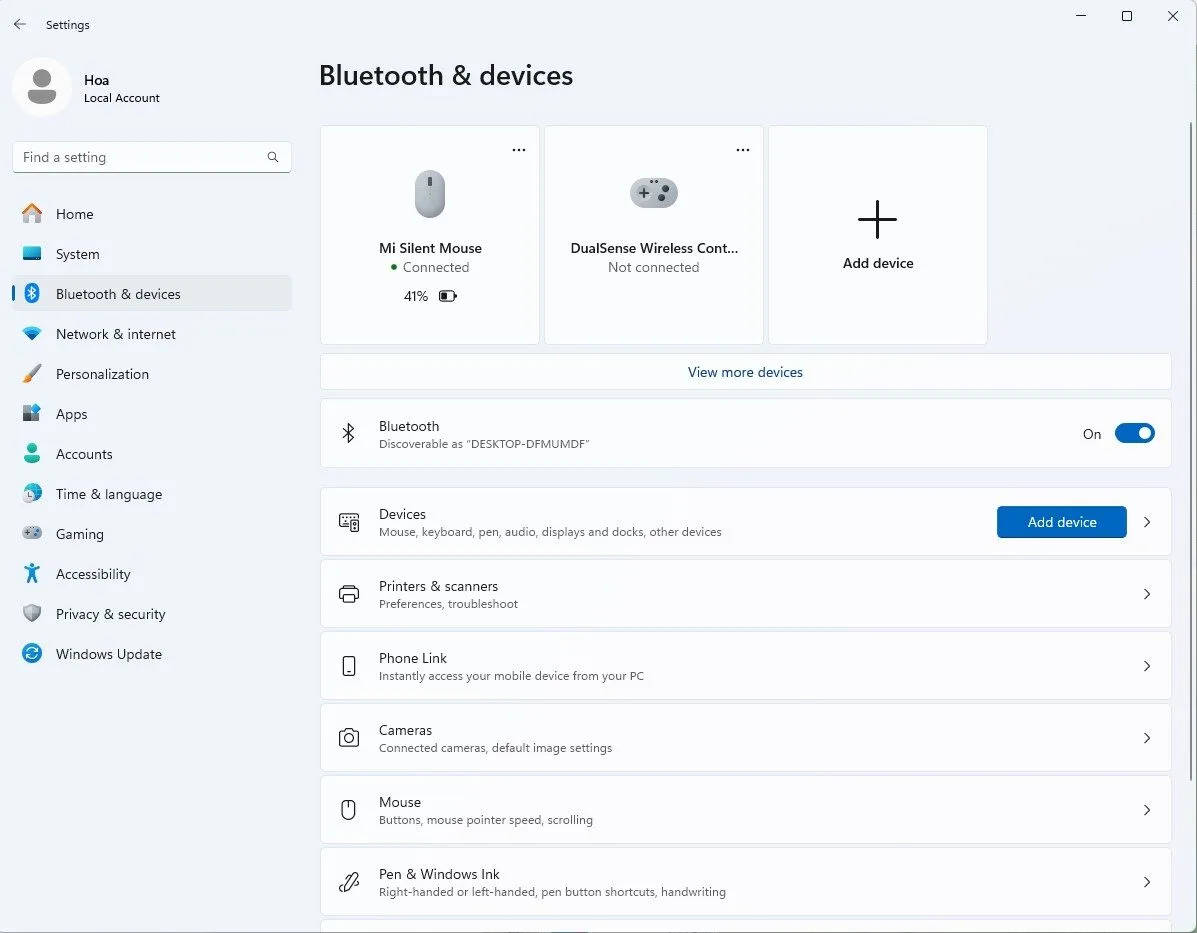
Step 4: Go to Bluetooth & devices, make sure Bluetooth is on, then click Add device.
In Windows 11, Add device sits at the top of the Bluetooth & devices page.
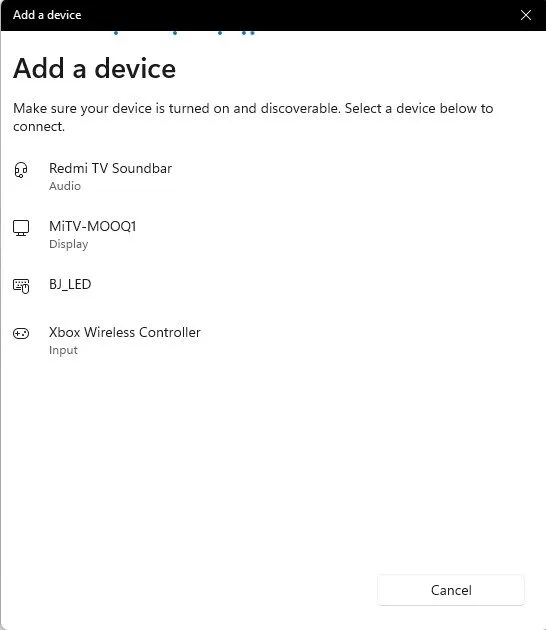
Step 5: Choose Bluetooth. Windows searches for nearby devices. When Xbox Wireless Controller appears in the list, click it.
The controller shows up as Xbox Wireless Controller.
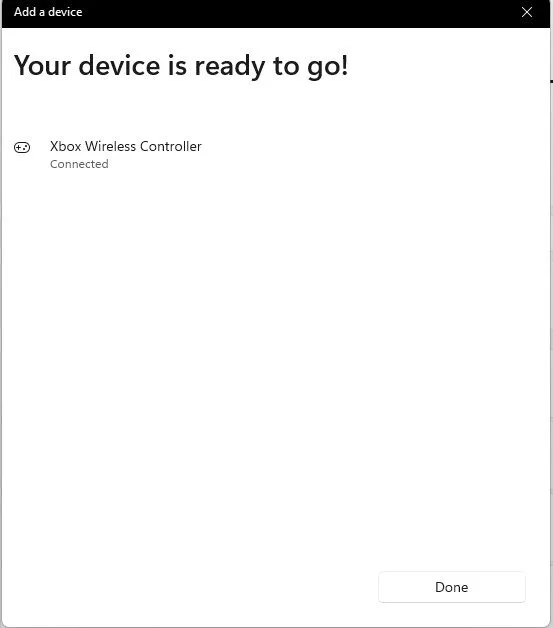
When Windows says Your device is ready to go, the controller is paired and the Xbox button stays lit.
The confirmation screen once pairing finishes.
Older Xbox One controllers without Bluetooth will not show up in this list. Use a cable or the wireless adapter with those.
3. Connect an Xbox Controller to PC With the Xbox Wireless Adapter
If your PC has no Bluetooth, or the Bluetooth connection keeps dropping, the Xbox Wireless Adapter for Windows is the fix. It is a small USB dongle made for Xbox controllers.
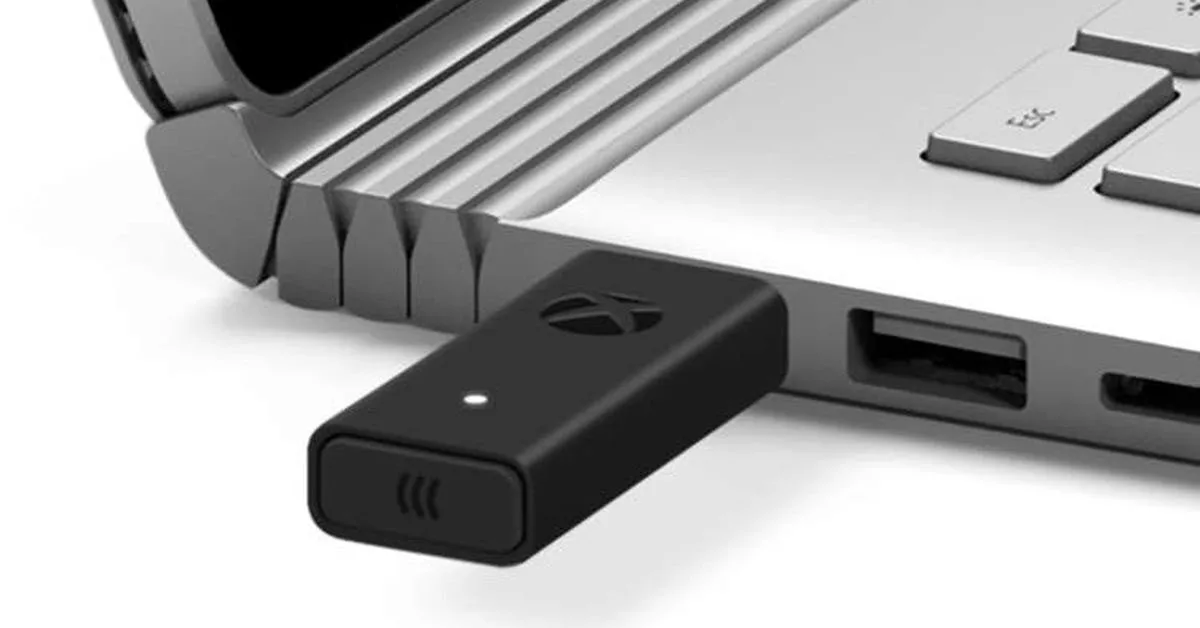
Step 1: Plug the adapter into a USB port on your PC.
The Xbox Wireless Adapter plugs into any free USB port.
Step 2: Press the Xbox button on the controller to turn it on.
Step 3: Press the button on the adapter, then hold the Pair button on the controller until the Xbox button flashes.
Step 4: If the controller does not connect by itself, open Settings and go to Bluetooth & devices, then Add device.
Step 5: This time choose Everything else instead of Bluetooth. Windows searches through the adapter. Select your Xbox controller when it appears, and you are connected.
How to Use an Xbox Controller on Steam
Once Windows sees the controller, Steam usually picks it up too, since most PC games support Xbox controllers natively. To make sure it is set up:
Connect the controller using any method above.
In the Steam desktop client, go to Steam, then Settings, then Controller.
Turn on Steam Input for Xbox controllers (older Steam versions call it Xbox Configuration Support).
To change bindings for one game, right-click it in your library and open its controller layout. This option only shows up while a controller is connected.
If a game reacts twice to every button press, Steam Input and the game are both reading the controller. Turn Steam Input off for that game and check its in-game controller settings. For more on Steam-friendly pads, see our best game controller for PC and Steam guide.
I'm Iain, and I write the step-by-step guides on GameCuki. I cover game tips and walkthroughs, PC gaming how-tos like settings, performance and troubleshooting, and practical guides for Steam, PlayStation, Xbox and Nintendo Switch. I build each guide from official game and platform documentation, write the steps in plain language and check them against the source before publishing. When a game or platform changes how something works, I update the guide. You can read my full process on our How We Review page.