

Your keyboard glows white and you would rather have red, blue or a full rainbow. How to change keyboard backlight color depends on one thing: who controls the lights on your machine. Some laptops cycle colors with a single Fn shortcut, others hand the job to a maker app, and Windows 11 can take over the lights from its own Settings page. This guide walks through each route, then covers what to do when the color refuses to change.
How to Change Keyboard Backlight Color: Laptop and PC Keyboard Methods
GameCuki is reader-supported. When you buy through links on our site, we may earn an affiliate commission at no extra cost to you. As an Amazon Associate I earn from qualifying purchases. Learn more.
Table of Contents
- What You Need to Change Keyboard Backlight Color
- Check That Your Keyboard Can Change Color
- How to Change Keyboard Backlight Color in Windows 11
- How to Change Keyboard Backlight Color on a Dell Laptop
- How to Change Keyboard Backlight Color on an ASUS Laptop
- How to Change Keyboard Backlight Color on an MSI Laptop
- How to Change Keyboard Backlight Color on a Lenovo Legion
- How to Change Keyboard Backlight Color on an HP OMEN Laptop
- How to Change the Backlight on an External Keyboard
- Keyboard Backlight Color Not Changing? Try These Fixes
- Final Thoughts on How to Change Keyboard Backlight Color
What You Need to Change Keyboard Backlight Color

Logitech G213 Prodigy Wired RGB Gaming Keyboard
A full-size wired keyboard with five customizable lighting zones and more than 16.8 million colors through Logitech G Hub, a simple way to get color control if your laptop only has white lighting.
Check Price on Amazon
Logitech G515 Lightspeed TKL Wireless Gaming Keyboard
A slim tenkeyless keyboard with LIGHTSYNC RGB lighting that connects over LIGHTSPEED wireless, Bluetooth or a wired cable.
Check Price on AmazonHow To Change Color in Laptop Keyboard (2025) – Step by Step
Check That Your Keyboard Can Change Color
Not every backlit keyboard can show more than one color. Many laptops only have a single white backlight, and on those models you can adjust brightness but not color. A keyboard that supports color is usually listed as an RGB backlight keyboard, or a per-key RGB backlight keyboard, in the model’s specifications.
- Search for your exact model name on the maker’s website and open its specifications page.
- Look for “RGB Backlight Keyboard” or “Per-Key RGB Backlight Keyboard” in the keyboard entry.
- If neither label is there, the keyboard does not support RGB color.
If your keyboard turns out to be white only, an external RGB keyboard is the easy fix, and the last section before the fixes covers how those work.
How to Change Keyboard Backlight Color in Windows 11
Windows 11 includes Dynamic Lighting, a Settings page that controls the lights on compatible keyboards, mice and other accessories. Start here if your keyboard is on Microsoft’s compatible list.
- Open Settings on your Windows 11 PC.
- Select Personalization, then Dynamic Lighting.
- Make sure Use Dynamic Lighting on my devices is switched on.
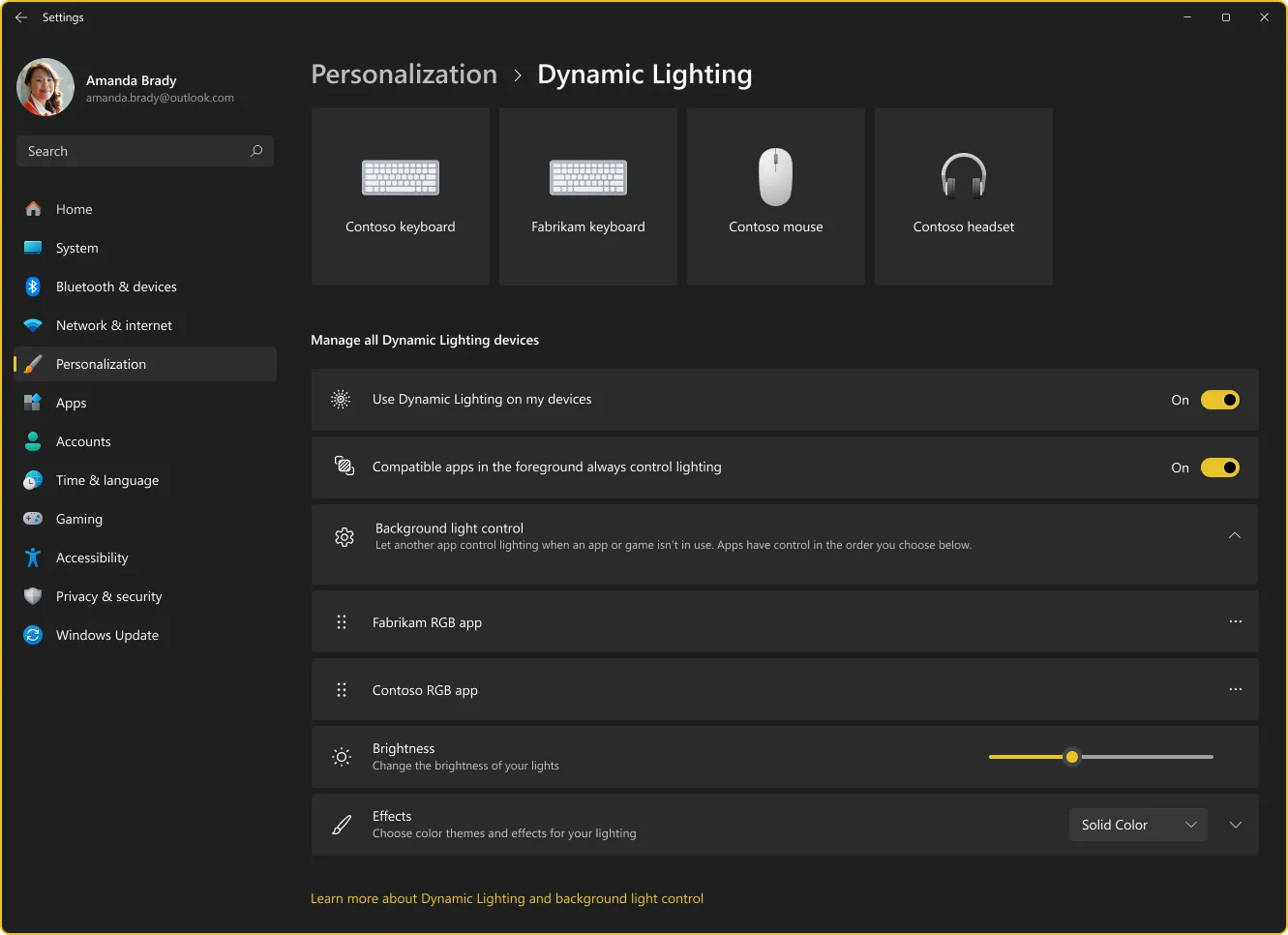
- Select your keyboard from the device cards at the top to change only that device. Settings on a device card override the global settings below it.
- Open Effects, choose an effect such as Solid Color, and pick the color you want.
- Use the Brightness slider to set how bright the lights are.
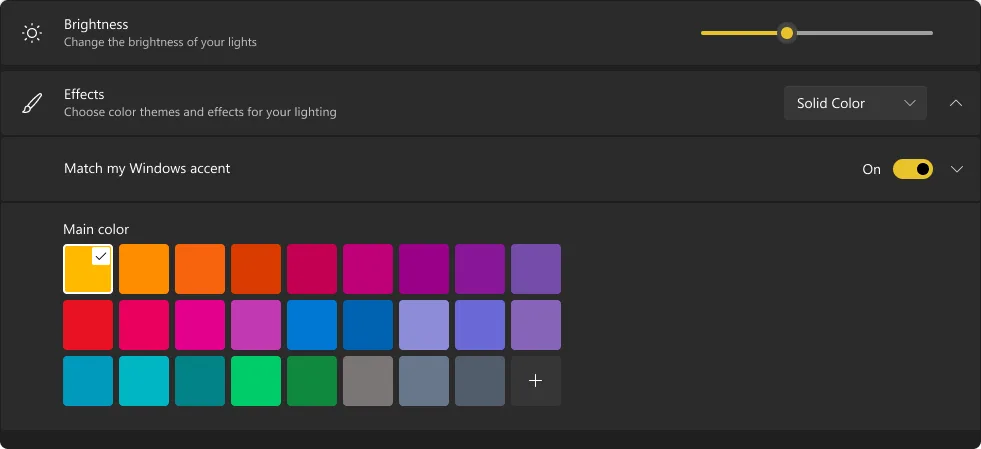
If a color or brightness change does nothing, another RGB app is probably running with a higher priority than Windows. The fixes section below shows how to reorder them.
How to Change Keyboard Backlight Color on a Dell Laptop
Some Dell models handle color with a single shortcut. Dell’s guide for the Latitude 5404 says to press Fn + C to cycle through the available backlight colors.
- Press Fn + C once to move to the next color.
- Keep pressing it until you reach the color you want. White, red, green and blue are active by default.
- To add more colors to the cycle, open System Setup (BIOS). You can add up to two custom colors there.
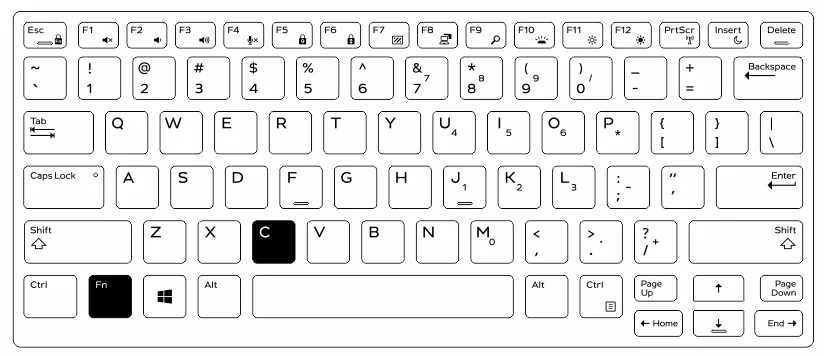
Other Dell models may use a different key or a different app, so check your model’s manual if Fn + C does nothing. If a function key does something unexpected, our guide on how to remap keyboard keys shows how to change what a key sends.
How to Change Keyboard Backlight Color on an ASUS Laptop
ASUS splits the job by laptop family. The function keys handle brightness on most models, and a software app handles color.
Armoury Crate (ROG and TUF Gaming)
- Install Armoury Crate from the ASUS support page or the Microsoft Store.
- Open Armoury Crate and go to the Aura Sync section.
- Choose an effect, such as static color, color cycle, breathing, reactive typing or strobing.
- On per-key RGB models, you can also paint individual keys or build zone gradients.
- Save profiles if you want different lighting for different games or apps.
MyASUS (VivoBook and ZenBook)
- Open MyASUS and go to Customization.
- Open the Keyboard Lighting section.
- Pick a color preset, adjust the animation speed or set an auto-off timer, depending on your model.
Function Keys
Press Fn + F3 to lower the brightness or Fn + F4 to raise it. On models with a light bulb key, that key cycles through off, low, medium and high. Many VivoBook models have a single white backlight, so brightness is all the shortcuts can do there.
How to Change Keyboard Backlight Color on an MSI Laptop
MSI laptops use one of two lighting apps, and you need to know which before you start.
- Go to MSI’s website, search for your model and open Specification to confirm the keyboard is labeled RGB or per-key RGB.
- Open the model’s Support page, choose your model, then select Utility and your operating system.
- Look for SteelSeries Engine 3 or SteelSeries GG. If you find it, SteelSeries controls your keyboard lighting.
- If SteelSeries is not listed, MSI Center controls the lighting.
For MSI Center models, open MSI Center, select Utility, then Mystic Light, and choose the keyboard. You can start from a default template and adjust colors and speed, or select Customize to set your own.
How to Change Keyboard Backlight Color on a Lenovo Legion
Lenovo’s Legion guide for the Legion 7 Pro describes two parts: a shortcut for preset effects and an app for custom ones.
- Preset effects: press Fn + Space to cycle through the factory lighting profiles.
- Brightness: press Fn plus the brightness up or brightness down key. Keep pressing brightness down to turn the backlight off.
- Custom effects: create your own lighting effect in Lenovo Vantage.
Other Legion and LOQ models may differ, so confirm the shortcut in your own model’s guide.
How to Change Keyboard Backlight Color on an HP OMEN Laptop
HP OMEN laptops use the OMEN Command Center app for color.
- Open OMEN Command Center.
- Go to the Lighting section.
- Choose static colors or a dynamic lighting effect.
- Apply your choice.
Non-gaming HP laptops usually have brightness control only. Hold Fn and press the backlight key, which is often F5, F9 or F11 and carries an illumination icon.
How to Change the Backlight on an External Keyboard
External keyboards almost always rely on the maker’s own software, with a few shortcuts on the keyboard itself. Logitech’s MX keyboards show how this usually works.
- Download or update Logi Options+ and click your keyboard in the app.
- Select Backlighting from the left menu and switch it on.
- Adjust the duration and brightness. Battery Saving Mode can be turned on or off here.
- To change effects, click Select Effect and try the options.
A shortcut also exists: hold Fn and press the light bulb key to rotate effects. If your keyboard is on Windows 11’s compatible list, you can also use Dynamic Lighting from the Windows section above instead of the maker’s app.
Keyboard Backlight Color Not Changing? Try These Fixes
- Check Fn Lock. Press Fn + Esc to toggle it, then try your shortcut again (ASUS laptops).
- Turn off Windows control. If Windows is overriding the keyboard’s own app, switch off Use Dynamic Lighting on my devices in Settings, then use the maker’s shortcut or utility.
- Reorder background apps. If the Brightness and Effects sliders do nothing, expand Background light control in Dynamic Lighting and drag the conflicting RGB app to the top of the list.
- Check the battery. Many keyboards turn the backlight off when the battery drops below 10%.
- Check BIOS. If brightness resets after a reboot, a BIOS setting usually controls it. Updating the BIOS can add a missing option.
- Update or reinstall drivers. HP lists updating or reinstalling keyboard drivers as a fix when the light misbehaves.
- Consider hardware. If nothing responds, a damaged backlight connector or ribbon cable may be the cause, and the keyboard may need replacing.
Final Thoughts on How to Change Keyboard Backlight Color
For most Windows 11 users with a compatible RGB keyboard, Dynamic Lighting is the fastest place to start because it needs no extra app. Gaming laptops from ASUS, MSI, Lenovo and HP are better served by their own apps, which unlock effects and per-key control that Windows does not. If your laptop only glows white, an RGB keyboard like the ones listed near the top is the simplest way to finally change keyboard backlight color without fighting your hardware.