

A dead key, an awkward Caps Lock or a shortcut that never feels right is a small annoyance you can fix in minutes. If you want to know how to remap keyboard keys on Windows 10 or 11, the cleanest route is Microsoft PowerToys and its Keyboard Manager tool. This guide covers swapping single keys, turning a key into a shortcut or a line of text, remapping shortcuts, limiting changes to one app, and what to check when a remap refuses to work.
How to Remap Keyboard Keys on Windows: Keys, Shortcuts and Text
GameCuki is reader-supported. When you buy through links on our site, we may earn an affiliate commission at no extra cost to you. As an Amazon Associate I earn from qualifying purchases. Learn more.
Table of Contents
- What You Need to Remap Keyboard Keys
- What PowerToys Keyboard Manager Can Do
- How to Open Keyboard Manager
- How to Remap a Key on Windows
- How to Remap a Key to a Shortcut
- How to Remap a Key to Text
- How to Remap a Shortcut
- How to Remap Keys for One App Only
- What Are Orphaned Keys and How Do You Fix Them?
- Why Is My Keyboard Remap Not Working?
- Keyboard Remapping FAQ
- The Easiest Way to Remap Keyboard Keys on Windows
What You Need to Remap Keyboard Keys

Keychron C3 Pro QMK/VIA Custom Gaming Keyboard
An 87-key compact keyboard with QMK/VIA support, so keys can be remapped on the keyboard itself and the change follows you to any computer.
Check Price on Amazon
Keychron V6 Wired Custom Mechanical Keyboard
A full-size QMK/VIA programmable keyboard with a knob, a good fit if you want a numpad and a spare control to assign.
Check Price on AmazonHow to Remap Keyboard Keys in Windows 10/11
What PowerToys Keyboard Manager Can Do
Keyboard Manager lets you swap one key for another, send a shortcut or a text string from a single key, and replace a shortcut with something else. For example, you can make the A key type B, or make Ctrl+C trigger a different combination. Without a target app, a remap applies everywhere in Windows.
One thing to know up front: PowerToys has to be running in the background with Keyboard Manager switched on. If PowerToys is closed, your remaps stop working.
Keys That Cannot Be Remapped
Some keys and combinations are off limits or behave oddly.
- Win+L and Ctrl+Alt+Del are reserved by Windows.
- The Fn key usually cannot be remapped. F1 to F12, and F13 to F24, can be.
- Pause sends only a single key-down event, so holding it will not repeat.
- Win+G often opens the Xbox Game Bar even after you reassign it. You can switch the Game Bar off in Windows Settings.
How to Open Keyboard Manager
- Install Microsoft PowerToys and open it.
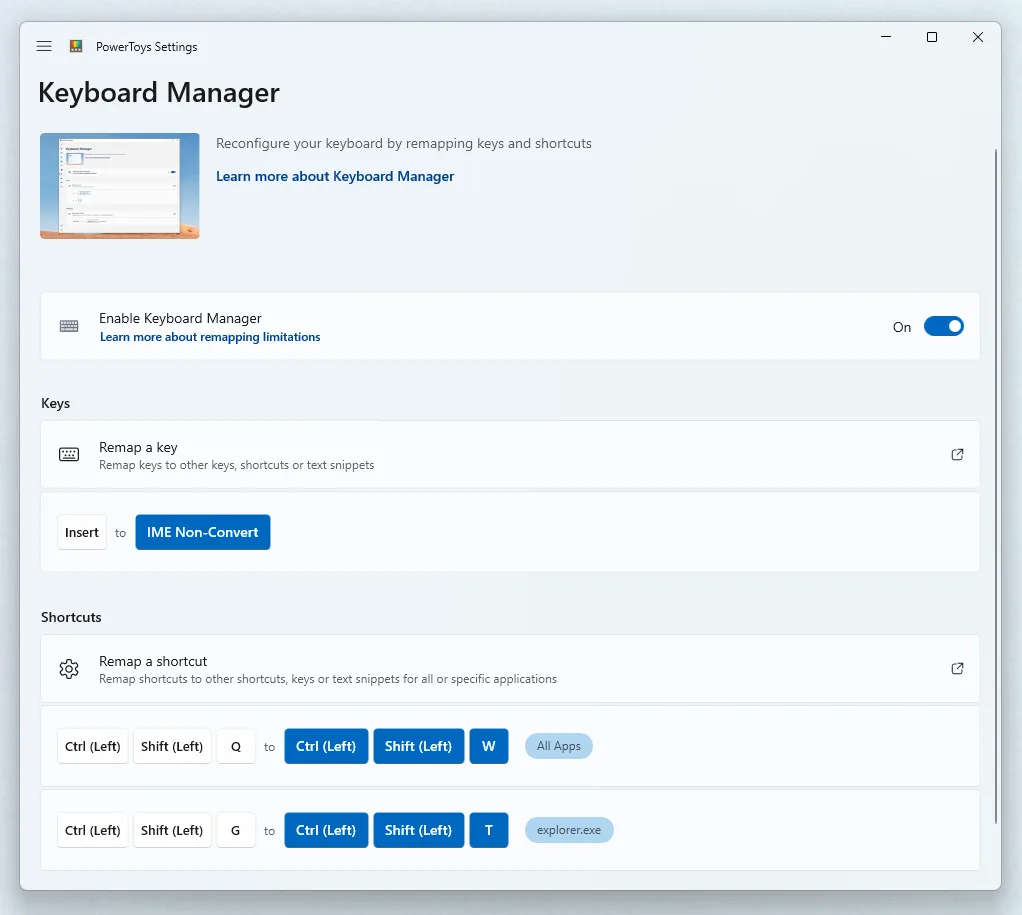
- Select Keyboard Manager in the left sidebar and turn it on.
- Choose Remap a key to change single keys, or Remap a shortcut to change key combinations.
Newer PowerToys versions (0.100 and later) open a redesigned editor by default. A toggle called Use the new editor lets you switch back to the legacy editor at any time.
How to Remap a Key on Windows
- Open Remap a key. The list starts empty.
- Select Add key remapping.
- In the Select column, pick the physical key you want to change.
- In the To send column, pick the key it should produce instead.
- Press OK. The change applies right away, with no restart.
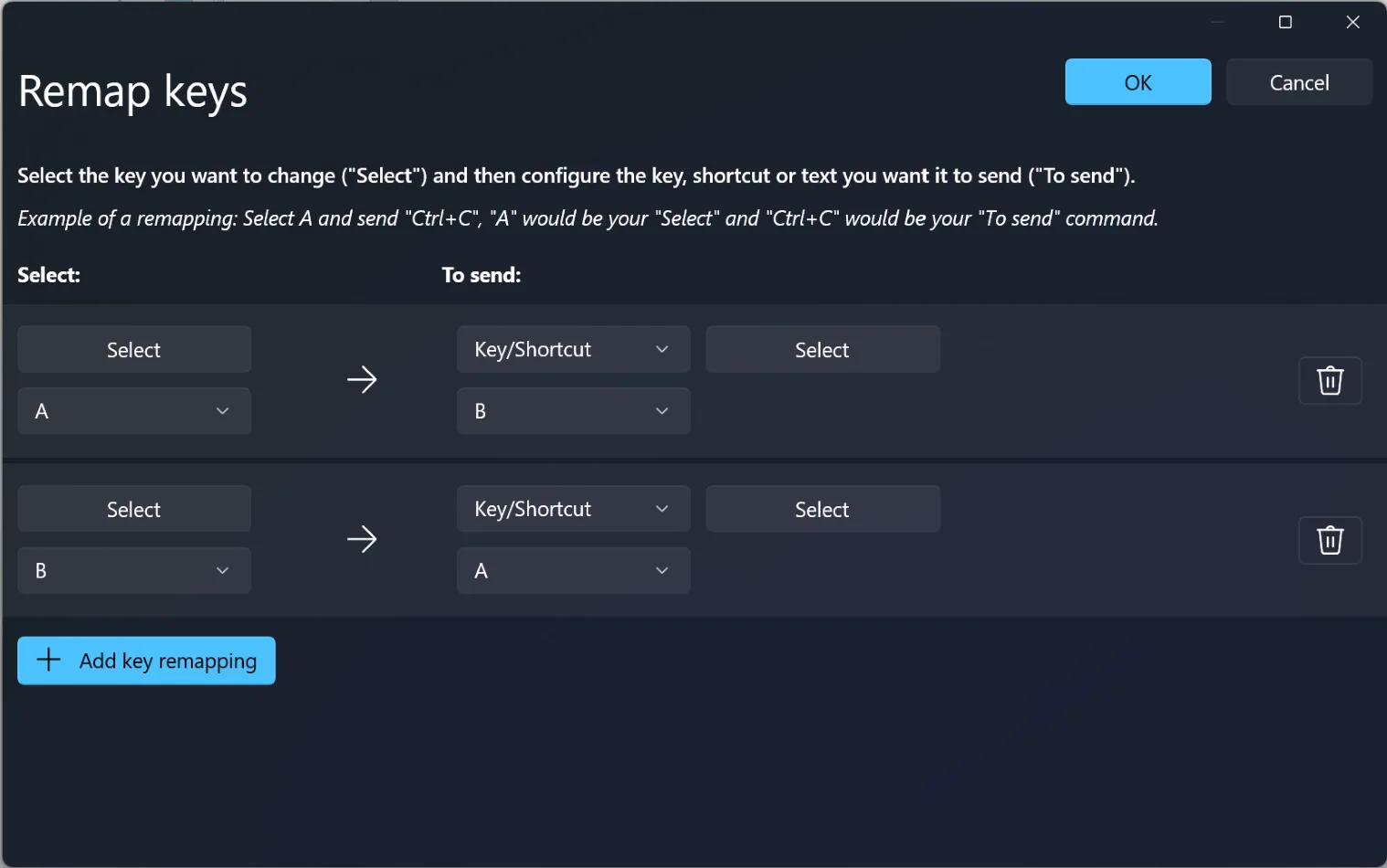
Swap Two Keys
To swap A and B, add two rows: A sends B, and B sends A. Skip the second row and you lose the original key, which is covered in the orphaned keys section below.
Choose a Key Without Scrolling the List
After you select the Select button, a dialog opens and listens to your keyboard. Press the key you want, then hold Enter to confirm. Hold Esc to leave the dialog. You can also use the drop-down and type part of a key name to narrow it down, but typing a key does not work while the drop-down is open.
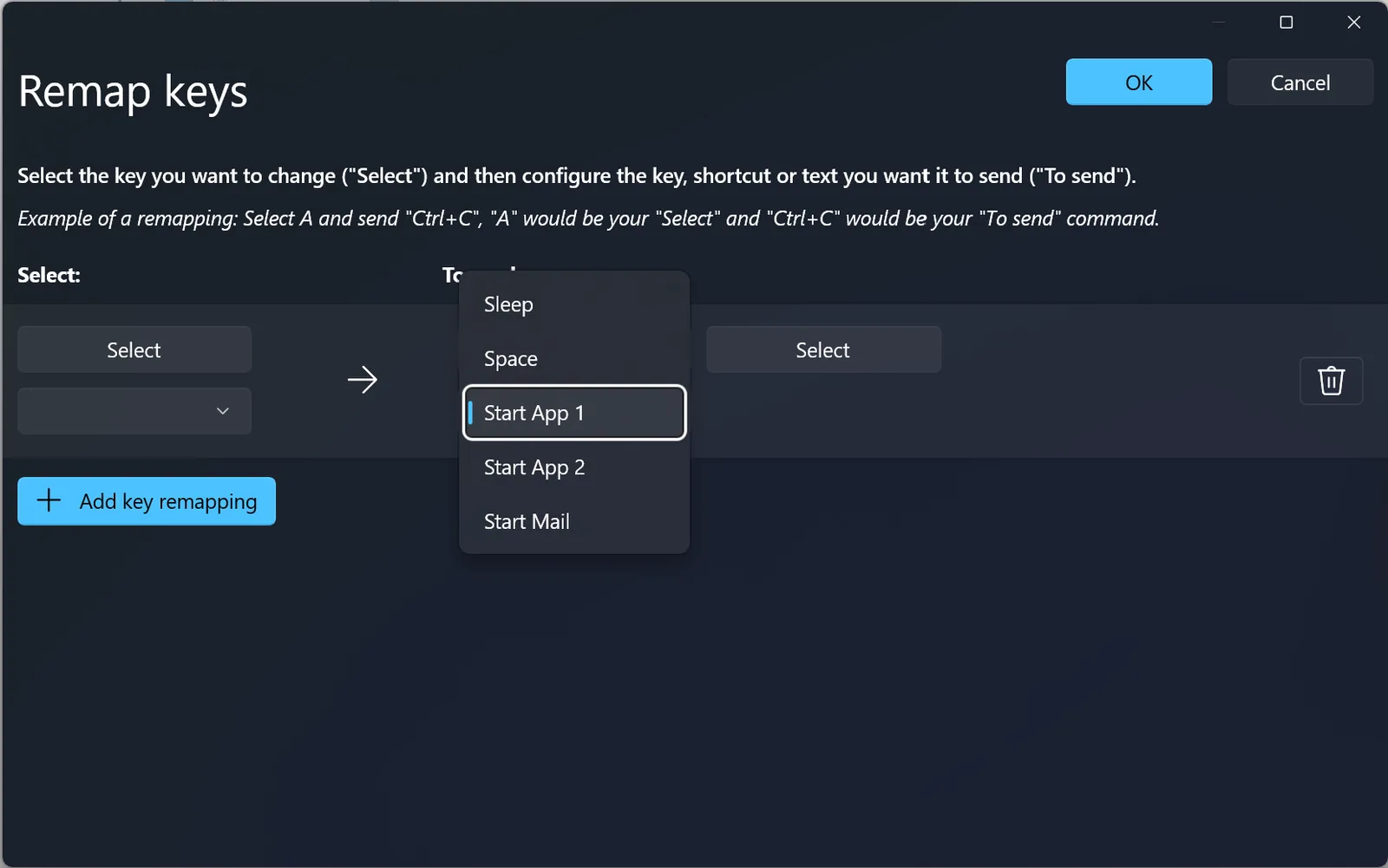
Some entries in the drop-down belong to keys your keyboard may not have, such as Start App 1. Mapping to or from a key that does not physically exist gives undefined results, so leave those alone.
How to Remap a Key to a Shortcut
Type the combination into the To send column instead of a single key. For example, selecting Ctrl and sending Win+Left Arrow turns Ctrl into a window-snap key.
Remaps stay active when the remapped key is part of another shortcut, and they run on key-down. With the example above, pressing Ctrl and then C sends Win+Left Arrow followed by C, while pressing C first sends C followed by Win+Left Arrow.
How to Remap a Key to Text
In the To send column, change the key type to Text, then type the string. Remapping H to Hello! makes every press of H type that word. It works with any Unicode text, which is handy for symbols or accented characters your layout hides.
How to Remap a Shortcut
- Open Remap a shortcut and select Add shortcut remapping.
- In the Select column, enter the combination you want to change.
- In the To send column, enter the combination it should trigger.
- Press OK.
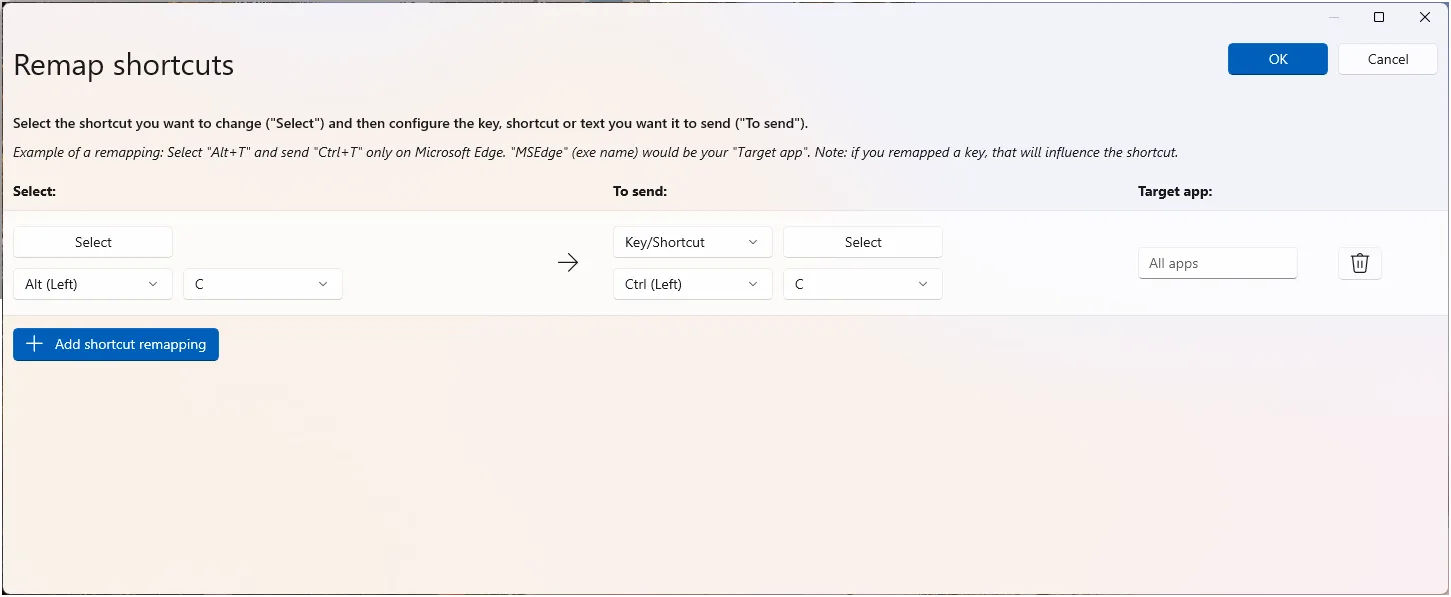
A common example is making Alt+C send Ctrl+C, so you can copy with the Alt key instead. Shortcuts must start with a modifier (Ctrl, Shift, Alt or Win), end with a non-modifier key, and can be no longer than four keys.
Shortcuts With Chords
A chord is a shortcut with two non-modifier keys. Select Edit to open the recording dialog, then switch on Allow chords. Chords are useful when several shortcuts share a prefix, such as Shift+Ctrl+V then U for Volume Up and Shift+Ctrl+V then D for Volume Down. With chords, the length limit is five keys.
Remap a Shortcut to a Single Key
You can also replace a combination with one key. Replacing Win+Left Arrow with Alt, for instance, sends Alt whenever you press that combination. Turn on Exact Match if you want the remap to fire only when no other keys are held. Without it, the single key is still sent when extra keys are pressed.
Remap a Shortcut to Text, an App or a Link
- Text: pick Text in the action box and type the string, for example Ctrl+G sending
Hello!. - Start an app: choose Start App and fill in the path to the executable. You can also set arguments, a working folder, an elevation level (Normal, Elevated or Different User), what happens if the app is already running, and whether the window is visible.
- Open a URI: enter the path or address and the shortcut opens it.
How to Remap Keys for One App Only
Shortcut remaps can target a single program instead of all of Windows. Fill in the Target app field with the program’s process name, not its display name. Microsoft Edge, for example, is msedge, and Chrome is chrome.
To find a process name, open PowerShell and run Get-Process, or open Command Prompt and run tasklist. A few common ones: File Explorer is explorer.exe, Excel is excel.exe, Word is winword.exe and Spotify is spotify.exe.
What Are Orphaned Keys and How Do You Fix Them?
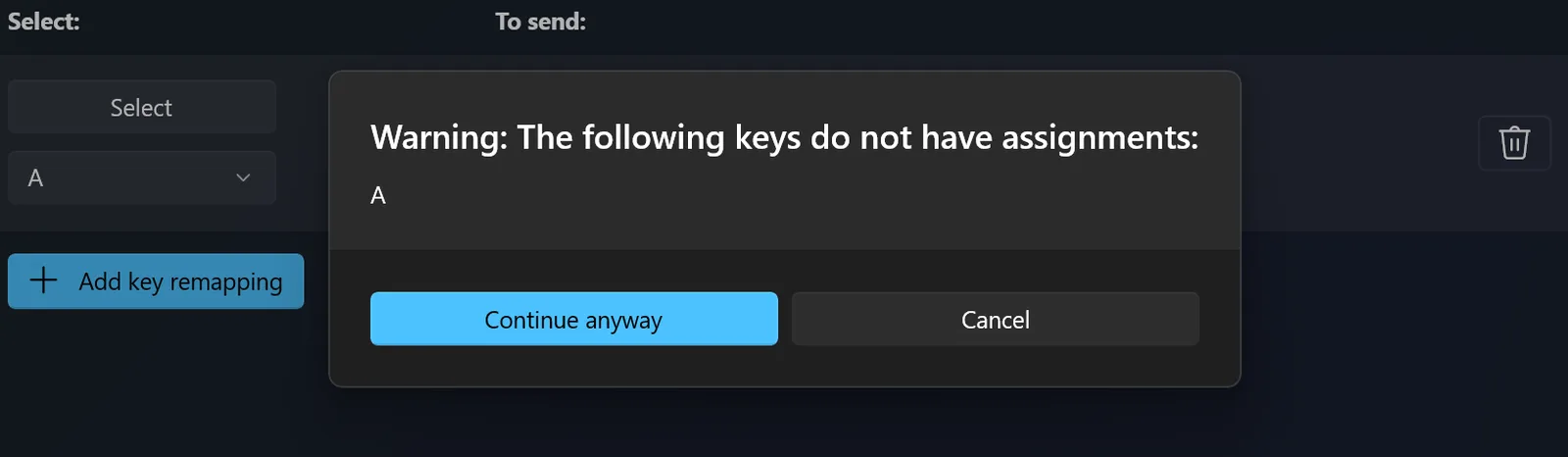
A key is orphaned when you remap it away and nothing on the keyboard produces its original output anymore. Remap A to B, for example, and no key types A. PowerToys shows a warning next to each orphaned key. Fix it by adding another remap that sends the missing key, such as sending A from a key you rarely use.
Why Is My Keyboard Remap Not Working?
- Admin windows: a remap does not apply inside a window running as administrator unless PowerToys is also running as administrator.
- Conflicting apps: other programs that hook the keyboard can interfere. Turn Keyboard Manager off and on again in PowerToys settings.
- Modifier keys: remapping Win, Ctrl, Alt or Shift can break gestures and some special keys. AltGr counts as Left Ctrl plus Right Alt, so remapping either can break it.
- Shortcut keys: some physical keys send a combination. The Office key sends Win+Ctrl+Alt+Shift and the Copilot key sends Win+C or Left Shift+Win+F23.
Keyboard Remapping FAQ
How do I quickly undo a wrong remap?
Close PowerToys or switch Keyboard Manager off in its settings. Remaps only exist while it is running.
Does remapping work on the Windows login screen?
No. Keyboard Manager does not work on password screens, including when running as administrator.
Do I need to restart after remapping?
No. The new mapping works as soon as you press OK.
Will remapping work in games?
Avoid it while gaming. Keyboard Manager can lower frame rates, and some games read the keyboard in a way it cannot intercept. If you want remaps for games, set them on the keyboard itself with a QMK/VIA board or the maker’s software.
Does a remap still work if I change the input language?
Yes. If you remap A to B on a US layout and switch to French, the key in the same physical spot as US Q will type B, matching how Windows handles layouts.
Can different keyboards have different remaps?
Not currently. Keyboard Manager cannot tell which device a keypress came from, so a laptop and an external keyboard share the same remaps.
The Easiest Way to Remap Keyboard Keys on Windows
If you are still deciding how to remap keyboard keys on Windows, start with PowerToys Keyboard Manager. It is free, applies changes instantly and covers keys, shortcuts, text and app launches. Start with one small change, such as moving a rarely used key to something you press all day, and add more once it feels natural. If you play competitively or move between computers, a programmable board that stores remaps on the keyboard itself is the better answer, and our best 75 percent gaming keyboards are a good place to start looking.