

One spilled drink, a layer of crumbs under the W key, or a new set you cannot wait to try is usually what sends people looking for how to remove keyboard keycaps. The job takes a few minutes and one cheap tool, but a rushed pull can crack a keycap or bend a stabilizer bar. This guide covers the safe way to take keycaps off, how to handle big keys like the spacebar, and how to change keyboard keycaps by putting a new set on.
How to Remove Keyboard Keycaps
GameCuki is reader-supported. When you buy through links on our site, we may earn an affiliate commission at no extra cost to you. As an Amazon Associate I earn from qualifying purchases. Learn more.
Table of Contents
- What You Need to Remove Keyboard Keycaps Safely
- Before You Start: Tools and Prep
- Which Tools Not to Use
- How to Remove Keyboard Keycaps Step by Step
- How to Remove Large Keys Like the Spacebar and Enter
- What If a Keycap Is Hard to Reach?
- How to Change Keyboard Keycaps and Put Them Back On
- Cleaning Under the Keycaps
- Keycap Removal: Do and Don’t
- FAQ: Removing and Changing Keycaps
- Final Thoughts on How to Remove Keyboard Keycaps
What You Need to Remove Keyboard Keycaps Safely

SYIDINZN Keycap Puller
A plain wire puller with a plastic handle that grips the keycap edges without much force, and it is also used on switch shafts.
Check Price on Amazon
GATERON Twins 2-in-1 Puller
A button-release puller that holds the keycap after it comes off, so it does not fly across the room.
Check Price on AmazonHow to Clean a Keyboard Properly (Remove the Keycaps)
Before You Start: Tools and Prep
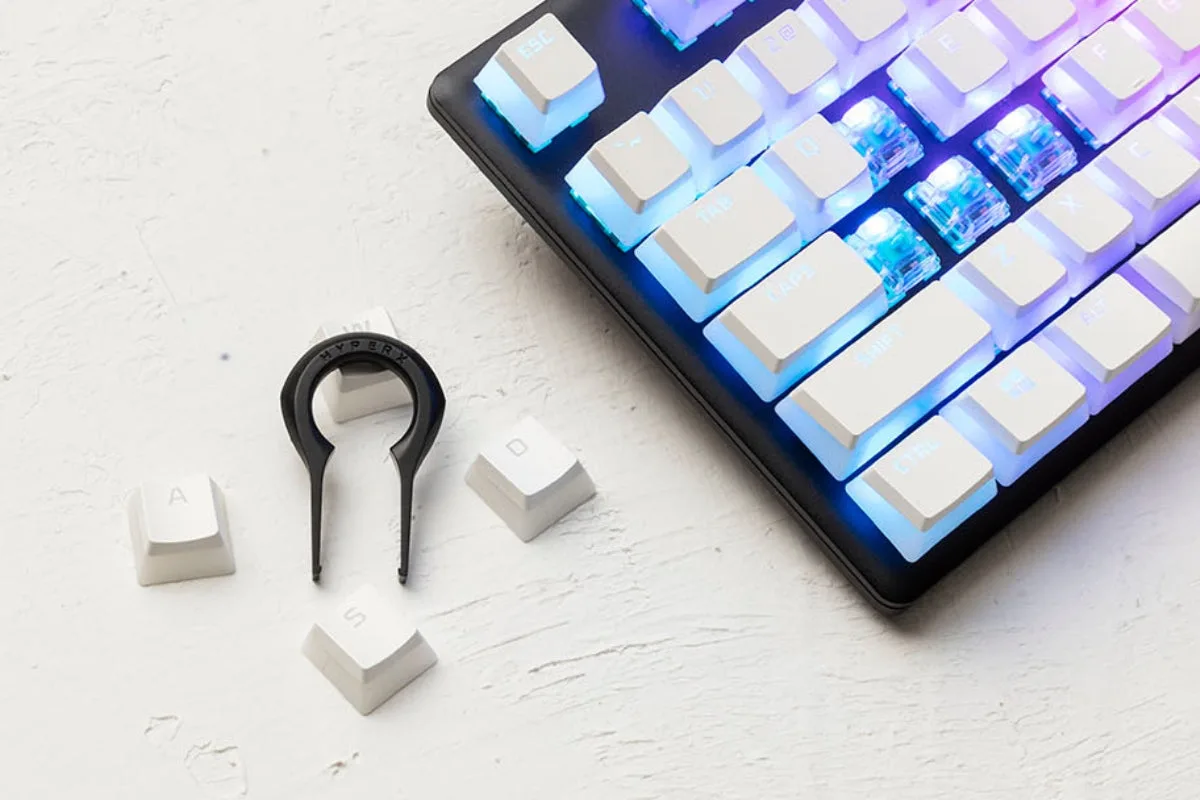
A keycap puller is the right tool. It grips the keycap on two sides and lifts it straight up, which is how the keycap is meant to come off. Most gaming keyboards ship with one, and a few pricier keyboard accessories include one too. Beyond the puller, a few simple items make the job cleaner:
- A soft cloth or microfiber towel to wipe away dust and crumbs.
- A small tray, or a clear stretch of desk, to lay the keycaps out in order.
- Compressed air, optional, for dust between the switches.
Unplug the keyboard first. If it is wireless, power it off. That stops stray keypresses while your hands are over the board. Then clear a spot on the desk with enough room to line the keycaps up in the same layout as the keyboard.
For a puller to buy, our guide to the best keycap pullers compares wire and button-release designs.
Which Tools Not to Use
Forks, butter knives, screwdrivers and anything sharp get suggested a lot when someone has no puller. They can scratch or crack the keycap and can damage the keyboard itself, so skip them. If you do not have a puller yet, wait until you have one. A basic wire puller costs very little and is far cheaper than replacing a damaged key or switch.
How to Remove Keyboard Keycaps Step by Step
- Unplug the keyboard, or turn a wireless one off.
- Slide the keycap puller over a keycap so it grips both sides evenly. With a wire puller, press the arms onto the top and bottom edges of the keycap until you feel it click around the base.
- Pull straight up with slow, firm pressure. The keycap should pop off without a fight. If it resists, stop and check the puller is seated evenly rather than pulling harder.
- Set the keycap down in the same position it had on the keyboard, or group the keycaps by row.
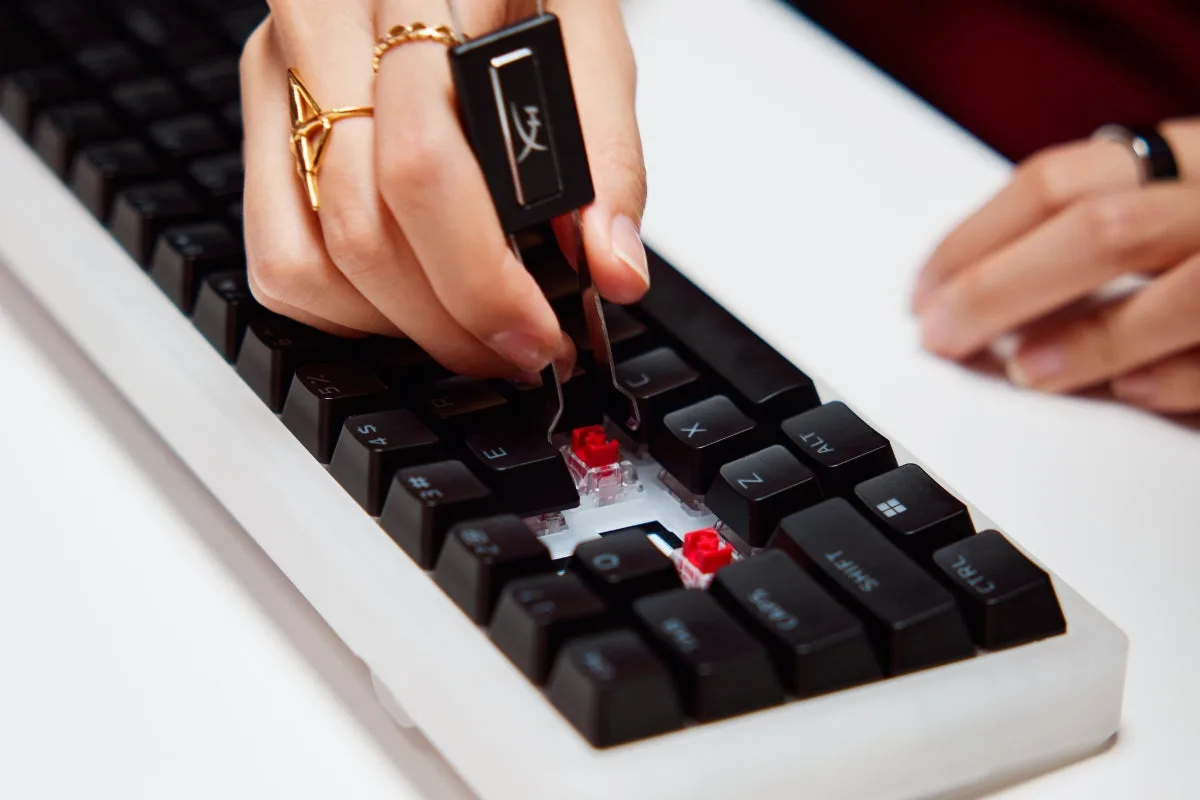
Laying the keycaps out as they sit on the keyboard saves guesswork later. When you are ready to put them back, you grab each one from the row you left it in instead of trying to remember where it went.
How to Remove Large Keys Like the Spacebar and Enter
The spacebar, Enter, Shift and Backspace are bigger than a standard key, and many keyboards fit them with metal stabilizer bars that bend or break easily. Take these off slowly and carefully, note which way the stabilizer bar sits, and never bend the bar.
On a wide key, lift one side first and then the other. For the spacebar, loosen one end of the keycap, then do the same on the opposite end. For an ISO Enter key, hook one foot of the puller under the bottom right corner and lift, then do the same at the top left corner.
What If a Keycap Is Hard to Reach?
Some keys, such as Esc or Fn, sit in a tight spot where the puller will not fit well between the keycap and the frame. On some keyboards you can remove the top case for better access. On Glorious’s GMMK 3, for example, you pop out the rubber feet, remove the case screws underneath, lift the top case away and pull the keycap, then reverse the steps afterward. Check your own keyboard’s manual before opening the case, because the layout and screw count vary by model and an opened case can affect your warranty.
How to Change Keyboard Keycaps and Put Them Back On
Changing keycaps is the removal steps above followed by the install below. The same process puts your old keycaps back after a cleaning.
- Keep the keyboard unplugged, or powered off if it is wireless.
- Pick up the keycap you want to install and match the cross-shaped stem on the switch with the cross-shaped hole under the keycap.
- Push down slowly and firmly until the keycap is fully seated. If you feel resistance, stop, because it is probably misaligned.
- For long keys with stabilizers, line up all three cross-shaped holes with the switch stem and the stabilizer stems, then press in the middle and on each side so it seats evenly. Make sure the stabilizer bar is seated correctly first.
- Tap every key once to confirm nothing sticks or tilts.
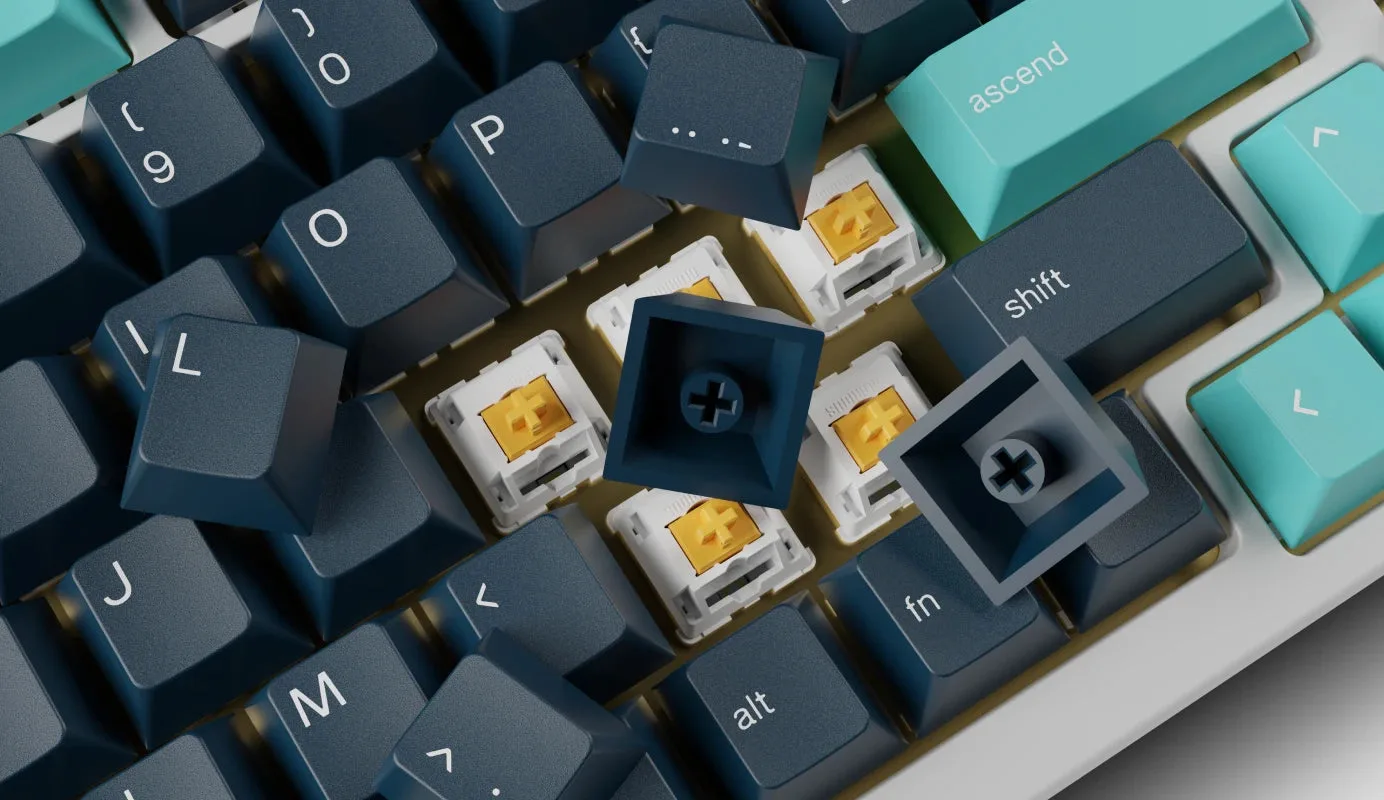
If you are installing a new set and are not sure where each keycap goes, the back of the keycap set’s box usually works as a map. If the keycaps do not sit level in a row, press the taller ones in firmly until they are fully seated. If your spacebar or Enter key rattles, check that the keycap is fully seated on the switch and both stabilizer points.
Cleaning Under the Keycaps
Once the keycaps are off, a microfiber cloth wipes the surface, a soft brush loosens crumbs and compressed air clears dust from between the switches. Avoid liquids near the switches. For the full routine, see our guide on how to clean a mechanical keyboard.
Keycap Removal: Do and Don’t
| Task | Do | Don’t |
|---|---|---|
| Removing keycaps | Use a keycap puller and pull straight up | Pry with forks, knives or screwdrivers |
| Organizing keycaps | Lay them out in keyboard order or by row | Drop them in one pile |
| Large keys | Go slowly and track the stabilizer bar | Yank them off or bend the bar |
| Reinstalling keycaps | Align the stem, press gently | Force a keycap that resists |
FAQ: Removing and Changing Keycaps
How do I remove keycaps without damaging my keyboard?
Use a proper keycap puller, pull straight up, and avoid metal tools that can scratch or bend parts of the keyboard.
Can I remove keycaps from any mechanical keyboard?
Most mechanical keyboards use standard switch stems, so usually yes, but stabilizer styles vary between models. Laptop and other low-profile keys use a different mechanism, so check the manufacturer’s instructions for those.
How do I clean my keyboard after removing the keycaps?
Use compressed air, a soft brush and a microfiber cloth, and keep liquids away from the switches.
Final Thoughts on How to Remove Keyboard Keycaps
How to remove keyboard keycaps comes down to a proper puller and patience. Pull straight up, handle the stabilized keys slowly and keep the keycaps in order, and the job is safe on almost any mechanical board. If you plan to change keycaps often or clean regularly, buy a puller before you start rather than improvising with a fork or knife.