

A blinking Xbox button that never settles is one of the more annoying ways to start a gaming session. This guide shows how to connect Xbox controller to Xbox consoles the two ways that work: with the Pair buttons for a wireless link, or with a USB cable when wireless won’t cooperate. It covers the Xbox Series X, Series S and every Xbox One model, plus the fixes to try when a controller refuses to sync.
How to Connect Xbox Controller to Xbox: Wireless and USB Pairing
GameCuki is reader-supported. When you buy through links on our site, we may earn an affiliate commission at no extra cost to you. As an Amazon Associate I earn from qualifying purchases. Learn more.
Table of Contents
- What You Need to Connect an Xbox Controller to an Xbox
- How to Connect Xbox Controller to Xbox Series X|S Wirelessly
- How to Connect Xbox Controller to Xbox With a USB Cable
- How to Connect Xbox Controller to Xbox One
- Can You Connect an Xbox 360 Controller to an Xbox One or Series X|S?
- How to Reconnect an Xbox Controller That Lost Its Connection
- Xbox Controller Won’t Connect? Try These Fixes
- How to Connect Xbox Controller to Xbox: The Quick Answer
What You Need to Connect an Xbox Controller to an Xbox

Xbox Wireless Controller
Microsoft’s standard controller, which pairs with the Series X|S, every Xbox One and Windows PCs.
Check Price on Amazon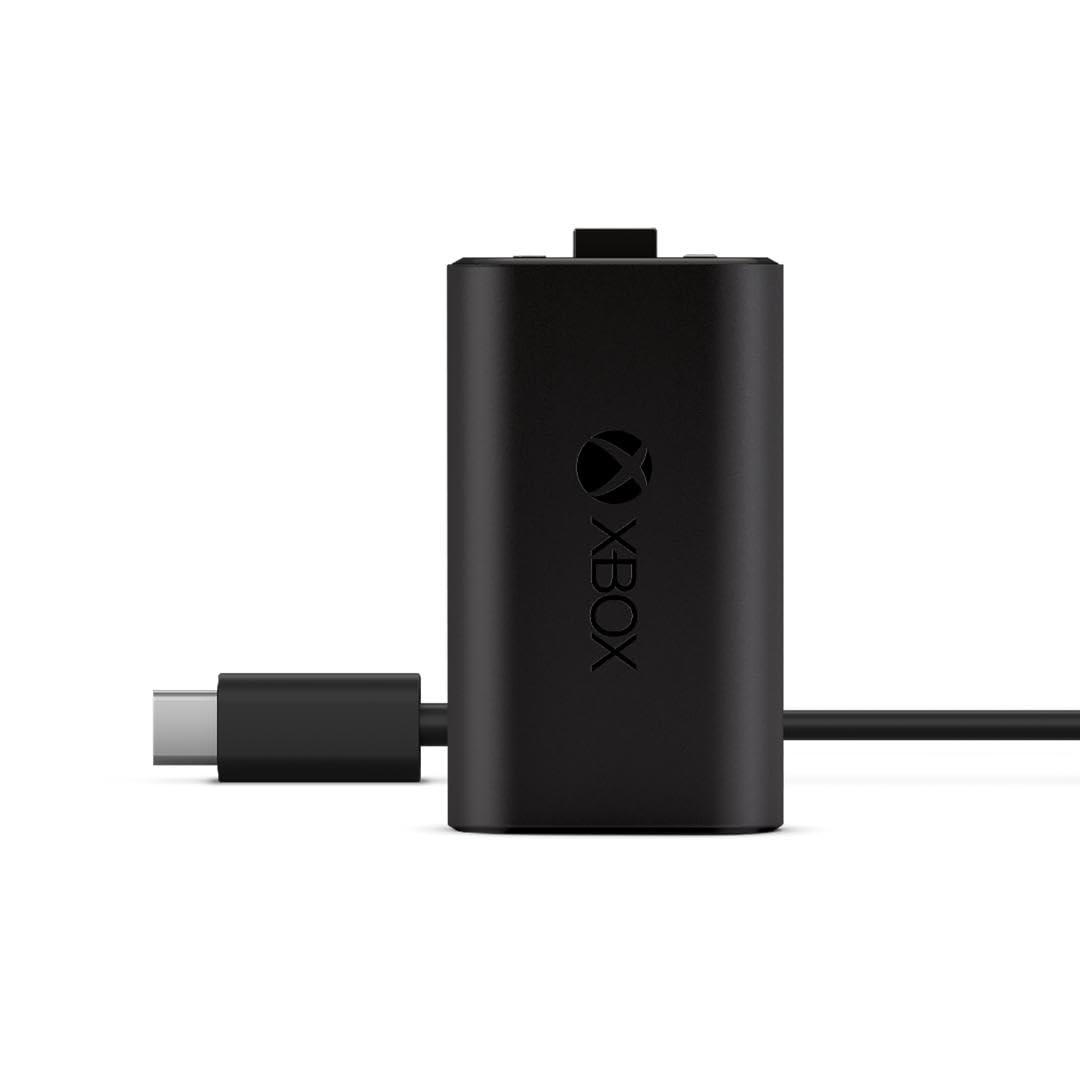
Xbox Rechargeable Battery + USB-C Cable
A rechargeable pack plus the USB-C cable you need for wired pairing on Series X|S controllers.
Check Price on AmazonWant to watch first? This video runs through the wireless pairing on a Series X|S:
How to Connect Xbox Controller to Xbox Series X/S (100% Works!)
How to Connect Xbox Controller to Xbox Series X|S Wirelessly
Wireless pairing uses two Pair buttons, one on the console and one on the controller. You have 20 seconds between pressing the first and the second.
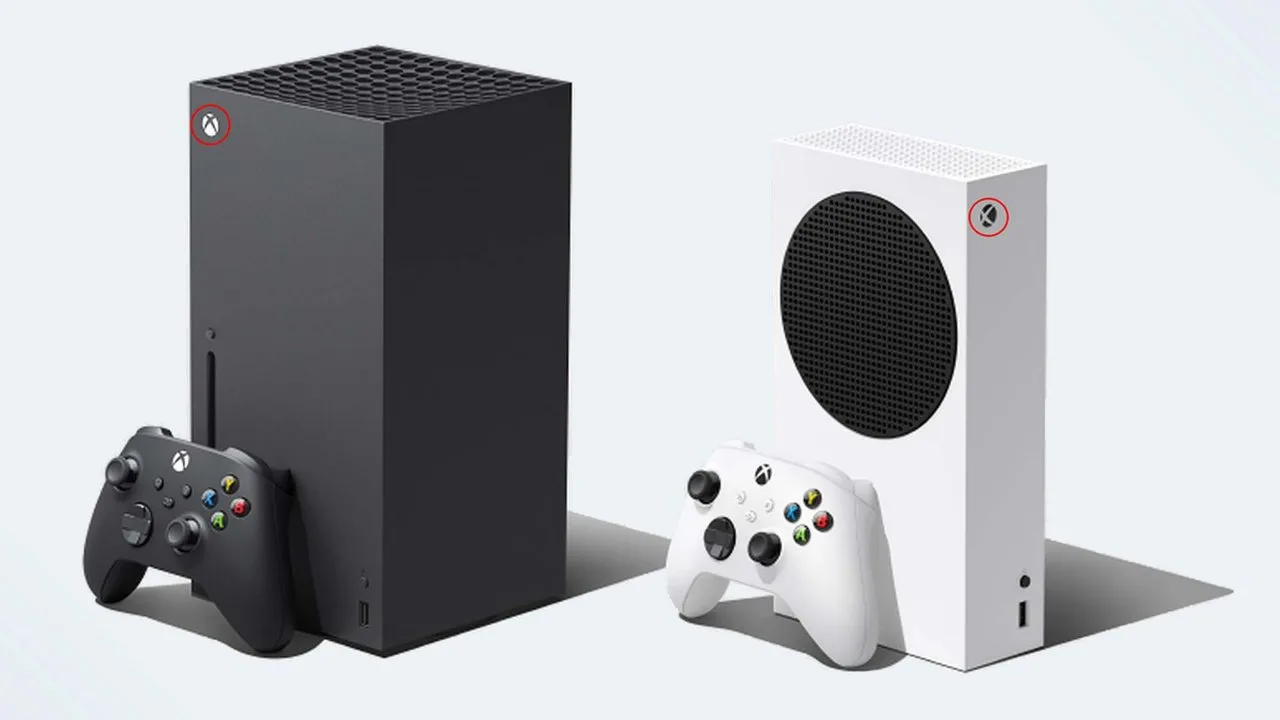
- Turn on the console with the Xbox button on its front.
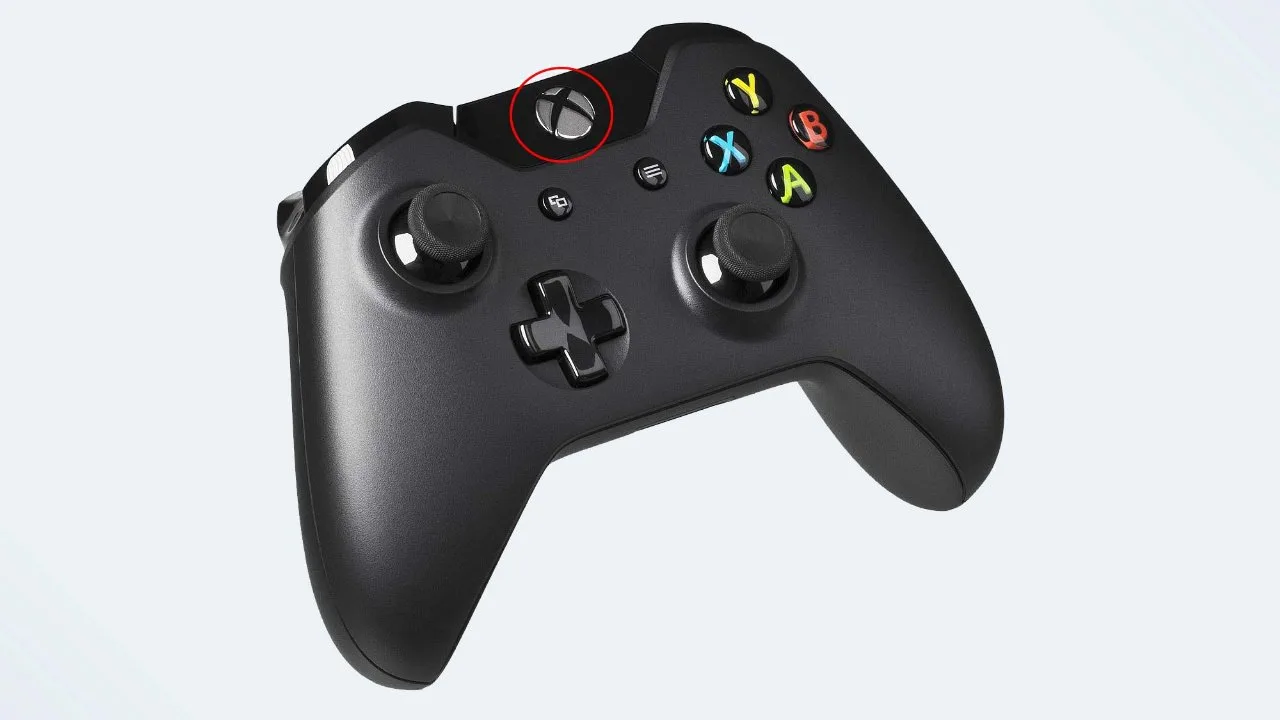
- Put batteries in the controller and turn it on by pressing the Xbox button. The button starts flashing.
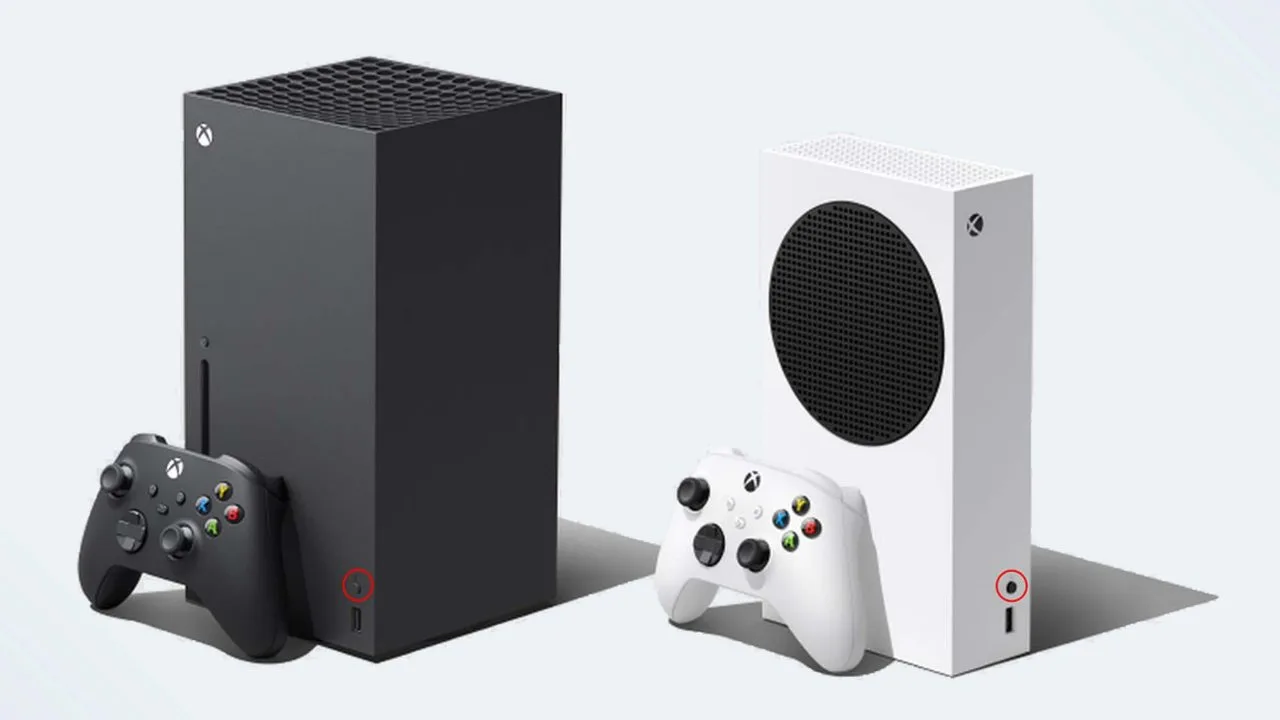
- Press and release the Pair button on the console. On both the Series X and the Series S, it is the small round button next to the USB port on the front.
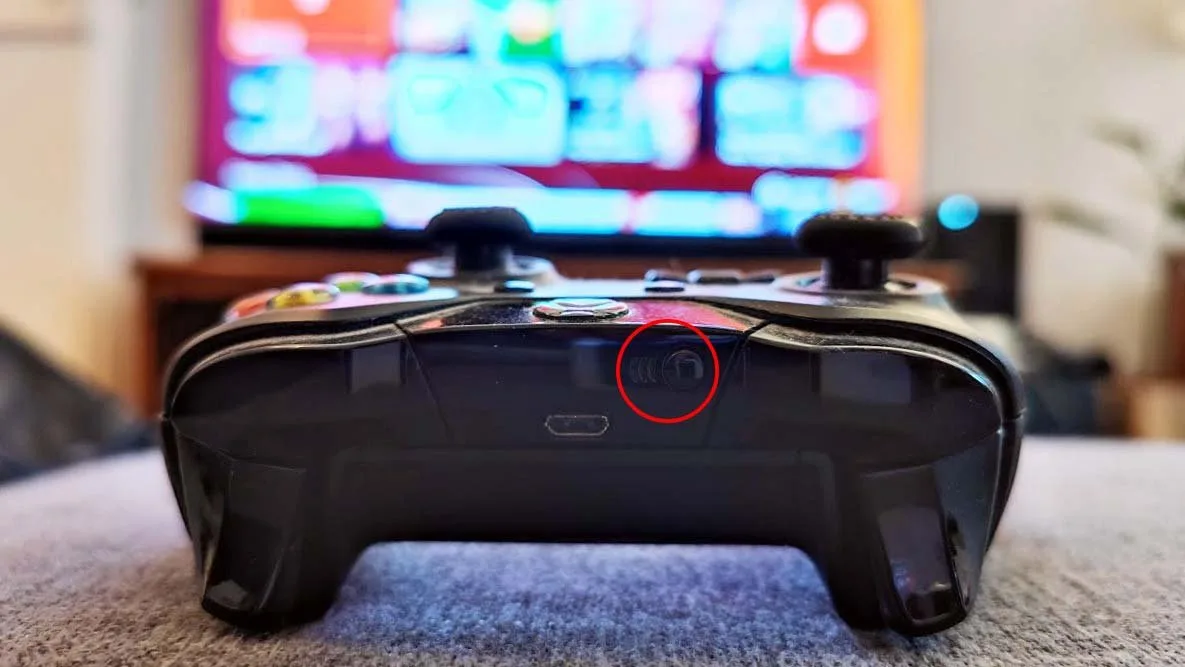
- Within 20 seconds, press and hold the Pair button on the top edge of the controller, next to the USB port, until the Xbox button flashes quickly.
- Wait a few seconds. When the Xbox button on the controller stops flashing and stays lit, the controller is connected.
If the lights stop flashing without connecting, wait until both buttons settle, then start again from step 3. Repeat the same steps for each extra controller. An Xbox console supports up to eight wireless controllers at once.
How to Connect Xbox Controller to Xbox With a USB Cable
A cable is the fastest way to pair, and it also works when the Pair button on the controller is broken or wireless pairing keeps failing.
- Turn on the console.
- Plug a USB cable into the port on the top edge of the controller and into a USB port on the console. Series X|S controllers use USB-C, and Xbox One controllers use micro USB.
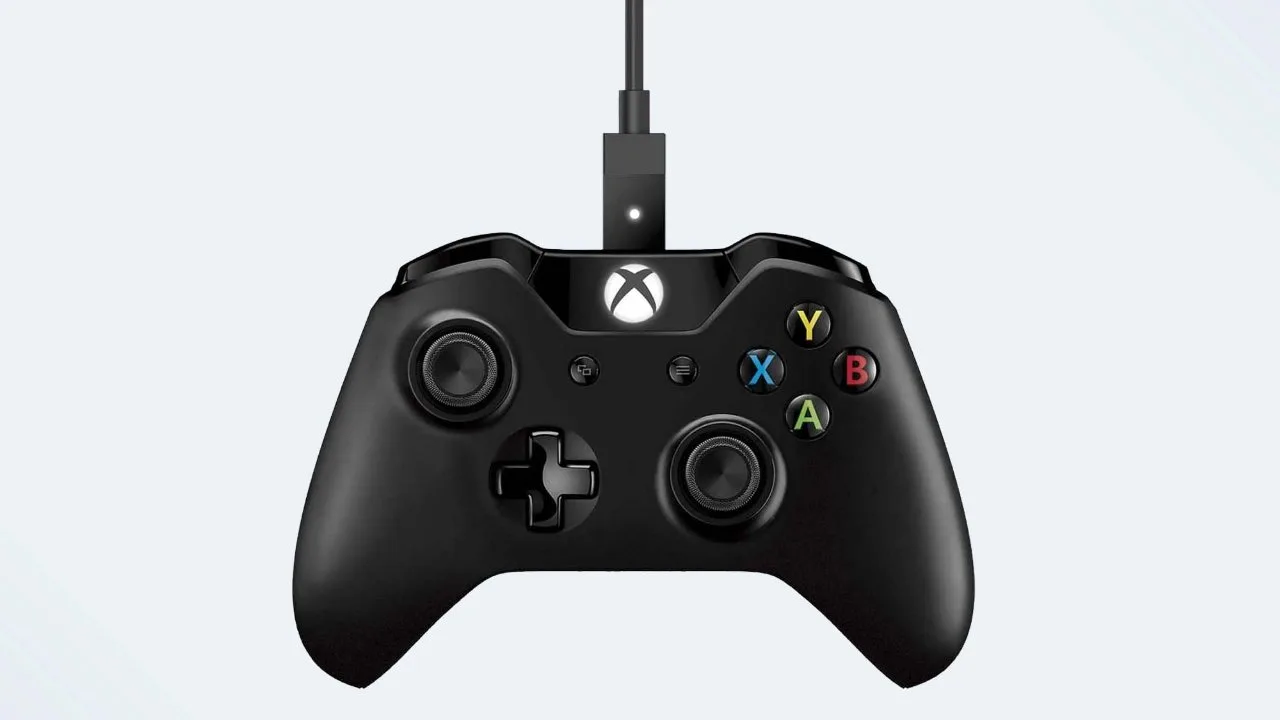
- Press the Xbox button on the controller. It pairs with the console automatically.
- Unplug the cable if you want to play wirelessly. The controller stays paired for future sessions.
The controller also works as a wired controller while it is plugged in, even without batteries.
How to Connect Xbox Controller to Xbox One
The steps are the same on every Xbox One model, and both Xbox One and Series X|S controllers work on Xbox One consoles. Only the Pair button moves:
- Xbox One (original): on the left side of the console, near the disc drive.
- Xbox One S and Xbox One X: on the front of the console, near the USB port.
Press the console’s Pair button, then hold the controller’s Pair button until the Xbox button flashes quickly, and wait for it to stay lit. For a wired connection, use a micro USB cable for an Xbox One controller or a USB-C cable for a Series X|S controller.
Can You Connect an Xbox 360 Controller to an Xbox One or Series X|S?
No. Xbox 360 controllers use a different wireless protocol, so they don’t pair with an Xbox One or Series X|S, and newer controllers don’t work on an Xbox 360. Xbox One controllers, on the other hand, work on a Series X|S without any extra steps.
How to Reconnect an Xbox Controller That Lost Its Connection
A controller that was last paired to a PC, phone or another console won’t always reconnect to your Xbox on its own.
- Turn the controller off by holding the Xbox button for about six seconds.
- Press the Xbox button again to turn it back on.
- If it was last used over Bluetooth, double-press the Pair button to switch it back to the last console it was paired with.
- If it still doesn’t connect, go through the wireless pairing steps above, or plug it in with a USB cable to force a new pairing.
A controller can only be connected to one device at a time, so pairing it with a new console or PC ends the connection with the previous one.
Xbox Controller Won’t Connect? Try These Fixes
- Check the batteries. Low or dead batteries are the most common reason a controller won’t pair.
- Move closer to the console. Wireless range is roughly 19 to 28 feet, and walls or other electronics cut it down.
- Check how many controllers are connected. If eight are already paired, the console won’t accept another one until you turn one off.
- Use a USB cable. A wired connection works as both a fallback and a fix.
- Update the controller. With the controller plugged in, go to Settings > Devices & connections > Accessories, select the controller and install any update.
- Restart the console. Hold the console’s power button for 10 seconds to shut it down fully, then turn it back on and pair again.
Want to use the same controller on your computer too? Our guide on how to connect an Xbox controller to a PC covers USB, Bluetooth and the Xbox Wireless Adapter.
How to Connect Xbox Controller to Xbox: The Quick Answer
Press the Pair button on the console, hold the Pair button on the controller within 20 seconds, and wait for the Xbox button to stay lit. That is the whole wireless process on a Series X, Series S or any Xbox One. If it fails, a USB cable pairs the controller in seconds and works even when the Pair button doesn’t. Now that you know how to connect Xbox controller to Xbox consoles both ways, adding a second player takes less than a minute.