

Crumbs, dust and skin oil build up between the keys faster than most people expect, and on a mechanical board they can make switches feel gritty or stop registering. Knowing how to clean a mechanical keyboard properly keeps it feeling new for years. Below are three cleaning levels, from a two-minute dust-off with the keycaps still on to a full deep clean, plus step-by-step fixes for sticky switches and spilled drinks.
How to Clean a Mechanical Keyboard: Quick, Regular and Deep Clean
GameCuki is reader-supported. When you buy through links on our site, we may earn an affiliate commission at no extra cost to you. As an Amazon Associate I earn from qualifying purchases. Learn more.
Table of Contents
- What You Need to Clean a Mechanical Keyboard
- How to Clean a Mechanical Keyboard Without Removing the Keys
- How to Clean a Mechanical Keyboard With the Keycaps Off
- How to Deep Clean a Mechanical Keyboard
- How to Clean Sticky Mechanical Keyboard Switches
- What to Do If You Spill a Drink on Your Mechanical Keyboard
- How Often Should You Clean a Mechanical Keyboard?
- Mechanical Keyboard Cleaning FAQ
- How to Clean a Mechanical Keyboard: Where to Start
What You Need to Clean a Mechanical Keyboard

SYIDINZN Wire Keycap Puller
A wire puller that grips each keycap from both sides so it lifts straight off the switch.
Check Price on Amazon
Oxfraki 6-Piece Keyboard Cleaning Kit
A small kit with a keycap puller, a switch puller and soft brushes for the gaps between switches.
Check Price on AmazonBesides a puller and a brush, keep these on hand:
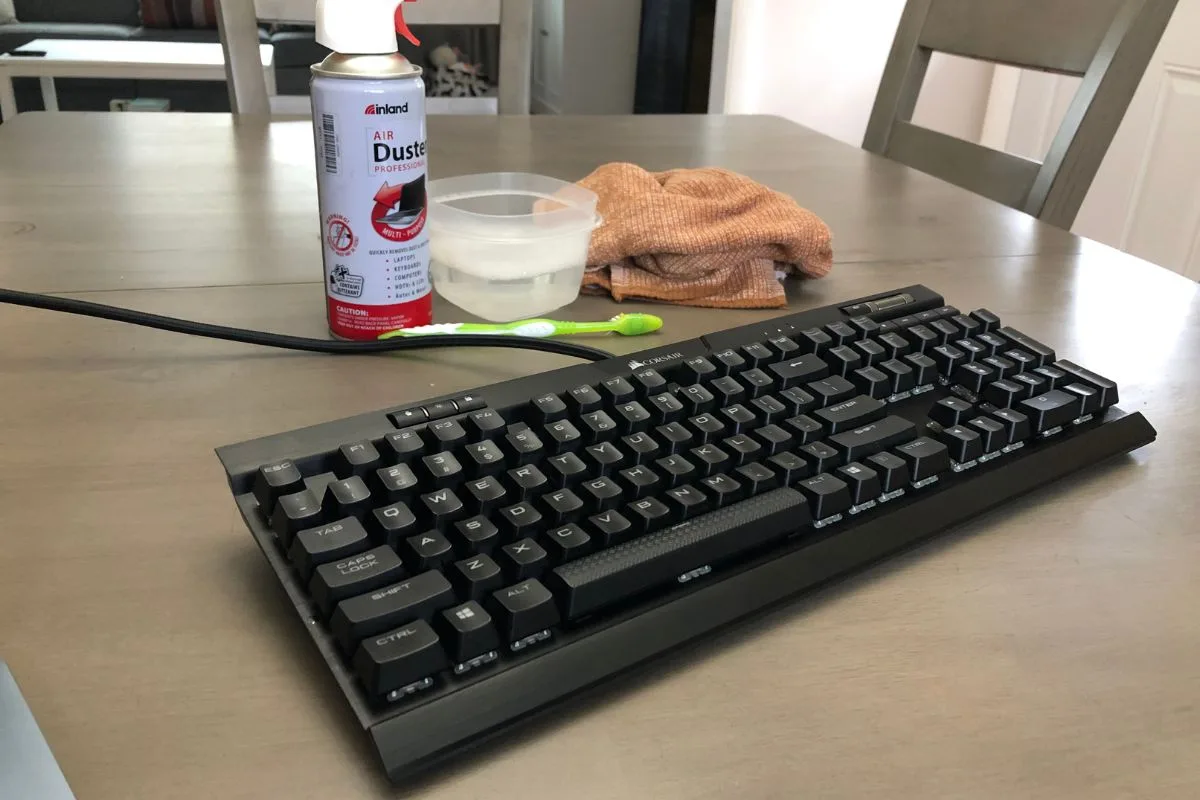
- Compressed air with a straw nozzle, to blow out dust and crumbs.
- 90% to 99% isopropyl alcohol. Skip 70% rubbing alcohol, which contains too much water.
- A lint-free microfiber cloth and a few cotton swabs.
- A plastic or glass bowl and mild dish soap, if you plan to soak the keycaps.
Prefer to watch first? This video shows a safe full clean:
How to CLEAN Your Mechanical Keyboard Safely!
How to Clean a Mechanical Keyboard Without Removing the Keys
This quick clean takes about two minutes. Do it once a week, or every few days if you eat at your desk.
- Unplug the keyboard, or turn it off if it is wireless.
- Turn it upside down over a trash can or towel and gently tap the back to knock out loose crumbs.
- Blow compressed air between the keys in short one- to two-second bursts, working row by row. Keep the can upright so it doesn’t spray liquid, and tilt the board so the debris can fall out.
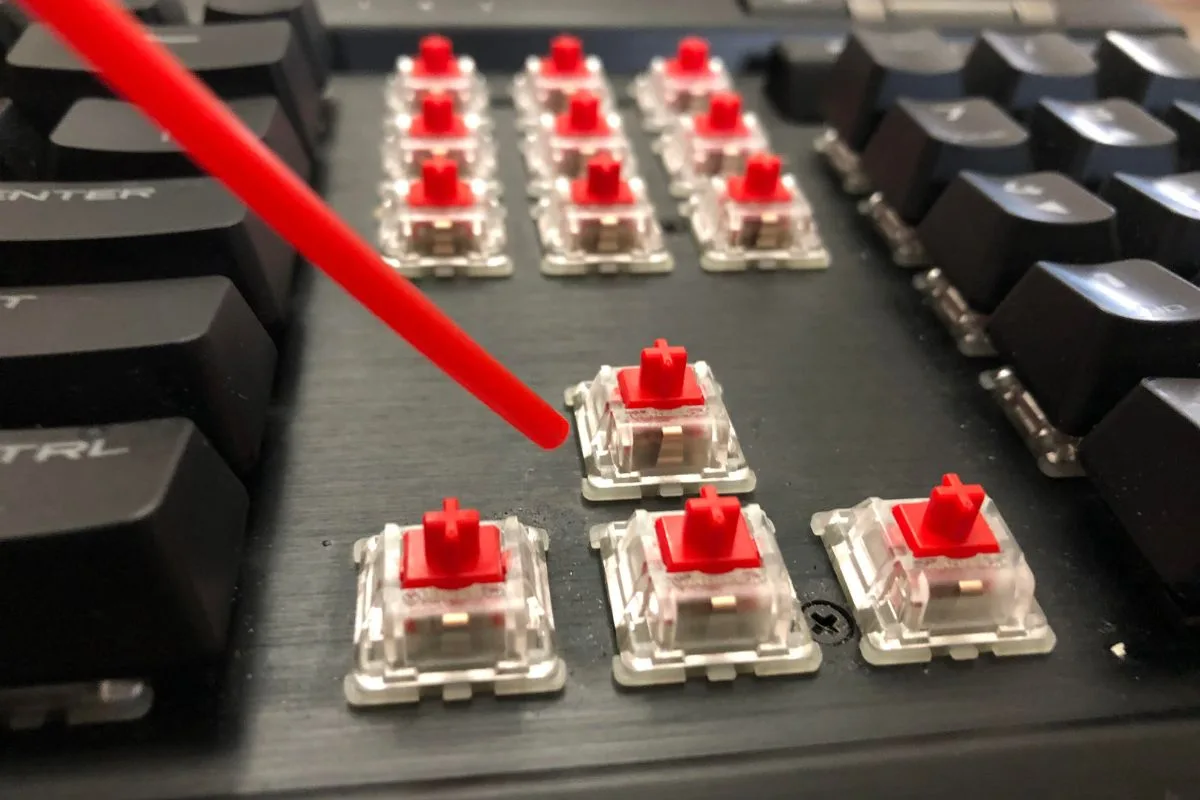
- Wipe the tops of the keycaps with a dry or slightly damp microfiber cloth, using small circles to lift fingerprints.
- Plug the keyboard back in and type a few lines. If keys still feel gritty or catch, move on to the regular clean.
How to Clean a Mechanical Keyboard With the Keycaps Off
This regular clean takes 15 to 20 minutes and is worth doing every month or two.
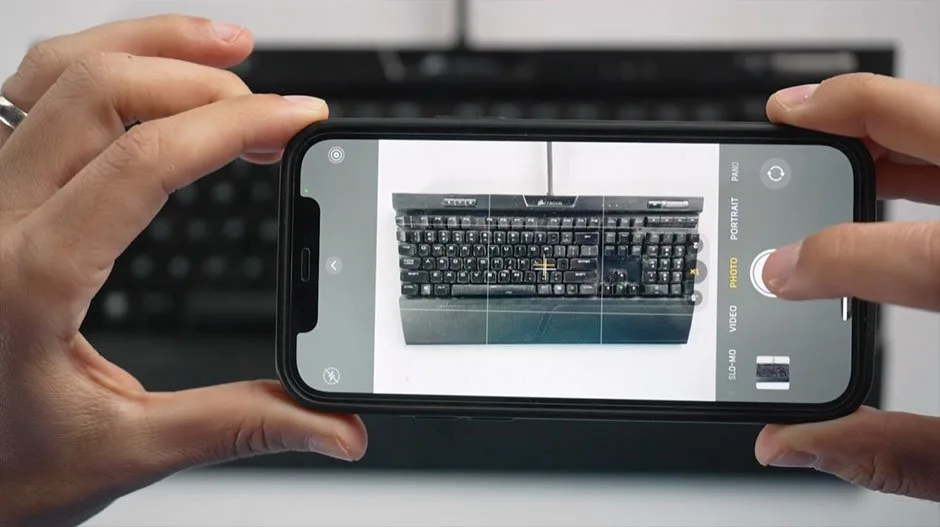
- Unplug the keyboard and take a clear photo of the layout so you can put every keycap back in the right place.
- Pull the keycaps off with the keycap puller, lifting straight up. Do the regular keys first and leave the large stabilized keys (spacebar, Enter, Shift, Backspace) for last so you don’t bend the stabilizer wires.
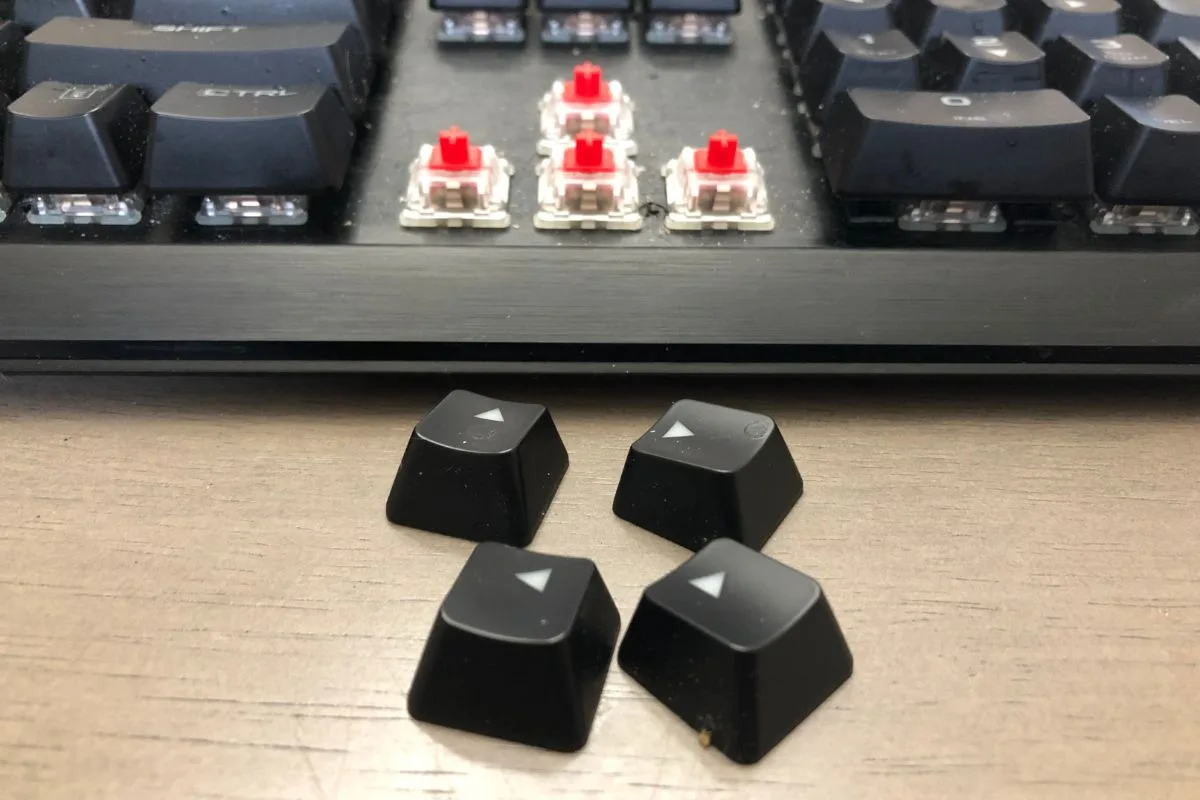
- Blow the loose dust off the exposed plate with short bursts of compressed air.
- Wipe the plate and the tops of the switches with a cloth lightly dampened with isopropyl alcohol, or brush away stuck debris with a soft brush.
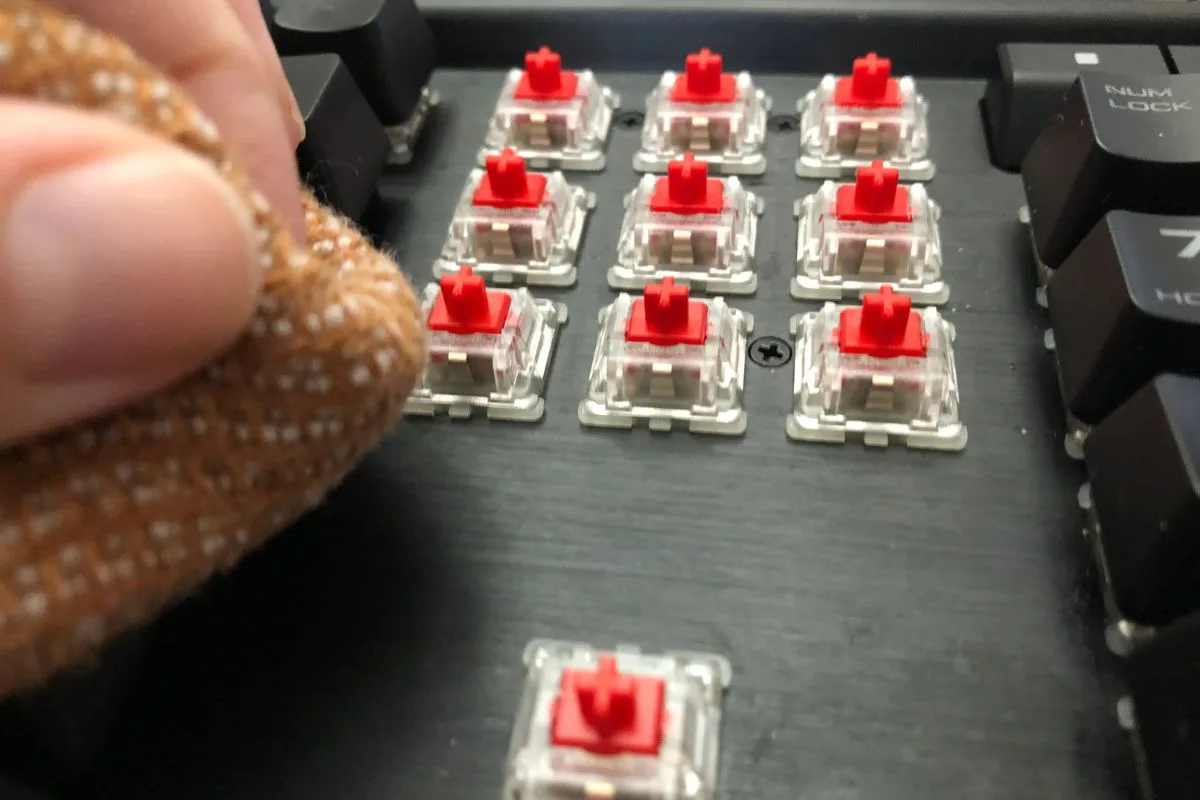
- Wipe each keycap with a microfiber cloth lightly dampened with isopropyl alcohol to remove oil and grime.
- Let the keycaps dry on a lint-free towel for 10 to 15 minutes.
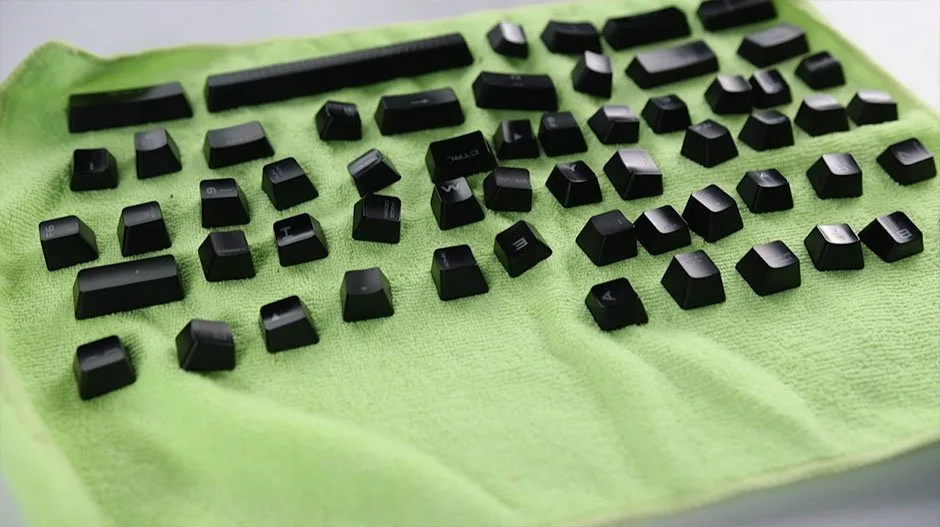
- Press each keycap back onto its switch, using your photo as a guide, until it clicks into place.
- Plug the keyboard in and type across every row to check that each key registers.
How to Deep Clean a Mechanical Keyboard
A deep clean takes 45 to 60 minutes of work, plus drying time. Do it once or twice a year, or when the keyboard is visibly grimy.
- Unplug the keyboard, photograph the layout and remove every keycap.
- Put the keycaps in a bowl of warm (not hot) water with a small drop of mild dish soap and let them soak for 30 to 60 minutes.
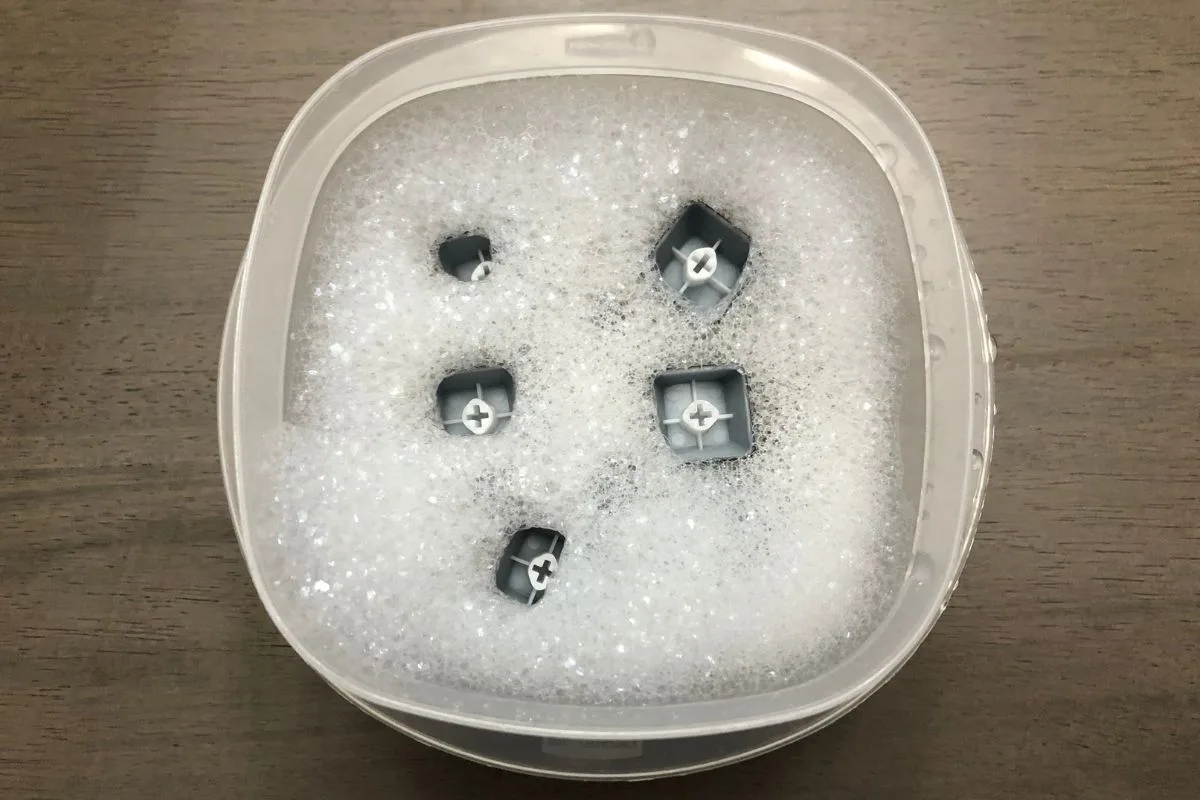
- While they soak, clean the board: blow it out with compressed air, then scrub around the switches with a soft brush.
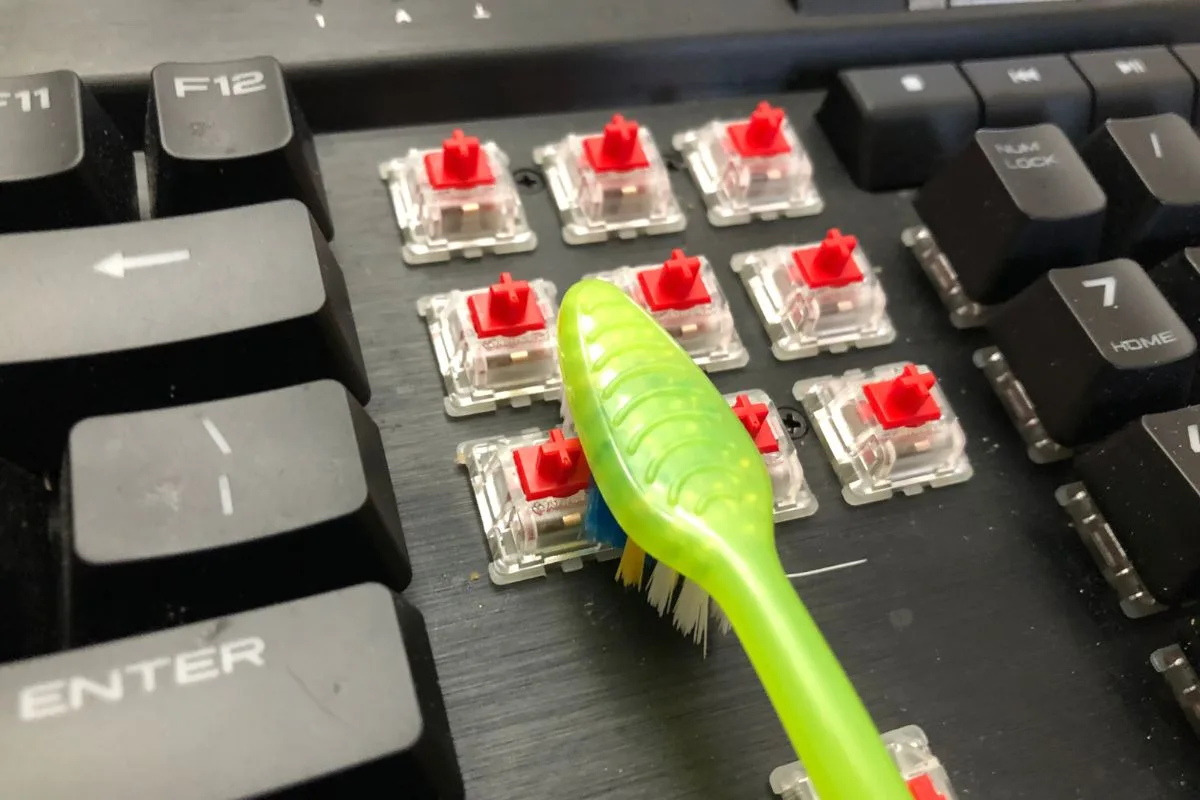
- Dip a cotton swab in isopropyl alcohol and clean the plate around each switch to remove sticky residue.
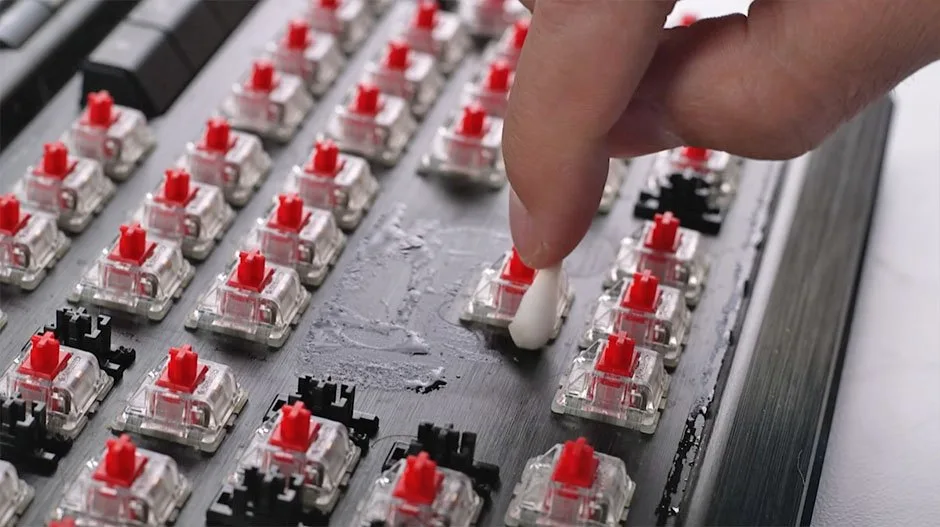
- Rinse the keycaps under lukewarm water to wash off the soap. Avoid hot water, which can warp ABS keycaps.
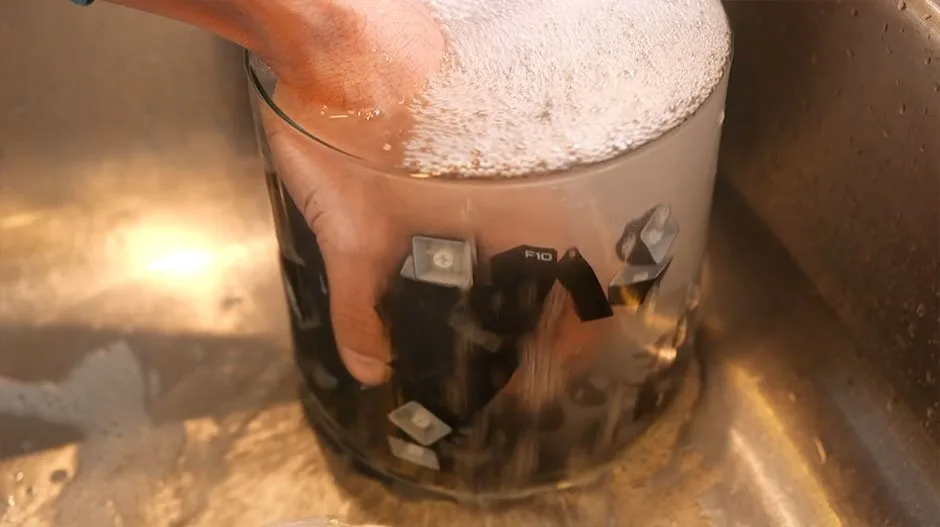
- Shake off the water and let the keycaps air dry on a towel for two to four hours. Never put a damp keycap back on the board.
- Reattach the keycaps using your photo, plug the keyboard in and try every key.
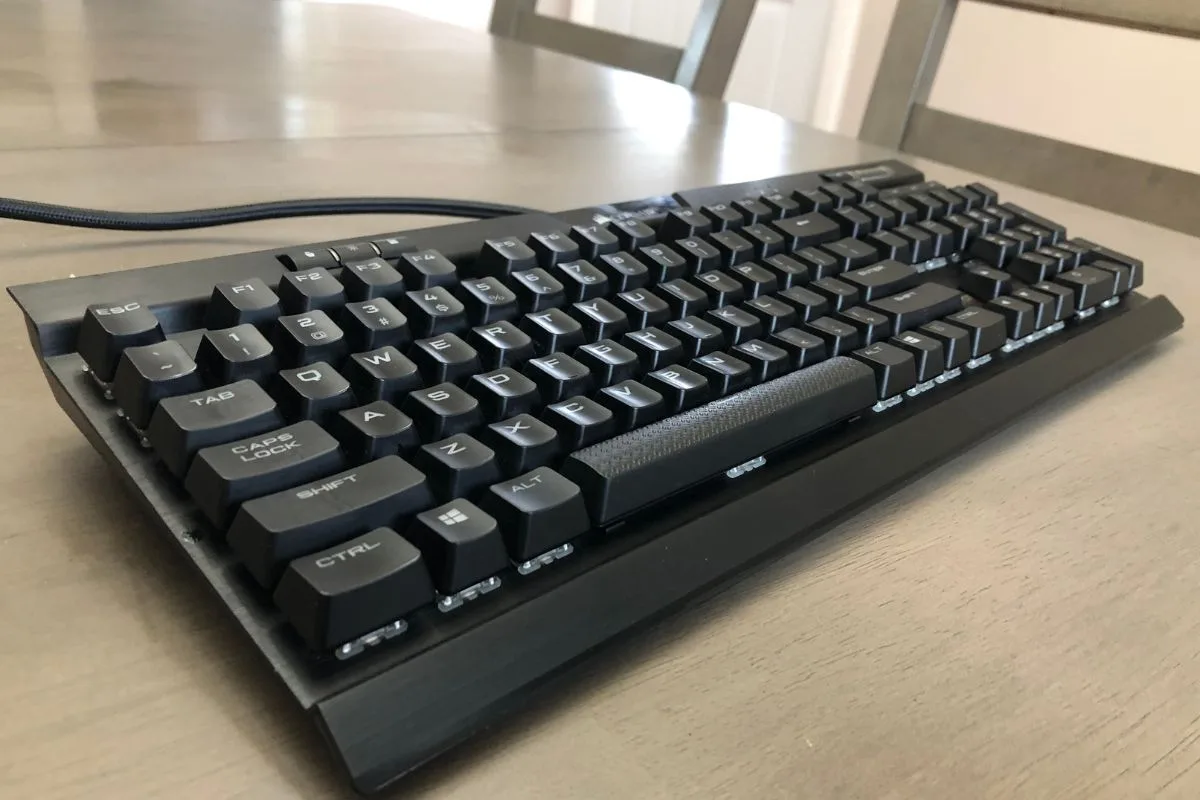
A note on keycap materials: shiny ABS keycaps warp in hot water and wear to a shine faster, so keep them in warm or lukewarm water. Matte PBT keycaps handle slightly warmer water without deforming.
How to Clean Sticky Mechanical Keyboard Switches
If one key still sticks or misses presses after a clean, residue has probably gotten inside the switch.
- Unplug the keyboard and pull the keycap off the sticky key.
- Put one or two small drops of 90% or stronger isopropyl alcohol into the switch housing with a dropper or the tip of a cotton swab.
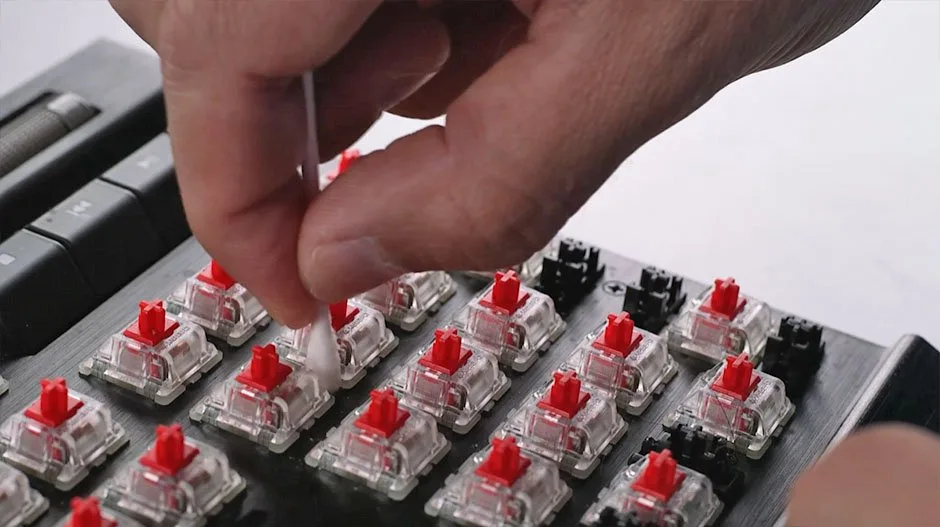
- Press the switch stem 20 to 30 times to work the alcohol through the mechanism.
- Let it dry for 10 to 15 minutes, then put the keycap back and try the key.
If the key still sticks after a second try, the switch may need replacing. On a hot-swap board you can pull it yourself, and our guide on how to remove keyboard switches shows how.
What to Do If You Spill a Drink on Your Mechanical Keyboard
- Unplug the keyboard or turn it off right away. Don’t plug it back in or type on it while it is wet.
- Turn it upside down over a towel or sink so the liquid drains out. Don’t shake it, which spreads the liquid deeper into the switches.
- Leave it upside down for at least 30 minutes and blot the excess with a dry cloth.
- Remove the keycaps in the spill area and gently blot the switches and plate dry.
- For a sugary drink, soda or coffee, treat each affected switch with isopropyl alcohol once it is dry, using the sticky-switch steps above.
- Let the keyboard air dry upside down in a warm, ventilated spot for at least 24 hours, with a fan if you have one, before you plug it back in.
How Often Should You Clean a Mechanical Keyboard?
| Cleaning level | Time | How often |
|---|---|---|
| Quick clean (keycaps on) | About 2 minutes | Weekly, or whenever you see dust or crumbs |
| Regular clean (keycaps off) | 15 to 20 minutes | Every 1 to 2 months |
| Deep clean (keycap soak) | 45 to 60 minutes, plus drying | Every 6 to 12 months |
| Sticky switch or spill fix | Varies | When a key sticks or after a spill |
Mechanical Keyboard Cleaning FAQ
Can I use water to clean a mechanical keyboard?
Only on the keycaps once they are off the board. Never put water on the base, switches or PCB. For those, use 90% or stronger isopropyl alcohol, which evaporates quickly.
Can I clean a mechanical keyboard without compressed air?
Yes. Turn the board upside down and tap out the loose debris, then use a soft brush to sweep between the switches. A small handheld vacuum on a low setting also works.
What should I avoid when cleaning a mechanical keyboard?
Avoid 70% rubbing alcohol, hot water on ABS keycaps, shaking a wet keyboard, cleaning while it is plugged in, and harsh chemicals or abrasive pads.
How to Clean a Mechanical Keyboard: Where to Start
Start with the two-minute quick clean every week, since it keeps most grit from ever reaching the switches. Pull the keycaps for a regular clean every month or two, and save the full soak for once or twice a year or when the board looks grimy. If a single key sticks, treat that switch with alcohol before you replace anything. Once you know how to clean a mechanical keyboard at each level, keeping it in shape takes only a few minutes a week.