GameCuki is reader-supported. When you buy through links on our site, we may earn an affiliate commission at no extra cost to you. As an Amazon Associate I earn from qualifying purchases. Learn more.
A dead key, a switch that feels scratchy, or a hunt for a different typing feel all lead to the same question: how to remove keyboard switches without wrecking the board. On a hot-swap keyboard it takes a puller and about a minute per switch, and the same steps cover how to replace keyboard switches once the old one is out. Soldered boards are a different job, so this guide shows you how to tell which one you own, then walks through both methods and what to do when a new switch will not work.
Keychron Super Switch (110 pieces, Banana Tactile)
A 5-pin set for hot-swap boards that also fits 3-pin sockets after the alignment legs are clipped, and it is not compatible with optical, magnetic or low-profile keyboards.
Properly remove switch from hot swap socket mechanical keyboard
How to Remove and Change Mechanical Keyboard Switches
There are two kinds of boards, hot-swappable and soldered. Hot-swap boards hold each switch in a socket, so a switch lifts out and a new one pushes in. Soldered switches are fixed to the circuit board and need desoldering. Find out which type you have before you pull anything, because forcing a soldered switch can damage the board. The maker’s spec page or manual normally says whether the keyboard is hot-swappable.
Tools You Need to Change Keyboard Switches
Wire keycap puller: Skip the plastic ring pullers that ship free with budget boards. A wire puller flexes more and is less likely to scratch the sides of PBT keycaps.
Stainless steel switch puller: Choose a slim, reinforced one. It grips the small tabs on the top and bottom of the switch housing without slipping onto the plate.
Nice to have: precision tweezers for straightening a bent pin, compressed air to clear dust from the sockets, a magnetic tray so loose switches do not roll away, and flush cutters if you plan to fit 5-pin switches into a 3-pin board.
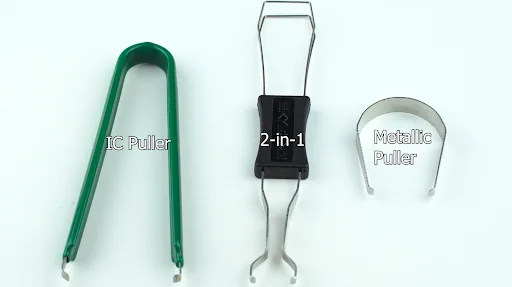
Combination tools exist that put a keycap puller and a switch puller in one handle. The common styles are the metal keycap puller, the 2-in-1 puller and the IC puller, and they all pull in a similar way. The IC puller was not designed for switches and can scratch the board, so a purpose-built switch puller is the safer choice.
How to Remove Hot-Swappable Keyboard Switches
Keep the new switches and your tools within reach before you start, so nothing gets lost halfway through.
Remove the keycap. Place the two wire arms of the keycap puller around the keycap and lift slowly but firmly. If the switch comes up with the keycap, hold the switch with one hand and pull the keycap off with the other.
Set the keycap aside in order. Keeping the caps in the same order saves time if you reuse them on the new switches. Repeat for every key you are changing.
Pull the switch. Clip the switch puller around the top and bottom sides of the switch and lift gently. If it sticks, wiggle it a little. Never force a switch out of the board.
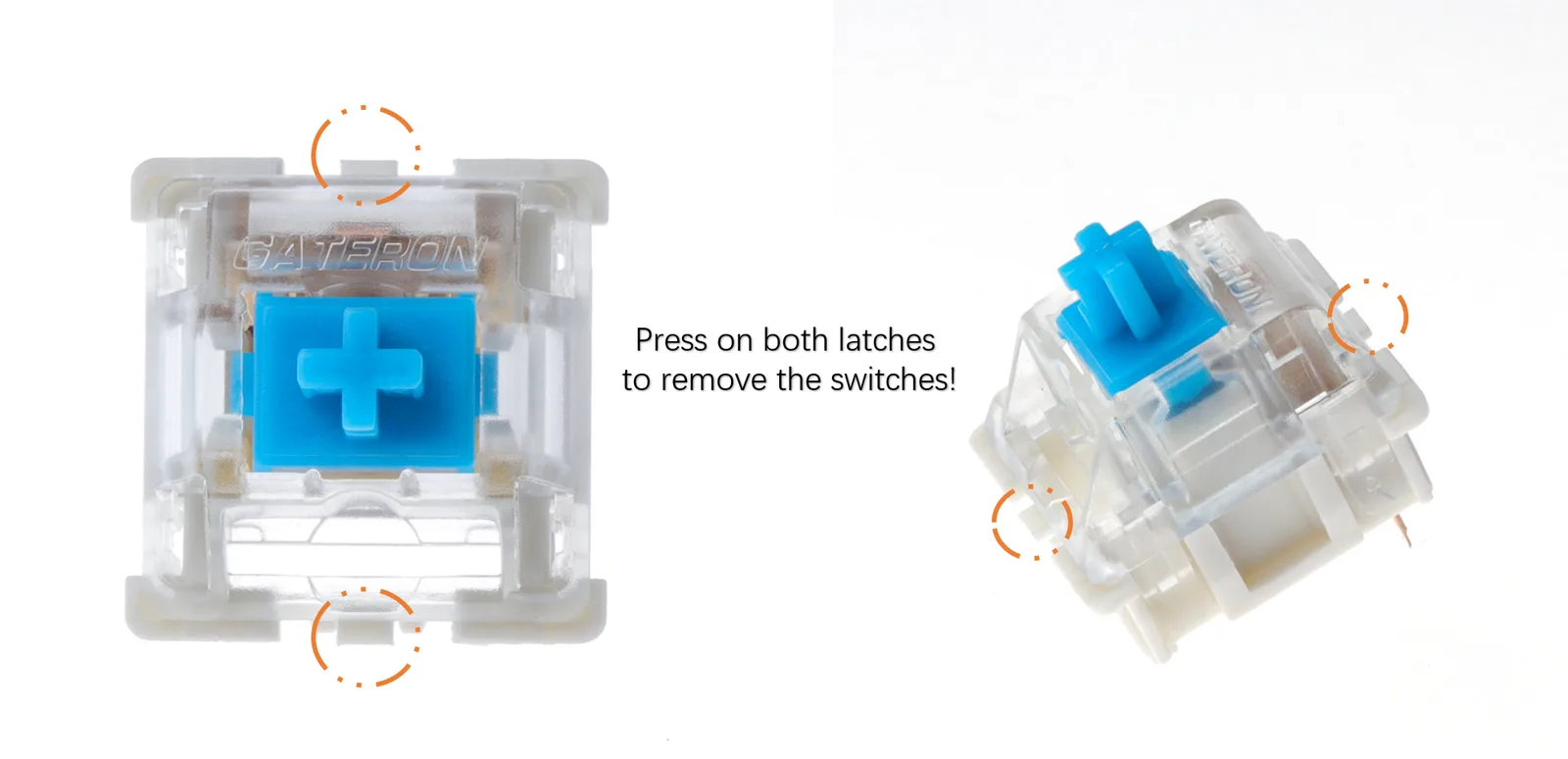
Press both latches to release the switch. (Image: Epomaker)
Some switches have two latches on the sides, and Gateron mechanical switches are one example. On those, put the puller on the latches and press them in while you lift, because pulling without releasing them is how a housing cracks. Match the puller direction to the latches, which may be left and right or top and bottom depending on the switch.
Clean while the board is open. With the switches out, blow dust out of the sockets before the new ones go in.
Seat the new switch. Line the switch up with the socket and push it straight in. It should slide in easily, so if it snags, check for debris and alignment instead of pressing harder. Straighten the metal pins first if either one looks bent.
Put the keycap back on. Press the keycap onto the new switch and you are done.
Never force a switch into the socket. Heavy resistance means stop and re-check, since a misaligned switch can permanently damage the hot-swap socket, which is much harder to repair than a bent pin.
One more check before you buy switches: mechanical and optical switches are not interchangeable. A mechanical switch has metal pins on the bottom, and an optical switch does not, so match the new switch to what your board supports.
How to Remove Soldered Keyboard Switches
Do not try this without soldering experience. You risk ruining the whole keyboard, and a hot iron can burn you. The process mirrors the hot-swap method with extra steps to free and fix the switch.
Take the keyboard out of its case to expose the PCB.
Flip the PCB over and find the solder bumps for each switch, then desolder each one.
Remove the excess solder with a desoldering pump.
Fit the new switch and solder it into place.
Plan on a few hours for a full board, depending on how comfortable you are with a soldering iron. If you only want a different feel, a hot-swap keyboard avoids all of this.
3-Pin vs. 5-Pin Switches: Do You Need to Clip Them?
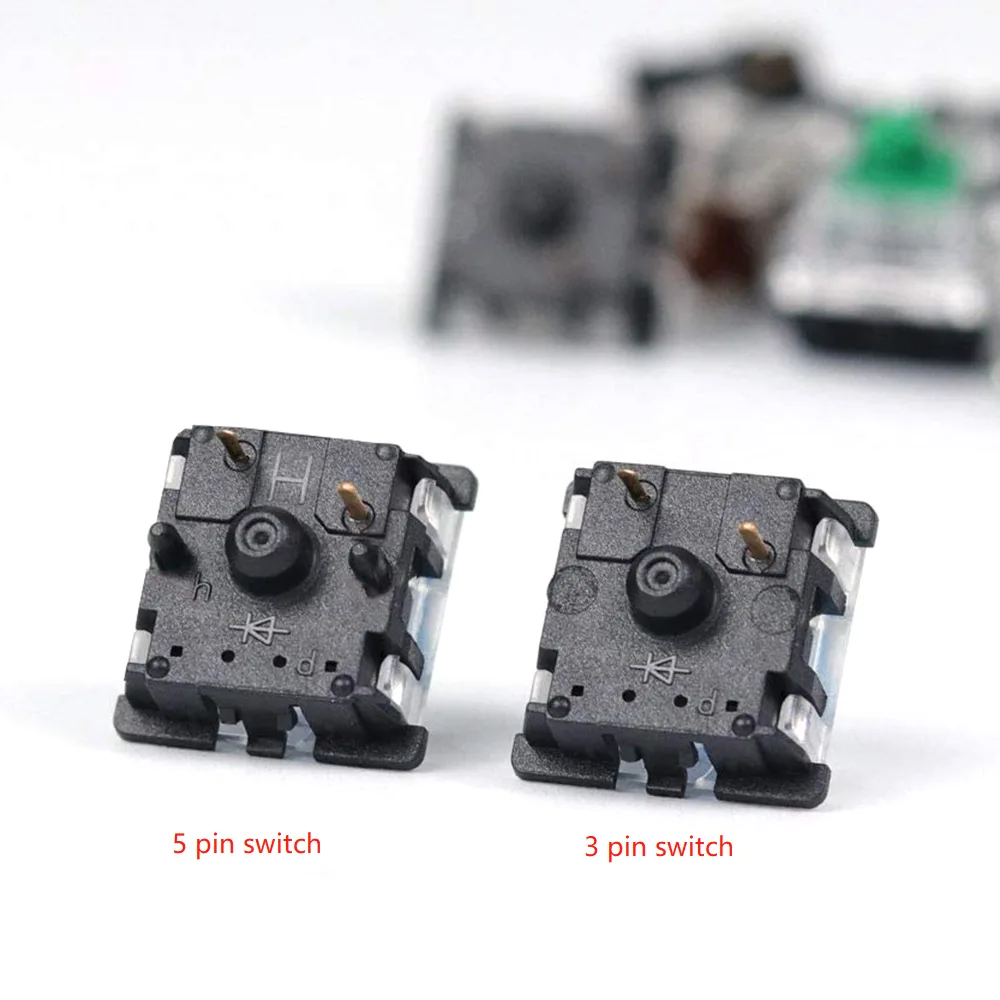
New switches usually come as 3-pin (plate mount) or 5-pin (PCB mount). A 5-pin switch is a 3-pin switch with two extra plastic alignment pins on the bottom. Many hot-swap boards accept both, but some only have holes for three pins, and a 5-pin switch will not sit flush on those.
A 5-pin switch (left) has two extra plastic alignment pins next to the center post. (Image: Epomaker)
You do not have to return them. Snip the two extra plastic pins flush with flush cutters or a small nail clipper, leaving the large center post and the two metal contact pins. The change is structural only and does not alter how the switch feels. Buying 5-pin switches by default is a common habit for exactly this reason, since they can always be clipped later.
What to Do if a New Switch Does Not Work
If a key does nothing after the swap, the cause is almost always physical.
The key does not register. A bent pin is the usual culprit, because a switch pressed in at a slight angle can fold a pin over. Pull the switch back out, straighten the pin with tweezers, and reseat it perfectly vertical.
The switch will not sit flush. Check whether you are forcing a 5-pin switch into a 3-pin board and clip it if so. Also blow out any dust or plastic fragments in the socket.
A key types twice. Swap that switch with a known good one from elsewhere on the board. If the problem follows the switch, the switch is faulty. If it stays at the same spot, the socket may be loose.
A large key feels mushy or sticks. On a spacebar, Shift or Enter, check that the switch sits centered between the stabilizer stems. If you recently lubed the switches, wipe excess lube off the outside of the housing.
Clean the Board While the Switches Are Out
A swap is the best time for a deep clean. Blow debris out of the sockets and from under the stabilizers with compressed air. Wipe the plate with a microfiber cloth slightly dampened with 70% isopropyl alcohol to lift oils and grime. Then look over the sockets for oxidation or stray solder balls that could interfere with contact.
Ready to Hot Swap Keyboard Switches Yourself?
If your board is hot-swappable, learning how to hot swap keyboard switches is one of the cheapest mechanical keyboard mods you can make: a wire keycap puller, a proper switch puller and a steady hand are enough. Pull straight up, never force anything, and straighten pins before you seat a new switch. If your board is soldered and you have never held an iron, think twice before you start to remove keyboard switches, and consider a hot-swap board for your next purchase instead.
I'm Iain, and I write the step-by-step guides on GameCuki. I cover game tips and walkthroughs, PC gaming how-tos like settings, performance and troubleshooting, and practical guides for Steam, PlayStation, Xbox and Nintendo Switch. I build each guide from official game and platform documentation, write the steps in plain language and check them against the source before publishing. When a game or platform changes how something works, I update the guide. You can read my full process on our How We Review page.