

A loud board can annoy a roommate, a partner or a whole call lobby, and the good news is that how to make a mechanical keyboard quieter is mostly a question of which noise you are hearing. Some of it is the keycap hitting the switch housing, some is a rattling spacebar, and some is the whole desk acting like a drum. This guide goes through ten fixes in order from the cheapest and quickest to the ones that mean opening the board, so you can stop as soon as it sounds right.
How to Make a Mechanical Keyboard Quieter: 10 Fixes That Work
GameCuki is reader-supported. When you buy through links on our site, we may earn an affiliate commission at no extra cost to you. As an Amazon Associate I earn from qualifying purchases. Learn more.
Table of Contents
- What You Need to Make a Mechanical Keyboard Quieter
- Why Is My Mechanical Keyboard So Loud?
- 1. Put a Desk Mat or Large Mouse Pad Under the Keyboard
- 2. Clean the Keycaps and the Board
- 3. Add O-Rings to the Keycaps
- 4. Lubricate the Switches
- 5. Add Foam Inside the Keyboard
- 6. Try the Tape Mod
- 7. Fix the Stabilizers (Band-Aid, Clip and Lube)
- 8. Swap to Silent Switches
- 9. Choose Thicker PBT Keycaps
- 10. Use a Gasket-Mount or Better-Damped Case
- Mechanical Keyboard Quiet Fixes FAQ
- Final Thoughts on Making a Mechanical Keyboard Quieter
What You Need to Make a Mechanical Keyboard Quieter

Captain O-Ring Switch Dampeners
135 rubber O-rings that cut 0.4mm of travel for a softer landing, supplied with a cleaning cloth.
Check Price on Amazon
Glorious G-Lube Keyboard Switch Lubricant
A 10g vial of synthetic grease that suits clicky, linear and tactile switches as well as stabilizers.
Check Price on Amazon
RUNJRX 0.5mm PE Switch Pads (120 pcs)
Pre-cut 0.5mm white PE pads with an adhesive back, sized for 61 to 108 key hot swap boards, and a pair of tweezers is included.
Check Price on AmazonYOU Can Make Your Keyboard Clack, Thock or Silent
Why Is My Mechanical Keyboard So Loud?
Several things add up to the clack. Clicky switches such as Cherry MX Blue and Green are loud by design, while linear switches such as MX Red are quieter. The keycap slamming down onto the switch (bottoming out) and snapping back up (topping out) make noise, so do rattling stabilizers on the big keys, thin keycaps, a hollow case and a hard desk surface. Work out which one bothers you most and start there.
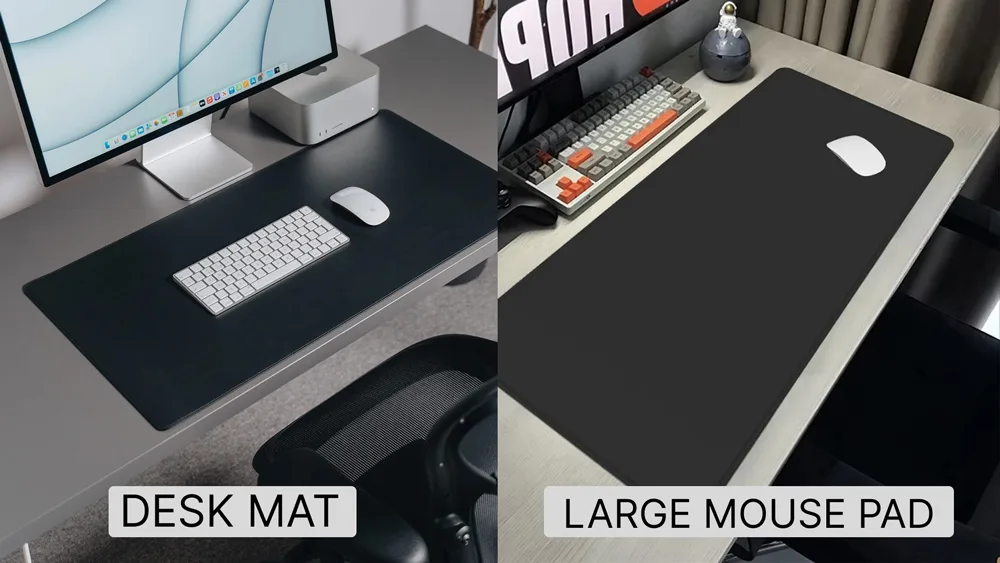
1. Put a Desk Mat or Large Mouse Pad Under the Keyboard
The easiest fix needs no tools. Typing sends vibration into the desk, and a wood or glass surface makes it louder. A thick desk mat or an extended mouse pad soaks up that vibration. It does not soften the sound of the keystroke itself, so treat it as a base layer and combine it with the fixes below.
2. Clean the Keycaps and the Board
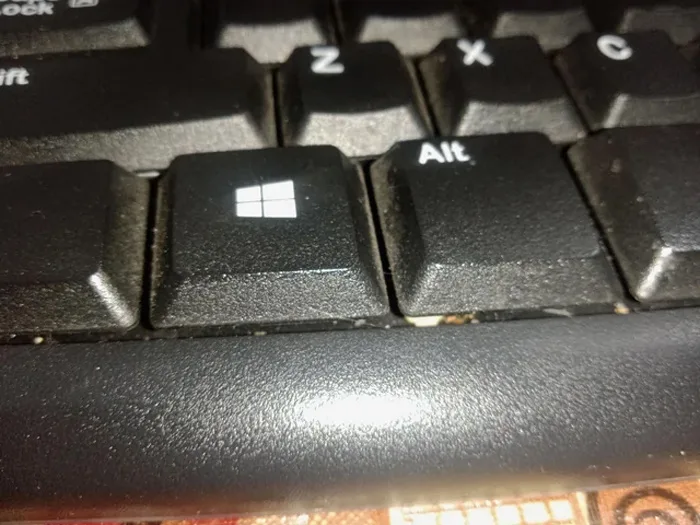
Dust and crumbs make keystrokes scratchier and louder. A deep clean takes about half an hour.
- Unplug the keyboard or switch it off.
- Take a photo of the layout so you can put every keycap back correctly.
- Pull the keycaps with a keycap puller.
- Wash the keycaps in warm soapy water, rinse them and let them dry completely.
- Shake out loose debris, then clear the rest with compressed air or a soft brush and wipe the board with a damp cloth.
- Press the dry keycaps back on using your photo, reconnect the board and check every key.
3. Add O-Rings to the Keycaps
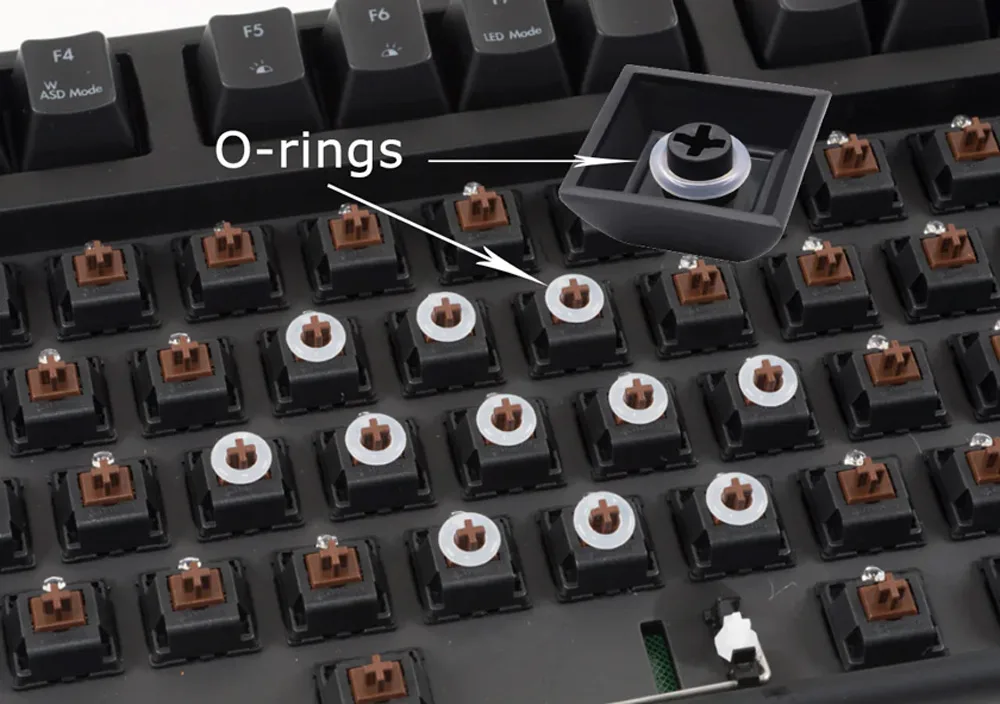
O-rings are small rubber or silicone rings that sit under the keycap and cushion the bottom-out. They also shorten key travel a little, so typing feels softer. The effect is smaller on clicky switches, because most of their sound comes from inside the switch.
- Pull the keycap with a keycap puller.
- Slide one O-ring onto the stem of the keycap.
- Press the keycap back onto the switch and make sure the ring sits flat.
- Repeat for every key, or start with the keys you hit hardest.
Rubber ages, so plan to swap O-rings roughly every one to two years, or sooner if the sound or feel changes.
4. Lubricate the Switches
Lube cuts friction, which removes scratchiness and takes the edge off a harsh sound. It is the most time-consuming fix here, because you remove the keycaps and switches and open each switch. Budget a couple of hours for a full board.
- Gather a switch opener, a fine brush, tweezers and a switch lube such as Krytox GPL 205 or Tribosys 3203.
- Remove the keycaps, then pull the switches (hot-swap) or work on the board as it is.
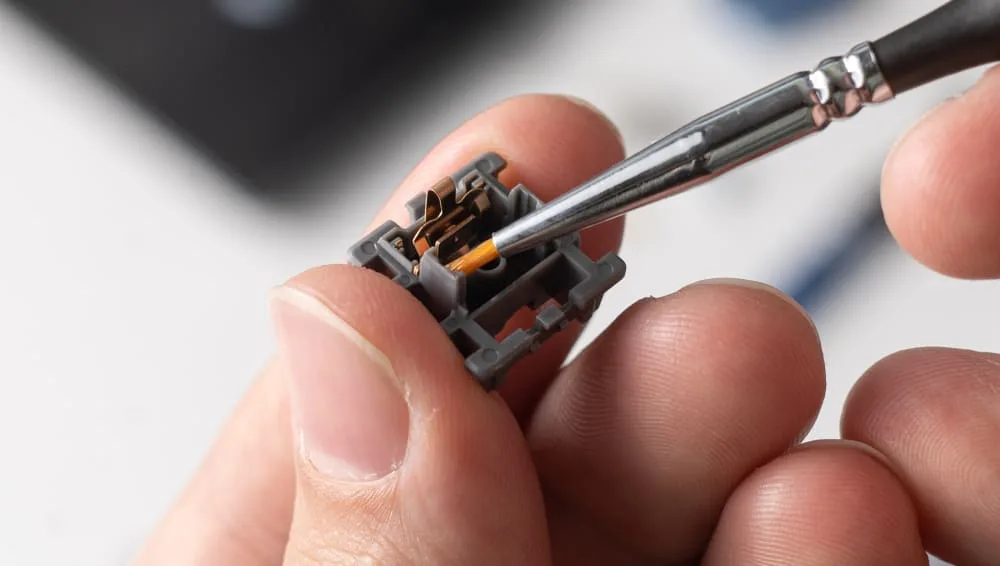
- Open each switch housing with the switch opener.
- Brush a thin, even layer onto the stem sliders, the rails and the spring.
- Close the switch, put it back and check that the key feels smooth.
Go light. Too much lube makes keys feel mushy and sluggish. Redo it about every 6 to 12 months for a heavily used board, or sooner if the keys start to feel scratchy.
5. Add Foam Inside the Keyboard
An empty case rings like a hollow box. Foam between the PCB and the case, or between the plate and the PCB, soaks up that echo and deepens the sound. Common materials are Poron, EVA, PE and neoprene, cut to fit the case without blocking any components. For the full cut-and-fit walkthrough, see our keyboard foam mod guide.
6. Try the Tape Mod
The tape mod puts layers of painter’s tape on the back of the PCB to mute harsh, high-pitched tones and add some depth. It takes about 15 minutes and costs very little, but opening the tape up again and again can leave residue. Our guide on how to tape mod a keyboard shows where to place it.
7. Fix the Stabilizers (Band-Aid, Clip and Lube)
If the spacebar, Enter and Shift sound rattly while other keys are fine, the stabilizers are the culprit. Three small tweaks help, and the Band-Aid mod matters most on the spacebar and Enter.
- Band-Aid mod: place a small piece of soft material, such as a bandage pad, where the stabilizer housing meets the PCB. It cushions the bottom-out.
- Clip the feet: trim the small feet on the bottom of the stabilizer housing so it sits more softly. Cut carefully, because an uneven clip can damage the stabilizer.
- Lube the stabilizer: put a thin layer of dielectric grease on the wire ends and the housing, where the wire slides.
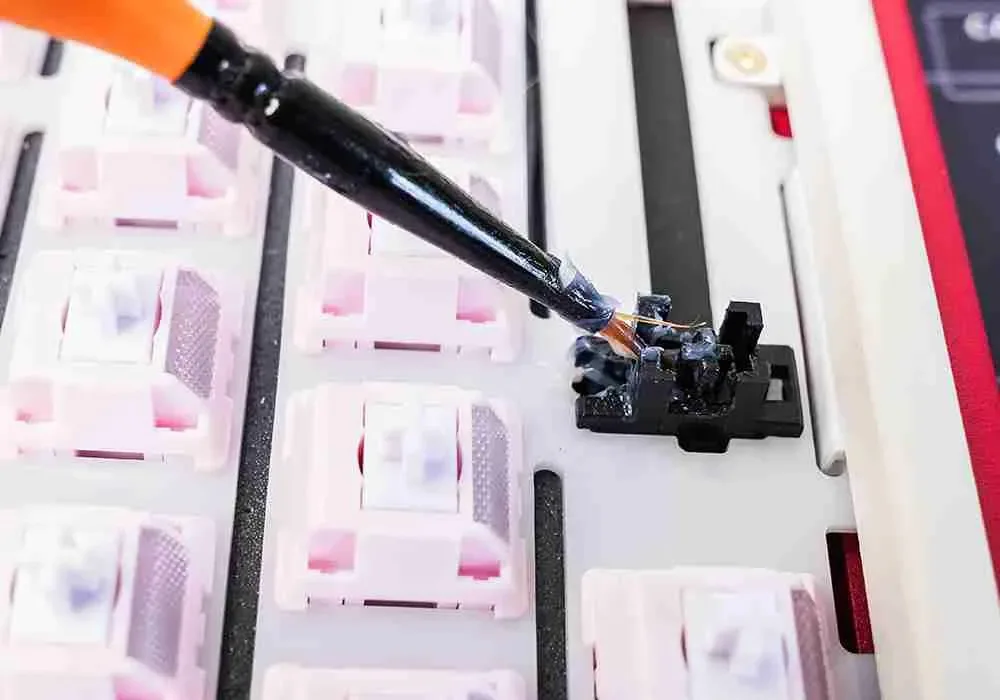
Do not overdo the lube here either. Too much can feel mushy.
8. Swap to Silent Switches
Silent switches have a built-in silicone dampener that softens both the downstroke and the upstroke. Cherry MX Silent, Gateron Silent, Zilents and Kailh Silent Box are common examples. You need a hot-swap board, or you have to solder the new switches in. They can feel a little mushier than standard switches, so buy a small pack first if you are unsure. If your board uses clicky switches, moving to linear or silent linear is the single biggest change you can make.
9. Choose Thicker PBT Keycaps
PBT is denser than ABS, so it gives a deeper, more muted sound. Thicker keycaps absorb more vibration than thin ones, while thin ABS caps tend to sound hollow and sharp. Keycaps are an easy swap, since they pull straight off.
10. Use a Gasket-Mount or Better-Damped Case
If you are shopping for a new board, gasket mounting is the quiet option. Soft gaskets let the plate float, which reduces vibration reaching the case. It is a build choice, not an add-on, so it mainly matters when you buy or build a board. If you do want to fit gaskets to an existing board, it is a more involved DIY job.
Mechanical Keyboard Quiet Fixes FAQ
Does foam make a keyboard quieter?
Yes. Foam inside the case reduces the hollow echo and gives a deeper sound, though it will not remove the click of a clicky switch.
Do O-rings make a keyboard quieter?
They soften the bottom-out thud and shorten travel a little, so they do help. They do very little for the click of a clicky switch.
Are blue or red switches quieter?
Red. Blue switches are clicky by design, while red switches are linear and much quieter.
Can any mechanical keyboard be made quiet?
Most boards can be made noticeably quieter, though a clicky board will never be truly silent unless you change the switches.
Do silent switches change how typing feels?
A little. The dampeners soften the bottom-out and can make keys feel slightly mushier.
Is it worth modding a cheap mechanical keyboard?
Yes. O-rings, a desk mat, tape and foam cost little and can improve both sound and feel.
Final Thoughts on Making a Mechanical Keyboard Quieter
If you only do two things to make a mechanical keyboard quieter, put a desk mat under it and add O-rings, since both take minutes. Add foam or the tape mod if the case still sounds hollow, fix the stabilizers if the spacebar rattles, and change to silent or linear switches if a clicky board is the real problem.