

Scratchy keystrokes, spring ping and a rattly bottom-out are all signs that your switches are rubbing dry plastic on plastic. Knowing how to lube keyboard switches lets you smooth that out for the price of a small tub of lubricant and an afternoon. Below you will find the tools, the right lube for each switch type, and seven numbered steps from pulling the keycaps to checking your work.
How to Lube Keyboard Switches: Step-by-Step Guide
GameCuki is reader-supported. When you buy through links on our site, we may earn an affiliate commission at no extra cost to you. As an Amazon Associate I earn from qualifying purchases. Learn more.
Table of Contents
- What You Need to Lube Keyboard Switches
- Which Lube Should You Use on Keyboard Switches?
- The Parts of a Mechanical Keyboard Switch
- How to Lube Keyboard Switches Step by Step
- How to Put a Switch Back Together
- How to Check Your Keyboard After Lubing
- Common Mistakes When Lubing Keyboard Switches
- FAQ About Lubing Keyboard Switches
- Is Lubing Keyboard Switches Worth It?
What You Need to Lube Keyboard Switches

Glorious G-Lube Switch Lubricant
Glorious sells this lubricant as a universal option for clicky, linear and tactile switches, so one vial covers whichever type you own.
Check Price on Amazon
Gateron Switch Opener
A four-snap-lock opener that splits MX-style switches without prying, which makes opening dozens of switches much faster.
Check Price on Amazon
Keychron Gateron Twins 2-in-1 Puller
One tool that lifts both keycaps and hot-swap switches off the board.
Check Price on AmazonBesides the opener and puller, you also need:
- A fine brush (size 0 or 00 works well) to apply the lube.
- Tweezers for springs and other small parts.
- Small containers or a lubing station to keep stems, springs and housings sorted.
- A clean, well-lit surface with room to lay out the keycaps in order.
Prefer to watch first? This video shows the whole process:
How to lube mechanical switches EASY
Which Lube Should You Use on Keyboard Switches?
Lubes differ in thickness (viscosity), and the right one depends on the switch type. A lube that is too thick or too thin for the job will either gum up the stem or drain away from the parts it should coat.
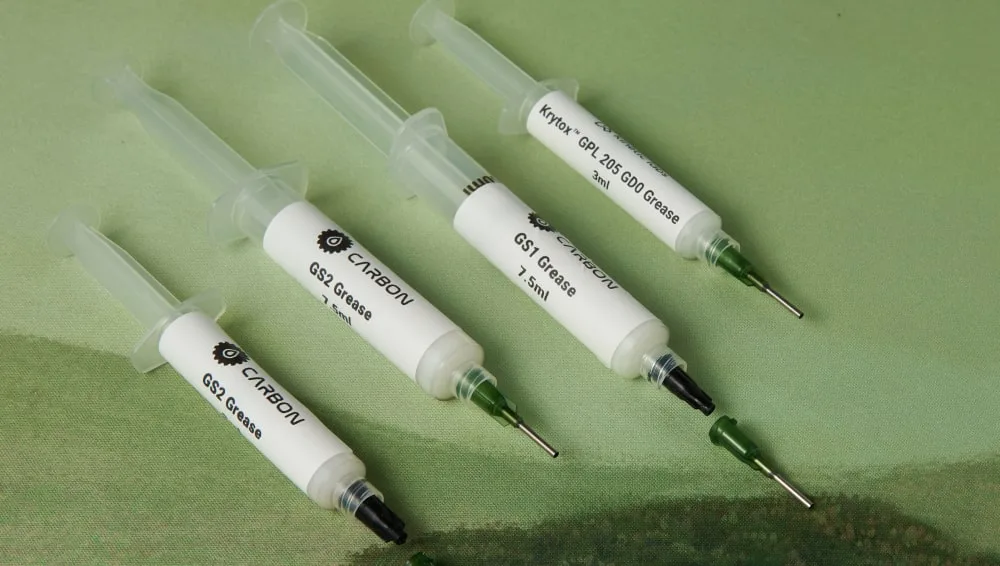
- Linear switches: Krytox 205g0 is the most common choice because its consistency suits smooth sliders.
- Tactile switches: a thinner lube such as Tribosys 3203 or Carbon GS1 smooths the stroke without wiping out the bump.
- Clicky switches: these are built to be loud, and lube can dull the click. Many guides suggest leaving them alone, or using only a very thin lube such as Krytox 105 on the springs.
- Springs: a thin oil such as Krytox 105 spreads easily, which is why it is the usual pick for bag lubing.
The Parts of a Mechanical Keyboard Switch
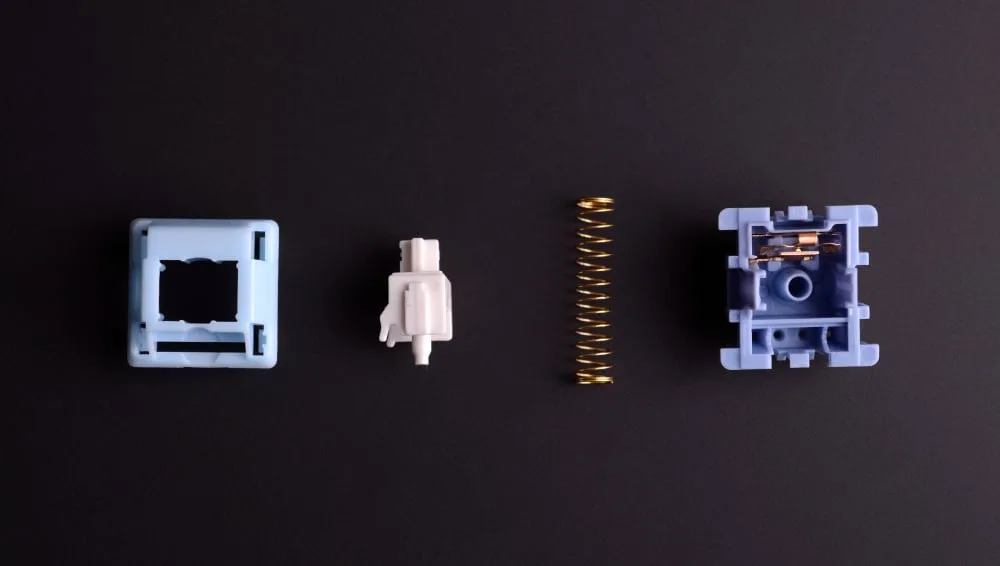
A switch comes apart into four pieces, and knowing their names makes the steps below easier to follow.
- Top (upper) housing: the cover that holds the pieces together.
- Stem: the part your keycap sits on. It slides down to the metal contacts and is what separates linear and tactile switches from clicky ones.
- Spring: sets how much force a keypress needs.
- Bottom housing: holds the metal contact leaves and the rails the stem slides on.
How to Lube Keyboard Switches Step by Step
Lubing a full board takes a while, so clear a table and plan a block of time. Start with a handful of switches first to get a feel for how much lube to use.
Step 1: Remove the Keycaps
- Unplug the keyboard, or switch it off if it is wireless.
- Take a photo of the layout so you can put every key back in place.
- Pull each keycap straight up with the keycap puller and keep the caps in order.
Step 2: Remove the Switches
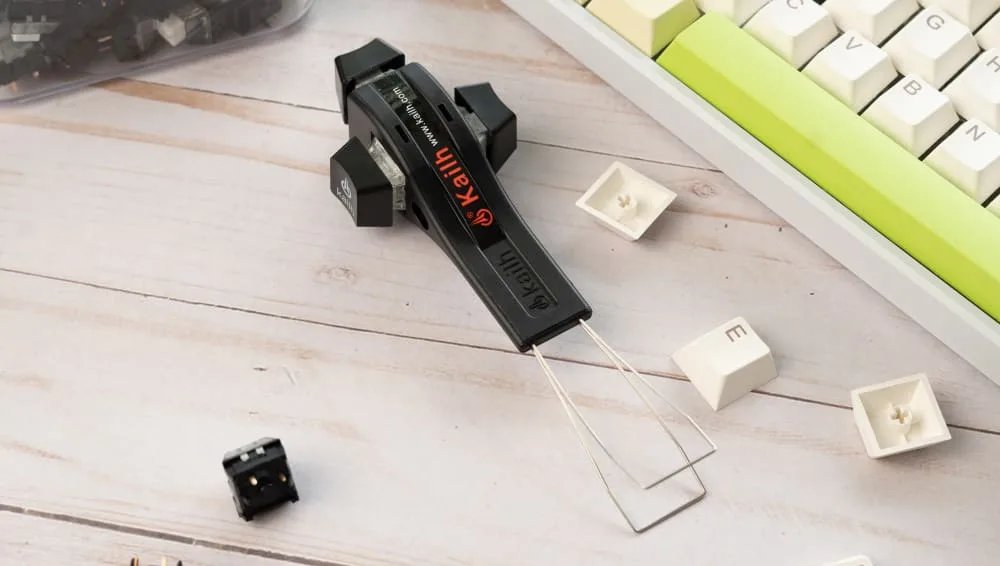
This step depends on your board. A hot-swappable keyboard has sockets under each switch, so a switch puller lifts them out with no tools beyond the puller. A soldered keyboard needs each switch desoldered first, which takes experience and extra tools, so allow more time or ask someone who solders. Our guide to removing keyboard switches covers both cases.
- Fit the switch puller onto a switch from two opposite sides.
- Pull straight up until the switch comes free.
- Repeat for every switch you plan to lube.
Step 3: Open the Switch
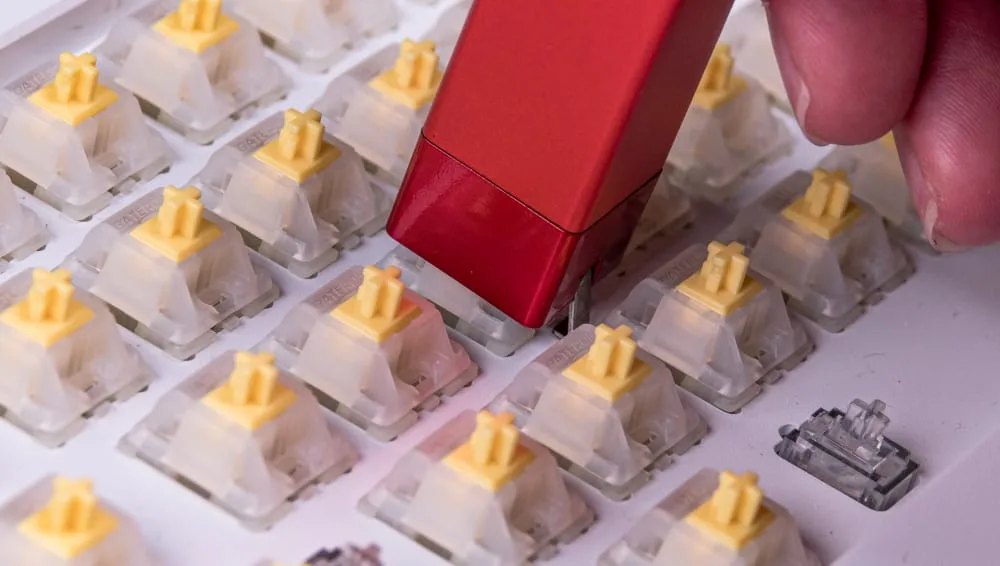
- Set the switch face up in the opener and line up its tabs.
- Press down on the stem and top housing until the switch pops open.
- Lift off the top housing carefully so you do not bend its legs.
- Put the stem, spring, top housing and bottom housing into separate containers.
- Repeat until every switch is open.
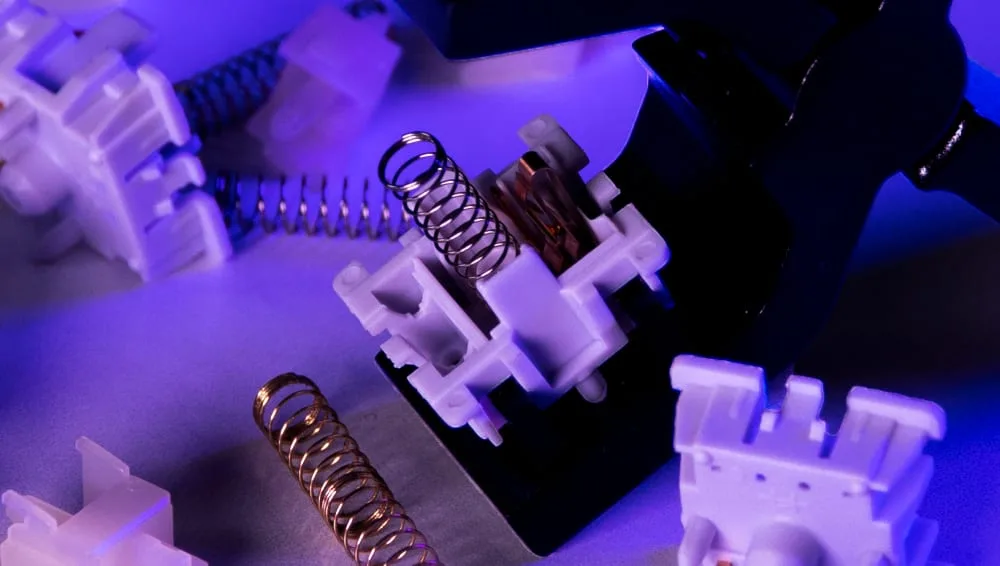
Step 4: Lube the Springs
For a whole board, bag lubing is much faster than brushing each spring.
- Drop the springs into a small resealable plastic bag.
- Add a few drops of a thin oil such as Krytox 105. About 10 to 12 drops covers roughly 70 to 90 springs, so scale that to your count.
- Trap some air in the bag, seal it and shake for 30 to 60 seconds.
- Open the bag and separate any springs that stuck together.
With only a few springs, brush a small amount of lube on the top and bottom of each one instead.
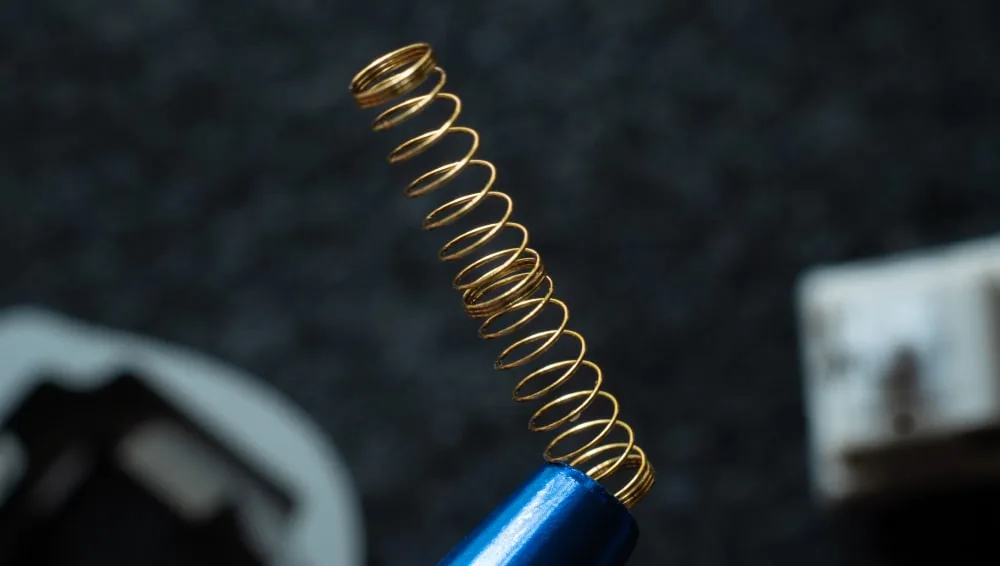
Step 5: Lube the Bottom Housing
- Dip only the tip of the brush in the lube and wipe off the excess on the edge of the tub.
- Brush the rails the stem slides on.
- Add a little to the corners of the center post.
- Wipe away any visible white residue around the edges.
- Keep lube off the metal contact leaves.
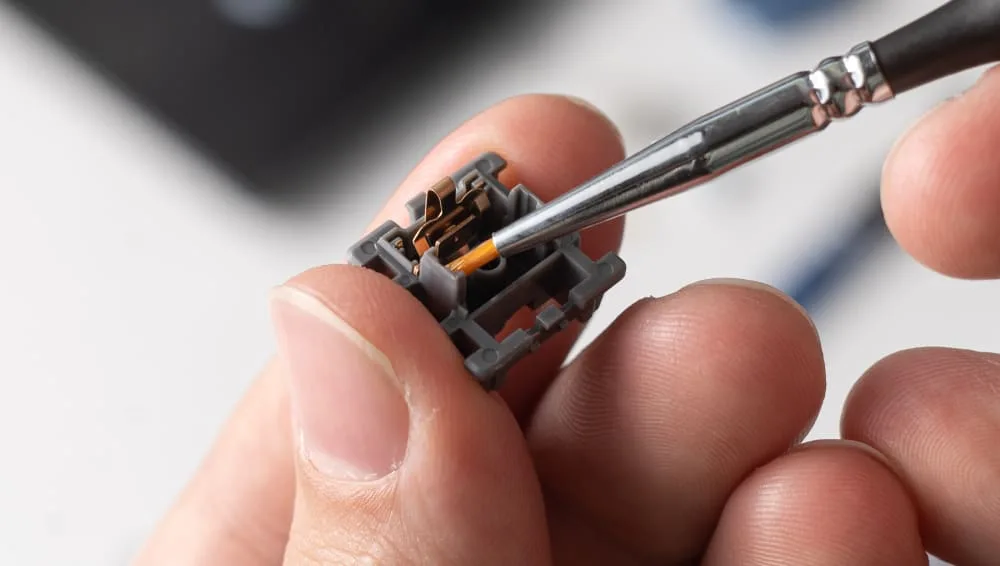
Step 6: Lube the Top Housing
- Pick up a small amount of lube on the brush.
- Coat the areas where the stem touches the top housing.
- Add a little to the housing legs and nameplate area if you want extra smoothness. Some builders skip the legs and only lube the stem contact points.
- Brush off any excess.
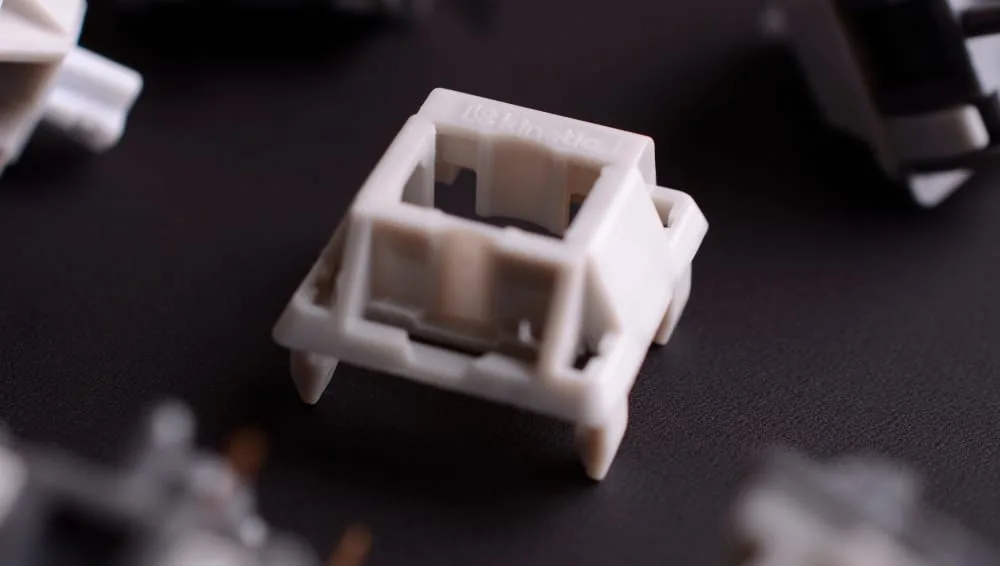
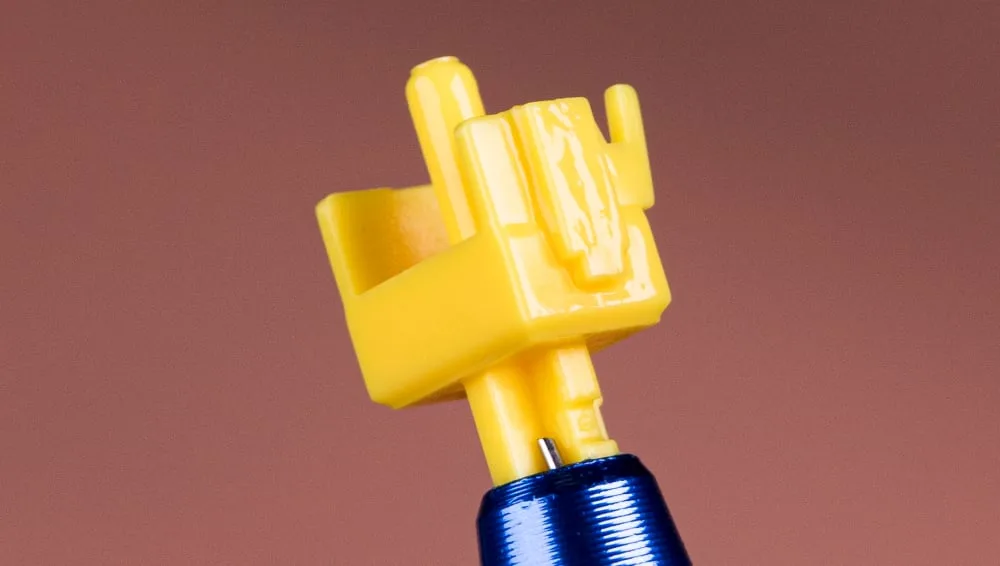
Step 7: Lube the Stem
- Apply a very thin layer of lube to all four sides of the stem.
- Smooth it out so it is even on every side.
- Add a thin coat to the inside of the stem.
- Skip the stem legs on a tactile switch, since lube there can soften the bump.
How to Put a Switch Back Together
Reassembly is the opening steps in reverse.
- Start with the bottom housing.
- Seat the spring in its original position.
- Press the stem firmly into the bottom housing without bending the metal contacts.
- Snap the top housing on.
- Press the stem a few times. It should move smoothly and spring back. If it does not, reopen the switch and check that the parts line up.
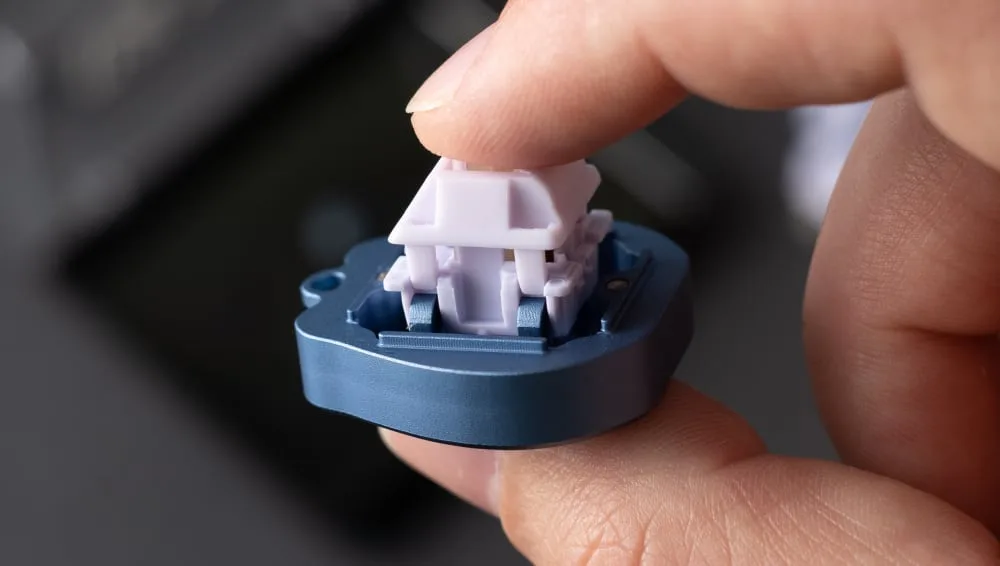
Then check that the metal pins on each switch are straight, push the switches into the board, and put the keycaps back using your layout photo.
How to Check Your Keyboard After Lubing
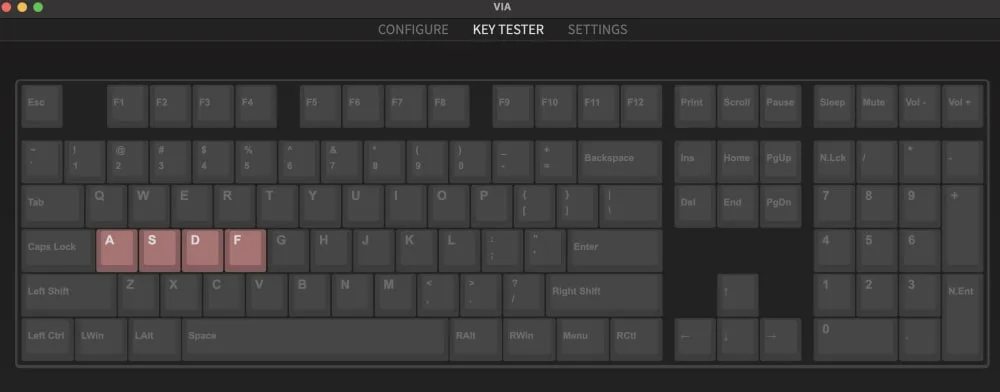
Open a key-checking tool such as the key view in VIA (or any online key checker) and press every key you lubed. Each one should light up.
- A key does nothing or the bump feels weaker: you probably used too much lube. Check the stem legs and the contacts.
- A key does not register: straighten the switch pins and re-seat it, or wipe the contact leaves with isopropyl alcohol if lube got on them.
- A key feels rough or scratchy: you likely missed a spot. Reopen the switch and add lube to the stem and spring.
- The key still fails after all that: swap in a spare switch. If the spare works, the lubed switch is faulty and needs replacing.
Common Mistakes When Lubing Keyboard Switches
- Using too much lube. It makes keys feel sluggish or mushy and can dull the bump on tactile switches. A thin, glossy film is plenty.
- Getting lube on the metal leaf. This can wreck the tactile feel or the click, and it can stop a key from registering.
- Lubing clicky switches. Their click depends on precise contact between parts, so lube can dull it.
- Doing the whole board in one go. Start with 5 to 10 switches, check how they feel, then adjust your technique.
- Prying switches open with a screwdriver. It can crack the housing or snap tabs. Use a switch opener.
While the board is open, it is a good moment to clean it, and our guide on how to clean a mechanical keyboard shows how. If you want to change the sound as well, the keyboard foam mod pairs well with fresh lube.
FAQ About Lubing Keyboard Switches
Do you need to lube your keyboard switches?
No, but it is recommended. Most manufacturers do not pre-lube switches, which leaves more noise and rougher keystrokes.
What kind of lube should you use on keyboard switches?
It depends on the switch. Linear switches usually take a thicker lube such as Krytox 205g0, tactile switches take a thinner one such as Tribosys 3203, and clicky switches are best left alone or lubed very lightly.
Why lube your keyboard switches?
Lube can reduce scratchiness and rattle, improve the sound and make the keystroke feel smoother. It can also soften the tactile bump, so go lightly on tactile switches.
Can you lube keyboard switches without taking them apart?
Not properly. The stem, spring and housing surfaces that need lube are inside the closed switch, which is why the guide opens each one. You can skip desoldering if your keyboard is hot-swappable, since a switch puller removes the switches without a soldering iron.
Is Lubing Keyboard Switches Worth It?
If your keys feel scratchy or you want a quieter, smoother board, learning how to lube keyboard switches is one of the cheapest upgrades you can make, and a hot-swappable board makes it far less painful. Go slowly, use less lube than you think you need, and try a few switches before you commit to the whole keyboard. If your switches already feel fine, you can skip it, and clicky fans should keep the lube in the drawer.