Playing on a MacBook with a keyboard is fine until a game wants real sticks and triggers. The good news: learning how to connect Xbox controller to Mac takes about a minute, needs no drivers, and works with most modern Xbox pads over Bluetooth or a cable. This guide covers both methods, which controllers are supported, how to remap buttons, and what to try when the Mac won’t see the controller.
Want to watch it first? This video walks through the pairing process on a Mac:
Apple lists these Xbox controllers as supported on Mac:
Xbox Wireless Controller with Bluetooth (Model 1708)
Xbox Wireless Controller Series S
Xbox Wireless Controller Series X
Xbox Elite Wireless Controller Series 2
Xbox Adaptive Controller
Older Xbox One controllers without Bluetooth are not on Apple’s list, so they do not pair wirelessly and may not work on a Mac even with a cable.
How to Connect Xbox Controller to Mac Over Bluetooth
Bluetooth is the simplest route, and the Mac remembers the controller afterward.
Press the Xbox button to turn the controller on.
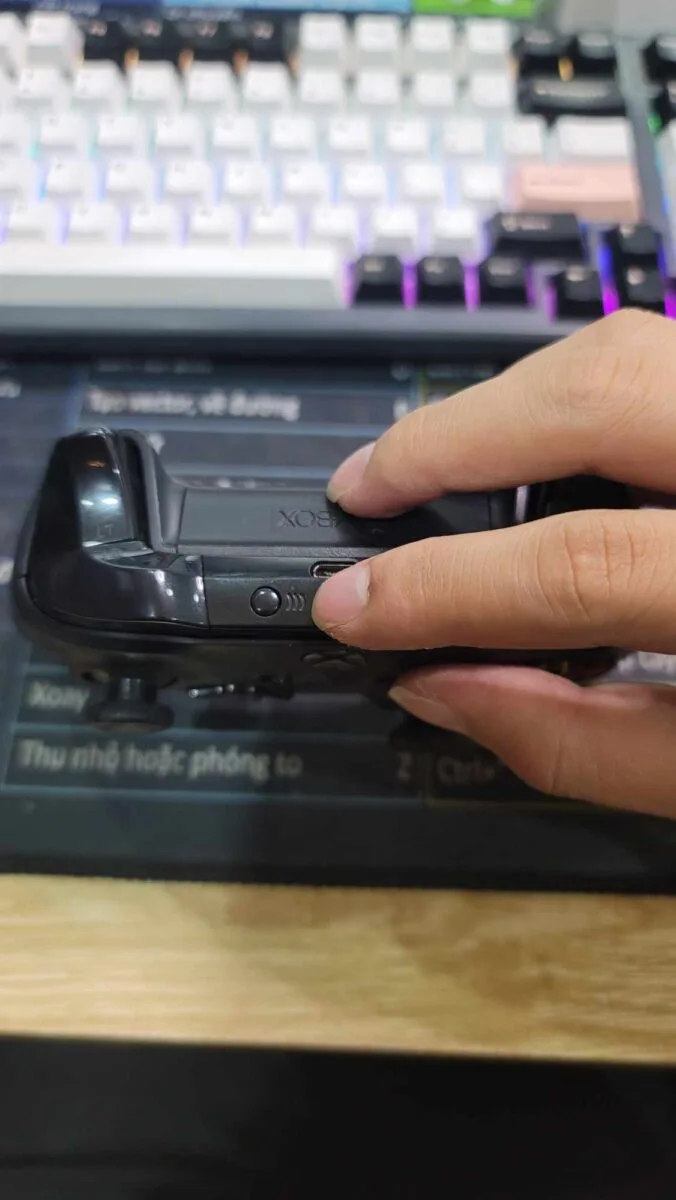
Press and hold the Connect (pairing) button on the top edge of the controller for a few seconds, until the Xbox logo blinks rapidly. This puts it in pairing mode.
Hold the Pair button until the Xbox logo blinks rapidly.
On your Mac, click the Apple menu, then System Settings, then Bluetooth.
Wait for Xbox Wireless Controller to show up in the list of nearby devices, then click Connect.
When the Xbox logo stops blinking and stays lit, the controller is paired.
If you see a message that the controller needs a firmware update, update it with Microsoft’s instructions for Xbox wireless controllers, then pair again.
How to Connect Xbox Controller to Mac With a USB Cable
Some controllers pair automatically when plugged into an Apple device with a cable that supports data and charging.
Plug a USB-C or micro-USB cable (depending on your controller) into the controller.
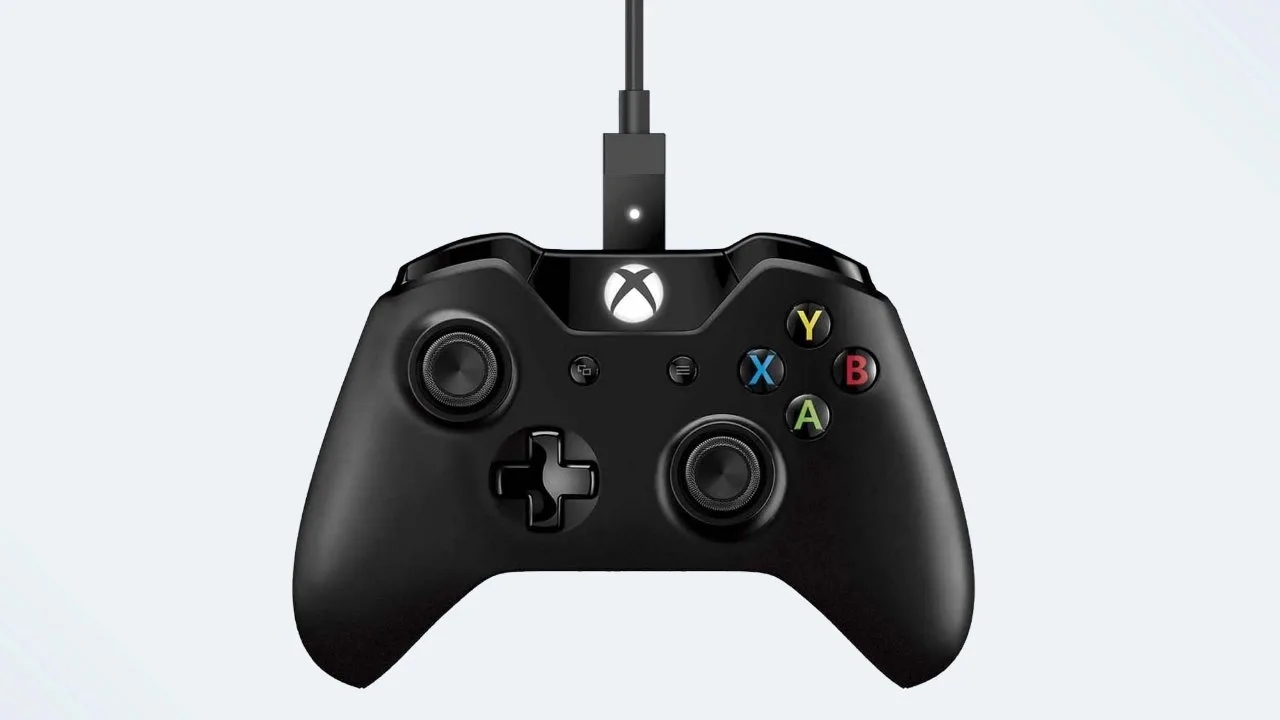
The USB port is on the top edge of the controller, between the bumpers. (Image: Microsoft)
Plug the other end into your Mac. Use a USB-C adapter if your Mac has no matching port.
Open System Settings and check that the controller appears, for example under Game Controllers.
A charge-only cable will not work here, so use one that carries data. A cable also helps when the battery is low or when Bluetooth is acting up.
How to Remap Xbox Controller Buttons on Mac
On macOS Ventura 13 or later, Apple includes controller settings for supported controllers.
Make sure the controller is connected over Bluetooth or USB.
Open the Apple menu, choose System Settings, then click Game Controllers in the sidebar.
Click the name of your controller.
Change what each button does, or click Add App to create custom controls for one game. You can also save settings as a profile.
The Game Controllers menu only appears while a compatible controller is connected. For deeper customization in Steam games, Steam has its own controller configuration options.
Xbox Controller Won’t Connect to Mac? Try These Fixes
Work through the list in order.
Update macOS and the controller’s firmware. Controller firmware updates come from Microsoft.
In Bluetooth settings, select the controller (or the More Info button next to it), choose Forget This Device, then pair it again from step one.
Turn Bluetooth off and on, and restart the Mac if needed.
Keep the controller away from your Xbox console, which can grab the connection first.
Charge or replace the batteries, since a weak battery can cause pairing trouble.
Disconnect other Bluetooth devices to reduce interference.
Try a different USB cable or port if you are connecting by cable.
Some controllers can pair with more than one device. If yours is paired to a console or phone, disconnect it there first, then reconnect from your Mac’s Bluetooth settings.
Which Method Should You Use to Connect an Xbox Controller to Mac?
For everyday play, use Bluetooth. It is cable-free, takes under a minute, and reconnects when you press the Xbox button. Keep a data-capable USB cable nearby for older controllers, low batteries, or a flaky wireless connection. Once you know how to connect Xbox controller to Mac, the same pad can be reused on a Windows machine too, and our guide on how to connect an Xbox controller to PC covers that setup.
I'm Iain, and I write the step-by-step guides on GameCuki. I cover game tips and walkthroughs, PC gaming how-tos like settings, performance and troubleshooting, and practical guides for Steam, PlayStation, Xbox and Nintendo Switch. I build each guide from official game and platform documentation, write the steps in plain language and check them against the source before publishing. When a game or platform changes how something works, I update the guide. You can read my full process on our How We Review page.