PS5 overheating almost always shows up the same way: the fan ramps up, a “too hot” message appears or the console simply shuts off mid-match. The good news is that the cause is usually simple, such as blocked vents, dust or a cramped spot on the shelf, and most fixes take a few minutes. This guide covers what the warning means, what to do the moment it appears, and the steps that keep a PS5 cool for good.
PS5 : How to Fix Overheating Problems – Many Solutions!
A PS5 that is working hard will get warm, so a warm console on its own is not a problem. These are the signs that point to real overheating:
The “Your PS5 is too hot” warning. The console shows a notification asking you to turn it off and wait until the temperature goes down. This is the clearest sign.
Sudden shutdowns. The built-in protection can switch the console off on its own, usually during a game. After it restarts, the PS5 may ask you to rebuild the database.
Freezes, stutter or visual glitches. Lag, crashes and odd dots or streaks on screen can point to heat.
A fan that stays loud for a long time, combined with a very hot case or an unusual smell.
The message does not always appear first. Some consoles shut off without it, so a repeat shutdown after a short session deserves the same response.
What to Do When Your PS5 Says It Is Too Hot
Keep playing through the message and the console can stop working, so act as soon as you see it.
Stop playing and turn the console off from the control center: press the PS button, then select Power and Turn Off PS5. Do not use Rest Mode.
Do not unplug the power cord while the power indicator is still lit or blinking. Wait for the indicator to go out first.
Let the console cool down. Do not restart it while it is still hot.
Move it to a well-ventilated spot away from heat sources and direct sunlight.
Check that the vents are not blocked or dusty, and clear them using the cleaning steps below.
If you installed an M.2 SSD, check that its heatsink is still attached to the drive.
If the console shut itself off, expect a prompt to repair the drive or rebuild the database the next time you start it. Follow the prompt, and if you want to run that check yourself, see how to rebuild the PS5 database.
How to Fix PS5 Overheating Step by Step
Work through these in order. The first three fix most cases and cost nothing.
1. Give the PS5 Room to Breathe
Leave at least 10 cm (about 4 inches) of free space around each side of the console, and keep it that far from walls.
Take it out of closed cabinets and narrow shelves. An open entertainment unit works only if there is clear space around the console.
Do not put it on a carpet or a rug with long fibers. A hard, flat surface is best.
Do not cover the console with cloth, in play or in Rest Mode, and keep cables from piling up against the vents.
Keep it away from radiators, other consoles and direct sunlight.
Horizontal or vertical does not matter much. The PS5 is built for both, as long as the console has its stand or feet and the vents stay clear. If you are comparing models, our PS5 Slim vs PS5 Pro guide covers the differences.
2. Clear Dust From the Vents
Dust is the most common reason a PS5 runs hot over time, and it is also the reason many consoles get loud. The vents are on the sides and back of the console.
Turn the console off fully from the control center and wait for the indicator to go out.
Unplug the AC power cable from the back of the console. PlayStation calls this a safety step before any cleaning.
Let the console cool down.
Use a low-powered handheld vacuum to remove dust from in and around the vents.
Wipe the outside with a soft, dry cloth.
Skip anything strong. A powerful vacuum, aggressive compressed air, liquids or wet wipes can do more harm than good.
3. Remove the Side Cover and Vacuum Underneath
PlayStation also recommends removing the covers and vacuuming the dust trapped underneath. This is the one step that goes beyond the vents, and PlayStation documents it as a user step. The steps below are for the PS5 Slim and PS5 Pro (CFI-2000 and CFI-7000 model groups). The original PS5 uses a different slide-off method, so check your model number before you start.
Turn off the console from the control center, then remove the AC power cord and all cables.
Wait until the console has cooled down. The body can stay hot right after use.
Place the console on a soft cloth on a flat surface, with the bottom facing up and the front toward you, and remove the feet.
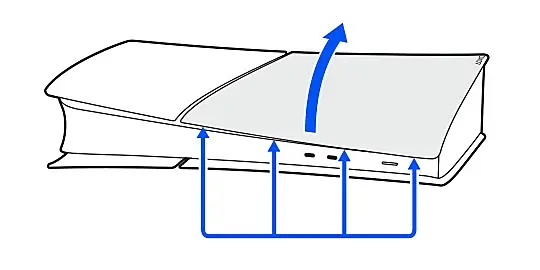
Lift the cover slightly away from the console to release its clips, then take it off.
Lift the cover away from the clips along the edge. (Image: PlayStation)
Use the handheld vacuum on the dust you can see under the cover and around the vents. Do not touch anything inside beyond the cover area.
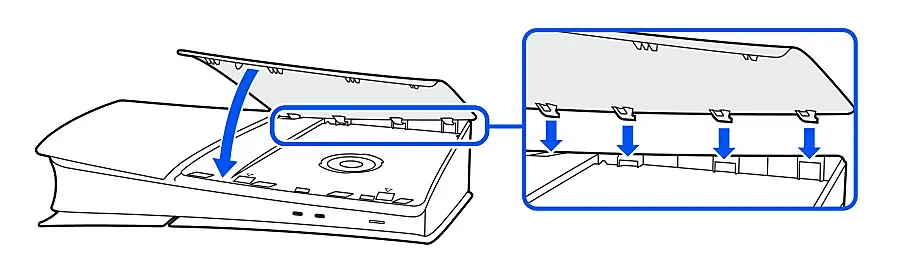
Align the cover’s clips with the holes on the console and push until you hear a click. A cover that is not seated correctly can make the console overheat, so check that it is attached properly before you turn the power on.
Attach the feet, reconnect the power cord and cables, and turn the console on.
Line up the clips with the holes, then press until the cover clicks. (Image: PlayStation)
Stop at the cover. PlayStation says there are no user-serviceable parts inside the console, so removing the heatsink, taking the fan apart or replacing thermal material is not a home fix. That also matters for your warranty, so check the terms before anyone opens the console further.
4. Update the System Software and the Game
Go to Settings then System.
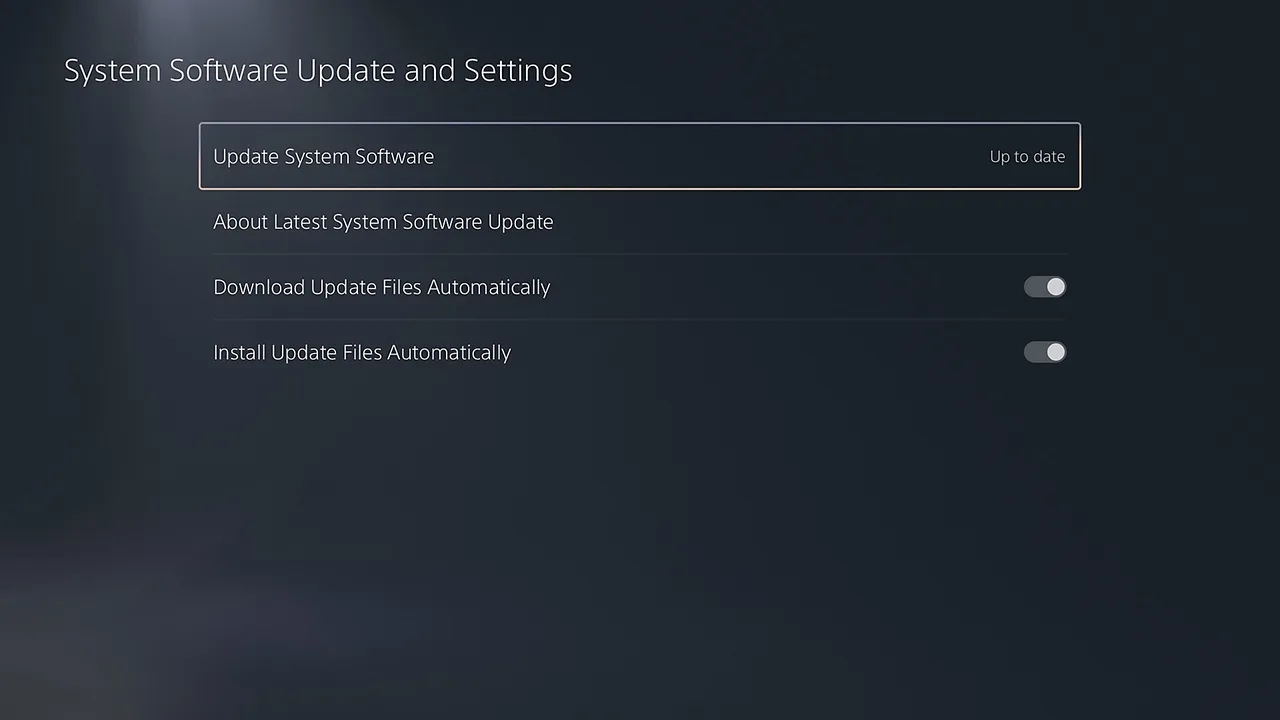
Select System Software, then System Software Update and Settings.
Select Update System Software if an update is listed. The row shows “Up to date” when nothing is waiting.
The PS5 shows “Up to date” next to Update System Software when there is nothing to install. (Image: PlayStation)
To update a single game, highlight its icon on the home screen, press the Options button and select Check for Update. If only one game triggers the warning, a game bug is a possible cause, so check its update notes or the developer’s support page, and see if the problem repeats in other demanding games.
5. Turn On Power Saver for Supported Games
Go to Settings then System.
Select Power Saving, then Power Saver for Games.
Turn on Use Power Saver and choose the games you want it for.
Power Saver scales performance back to reduce power use. Not every game supports it, VR mode is unavailable while it is on, and other gameplay features can be limited. Treat it as a stopgap, not a repair for blocked vents or failing hardware.
6. Check the Heatsink on an M.2 SSD
An internal M.2 SSD generates heat of its own. PlayStation advises checking that the heat-dissipation parts have not come loose from the drive if you installed one, and Sony recommends a drive with a built-in heatsink or one you attach. If you are picking a drive, our best SSD for PS5 roundup lists options that suit the slot.
Why Is My PS5 Fan So Loud?
A loud fan is usually normal. PlayStation says the fan can run louder than usual during some games and apps, and that it is simply working faster to cool the system. The fan will get louder in a demanding game and stay quiet in a lighter one, so loud does not automatically mean overheating.
It is worth acting if the fan stays loud in menus or light use, if it came with a new buzzing or grinding noise, or if it is paired with shutdowns or the warning. In those cases, work through the dust and placement steps above first.
Why Does My PS5 Keep Shutting Off by Itself?
When the temperature rises too far, the console’s thermal protection can shut it down to prevent damage. That makes overheating the first thing to rule out. Clear the vents, fix the placement and keep the console away from heat for a few sessions. If the shutdowns continue after the console has cooled down and been repositioned, or begin again right after cleaning, the cause may not be dust, and it is time to contact PlayStation Support.
Do PS5 Cooling Fans and Stands Work?
PlayStation’s own guidance focuses on open vents, clearance and clean dust, and does not recommend an add-on fan. Some accessories can restrict the designed airflow or draw power from the console, so a fan or stand is a bonus at best, not a repair for a console that is already struggling. Fix placement and dust before spending money on anything else.
When to Contact PlayStation Support
The temperature warning keeps coming back.
The console still shuts down after you have cleaned the vents and improved ventilation.
It overheats on the home screen, in menus or while streaming video.
There is a burning smell or an abnormal sound.
The console has had liquid or physical damage.
Problems started after installing an M.2 SSD and continue after you recheck the heatsink.
Go through PlayStation Repairs first rather than an unverified shop or a video that walks you through opening the console. If the console is still under warranty, say so when you contact them, and know that opening it yourself can complicate that. If a recent change made things worse, a Safe Mode step can help, and our how to factory reset PS5 guide covers the last-resort option. Back up your data first.
What Not to Do to an Overheating PS5
Do not keep playing after repeated warnings.
Do not block the vents, cover the console or stack things on it.
Do not use a strong vacuum, aggressive compressed air, liquids or wet wipes.
Do not unplug the console while the power indicator is lit or blinking.
Do not open the console beyond the covers or disturb the thermal material inside.
Final Thoughts on Fixing PS5 Overheating
For most people, PS5 overheating is a placement and dust problem, not a hardware failure. Open up space around the console, clean the vents with a gentle handheld vacuum, keep the software updated and the problem usually goes away. Save the repair route for a console that keeps shutting off after all of that, because a persistent warning in a clean, well-ventilated spot is a sign that a professional should look at it.
I'm Iain, and I write the step-by-step guides on GameCuki. I cover game tips and walkthroughs, PC gaming how-tos like settings, performance and troubleshooting, and practical guides for Steam, PlayStation, Xbox and Nintendo Switch. I build each guide from official game and platform documentation, write the steps in plain language and check them against the source before publishing. When a game or platform changes how something works, I update the guide. You can read my full process on our How We Review page.