Selling your console, handing it down, or fighting a problem that nothing else fixes all lead to the same question: how to factory reset PS5 the right way. The reset itself takes only a few menu selections, but it deletes every user and all saved data on the console, so the prep matters more than the button press. This guide covers the standard reset from Settings, the Safe Mode route for a console that will not load, and the lighter options that fix many problems without wiping anything.
Factory Reset PS5 [ Delete All Data ] Playstation 5 Reformat Tutorial
Factory Reset vs. Restore Default Settings: Which One Do You Need?
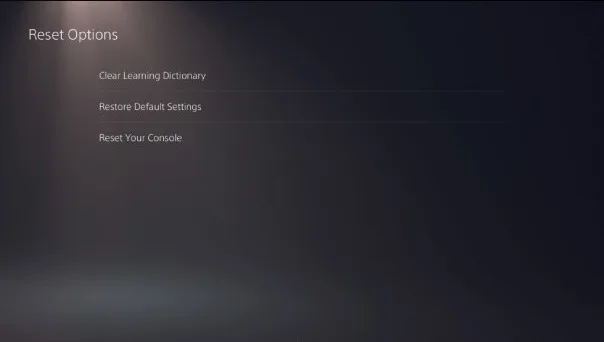
The PS5 has two different options with similar names, and picking the wrong one is the most common mistake. They sit side by side in the same menu.
Reset Your Console deletes all users and all data on the console and returns it to its original state. This cannot be undone. Use it when you are selling, giving away or trading in the console.
Restore Default Settings puts the visual and audio settings back to the factory versions. It does not erase user or game data. Use it when a setting is misbehaving and you want a clean slate without losing games.
Clear Learning Dictionary only clears the words your console has learned from your typing.
If you only need a quick fix, try Restore Default Settings first. If the goal is a clean console for the next owner, you want Reset Your Console.
What to Do Before You Reset Your PS5
A reset cannot be reversed, and deleted data cannot be restored. Work through this list first.
Write down the serial number. Keep it somewhere safe, since it can help prove ownership later.
Remove discs and USB devices. Take out anything you want to keep.
Back up your data. Copy saved data, captures and games to a USB drive or USB extended storage (our external hard drive for PS5 roundup covers good options), or upload saved data with PlayStation Plus cloud storage.
Sync your trophies. Do this manually so no trophy progress is lost.
Remove any M.2 SSD you want to keep. If you installed one and plan to keep it, take it out and save the game data on it first.
PlayStation lists these same steps on its own page for transferring or disposing of a console.
How to Factory Reset PS5 From Settings
This is the standard method and works whenever the console starts normally and you can reach the home screen.
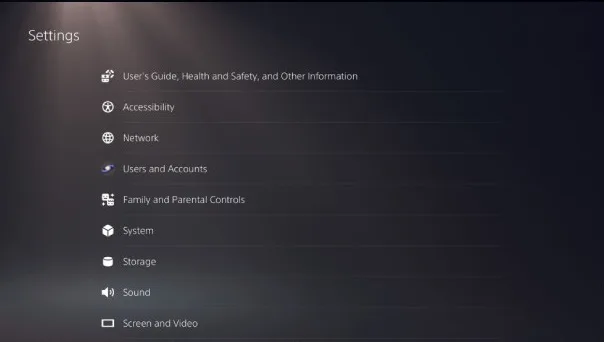
Go to the home screen and select Settings (the gear icon at the top right).
Open Settings from the home screen. (Image: Coolblue)
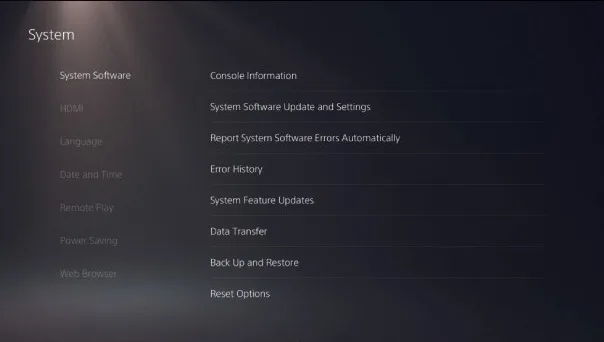
Select System, then System Software.
Scroll to the bottom and select Reset Options.
Reset Options is the last item under System Software. (Image: Coolblue)
Select Reset Your Console.
Choose Reset Your Console, not Restore Default Settings. (Image: Coolblue)
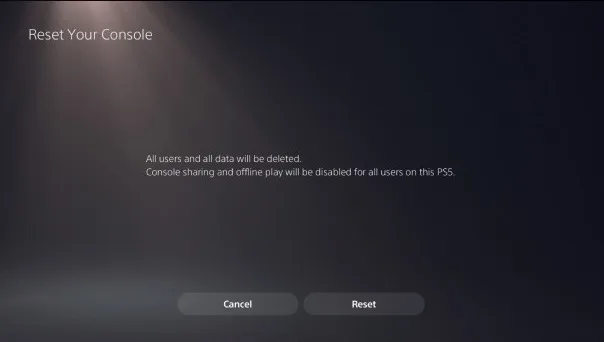
Read the warning, which says all users and all data will be deleted, then select Reset.
The confirmation screen is the last chance to cancel. (Image: Coolblue)
The console wipes itself and restarts, which can take a couple of minutes. Once it finishes, the PS5 shows the first-time setup screens, so you can hand it over as is. PlayStation notes that the pre-installed game ASTRO’s PLAYROOM can be downloaded again from PlayStation Store if you want it back.
How to Factory Reset PS5 in Safe Mode
Safe Mode is the way to go when the console will not load the home screen, you cannot sign in, or the screen stays blank. It starts the PS5 with only the most basic functions active.
Turn the console off by holding the power button for three seconds. The power indicator blinks for a moment before it turns off.
Press and hold the power button again. Release it after the second beep: one beep sounds when you first press, and another seven seconds later.
Connect the controller with a USB cable and press the PS button on the controller. If the pad will not pair, see how to connect a PS5 controller.
In the Safe Mode menu, choose a reset option (see below), then confirm.
Some Safe Mode options delete data, so back up first if the console still lets you. If Safe Mode will not start, turn the console fully off, check the cables and try the steps again.
Safe Mode Options Explained
Restart PS5: leaves Safe Mode and restarts normally.
Change Video Output: change the resolution or HDCP mode, useful for blank screens.
Repair Console Storage: does not erase data. Try it if the console does not start properly or you have storage problems.
Update System Software: installs an update by direct download or a USB drive.
Restore Default Settings: restores factory settings without deleting games, apps, screenshots, video clips or saved data.
Clear Cache and Rebuild Database: Clear System Software Cache helps with system feature issues or performance drops. Rebuild Database scans the drive and builds a new database of all content, which helps when a deleted game icon stays on Home.
Reset PS5: deletes all user data and restores the console to its original state.
Reset PS5 (Reinstall System Software): deletes all user data and removes the PS5 system software. Pick this only when the plain reset is not enough, and note that you will need to reinstall system software afterward.
Try These Before You Wipe the Console
A full reset is the last resort for performance or glitch problems. Two gentler steps are worth trying first. Restore Default Settings (Settings, System, System Software, Reset Options) keeps all your games and data. In Safe Mode, Clear System Software Cache and Rebuild Database also leave your content in place. If the console still misbehaves after those, a full reset is reasonable, as long as your data is backed up.
After the Reset
If you are keeping the console, follow the setup screens and sign in with your PlayStation account.
If you are giving it away, stop at the setup screen so the next owner starts fresh.
Keep your serial number and original receipt if you are selling.
Final Thoughts on How to Factory Reset PS5
For most people the Settings route is all you need: Settings, System, System Software, Reset Options, Reset Your Console. Save Safe Mode for a console that will not boot or sign in. And if you only want to fix a glitch, try Restore Default Settings or a database rebuild before deleting everything. Back up first either way, because when you factory reset PS5, there is no undo.
I'm Iain, and I write the step-by-step guides on GameCuki. I cover game tips and walkthroughs, PC gaming how-tos like settings, performance and troubleshooting, and practical guides for Steam, PlayStation, Xbox and Nintendo Switch. I build each guide from official game and platform documentation, write the steps in plain language and check them against the source before publishing. When a game or platform changes how something works, I update the guide. You can read my full process on our How We Review page.