

A new DualSense will not talk to your console until the two have been introduced, and a second controller needs its own handshake too. This guide covers how to connect PS5 controller to the console the first time with the USB cable, how to add more controllers wirelessly, how to keep one controller paired to several consoles, and what to do when it refuses to connect.
How to Connect PS5 Controller to Your PS5 (Wired and Wireless)
GameCuki is reader-supported. When you buy through links on our site, we may earn an affiliate commission at no extra cost to you. As an Amazon Associate I earn from qualifying purchases. Learn more.
Table of Contents
- What You Need to Connect a PS5 Controller to a PS5
- How to Connect a PS5 Controller With the USB Cable
- How to Connect a Second PS5 Controller Wirelessly
- How to Pair One Controller With Several PS5 Consoles
- How to Connect a PS5 Controller to a PC, Mac, Phone or iPad
- Can You Connect a PS5 Controller to a PS4?
- How to Charge a PS5 Controller
- How to Adjust Controller and Audio Settings
- How to Update the Controller Software
- PS5 Controller Still Not Connecting?
- How to Connect a PS5 Controller: Which Method to Use
What You Need to Connect a PS5 Controller to a PS5

PlayStation DualSense Wireless Controller
Sony’s standard PS5 controller, the one every step below is written for.
Check Price on Amazon
PlayStation DualSense Edge
Sony’s pro controller with back buttons and swappable stick modules, paired to the console the same way.
Check Price on AmazonPrefer to watch first? This short video walks through the pairing process on the console:
Connect a PS5 Controller to a PS5 Console – EASY Step-By-Step Instructions
How to Connect a PS5 Controller With the USB Cable
The first controller has to be paired over a cable. After that, the console remembers it.
- Turn on your PS5 console.
- Plug the controller into the console with the USB cable that came in the box.
- If the controller is off, press the PS button in the center. The light bar blinks, then the player indicator lights up to show the controller is paired.
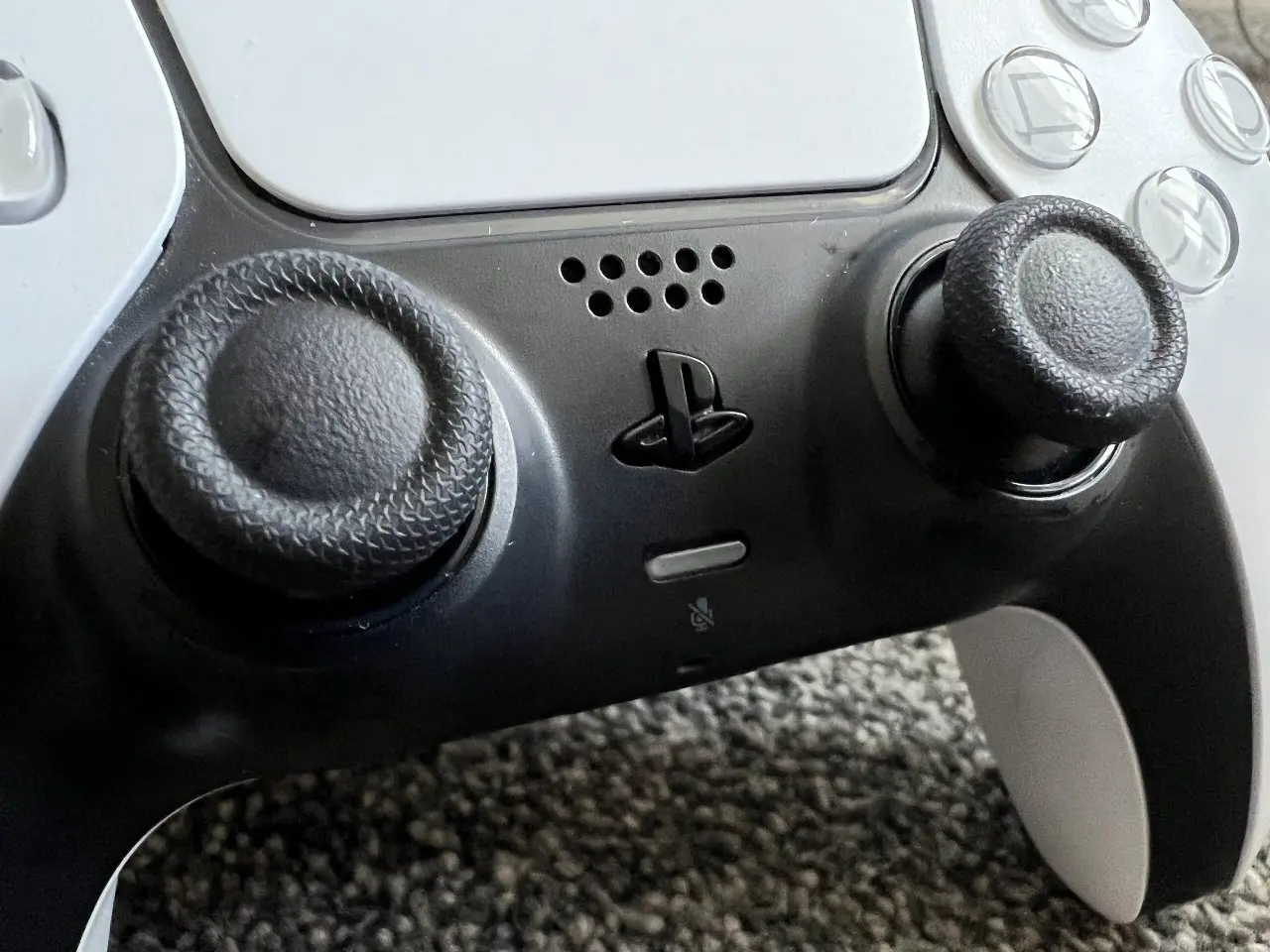
You can unplug the cable once the player indicator is on. If you later want to use this controller on a different PS5, you have to pair it with that console as well.
How to Connect a Second PS5 Controller Wirelessly
The PS5 supports up to four controllers at the same time, and each player gets a color when they press the PS button. Once one controller (controller 1) is paired, you can add the others without a cable.
- Unplug any USB cable from the new controller (controller 2).
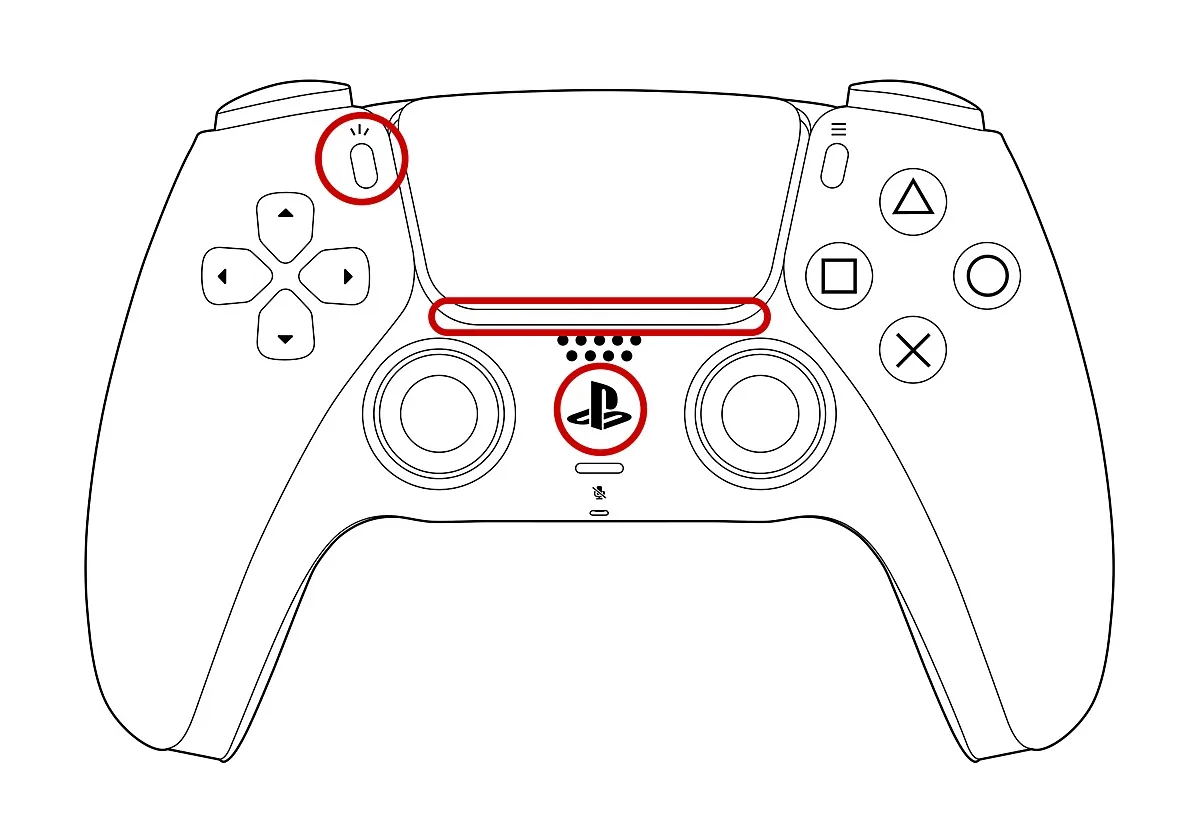
- Make sure controller 2’s player indicator is off. If it is lit, hold the PS button until the light turns off.
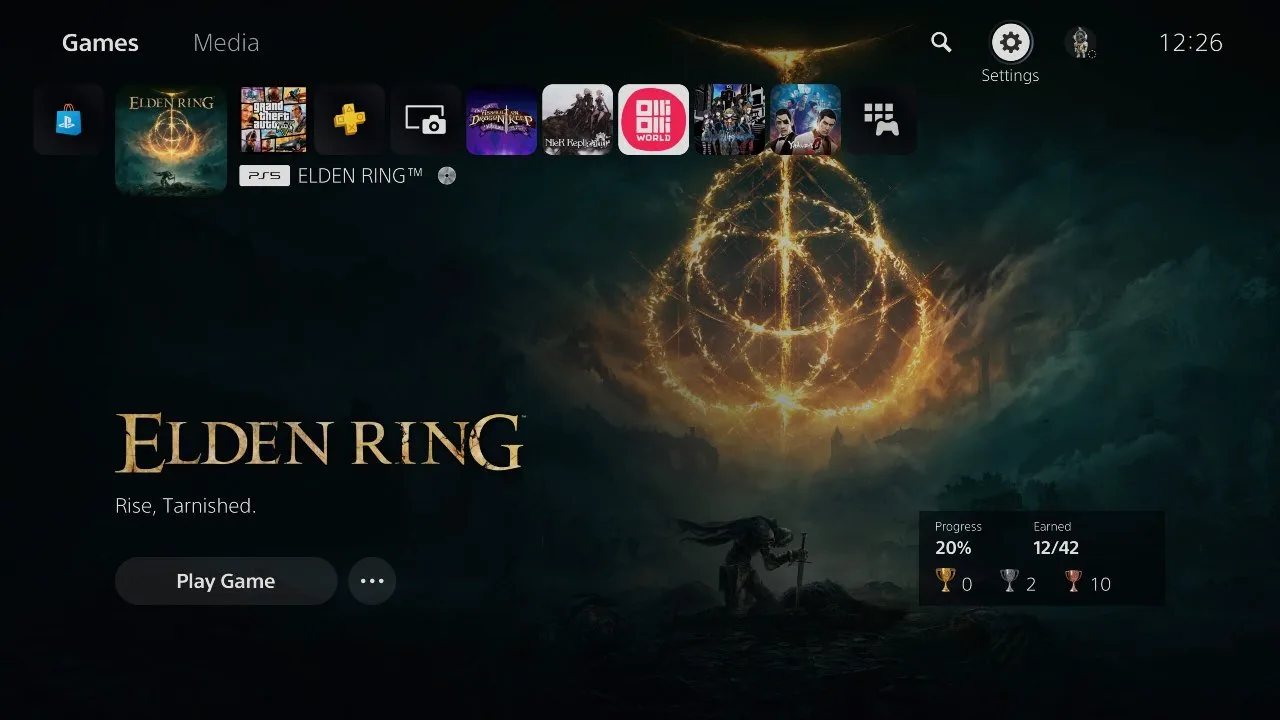
- With controller 1, select Settings, the gear icon in the top right corner of the home screen.
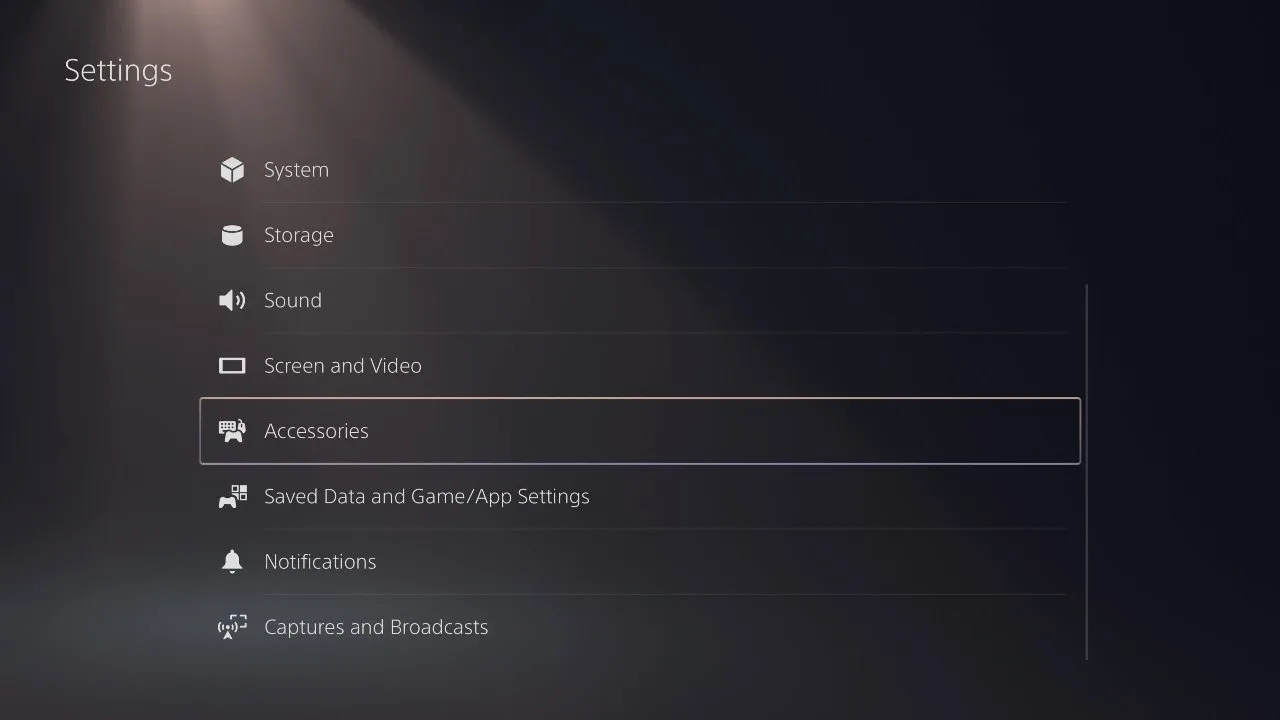
- Select Accessories.
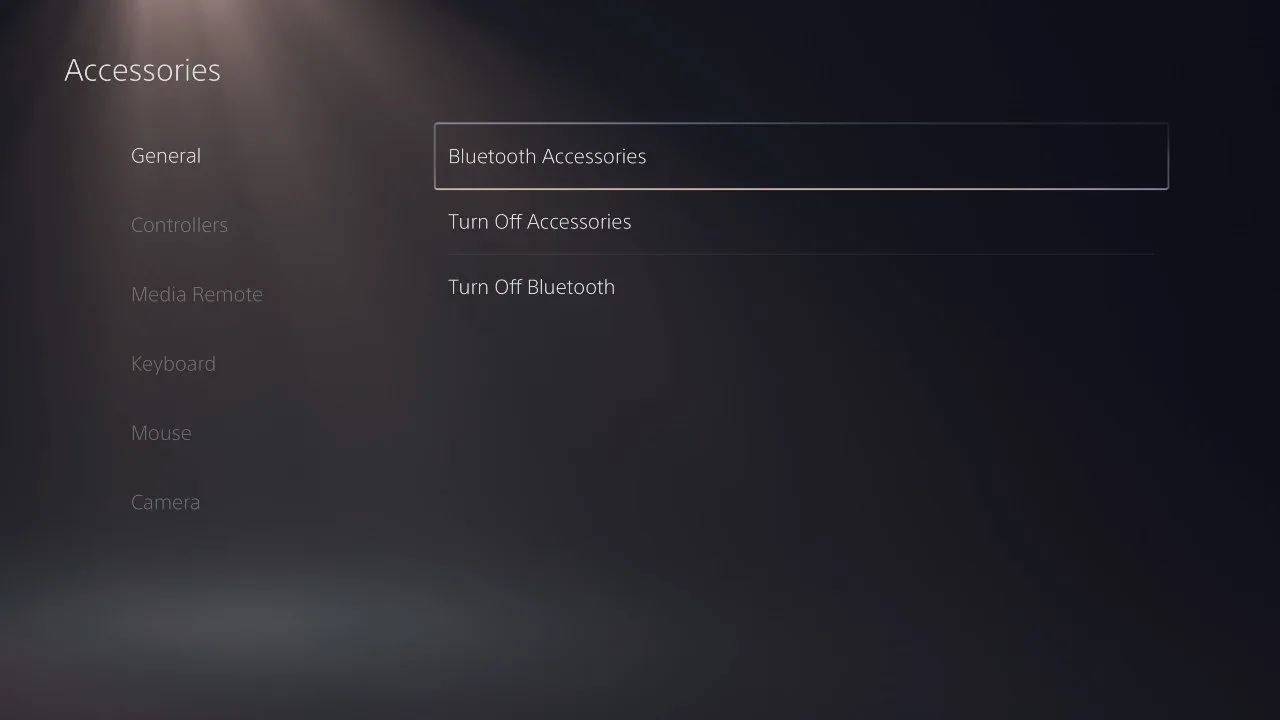
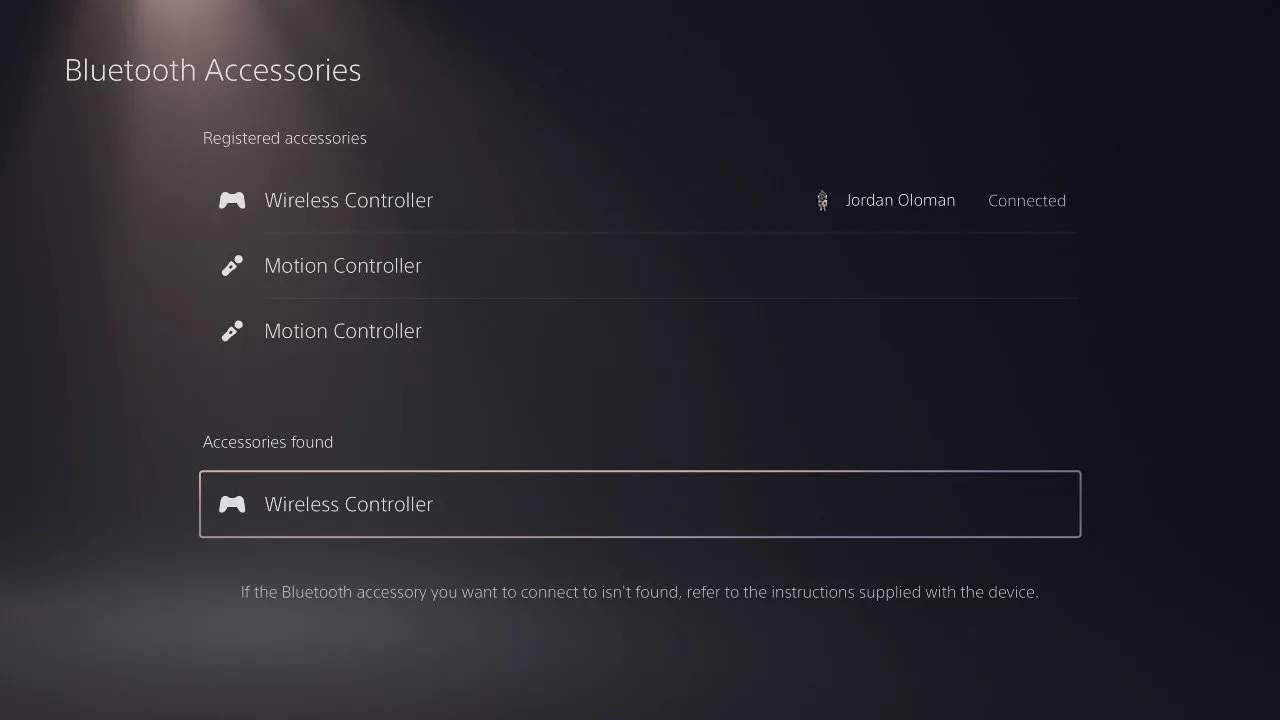
- Under General, select Bluetooth Accessories.
- On controller 2, press and hold the Create button and the PS button at the same time until the light bar blinks.
- Controller 2 appears under Accessories Found. Select it with controller 1. Controller 2’s light bar blinks, then its player indicator lights up when pairing is complete.
If the second controller does not show up, plug it into the PS5 with a USB-C cable and press the PS button instead.
How to Pair One Controller With Several PS5 Consoles
A DualSense can remember up to four pairings, which makes it easy to carry one controller between your own PS5 and a friend’s, or between a console and a PC. Pairing with a PS5 by cable or through Bluetooth Accessories puts that console in the next free slot automatically. To choose the slot yourself, you need a controller that is already paired to that console:
- Make sure the new controller’s player indicator is off. If it is lit, hold the PS button until it turns off.
- With the already paired controller, go to Settings > Accessories > General > Bluetooth Accessories.
- On the new controller, press and hold an action button, then hold the PS button for more than five seconds until the light bar and player indicator blink. The button you hold picks the slot (see the table below).
- With the paired controller, select the new controller on screen. Its light bar and player indicator light up when pairing is complete.
| Slot | Buttons to hold | Player indicator |
|---|---|---|
| Slot 1 | PS button + Triangle | One light |
| Slot 2 | PS button + Circle | Two lights |
| Slot 3 | PS button + Cross | Three lights |
| Slot 4 | PS button + Square | Four lights |
To switch to another console you have already paired, hold that slot’s action button and press the PS button for about three seconds until the player indicator blinks the slot number. When all four slots are full, the slot you have not used for the longest time is replaced. You cannot pair wirelessly or switch slots while the controller is plugged in with a USB cable.
How to Connect a PS5 Controller to a PC, Mac, Phone or iPad
The DualSense also pairs over Bluetooth with Windows 10 and 11 PCs, Macs on macOS Big Sur 11.3 or later, Android 12 or later, and iPhones, iPads and Apple TVs on iOS, iPadOS or tvOS 14.5 or later. The steps are the same on every device:
- Unplug any USB cable from the controller and make sure the player indicator is off. If it is lit, hold the PS button until it turns off.
- Press and hold the Create button, then press and hold the PS button until the light bar blinks.
- Turn on Bluetooth on your device and select the controller (it usually shows as DualSense Wireless Controller) from the list. The player indicator lights up when pairing is complete.
Not every feature works away from the console. Adaptive triggers are not available on Android, haptic feedback needs a USB connection on a PC and does not work on Macs or phones, and the built-in mic and speaker only work on Windows. Each time you switch devices, you have to pair the controller again, so to go back to your console, plug it into the PS5 with the USB cable and press the PS button. For full walkthroughs, see our guides on connecting a PS5 controller to a PC and connecting a PS5 controller to an iPhone.
Can You Connect a PS5 Controller to a PS4?
No. Sony supports the DualSense on the PS5, Windows PCs, Macs and phones, but not on the PS4. If you want to play PS4 games with a DualSense, play them on a PS5, which runs most PS4 games, or stream them from your PS4 to a PC, Mac or phone with PS Remote Play and use the DualSense there. For the PS4 itself, you need a DUALSHOCK 4, and our guide on how to connect a PS4 controller walks through it.
How to Charge a PS5 Controller
- Connect the controller to the PS5 with the included USB cable. It charges while the console is on or in rest mode.
- Press the PS button to open the Control Center and select Accessories to see the battery level.
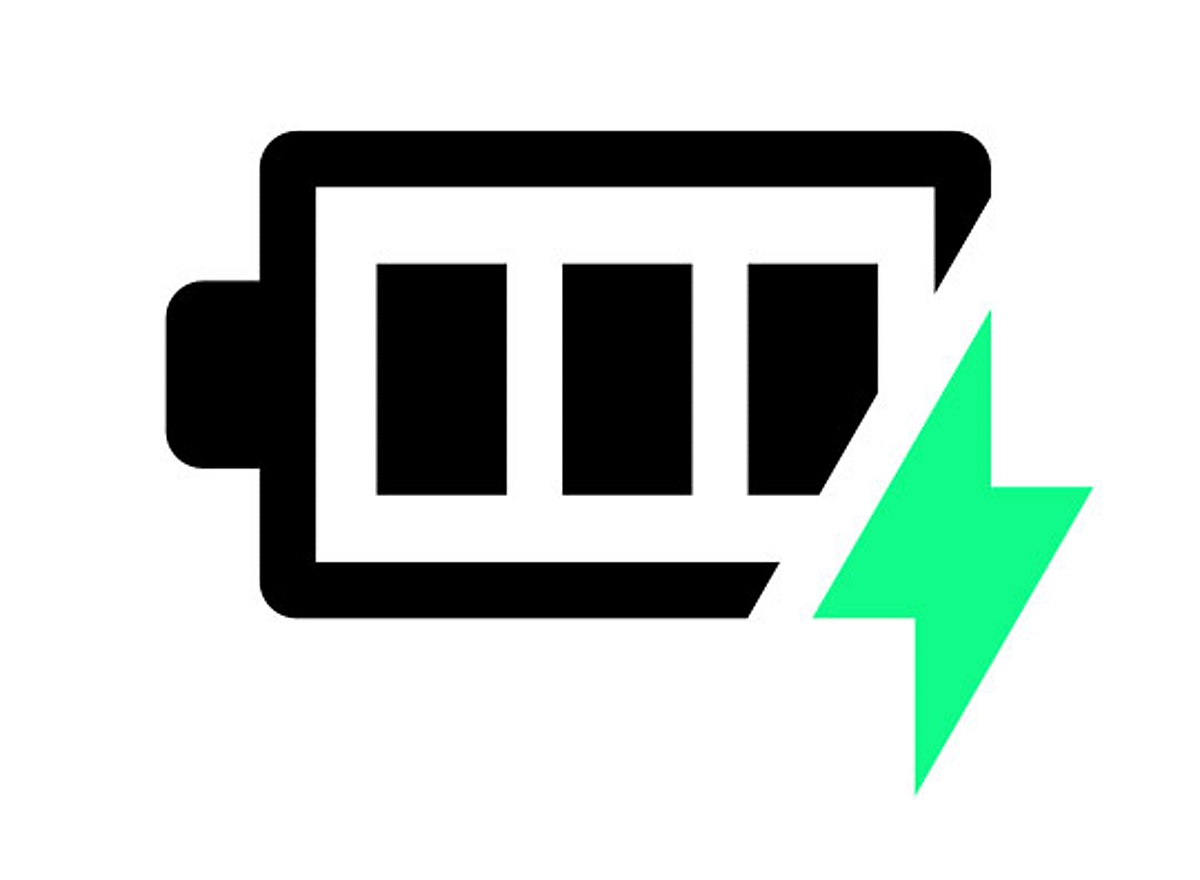
- While it charges, the battery icon on screen is animated with a lightning bolt. When the battery is full, the icon stops moving and shows three bars.
If the controller does not charge, try a different USB port on the console, or a different cable labeled “charge and sync” or “charging and data”. Cables marked “charge only” will not work. A USB-standard wall charger can also work, but not every charger can power a DualSense. If you keep more than one controller topped up, a dock helps, and our guide to the best charging station for PS5 controllers covers the options.
How to Adjust Controller and Audio Settings
- Press the PS button to open the Control Center, select Sound and change the output device, volume or voice chat balance.
- Press the mute button on the controller to mute or unmute your mic.
- Press and hold the mute button to mute both your mic and your speakers. The button turns orange while everything is muted. Press it again to switch sound back on.
- For general controller options, go to Settings > Accessories > Controller (General).
How to Update the Controller Software
Controller updates arrive with PS5 system software updates. Once the controller is paired, follow the on-screen prompt to install the update. To start an update yourself:
- Go to Settings > Accessories > Controller (General).
- Select DualSense Wireless Controller Device Software.
You can also update the controller from a Windows PC with Sony’s firmware updater app.
PS5 Controller Still Not Connecting?
If you followed the steps above and the controller still will not pair, reset it:
- Turn off the PS5 and unplug the USB cable from the controller.
- Find the small hole next to the Sony logo on the back of the controller. The reset button sits inside it.
- Press and hold the reset button with a pin or an unfolded paper clip for at least five seconds.
- Connect the controller to the console with the USB cable that came with it and press the PS button to pair it again.
If it still fails after a reset, update the PS5 system software to the latest version, then try Sony’s PlayStation Repairs diagnostic tool on playstation.com to check whether the controller needs service.
How to Connect a PS5 Controller: Which Method to Use
Use the USB cable for the first controller on any console, because that is the one step that cannot be skipped. Add extra controllers wirelessly through Bluetooth Accessories so nobody has to get up, and use the slot shortcuts only if you move one DualSense between several consoles or a PC. If pairing keeps failing, a reset almost always clears it. Once you know how to connect a PS5 controller both ways, setting up a second player takes less than a minute.