

Whether you just unboxed a PS4, bought a spare DUALSHOCK 4 for a friend, or your old controller suddenly stopped responding, the fix starts in the same place. This guide shows how to connect PS4 controller to the console with a USB cable, how to add a second one without a cable, how to use it on a PS5, and what to try when it won’t pair.
How to Connect PS4 Controller to Your PS4 (With or Without USB)
GameCuki is reader-supported. When you buy through links on our site, we may earn an affiliate commission at no extra cost to you. As an Amazon Associate I earn from qualifying purchases. Learn more.
Table of Contents
- What You Need to Connect a PS4 Controller to a PS4
- How to Connect PS4 Controller With a USB Cable
- How to Connect a Second PS4 Controller Without a USB Cable
- How to Connect a PS4 Controller to a PS5
- How to Connect a PS4 Controller to Other Devices
- How to Charge a PS4 Controller
- How to Adjust PS4 Controller Settings
- PS4 Controller Not Connecting? Try These Fixes
- How to Connect PS4 Controller: The Short Version
What You Need to Connect a PS4 Controller to a PS4

Amazon Basics USB-A to Micro USB Cable (10 ft)
A 10-foot USB-A to micro USB cable, the connector the DUALSHOCK 4 uses for pairing and charging, if you lost the one from the box.
Check Price on Amazon
YAEYE PS4 Controller Charging Dock
A stand that charges two DUALSHOCK 4 controllers at once, handy once you have more than one paired.
Check Price on AmazonWant to see it done first? This video covers both the first controller and additional ones:
How to Connect a PS4 Controller to Your PS4 (First or Additional Controllers)
How to Connect PS4 Controller With a USB Cable
The first controller on any PS4 has to be paired with a cable. Use the micro USB cable that came with the controller or the console.
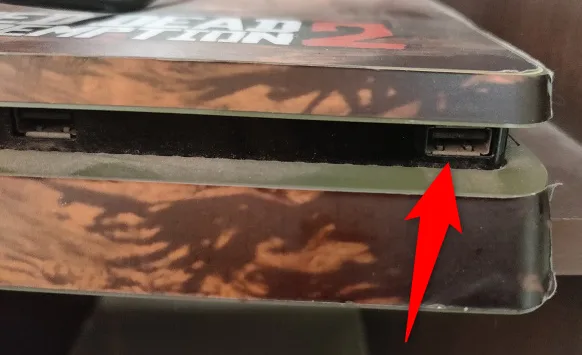
- Plug the larger end of the USB cable into a USB port on the front of the PS4.
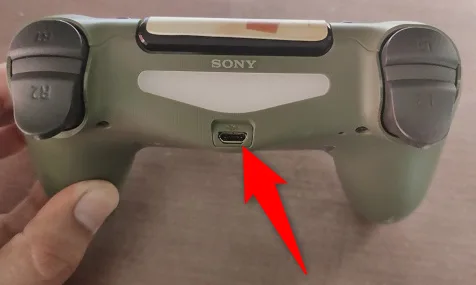
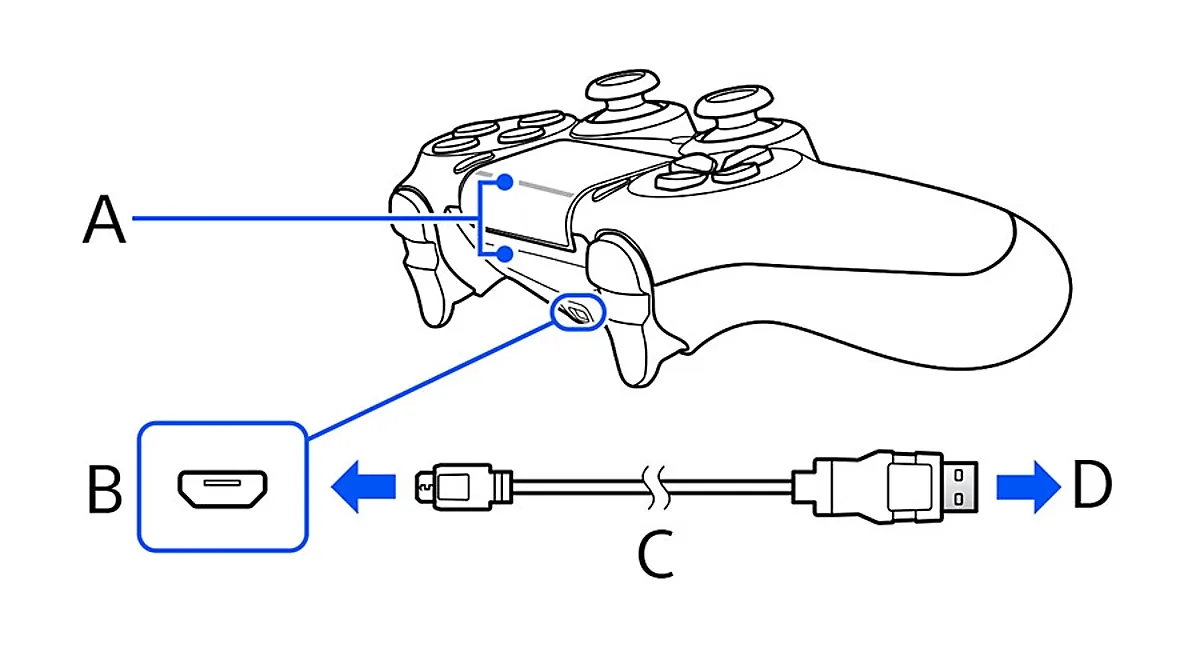
- Plug the small end into the micro USB port on the top edge of the controller, between the shoulder buttons.
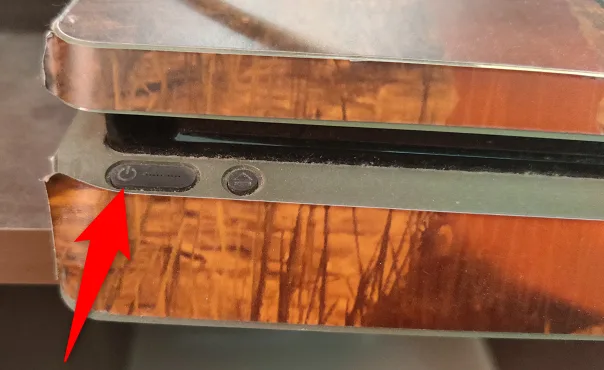
- Turn on the PS4 with the power button on the front of the console.
- Press the PS button in the middle of the controller. The light bar blinks, then the player indicator lights up to show the controller is paired.
- Choose your user account, or create a new one.
Once the controller has enough charge, you can unplug the cable and play wirelessly. A DUALSHOCK 4 can only be paired with one console at a time, so if you use it on another PS4, you will need to pair it there again and then re-pair it when you come back.
How to Connect a Second PS4 Controller Without a USB Cable
A PS4 supports up to four controllers. After the first one is paired, you can add the rest wirelessly through Bluetooth, which also helps if you cannot find a cable.
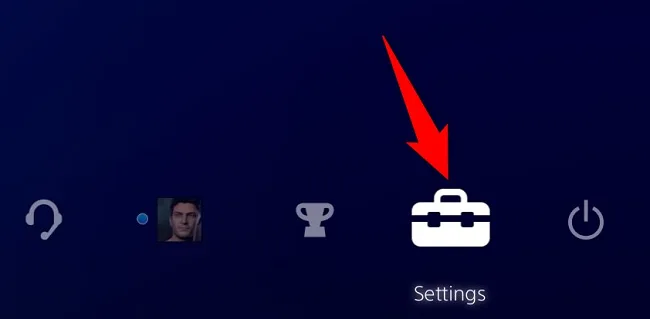
- Using the controller that is already paired, select Settings on the PS4 home screen.
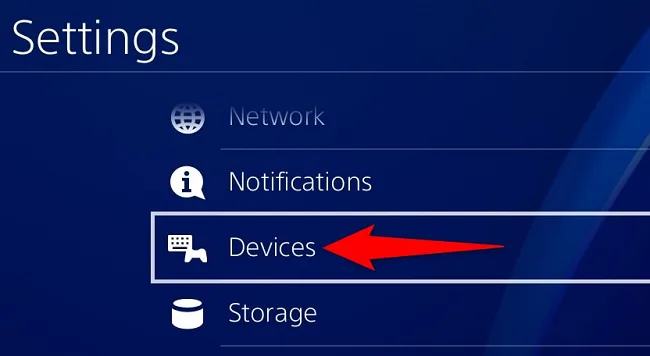
- Scroll down and select Devices.
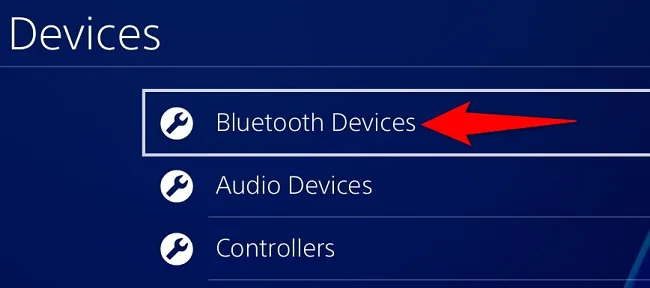
- Select Bluetooth Devices.
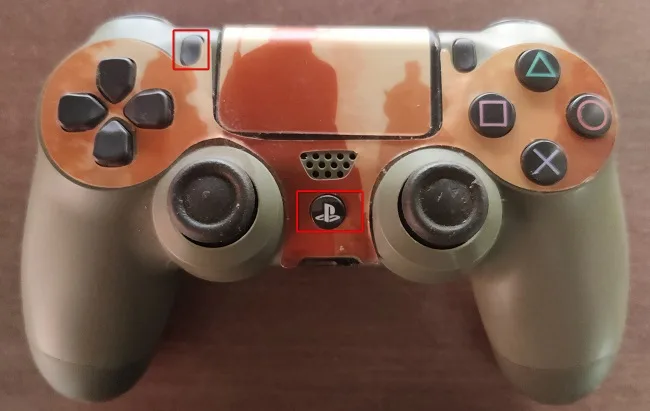
- On the new controller, press and hold the Share button and the PS button together for about five seconds, until the light bar starts flashing.
- When the new controller appears in the list on screen, select it with the first controller.
- If the PS4 asks whether you want to register the device, choose Yes.
The new controller is now paired and lights up with its own player color.
How to Connect a PS4 Controller to a PS5
A DUALSHOCK 4 pairs with a PS5 the same way it pairs with a PS4: turn on the console, connect the controller with the USB cable and press the PS button. It works with supported PS4 games on the PS5, but not with PS5 games, which need a DualSense. Our guide on how to connect a PS5 controller covers the DualSense side.
How to Connect a PS4 Controller to Other Devices
The DUALSHOCK 4 also works over Bluetooth with PCs, Macs, Android phones and iPhones. With the controller turned off, hold the Share button and then hold the PS button until the light bar flashes, then select the controller in the device’s Bluetooth menu. After using it with another device, you may need to plug it back into the PS4 with the USB cable and press the PS button to pair it again.
How to Charge a PS4 Controller
- Connect the controller to the PS4 with the USB cable. It charges while the console is on or in rest mode.
- Press and hold the PS button to open the Quick Menu and check the battery level. The battery icon blinks while the controller charges.
- A fully drained controller takes about two hours to charge.
- Charge the controller at least once a year, even if you don’t use it, to keep the battery working properly.
How to Adjust PS4 Controller Settings
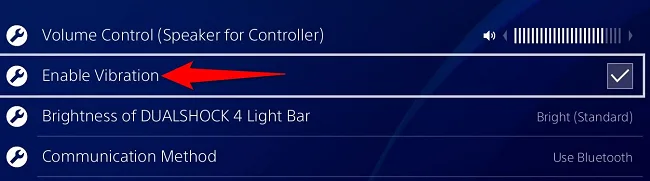
- Go to Settings > Devices > Controllers to change options such as the light bar brightness and the controller speaker volume.
- If the controller doesn’t vibrate in games, open the same Controllers menu and tick Enable Vibration.
- To send game audio to headphones plugged into the controller, go to Settings > Devices > Audio Devices, set Output to Headphones to All Audio and adjust Volume Control (Headphones). If Output to Headphones is grayed out, push the headphone plug all the way into the controller’s 3.5mm jack.
PS4 Controller Not Connecting? Try These Fixes
The Light Bar Won’t Turn On
A controller that shows no light at all is usually out of battery. Plug it into the PS4 with the USB cable, let it charge for a few minutes, then press the PS button and try pairing again.
The Controller Lights Up but Won’t Pair
Reset the controller:
- Turn off the PS4 and unplug it.
- Disconnect the USB cable from the controller.
- Find the tiny hole on the back of the controller, near the L2 button. The reset button sits inside it.
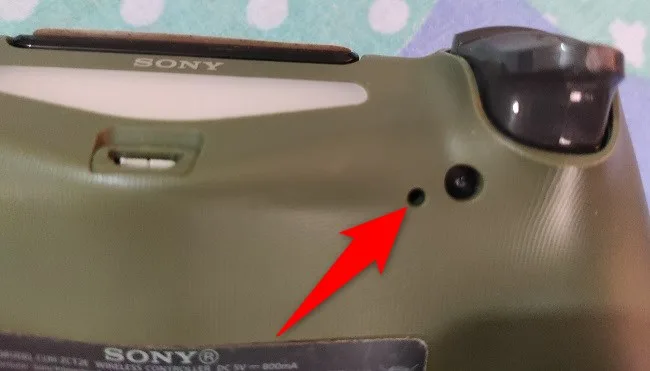
- Press and hold the reset button with an unfolded paper clip for at least five seconds.
- Connect the controller to a USB port on the PS4 with the cable, turn the console on and press the PS button to pair it again.
If it still won’t pair after a reset, try a different cable, since some micro USB cables only carry power and not data. If nothing works, Sony’s PlayStation Repairs page can check whether the controller needs service.
How to Connect PS4 Controller: The Short Version
For the first controller, nothing beats the USB cable: plug it in, press the PS button and you are done. Every controller after that can go through Settings, Devices and Bluetooth Devices with the Share and PS buttons, so you never need to hunt for a second cable. If you move a DUALSHOCK 4 between consoles or to a PC, expect to re-pair it each time, and if it ever refuses, a five-second reset fixes most cases. Once you know how to connect PS4 controller pairs both ways, getting a full four-player couch running takes a couple of minutes.