

Your DualSense doesn’t have to sit idle when you’re away from the PS5. Figuring out how to connect PS5 controller to iPhone takes about a minute, and it works the same way on an iPhone 13, 14, 15, 16 or 17. Call of Duty: Mobile or an Apple Arcade platformer feels a lot better with real sticks and triggers than with thumbs on glass. All you need is Bluetooth, or a cable if your iPhone has a USB-C port.
How to Connect PS5 Controller to iPhone: Bluetooth and USB
GameCuki is reader-supported. When you buy through links on our site, we may earn an affiliate commission at no extra cost to you. As an Amazon Associate I earn from qualifying purchases. Learn more.
Table of Contents
- What You Need to Connect a PS5 Controller to iPhone
- How to Connect PS5 Controller to iPhone Over Bluetooth
- How to Connect PS5 Controller to iPhone With a USB Cable
- Which PS5 Controllers and iPhones Are Compatible?
- How to Customize PS5 Controller Buttons on iPhone
- How to Disconnect or Unpair a PS5 Controller From iPhone
- PS5 Controller Won’t Connect to iPhone? Try These Fixes
What You Need to Connect a PS5 Controller to iPhone

PlayStation DualSense Wireless Controller
Sony’s standard PS5 controller, which pairs with iPhone over Bluetooth.
Check Price on Amazon
PlayStation DualSense Edge
Sony’s pro controller with back buttons and swappable stick modules, paired the same way.
Check Price on Amazon
Orzly DualSense Phone Clip
Clips your phone onto the controller so you can play without a stand.
Check Price on AmazonWant to see it first? This short video shows the whole Bluetooth pairing process:
How to Connect PS5 Controller to iPhone with Bluetooth
How to Connect PS5 Controller to iPhone Over Bluetooth
Bluetooth is the method most people use, since it needs no cable and the controller reconnects on its own afterward.
- If the controller is on, press and hold the PS button until the light turns off.
- If a USB cable is plugged into the controller, unplug it.
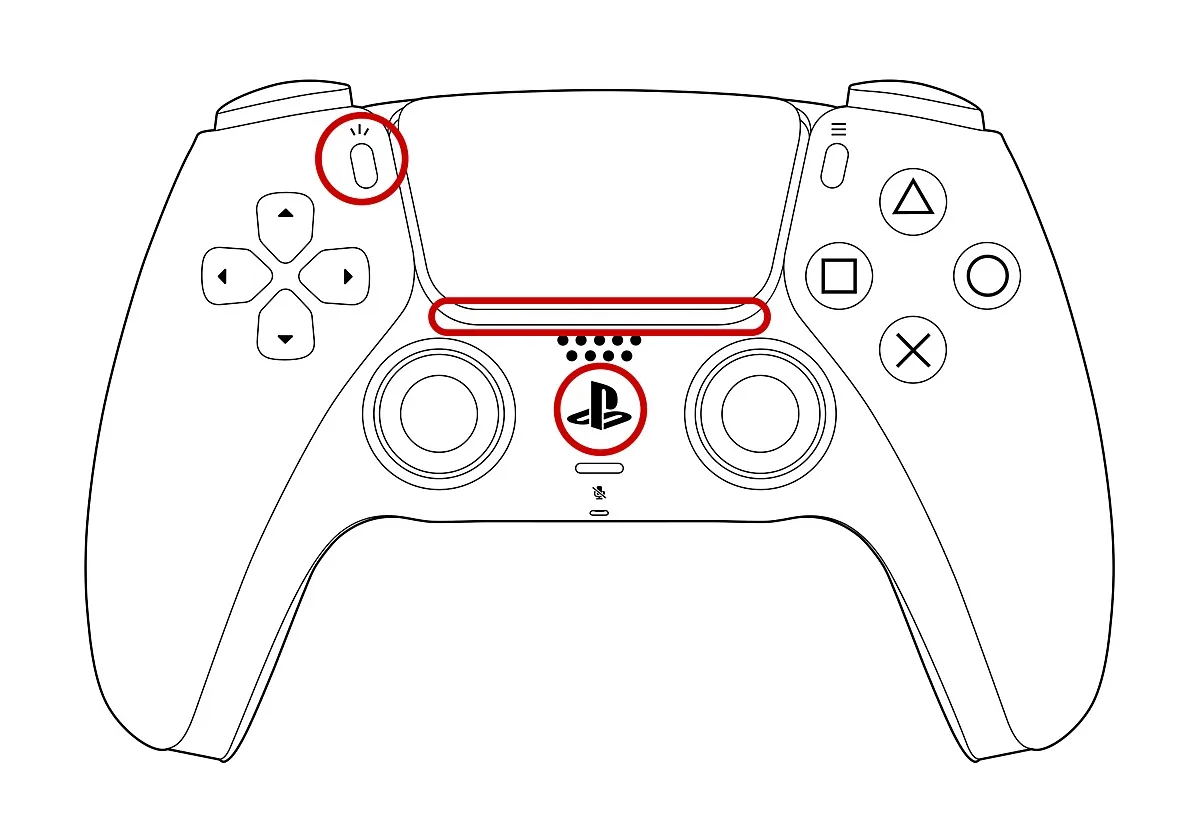
- Press and hold the Create button (the small button at the upper left of the touchpad) and the PS button together until the light bar starts flashing. Then let go. The controller is now in pairing mode.
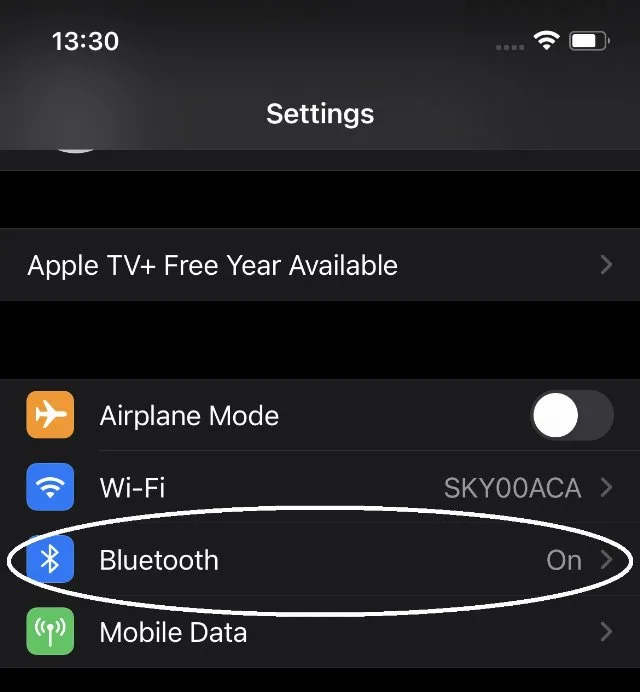
- On your iPhone, open Settings and tap Bluetooth. Make sure Bluetooth is turned on.
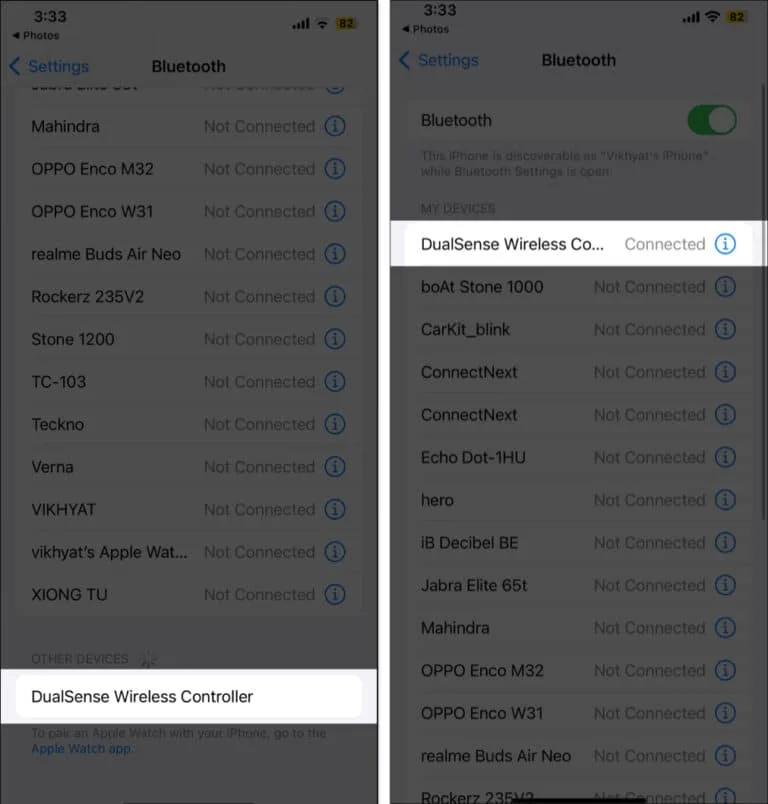
- Under Other Devices, tap DualSense Wireless Controller.
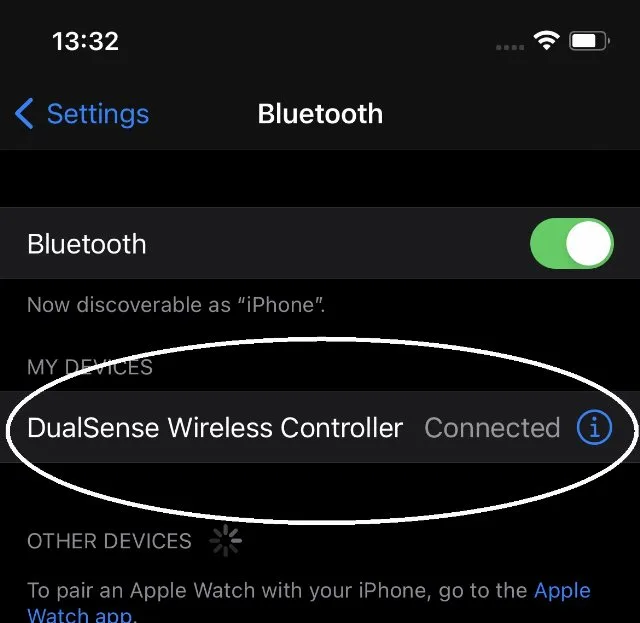
- Wait a few seconds. When the light bar stops flashing and stays lit, and the controller shows as Connected under My Devices, it is ready to use.
If the controller shows as paired but doesn’t respond, press and release the PS button once. The next time you want to play, just press the PS button and the controller reconnects to your iPhone automatically.
The DualSense Edge uses the exact same steps. On an older DualShock 4, hold PS and Share instead of PS and Create.
How to Connect PS5 Controller to iPhone With a USB Cable
iPhones with a USB-C port (iPhone 15 and later) can skip Bluetooth pairing entirely:
- Get a USB-C to USB-C cable that supports both data and charging.
- Plug one end into the controller and the other into the iPhone.
- Wait a moment. The controller pairs and connects automatically, and the player indicator lights up.
If nothing happens, update both the iPhone and the controller to the latest software and try again. A charge-only cable won’t work, so swap cables before assuming the controller is the problem. Bluetooth is always the fallback.
Which PS5 Controllers and iPhones Are Compatible?
Apple supports these PlayStation controllers on iPhone:
- DualSense wireless controller (PS5)
- DualSense Edge wireless controller (PS5)
- DualShock 4 wireless controller (PS4)
- PlayStation Access controller (hold PS and Profile to pair it)
Your iPhone needs iOS 14.5 or later to use a DualSense. Any iPhone that runs a current version of iOS is covered.
Connecting the controller is only half of it, though. The game also has to support controllers. Many do, including Call of Duty: Mobile and plenty of Apple Arcade games, but some touch-only games ignore the controller completely. Check the game’s App Store page for a controller support note before you buy. Haptic feedback and adaptive triggers only work in games built to use them.
How to Customize PS5 Controller Buttons on iPhone
With iOS 16 or later, you can remap the DualSense without any extra app.
- Connect the controller to your iPhone.
- Open Settings, then tap General.
- Tap Game Controller, then tap your controller’s name.
- Tap Default Controls and choose a new action for any button.
The same Game Controller menu has a few other handy options:
- Profiles: save a custom button layout and switch to it quickly.
- Home Button Overrides: let a specific game use the PS button instead of iOS.
- Buddy Controller: merge two paired controllers into one, so a second person can help with tricky parts of a game.
How to Disconnect or Unpair a PS5 Controller From iPhone
To stop using the controller for now, press and hold the PS button until the light turns off. It stays paired and reconnects the next time you press PS.
To remove it completely:
- Open Settings and tap Bluetooth.
- Tap the info button (the “i” icon) next to DualSense Wireless Controller.
- Tap Forget This Device and confirm.
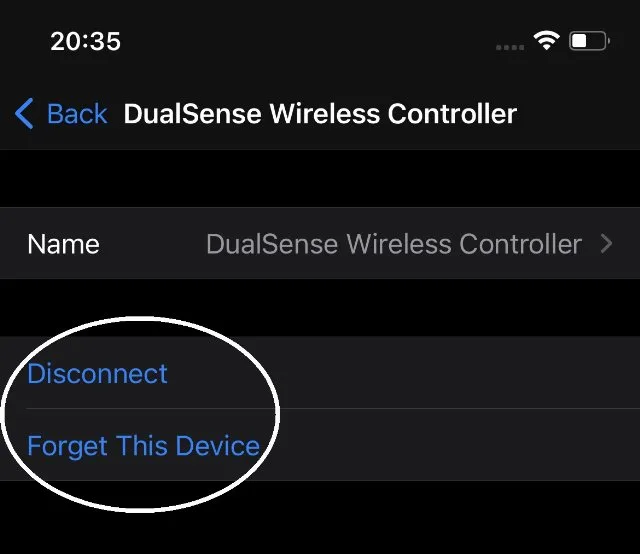
You’ll need to put the controller back into pairing mode to use it with the iPhone again. Unpairing is also the first step if you want to move the controller back to your PS5 or over to a computer. Our guide on how to connect PS5 controller to PC covers that setup.
PS5 Controller Won’t Connect to iPhone? Try These Fixes
Most pairing problems come down to a handful of causes:
- Light bar not flashing: the controller isn’t in pairing mode. Turn it off fully, then hold Create and PS together again until the light flashes.
- Controller not in the list: it may still be connected to your PS5. Turn the console off or move away from it, then repeat pairing.
- Low battery: charge the controller with a USB cable or a PS5 controller charging station before pairing.
- Old software: install the latest iOS update and update the controller firmware through your PS5 or a PC.
- Too many Bluetooth devices: disconnect earbuds, watches or keyboards you aren’t using to cut down interference.
- Still stuck: forget the controller in Bluetooth settings, restart the iPhone, and pair from scratch.
If one controller keeps failing while a second one pairs fine, the issue is the controller itself. If it’s time for a replacement, our list of the best PS5 controllers is a good place to start.