You plugged in your DualSense, launched a game, and nothing happened. Here is how to connect PS5 controller to PC the right way, either with a cable or over Bluetooth, and how to get it working in Steam afterward. The DualSense works with Windows 10 (64-bit) and Windows 11.
Quick steps
Plug in a USB-C cable
Or hold Create + PS to pair
Pick it in Bluetooth settings
Turn on PlayStation support in Steam
You need a PC with Windows 10 (64-bit) or Windows 11. Wireless also needs Bluetooth on your PC.
Prefer to watch first? This short video walks through the wired, Bluetooth and Steam setup:
How to Connect a PS5 Controller to PC With a USB Cable
A cable is the simplest way to connect a PS5 controller to a PC, and it needs no pairing at all.
Get a USB-C cable that fits your PC. If your PC only has USB-A ports, use a USB-C to USB-A cable.
Plug the USB-C end into the controller.
Plug the other end into your PC.
Wired is also the way to go for the full feature set. Haptic feedback on PC requires a USB connection, and the headset jack on the controller only works when it is plugged in with a cable. Whether haptics and adaptive triggers actually do anything still depends on whether the game supports them.
How to Connect a PS5 Controller to PC Over Bluetooth
Wireless pairing takes about a minute, as long as your PC has Bluetooth.
Make sure the player indicator on the controller is off. If it is lit, hold the PS button until it turns off, and unplug any USB cable.
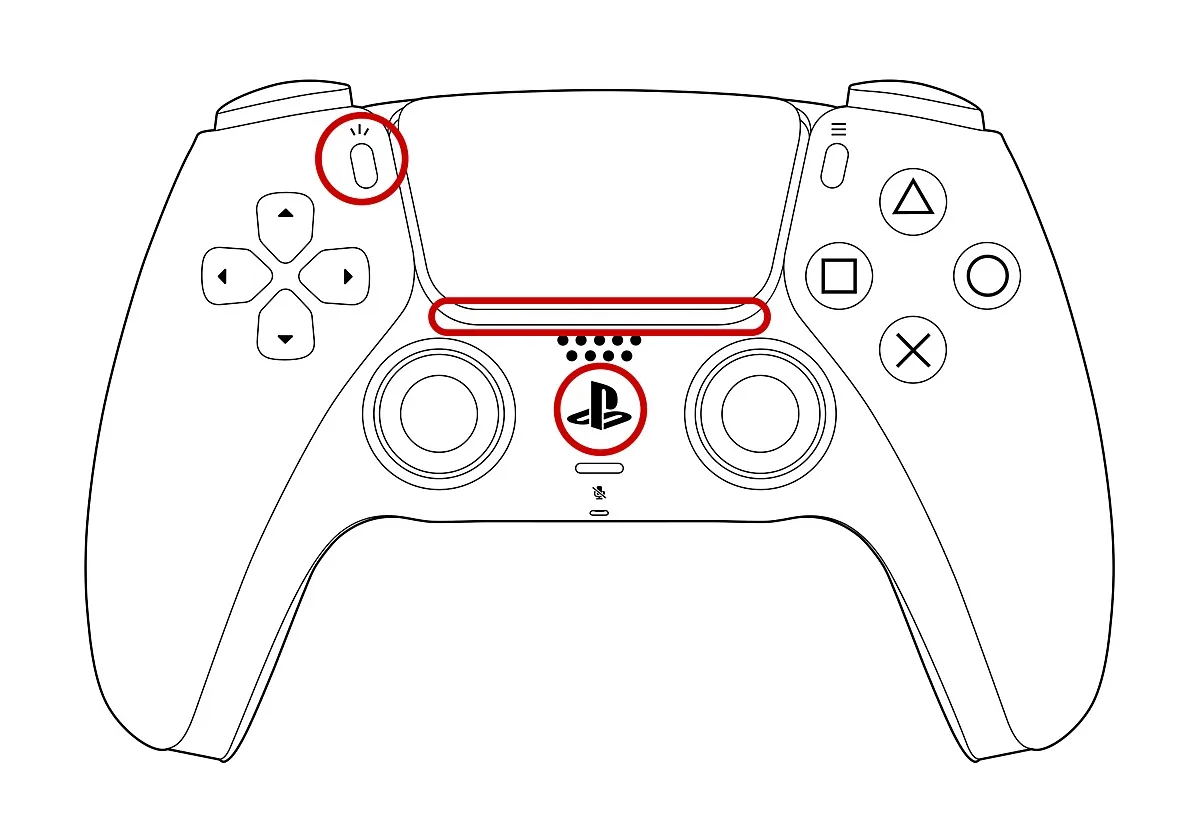
Hold the Create button (the small button left of the touchpad), then hold the PS button until the light bar starts blinking.
Hold Create (top left) and the PS button (center) until the light bar around the touchpad blinks. (Image: Sony)
On your PC, open Settings and go to Bluetooth & devices (Windows 11) or Devices, then Bluetooth & other devices (Windows 10).
Turn on Bluetooth, click Add device (or Add Bluetooth or other device), and choose Bluetooth.
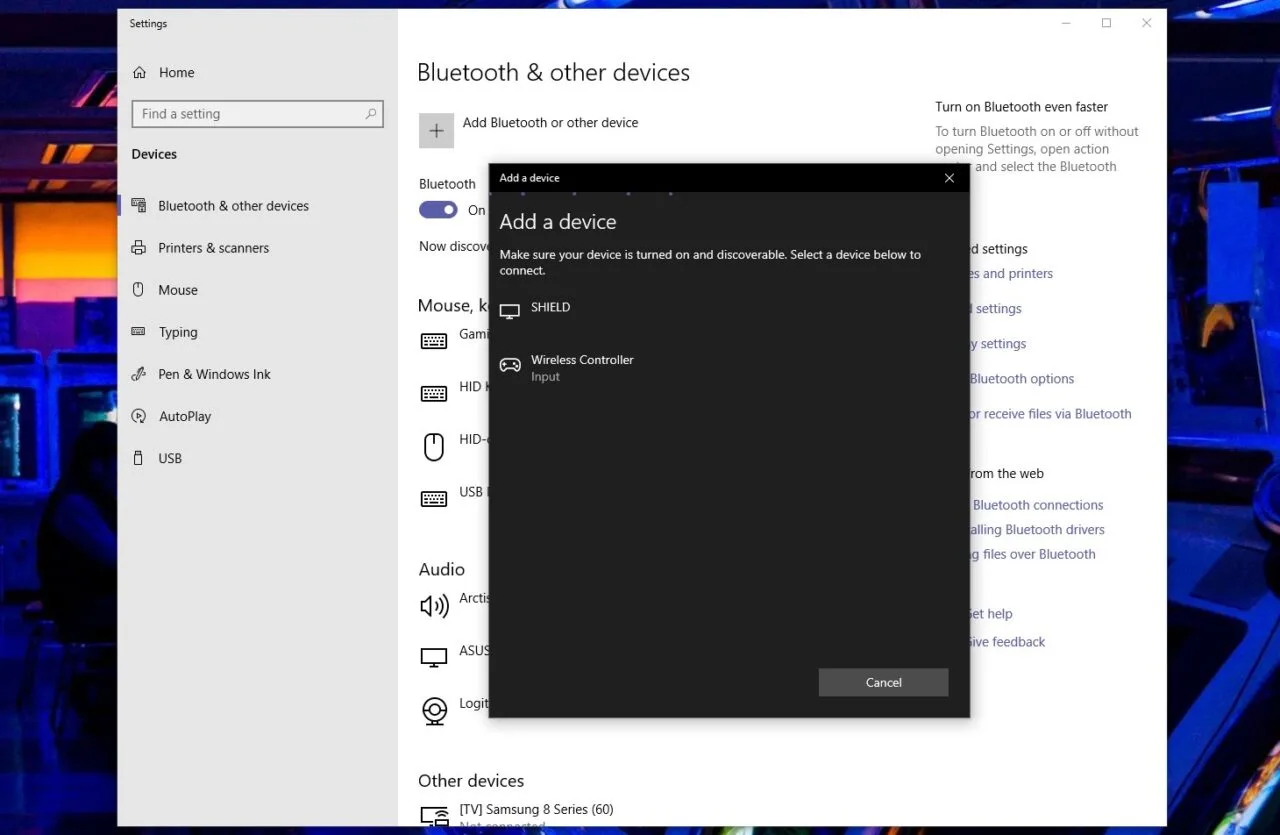
Select the controller from the list (it is listed as Wireless Controller) and wait for the confirmation message.
The DualSense shows up as Wireless Controller in the Add a device list. (Image: Microsoft)
When pairing finishes, the light bar blinks and then the player indicator lights up. Next time, press the PS button on the controller and it reconnects on its own.
How to Use a PS5 Controller on Steam
Once the controller is connected by cable or Bluetooth, Steam needs two settings turned on to treat it properly.
Connect the controller by USB or Bluetooth, using the steps above.
Open Steam and click Steam in the top left corner.
Go to Settings, then Controller, then General Controller Settings.
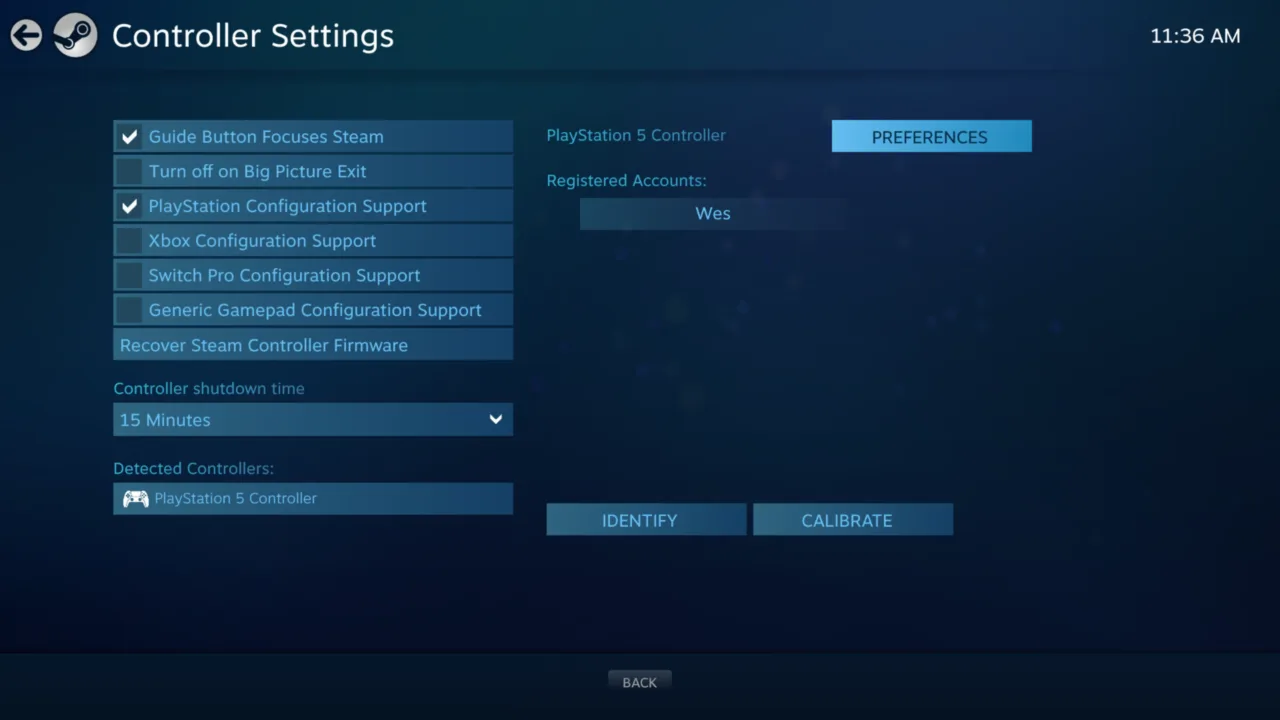
Check both PlayStation Configuration Support and Generic Gamepad Configuration Support.
Once PlayStation Configuration Support is checked, the pad appears under Detected Controllers. (Image: Valve)
Not every game handles a controller the same way. To check, open the game’s Steam store page and look at Controller Support on the right side, where it shows Full or Partial support. If you are still choosing a pad for Steam, our guide to the best game controllers for PC and Steam covers other options.
How to Pair a PS5 Controller With Several Devices
The DualSense can remember up to four pairings, which is handy if it also lives with a laptop, a phone, or your console. You can let the controller choose a slot or pick one yourself.
Automatic slot
Hold Create, then hold the PS button for at least 3 seconds. The light bar and player indicator flash twice.
On your PC, turn on Bluetooth, add a device, and select the controller.
If all four slots are taken, the slot you have not connected to for the longest time is replaced.
Manual slot
Unplug any USB cable and make sure the controller’s light bar and player indicator are off.
Hold one action button together with the PS button for more than 5 seconds, until the light bar and player indicator flash twice. The button you hold picks the slot (see the table).
On your PC, turn on Bluetooth, add a device and select the controller. The player indicator blinks the slot number.
Slot
Buttons to hold with PS
Player indicator
1
Triangle
1 light
2
Circle
2 lights
3
Cross
3 lights
4
Square
4 lights
Switching between devices
Turn on the device you want to switch to.
Hold the action button for that device’s slot plus the PS button for about 3 seconds.
Release when the light bar and player indicator blink. The controller connects to that device.
If the controller is off, pressing PS reconnects it to the last device you used. Each time you move it to a new device that is not in one of the four slots, you have to pair it again.
What Works With a PS5 Controller on PC
Haptic feedback: needs a USB connection on PC, and the game has to support it.
Adaptive triggers: depend on game support.
Built-in microphone and speaker: work on Windows PC when the game supports them.
Download the PlayStation Accessories app from Sony’s support site and install it on your Windows PC.
Open the app and connect the controller to the PC with a USB cable when it asks.
Follow the on-screen prompts to install the latest controller software. Keep the cable connected until the update finishes.
If the Controller Still Will Not Connect
Work through these fixes in order:
Try a different USB-C cable. Some cables only charge and carry no data.
Open your PC’s Bluetooth settings, remove the controller from the list, then pair it again from the first Bluetooth step.
Reset the controller: unplug the cable, push a pin or unfolded paper clip into the small hole next to the Sony logo on the back, and hold the reset button inside for at least five seconds. Then pair it again.
Update the controller software with the PlayStation Accessories app (see above).
If none of that helps, Sony’s PlayStation Repairs page can check whether the controller needs service. For pairing it back to your console afterward, see our guide on how to connect a PS5 controller.
I'm Iain, and I write the step-by-step guides on GameCuki. I cover game tips and walkthroughs, PC gaming how-tos like settings, performance and troubleshooting, and practical guides for Steam, PlayStation, Xbox and Nintendo Switch. I build each guide from official game and platform documentation, write the steps in plain language and check them against the source before publishing. When a game or platform changes how something works, I update the guide. You can read my full process on our How We Review page.