You finish a session, shut the TV off, and the DualSense keeps glowing on the couch cushion, draining battery for nothing. Knowing how to turn off PS5 controller takes a few seconds, and there is more than one way to do it: from the console’s control center, with the PS button alone, or with an auto-off timer so you never have to think about it. This guide covers each method, what changes when the pad is connected to a PC or phone, and what to do when it refuses to shut down.
Prefer to watch it done? This video shows two ways to switch the controller off:
How to Turn Off PS5 Controller with 2 Different Ways! (Best Method)
How to Turn Off a PS5 Controller From the Control Center
This is the cleanest method when the console is on, and it works on one controller at a time. That matters if two people are playing and only one pad should shut down.
Press the PS button on the controller to open the control center.
Select Accessories in the bar at the bottom of the screen.
Select your controller from the list.
Select Turn Off.
The control center icon bar sits along the bottom of the screen, with Accessories in the row and Power at the far right. (Image: Sony)
The light bar goes dark and the controller stops responding to the menu. Sony describes the Accessories card as the place to check a controller’s battery level and change its settings, so it is also where you see which pad is low before you switch it off.
If you turn off the whole console instead, the controller goes with it. When you turn off the PS5 or put it in rest mode, the controller also turns off. In the control center, select Power, then Turn Off PS5.
How to Turn Off a PS5 Controller Without the Console
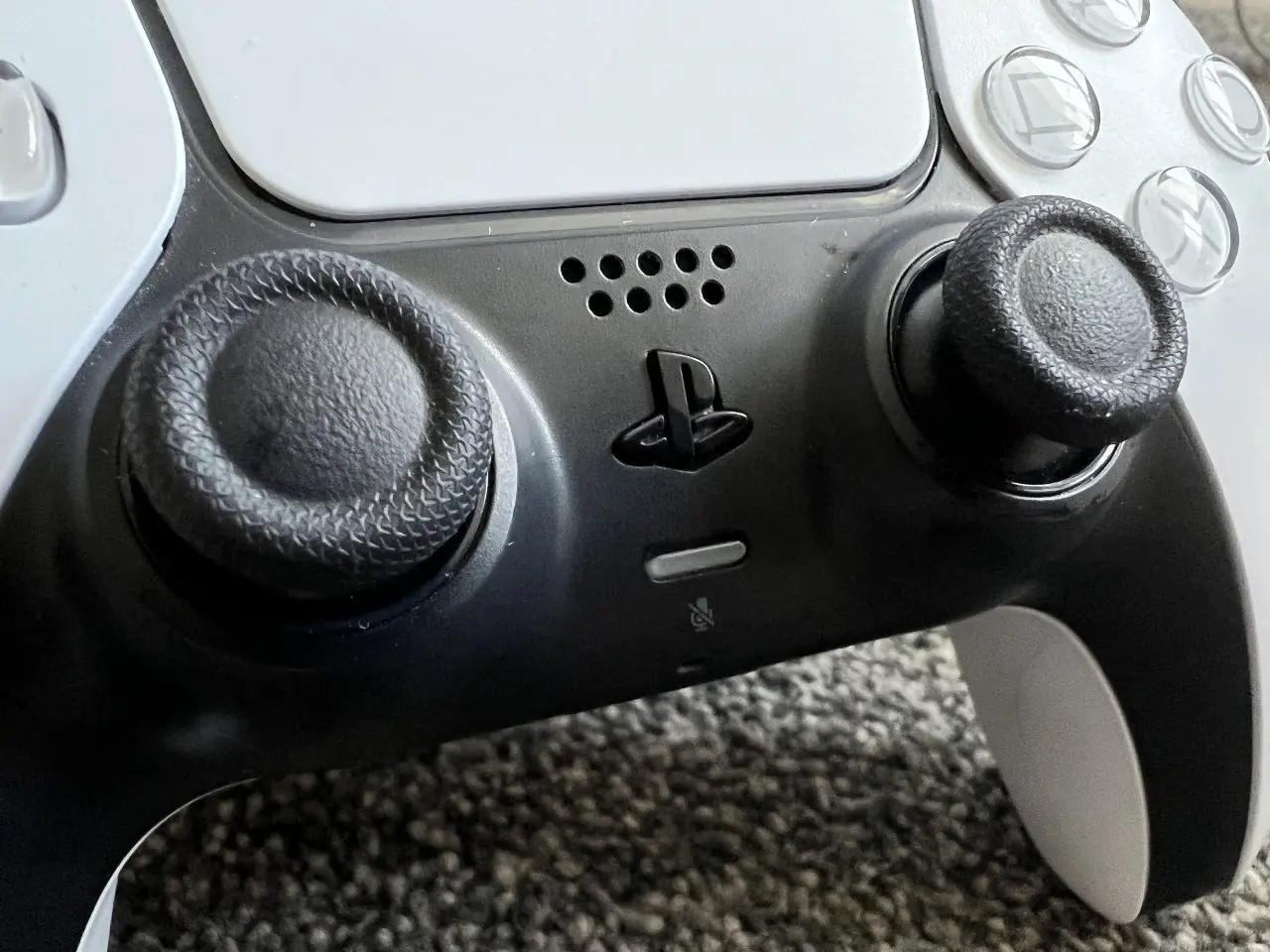
The controller has no power switch, but the PS button does the job when you hold it. This is the method to use when the console is off, you are away from the TV, or the pad is paired to something other than a PS5.
Press and hold the PS button, the round logo button between the two sticks.
Keep holding for about 10 to 15 seconds.
Let go when the light bar and player indicator turn off.
The PS button sits between the two analog sticks. (Image: Trusted Reviews)
Sony uses the same move in its pairing guide: when a controller’s player indicator is lit, press and hold the PS button until the light turns off. Some pads take longer than others, so keep your thumb down a little past what feels right before you assume it failed.
How to Turn Off a PS5 Controller Connected to a PC or Phone
A DualSense paired to a PC, Mac, iPhone or Android phone does not get the console’s power settings, which means there is no auto-off timer and no control center. Hold the PS button for 10 to 15 seconds until the light bar shuts off, exactly as above. The same hold works for each controller if you have several connected to one computer.
On Windows there is a second way: open Bluetooth settings, find the controller, and remove or disconnect it. If you have not set the pad up yet, our guide to connecting a PS5 controller to PC covers pairing it in the first place, and it will need to be paired again after you remove it.
Stop the Controller From Playing PC Audio
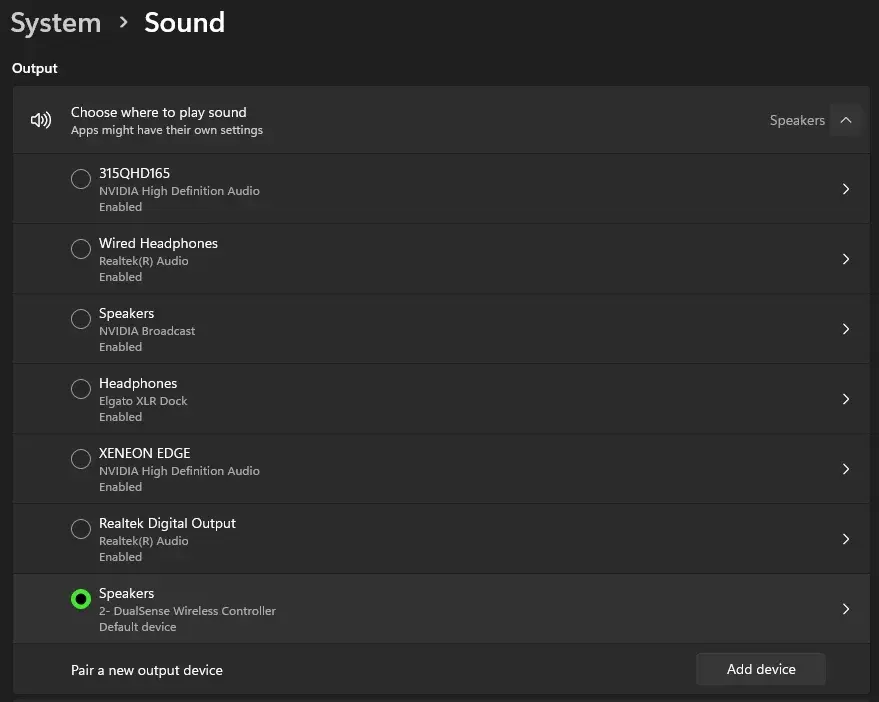
If your problem is not the controller itself but sound coming out of its small speaker, Windows probably made the DualSense your default audio output. To stop it:
Open Windows Settings, select System, then Sound.
In the output list, find the entry named Speakers with DualSense Wireless Controller underneath and open it.
The DualSense appears as a Speakers entry and can become the default output. (Image: Corsair)
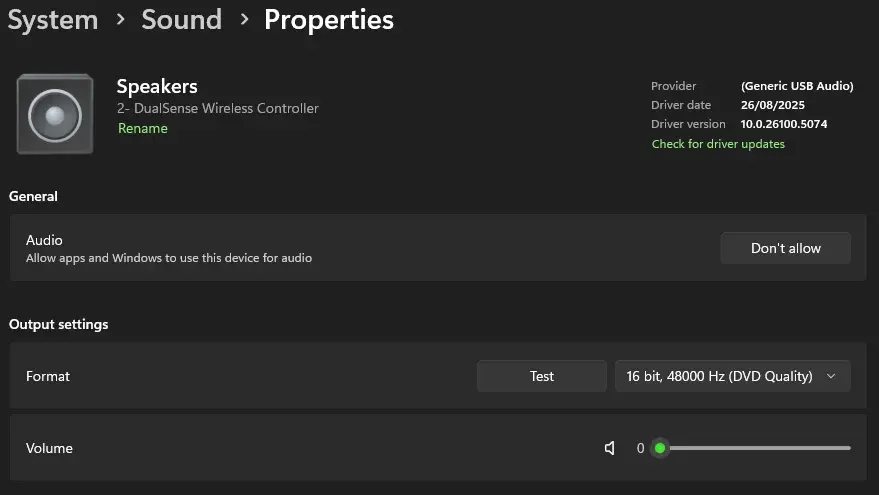
Under General, select Don’t allow.
The Don’t allow button stops Windows from using the controller speaker. (Image: Corsair)
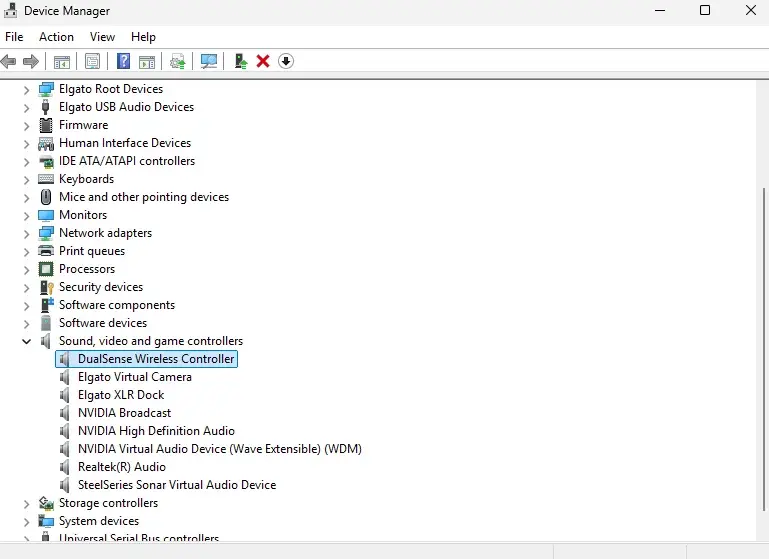
Windows can undo this when you plug the controller back in. To make it stick, open Device Manager, expand Sound, video and game controllers, right-click DualSense Wireless Controller and choose Disable Device. Leave the entry under Human Interface Devices alone, because that one handles the buttons and sticks.
Disable the DualSense under Sound, video and game controllers, not under Human Interface Devices. (Image: Corsair)
How to Set the PS5 Controller Auto-Off Timer
Forgetting to switch the pad off is the usual way battery life disappears, and the PS5 can do it for you. A timer on the console turns controllers off after a period with no input.
From the home screen, select Settings.
Select System, then Power Saving.
Select Set Time Until Controllers Turn Off.
Pick a time: 10, 30 or 60 minutes.
Ten minutes saves the most battery. Choose a longer window if the pad keeps dropping out while you read a long cutscene or watch a movie. The timer only applies to controllers connected to the console, so it does nothing for a pad paired to a PC or phone.
The console has its own, separate timer. Under the same Power Saving menu, Set Time Until PS5 Enters Rest Mode controls how long the console stays on when idle. When it enters rest mode, the controller turns off too.
What to Do If Your PS5 Controller Won’t Turn Off
Hold the PS button longer. A full 15 seconds is not unusual.
Reset the controller. Turn the PS5 off and unplug any USB cable from the pad. Find the small reset hole next to the Sony logo on the back, press and hold it with a pin or similar tool for at least 5 seconds, then reconnect the controller.
Restore default settings. Go to Settings, System, System Software, Reset Options, then Restore Default Settings. This keeps your account and game data.
Update the system software. Go to Settings, System, System Software, System Software Update and Settings, then install an update if one is waiting.
If the controller turns off but will not come back, see how to connect a PS5 controller to pair it again.
Turn Off Vibration, Controller Speaker or Trigger Effects Instead
Some searchers want to switch off a feature, not the whole pad. On the console, go to Settings, then Accessories, then Controller (General). That menu lists the controller speaker volume, vibration intensity and trigger effect intensity there, so you can turn each one down without powering the controller off.
Is It Bad to Leave a PS5 Controller On?
It will not harm the controller, but a pad left on keeps using battery. Sony’s own guidance is simple: turning off the console or entering rest mode turns the controller off, and the power-saving timer covers forgotten pads. If you want controllers topped up while the console is in rest mode, Sony’s power settings include a Supply Power to USB Ports option for charging in rest mode.
Final Thoughts on How to Turn Off a PS5 Controller
For everyday use, set the timer to 10 minutes and forget it: that one change handles most forgotten controllers. Keep the PS button hold in your back pocket for PC, phone and travel setups, and use the control center when you only want to shut down one pad. Once you know how to turn off PS5 controller the right way, the next upgrade is a place to park it, and our roundup of the best charging station for PS5 controller picks covers docks for every budget.
I'm Iain, and I write the step-by-step guides on GameCuki. I cover game tips and walkthroughs, PC gaming how-tos like settings, performance and troubleshooting, and practical guides for Steam, PlayStation, Xbox and Nintendo Switch. I build each guide from official game and platform documentation, write the steps in plain language and check them against the source before publishing. When a game or platform changes how something works, I update the guide. You can read my full process on our How We Review page.