A PS5 pulls room air through its vents all day, and that air carries dust, pet hair and lint that settle inside the case. Learning how to clean PS5 hardware takes about 15 minutes and a few cheap tools, and it is the simplest way to keep the fan quiet and the console from running hot. This guide covers the outside and vents, the dust catchers under the covers (the original and the Slim and Pro work differently), cleaning a DualSense controller, and the products you should never use.
Prefer to watch it done? This video walks through the cleaning from start to finish:
EASY! How to Clean a PS5 (Step by Step, the Safe Way) | PS5 Slim & PS5 Pro Models
Before You Clean Your PS5: Power Down and Cool Off
Every method below starts the same way, and Sony treats it as a safety step, not a suggestion.
Open the control center and select Power, then Turn Off PS5. Do not use Rest Mode. The screen goes blank and the power indicator flashes white before it turns off.
Unplug the AC power cord and every other cable. Wait until the indicator is fully off before you pull the cord.
Let the console cool down. The body can stay hot right after use, and handling it too soon can burn you.
Work on a soft cloth spread over a flat surface, away from carpet and fabric that shed fibers.
How to Clean the Outside and Vents of a PS5
This is the five-minute job, and it needs no tools beyond a cloth and a handheld vacuum. Do it whenever the console looks dusty or the fan sounds louder than usual.
Wipe the plastic covers with a soft, dry microfiber cloth. Dry is the rule here, and the section on what not to use explains why.
Find the vents on the sides and back of the console and hold the vacuum nozzle just in front of the slots. Let the suction pull dust out of them. Keep the nozzle off the plastic so it does not scratch.
Check the AC IN socket and the other ports on the back. Wipe dirty ports and connectors with a dry cloth, and do not push anything into them.
Look at the area around the console. Leave about 4 inches (10 cm) of open space on each side, and keep cables, cloth and clutter away from the vents.
For most people, that is enough. If the fan stays loud after this, the dust is probably trapped under the covers, which is the next job.
How to Remove the PS5 Covers (Original and Slim or Pro)
Sony documents cover removal as a normal user step, so this is the deepest cleaning you can do without opening the console itself. The method depends on your model, so check which one you own before you pull anything. The original PS5 belongs to the CFI-1000 model group. The PS5 Slim and PS5 Pro belong to the CFI-2000 and CFI-7000 groups. If you are unsure, check the model number first. Sony’s cover page has a model number check for exactly this reason.
Original PS5 (CFI-1000 group)
The original has two covers that slide off. The top cover carries the PlayStation logo, and the bottom cover does not.
Turn off the console, unplug everything and let it cool, as above.
Remove the base. On a horizontal stand, lift the base straight up. If the console stands upright, flip it over and remove the stand screw first (a coin works) before lifting the stand away.
For the top cover, place the console with the PlayStation logo facing up and the power button facing away from you.
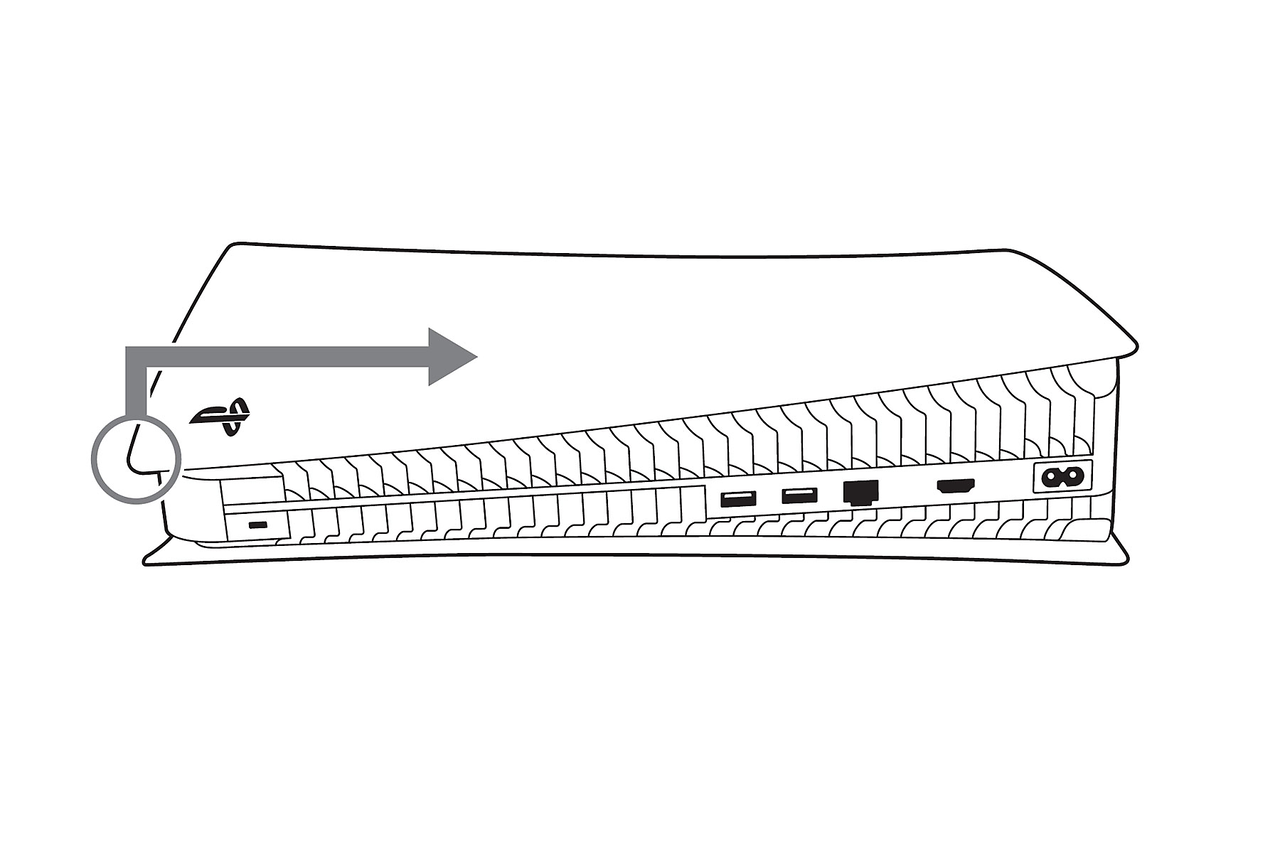
Grip the bottom left corner of the cover and pull it slightly up and to your right. The cover lifts away.
Grab the bottom left corner, then pull up and to the right. (Image: PlayStation)
For the bottom cover, flip the console so the logo faces down and the power button faces you. Grip the top left corner and pull slightly up and to your right in the same way.
Clean the area underneath using the dust catcher steps below.
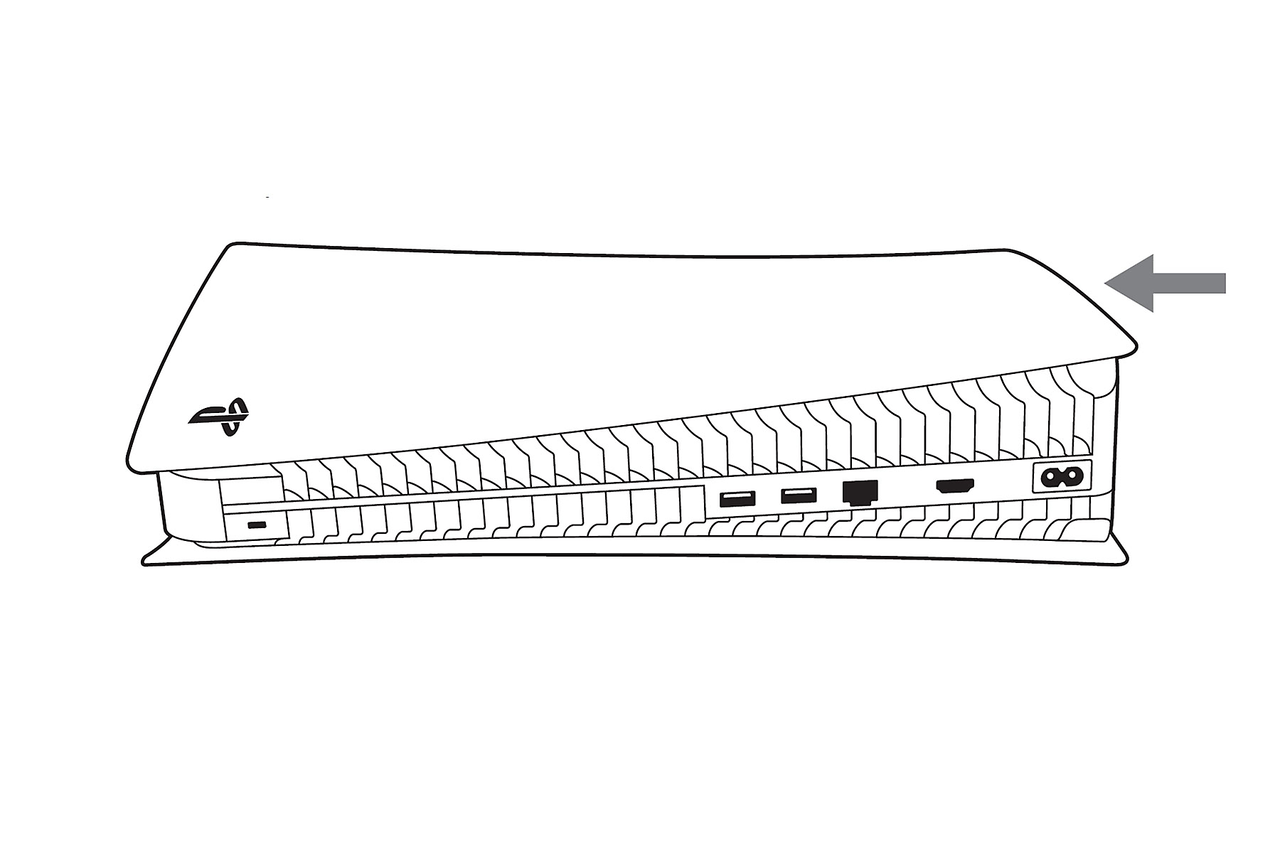
To put a cover back, slide it on from right to left until you hear a click. Reconnect the base, the power cord and the cables, then turn the console on.
Slide the cover on from right to left until it clicks. (Image: PlayStation)
PS5 Slim and PS5 Pro (CFI-2000 and CFI-7000 groups)
These covers lift off with clips, and each one has a different shape. Sony says all of them come off and go on the same way, and the action button marks on the inside of each cover show you where it belongs.
Turn off the console, unplug everything and let it cool, as above.
Place the console with the bottom facing up and the front side facing you, on a soft cloth. Remove the feet.
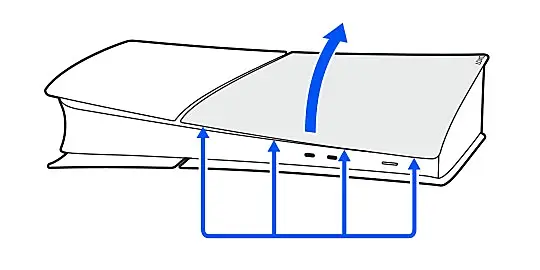
Slightly lift the cover away from the console to release its clips, then take it off.
Lift the cover away from the console to release its clips. (Image: PlayStation)
Clean the exposed vents and the dust under the cover with the handheld vacuum.
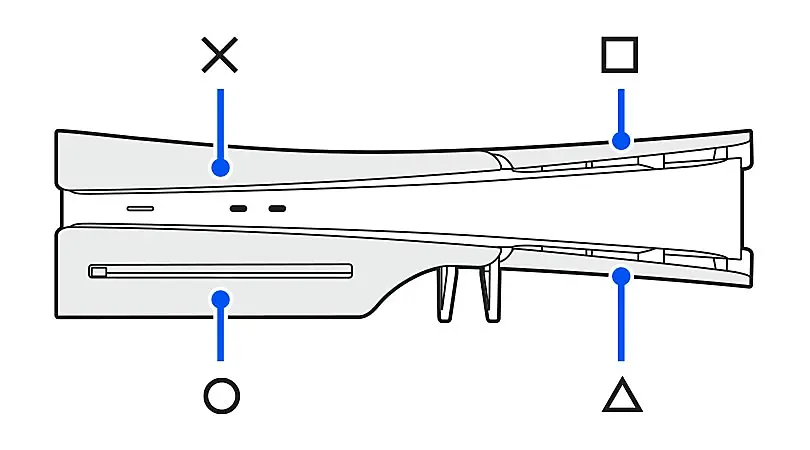
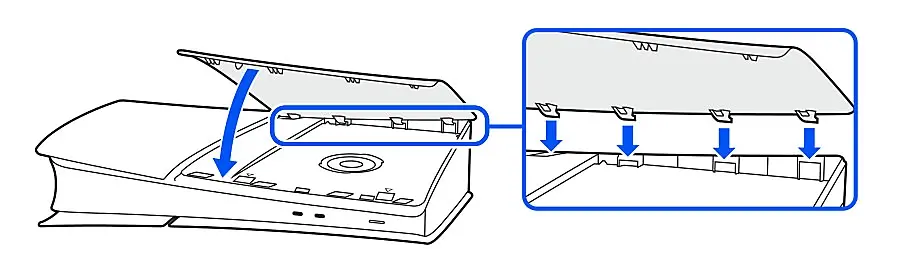
To put a cover back, match its shape to the right spot using the action button marks inside it. Align the clips with the holes on the console and push until it clicks.
Each cover carries an action button mark that tells you where it belongs. (Image: PlayStation)Line up the clips with the holes, then press until you hear a click. (Image: PlayStation)
Attach the feet, reconnect the power cord and cables, and turn the console on.
Check that every cover clicked into place before you power on. Sony warns that a cover that is not installed correctly can make the console overheat.
How to Clean PS5 Dust Catchers
The original PS5 has two triangular dust catcher openings in the chassis, and they are the reason the covers are worth removing. They collect dust before it settles on the internal parts, and they are meant to be vacuumed.
Remove the logo cover as described above. The two triangular dust catcher openings are visible on the console body.
Hold a handheld vacuum with a narrow attachment against each opening and let it pull the dust out. A narrow nozzle reaches inside the opening much better than a wide one.
If you do not have a narrow nozzle, a soft, dry brush can loosen the dust at the opening so you can vacuum it up.
Wipe the inside of each cover with a dry microfiber cloth before you put it back.
The Slim and Pro are different. There is no official dust catcher map for them. What it documents is the cover removal above plus a handheld vacuum on the dust trapped underneath. So on a Slim or Pro, vacuum the exposed vent area and the dust you can see, and leave everything else alone.
Whatever the model, stop once the covers are off. You are cleaning dust that sits in the open. You are not cleaning the fan or heatsink, which are covered in the section on opening the console below.
How to Clean a PS5 Controller (DualSense)
A DualSense collects skin oil, lint and crumbs around the sticks, buttons and triggers, and it needs less care than the console. Sony lists the controller with the console’s exterior surfaces, so the same rules apply: a soft, dry cloth and no chemicals.
Turn the controller off and unplug any USB cable. If you are not sure how, see our guide to turning off a PS5 controller.
Wipe the face, back and triggers with a soft, dry microfiber cloth.
Use a soft, dry brush, such as a spare toothbrush, along the seams and around the sticks and buttons to loosen debris. Brush toward the outside edges so it falls out instead of in.
Wipe the USB-C port and other connectors with a dry cloth. Sony says dirty ports and connectors may not conduct electricity properly.
Let it sit a minute, wipe once more, then reconnect it.
Do not rest or store the controller on top of the console. Sony says that can change the console’s surface color and quality.
Sticky buttons and stick drift are a different matter. Opening a DualSense is not something Sony documents, and it exposes a battery and fragile ribbon cables, so surface cleaning is where this guide stops. If you want a tidy place to park the pad between sessions, see our roundup of the best charging station for PS5 controller options.
What Not to Use When Cleaning a PS5
Alcohol, thinner, benzene or insecticide. Sony says not to spray or apply volatile substances, including paint thinner, benzene or alcohol, on the console or the controller. Many guides reach for isopropyl alcohol anyway, but Sony advises against it for the exterior.
Wet wipes and chemically treated cloths. Use a dry cloth.
Water or any liquid near the vents and ports. Sony says not to let liquid or foreign objects get into the console.
A powerful vacuum or aggressive compressed air. Both can force dust deeper or spin the fan too hard. A low-powered handheld vacuum is what Sony recommends.
Solvents on game discs. Sony says to wipe a disc with a soft cloth from the center outward and not to use solvents, record cleaners or anti-static spray.
Anything pushed into the vents or ports. Swabs, tools and fingers can bend parts or leave fibers behind.
Can You Open a PS5 to Clean the Fan?
Sony stops at the covers. Its safety guide says there are no user serviceable components inside the console, and that unauthorized modification of the console or its accessories will void your warranty. Some online guides go further and walk you through unscrewing the fan plate and cleaning the heatsink. That is a repair job with a real chance of damage, and it is outside what the manufacturer documents.
If the fan is still loud or the console still runs hot after the cleaning above, work through our PS5 overheating troubleshooting steps. If the problem continues, go through PlayStation Repairs. Say so if the console is still under warranty, because opening it yourself can complicate that.
How Often Should You Clean a PS5?
Sony does not set a schedule. A reasonable rhythm is a quick dry wipe of the outside every month or two, and a check of the vents and the dust catchers a few times a year. Clean sooner if the fan gets louder than normal, the console sits in a dusty room or you have pets that shed. Keeping the vents clear matters more than keeping the case spotless.
Final Thoughts on How to Clean PS5 the Safe Way
For almost everyone, the right way to clean a PS5 is the boring one: power down, unplug, wipe with a dry cloth, vacuum the vents and the dust catchers, and stop at the covers. That routine does what Sony documents, costs almost nothing and catches the dust that causes most noise and heat problems. Save the controller for a dry cloth and a soft brush, skip the alcohol, and leave the fan and heatsink to PlayStation Repairs.
I'm Iain, and I write the step-by-step guides on GameCuki. I cover game tips and walkthroughs, PC gaming how-tos like settings, performance and troubleshooting, and practical guides for Steam, PlayStation, Xbox and Nintendo Switch. I build each guide from official game and platform documentation, write the steps in plain language and check them against the source before publishing. When a game or platform changes how something works, I update the guide. You can read my full process on our How We Review page.