Switch 2 battery life is the one spec that surprises people on day one: Nintendo rates a full charge at roughly 2 to 6.5 hours, and a demanding game at high brightness lands near the bottom of that range. The gap comes from what you play and how the console is set up, which means most of it is in your control. This guide covers how long the battery lasts, what drains it fastest, the settings that stretch a charge and the habits that keep the battery healthy for years.
How to Improve Battery Life on Nintendo Switch 2 (Fix Draining Issues)
Nintendo rates the Switch 2 battery at approximately 2 to 6.5 hours on a full charge, depending on the software and the features in use. The internal lithium-ion battery is 5220mAh, and a full charge takes approximately 3 hours when the console is off or in Sleep Mode. Charging takes longer while you play.
That range is wide because games load the hardware very differently. Light games and simple menus sit toward the 6.5 hour end, while demanding titles such as Mario Kart World can drain a full charge in about 2 hours with the screen turned up. For a rough picture, here is how the pieces compare:
Console battery: 2 to 6.5 hours of play, about 3 hours to recharge from Sleep Mode.
Joy-Con 2 controllers: a 500mAh battery each, rated at about 20 hours, with a charge time of about 3 hours 30 minutes.
Battery ageing: like any lithium-ion battery, it holds slightly less charge as it gets older. Nintendo calls this normal and not a defect.
If you mostly play docked, none of this matters much because the console draws wall power. It is handheld and tabletop sessions where the number shows up, and it is the main reason players look at a power bank. Our best power bank for Nintendo Switch 2 roundup covers the options.
What Drains the Switch 2 Battery the Fastest?
Most of the drain comes from a short list of things. Knowing which ones apply to you tells you where to start.
The game itself. Demanding 3D games keep the processor and the screen working hard, so they use far more power than a puzzle game or a text-heavy title.
Screen brightness. The 7.9-inch LCD is a major power draw, and running it at or near maximum shortens a charge noticeably.
HDR. The screen supports HDR10, and the HDR Output setting applies to all software on the console screen.
Wireless radios. Wi-Fi, Bluetooth and the NFC reader keep working in the background unless Airplane Mode is on.
Handheld Mode Boost. This setting makes software run at TV mode performance in handheld or tabletop mode, and extra performance can cost battery.
Rumble, volume and background uploads. Each one is small on its own, but they add up over a long session.
Sleep Mode. The console keeps drawing a little power while asleep, so a console left in Sleep Mode for days can wake up much lower than you left it.
How to Make Switch 2 Battery Last Longer
Work through these in order. The first three change the most and cost you the least, and you can undo any of them in seconds.
1. Lower the Screen Brightness
Press and hold the HOME Button for at least one second to open Quick Settings.
Drag the Screen Brightness slider down. Many players find about 40 to 50 percent comfortable indoors.
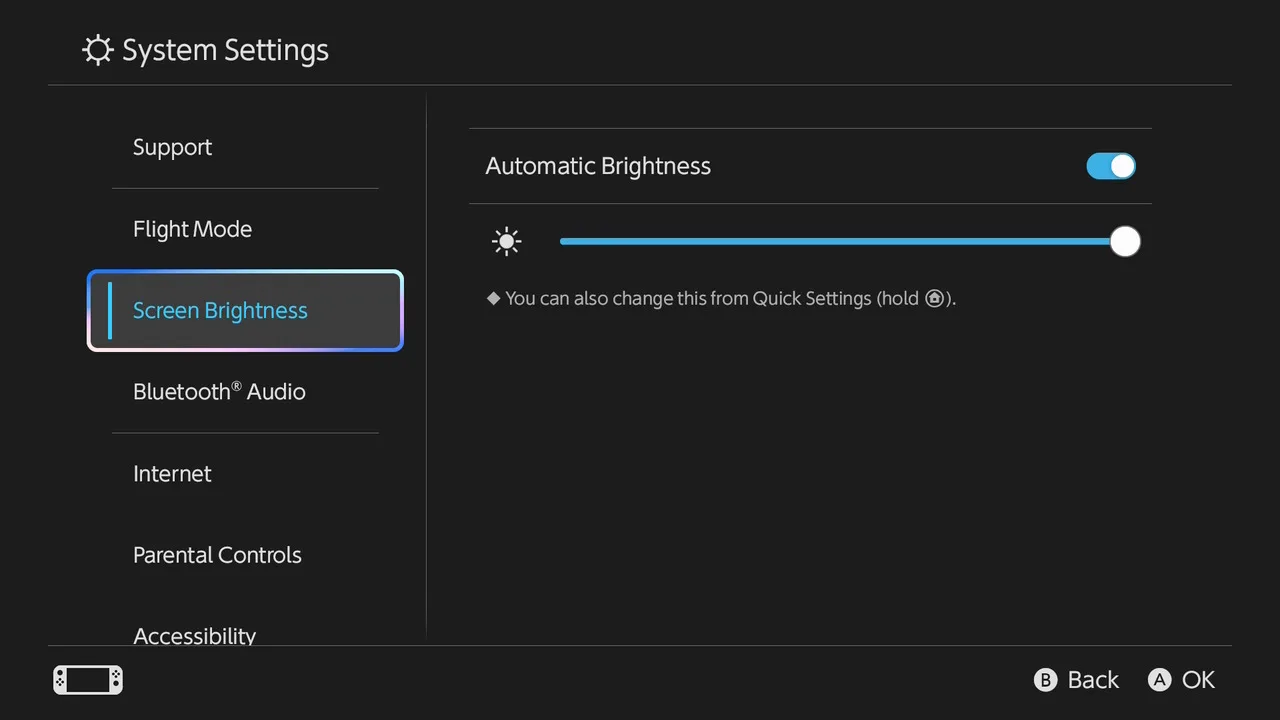
Leave Auto-Brightness on so the built-in brightness sensor lowers the screen in dim rooms for you.
You can also set both from System Settings > Screen Brightness.
Automatic Brightness and the brightness slider live under Screen Brightness in System Settings. (Image: The Shortcut)
2. Turn Off HDR Output
From the HOME Menu, select System Settings.
Select Display in the left column.
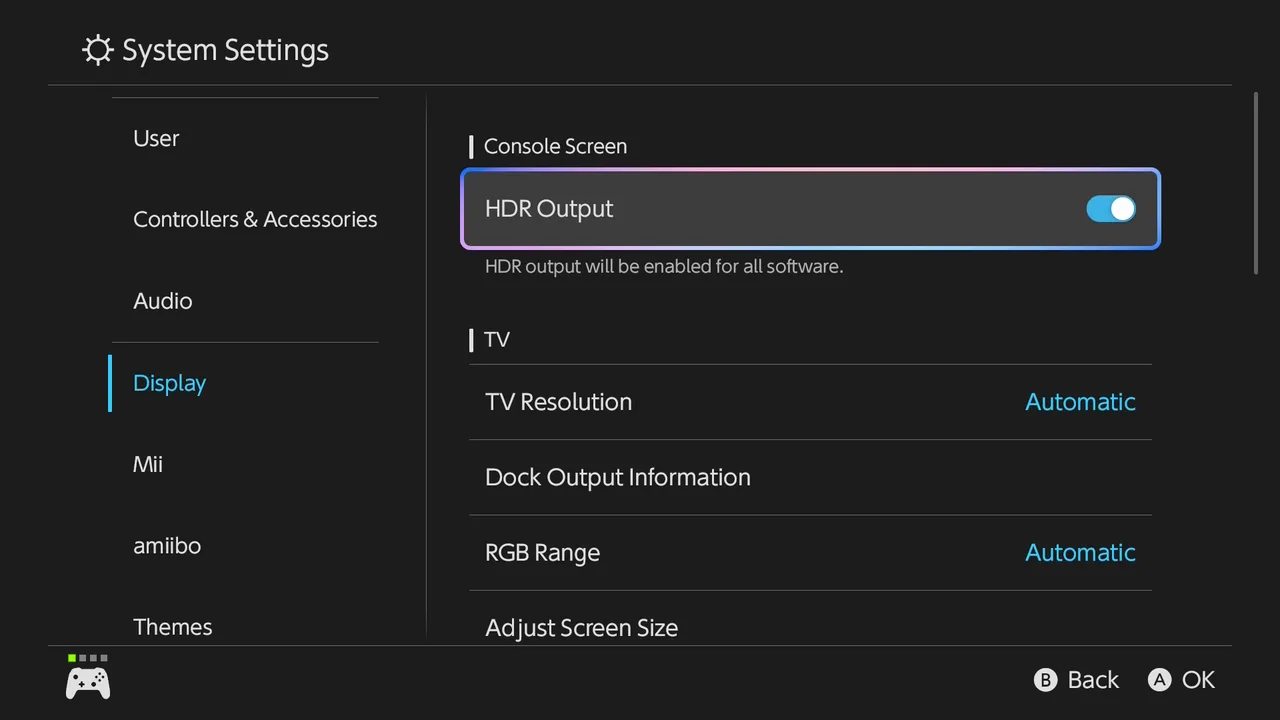
Under Console Screen, switch HDR Output off.
HDR widens the brightness range of the picture, and it is rarely the feature you notice most on a handheld screen. Turn it back on if you prefer the look for a particular game.
HDR Output sits at the top of the Display page, under Console Screen. (Image: The Shortcut)
3. Use Airplane Mode for Offline Play
Press and hold the HOME Button for at least one second.
In Quick Settings, toggle Airplane Mode on. You can also use System Settings > Airplane Mode.
Airplane Mode turns off Wi-Fi and Bluetooth, so online play and downloads stop, and wireless controllers need a quick fix. If you detach your Joy-Con 2 for Tabletop Mode, switch Bluetooth back on first. Go to System Settings > Airplane Mode > Bluetooth while the Joy-Con 2 are still attached, and they will keep working when you detach them. Airplane Mode only works in handheld and tabletop mode, not TV mode.
4. Lower the Volume or Use Headphones
Press and hold the HOME Button to open Quick Settings.
Use the Volume Control slider, or the volume buttons on top of the console.
Volume control applies to whichever source is active, whether that is the speakers, Bluetooth headphones or a wired headset. Lower speaker volume can ease the load a little. A wired headset avoids the Bluetooth radio if you are already in Airplane Mode.
5. Keep Handheld Mode Boost Off
Go to System Settings and check whether Handheld Mode Boost is enabled.
If it is, turn it off unless a specific game needs the extra performance.
Nintendo describes the feature as making software run in handheld or tabletop mode as if it were in TV mode. That is a trade between performance and battery, so reserve it for games that truly need it.
6. Turn Off Vibration and Background Uploads
In System Settings > Controllers & Accessories, turn off controller vibration.
Open Album from the HOME Menu, select Upload Settings and turn off Automatic Uploads.
The Joy-Con 2 have their own batteries, but they also charge from the console while attached, so heavy rumble can pull from the main battery. Turning off automatic uploads stops screenshots and videos from syncing in the background while you play on the go.
7. Check the Sleep Mode Settings
Go to System Settings > Sleep Mode.
Shorten the time before the console goes to sleep when you are idle.
A console that sleeps sooner wastes less charge during breaks. For a long gap between sessions, power it off completely: hold the POWER Button for at least three seconds, then choose Power Options > Power Off.
How to Keep the Switch 2 Battery Healthy
Everything above helps a single charge last longer. These steps help the battery hold its capacity over the life of the console.
Turn On Stop Charging Around 90%
From the HOME Menu, select System Settings.
Select System.
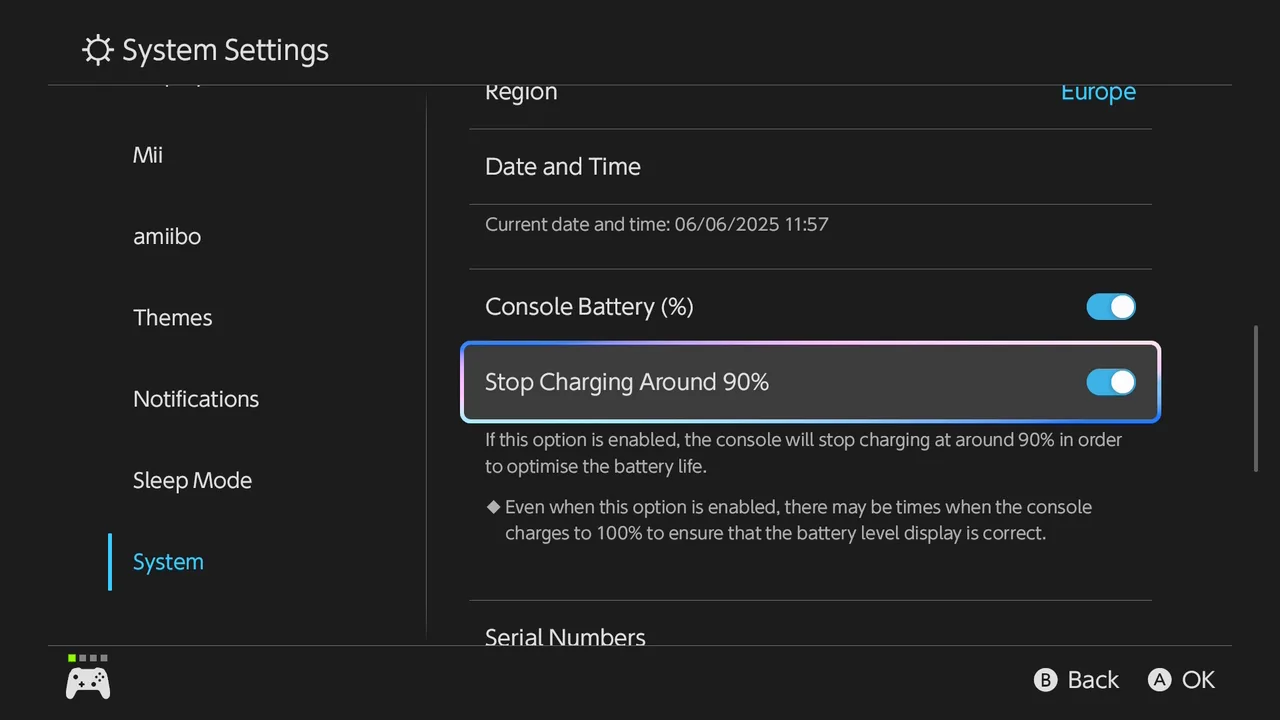
Switch on Stop Charging Around 90%.
Nintendo says this setting slows battery deterioration. The console may still charge to 100% from time to time so that the battery level display stays accurate, and how often depends on how you use it. It makes the most sense if the console sits in the dock most of the day. Switch it off before a trip when you want every last percent. If your console seems stuck below full, this setting is the first thing to check.
The Stop Charging Around 90% toggle sits in the System page, below Console Battery (%). (Image: The Shortcut)
Charging Habits Nintendo Documents
Charge between 41 and 95°F. Nintendo lists 41 to 95°F as the operating range, and its charging page gives 5 to 35°C for charging.
Do not worry about overcharging. Charging stops automatically once the console is full, so leaving it in the dock or on the adapter will not overcharge it.
Charge it at least once every six months. A console left uncharged for a long time can fall into over-discharge and may not charge properly again.
Know when the battery is worn out. If the console no longer charges, or the usable time stays short even after a full charge, the battery has reached the end of its life and needs a replacement.
Use a strong enough charger. A third-party adapter rated at 54W or more works in any play mode, but Nintendo has not checked unlicensed adapters and cannot guarantee their stability or safety. The older Switch adapter (HAC-002) charges the console directly but cannot run TV mode in the dock.
Sometimes the battery runs fine for hours while the indicator says it is almost empty. Nintendo documents a short reset for that:
Confirm you are using an adequately powerful AC adapter.
Install the latest system update: System Settings > System > System Update.
Power off the console. Hold the POWER Button for at least three seconds, then choose Power Options > Power Off.
Hold the volume up (+) and volume down (-) buttons, then press the POWER Button once to turn the system on.
Keep holding the volume buttons until the Recovery Mode menu appears. Opening this menu should reset the battery level meter.
Power the console off again, turn it back on and watch how the indicator behaves.
If the reading is still wrong after repeating this, the console needs to go in for service. If the console will not charge at all, check that Stop Charging Around 90% is not the reason, then unplug the adapter for 30 seconds, hold the POWER Button for 20 seconds to force a shutdown, and try the other USB-C port on the console.
How to Add Hours to Switch 2 Battery Life on the Go
Settings will get you part of the way, but a long flight or road trip needs more charge than the 5220mAh battery holds. A USB-C power bank is the simplest fix, and a charger or two keeps you topped up at home. Pick a power bank that can deliver at least the 54W Nintendo lists for third-party adapters, and use the console’s own USB-C ports on the top or bottom to plug in. If you are also shopping for protection or a dock, our best Switch 2 accessories list is a good next stop, and if battery is the deciding factor between handhelds, see how the console stacks up in Steam Deck OLED vs Nintendo Switch 2.
Final Thoughts on Switch 2 Battery Life
Switch 2 battery life will not match what a phone offers, and it is better to plan around that than to be surprised by it. Dim the screen, turn off HDR and use Airplane Mode for offline games, and you give a demanding game its best chance to stay on the upper half of Nintendo’s 2 to 6.5 hour range. Turn on Stop Charging Around 90% if the console lives in the dock, and pair it with a power bank if you travel. Try these steps before you assume yours is defective, because a short charge is usually down to the game and the settings.
I'm Iain, and I write the step-by-step guides on GameCuki. I cover game tips and walkthroughs, PC gaming how-tos like settings, performance and troubleshooting, and practical guides for Steam, PlayStation, Xbox and Nintendo Switch. I build each guide from official game and platform documentation, write the steps in plain language and check them against the source before publishing. When a game or platform changes how something works, I update the guide. You can read my full process on our How We Review page.