When your PS5 won’t turn on, the cause is often outside the console: a dead outlet, a loose cord or a console stuck in rest mode. This guide starts with the checks that cost nothing, shows what each power light color means, and then covers the specific cases people run into most: no lights at all, a blue light that vanishes, beeps, a power outage and a console that will not wake from rest mode. It also tells you when to stop and request a repair instead of pushing your luck.
Safety first: never open the console or its built-in power supply, and do not plug in a cord with cracked insulation or bent prongs. If you smell burning, see smoke or hear a pop, unplug the console only if you can do so safely and stop troubleshooting. Go straight to the repair steps at the end of this guide.
Before you try anything, look at the light and match it to what PlayStation documents. It tells you whether the console has power at all, and that decides which fix to use.
No light: the console is fully off, or no power is reaching it.
Solid white: powered on. If there is no picture, the console is running and the problem is the display side or a fault that needs a repair request.
Blue, then white: the normal start-up sequence. Starting from rest mode is quicker than starting from fully off.
Blinking white, solid blue or blinking blue: the console is frozen. Use the power reset in Step 4 below, then Safe Mode.
Blinking white, then off: the console is powering down normally.
Solid orange: rest mode, not off. Controllers can charge and downloads can continue.
Blinking orange: the console is entering rest mode. It may look yellow or amber, and it should settle to solid orange after a few seconds.
How to Fix a PS5 That Won’t Turn On
Work through these in order and stop as soon as the console starts. Every step is safe to do at home and none of them erase your games or saves.
Press the power button on the console itself, not on the controller. A controller can only wake a console that is in rest mode.
Check that the outlet works by plugging in a lamp or a phone charger. If you use a power strip, reset it or skip it and plug the PS5 straight into the wall.
Reseat the power cord at both ends, the PS5 and the outlet. If you have a spare figure-8 cord, swap it in, because a damaged cable is the cheapest cause to rule out.
Do a full power reset. Unplug the console, wait 3 minutes, plug it back in and turn it on. This is the first step PlayStation lists for a frozen console.
Disconnect everything else: external drives, USB devices and the HDMI cable. Try to start the console with only the power cord attached, then add things back one at a time.
If the light is on but the console seems stuck, hold the power button for about 10 to 15 seconds until it shuts down completely, wait 30 seconds, then press it once.
If the console shows any sign of life, start it in Safe Mode. Turn it fully off, then press and hold the power button and release it after the second beep, about seven seconds in.
Connect a DualSense controller with a USB cable and press the PS button to open the Safe Mode menu.
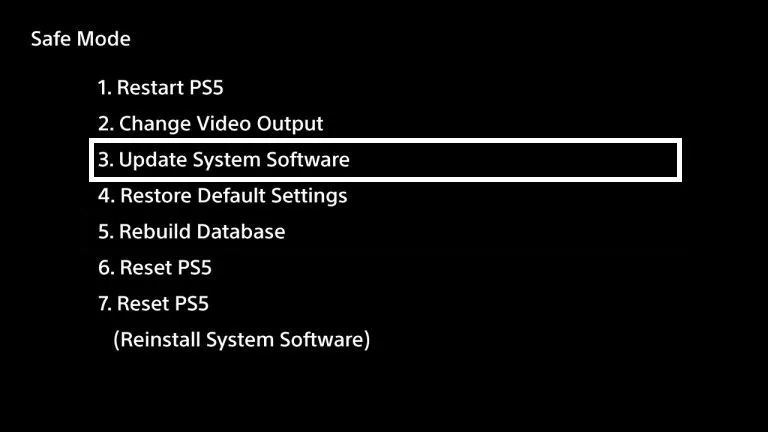
In Safe Mode, Update System Software is option 3. Choose it if the console starts but behaves badly after an update. (Image: PlayStation Universe)
Select Update System Software and install any update that is offered, then restart. If the console still misbehaves, return to the menu and choose Clear Cache and Rebuild Database, then Rebuild Database. Our guide to rebuilding the PS5 database covers that option in detail.
The Safe Mode menu needs a wired controller, so if the pad will not respond, see how to connect a PS5 controller first.
PS5 Won’t Turn On and There Are No Lights
No light and no sound means no power is reaching the console, or it has failed internally. Check the outlet with another device, bypass the power strip, reseat the cord and try a different figure-8 cord. Then do the 3-minute unplug in Step 4. If every one of those fails and the console stays completely dark, the built-in power supply or the board is the likely fault. That is not a home repair, so move on to the repair options below.
PS5 Blue Light Then Turns Off
PlayStation describes blue followed by white as the normal start-up sequence, so a blue light by itself is not a fault. The problem is when it stays blue, blinks, or shuts off right after starting.
Blue stays on or blinks: the console is frozen. Unplug it for 3 minutes, plug it back in and turn it on. If that fails, use Safe Mode as above.
Powers off immediately after it starts: PlayStation sends you to its repair diagnostic tool, because this is not something Safe Mode reliably fixes.
Check the vents: make sure nothing blocks the vents and that the console has room to breathe. Let it cool down for a while before you try again.
PS5 Won’t Turn On but Beeps
A beep while you hold the power button during Safe Mode steps is normal. The first sounds when you press and the second about seven seconds later. A beep at start-up that is followed by nothing, with no picture and a console that never fully boots, usually points to a power delivery fault or a failing power supply. Do the checks above in case the cause is the cord or outlet. If the pattern repeats after a full power reset, treat it as a repair case.
PS5 Won’t Turn On After a Power Outage or Surge
An outage or storm can trip a power strip or surge protector, or leave the console in a bad state if it lost power while in rest mode.
Unplug the PS5 and leave it for a few minutes.
Confirm the outlet has power with another device, and check whether your surge protector has a tripped breaker or a “protected” light that is now off. A protector that has failed will not pass power, so plug straight into the wall to rule it out.
Inspect the cord and the console’s power port for scorch marks or melted plastic. Do not use a damaged cord.
Plug the console in directly, wait a minute, and press the power button.
If it turns on and shows a storage repair message, let it finish. A console that loses power in rest mode may need to repair storage or rebuild its database the next time it starts.
If the console stays completely dead after the outlet, cord and 3-minute reset all check out, the surge may have damaged the power supply or the board. That calls for a repair request, not more attempts. A surge protector helps protect the console in future outages.
PS5 Stuck in Rest Mode
A solid orange light means rest mode, not a dead console. To wake it, press and hold the PS button on a controller that is paired or connected by USB. If it does not respond, work through this list.
Press the power button on the console itself. If it stays orange and ignores you, hold the power button 10 to 15 seconds until it shuts down, wait 30 seconds, then press it once.
Unplug the power cord for 3 minutes, then plug it in and start the console.
Remove external hard drives and USB accessories. They are a known cause of failed wake-ups, so reconnect them one at a time later.
If the light turns white but the screen stays black, it may be a display handshake issue. Reseat the HDMI cable at both ends, switch to another HDMI port, or turn the TV off and on.
Once the console is running, open Settings, then System, then HDMI, and turn off Enable HDMI Device Link if your TV keeps sending the console wake or sleep signals.
If rest mode keeps failing, rebuild the database from Safe Mode.
When to Request a Repair for a PS5 That Won’t Turn On
If you have checked the outlet, tried a different cord, done the 3-minute reset and the console still shows nothing, stop. PlayStation’s power troubleshooting page sends you to the PlayStation Repairs diagnostic tool, which also tells you whether the console is eligible for an under-warranty repair. Check your warranty and your proof of purchase first. Do not open the console, because that risks your safety, can cause further damage and may affect warranty coverage.
Under warranty: use the PlayStation Repairs tool and let Sony handle it.
Out of warranty: ask a reputable repair shop for a diagnosis and a quote before any work starts.
Console boots but is unstable: back up your data, then follow our guide on how to factory reset a PS5 as a last software step. Resets erase data, so back up first.
Final Thoughts: What to Do When Your PS5 Won’t Turn On
Most of the time a PS5 that won’t turn on needs the boring fixes: another outlet, another cord, a 3-minute unplug or a push out of rest mode. Run those first, read the light before you decide what the problem is, and use Safe Mode only if the console shows signs of life. If it stays dark or shuts off right after the blue light, accept that it is a hardware fault and use the repair route while you still have warranty on your side. A surge protector and clear airflow make the next time less likely.
I'm Iain, and I write the step-by-step guides on GameCuki. I cover game tips and walkthroughs, PC gaming how-tos like settings, performance and troubleshooting, and practical guides for Steam, PlayStation, Xbox and Nintendo Switch. I build each guide from official game and platform documentation, write the steps in plain language and check them against the source before publishing. When a game or platform changes how something works, I update the guide. You can read my full process on our How We Review page.