A graphics card that runs hot and loud is often pulling more voltage than it needs. Learning how to undervolt GPU hardware lets you ask the card for the same clock speed at a lower voltage, which usually means less heat, quieter fans and a smaller power draw with frame rates that stay close to stock. This guide walks through the full process in MSI Afterburner (NVIDIA cards and most Radeon cards), AMD’s own Adrenalin software and the one-slider shortcut of lowering the power limit, plus how to check that your settings are stable.
Every GPU follows a voltage and frequency curve: to reach a given clock speed, it requests a given voltage. Factory curves are set conservatively so that every chip in a production run stays stable. Undervolting rewrites part of that curve so your card reaches the same clock at a lower voltage. Overclocking pushes the clock higher. Undervolting is closer to the opposite goal: hold performance steady while cutting power, heat and fan noise.
Undervolting through software is generally considered low risk, because an unstable setting normally shows up as a driver crash, a visual glitch or a freeze, and the fix is to raise the voltage again. It is still a change outside factory settings. ASUS notes that unstable settings can cause crashes while you are tuning, and AMD’s tuning agreement says damage from running outside factory settings may not be covered by warranty, except when you use its built-in tuning presets. Results also differ from card to card, even between two units of the same model, so treat any number you see online as a starting point and never copy someone else’s settings blindly.
Install a monitoring and tuning tool. For NVIDIA cards, use MSI Afterburner from MSI’s official site. It also works with most Radeon cards. Radeon owners can use AMD Software: Adrenalin Edition instead, which has tuning built in.
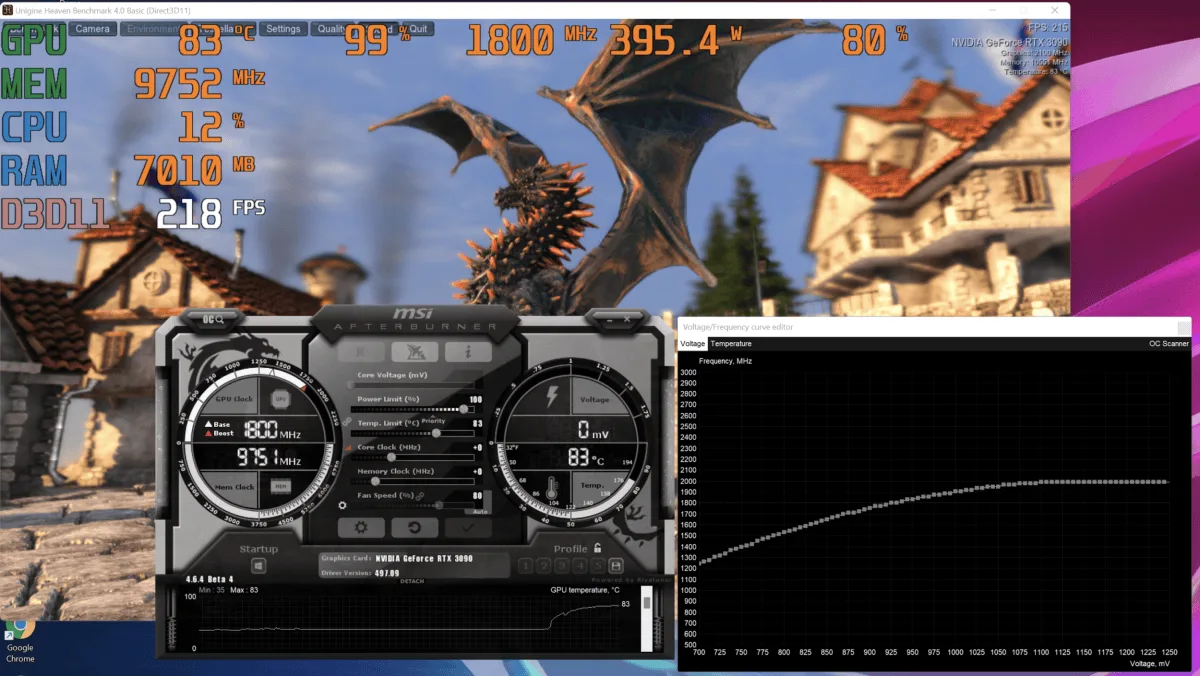
Pick one repeatable load, such as the built-in benchmark of a game you play or a free GPU benchmark such as Unigine Superposition. Run it at stock settings and write down the score or average frame rate, the GPU temperature, the clock speed and the fan speed.
Find the highest clock speed your card holds while the GPU sits at about 98 percent usage. You will aim to keep that clock after the undervolt.
Record clock speed, temperature and fan speed at stock settings before changing anything. (Image: PCWorld)
How to Undervolt a GPU With MSI Afterburner
This is the classic voltage curve method. It works on NVIDIA cards and many AMD cards, and it is the method most guides use because the curve editor shows exactly what you are changing.
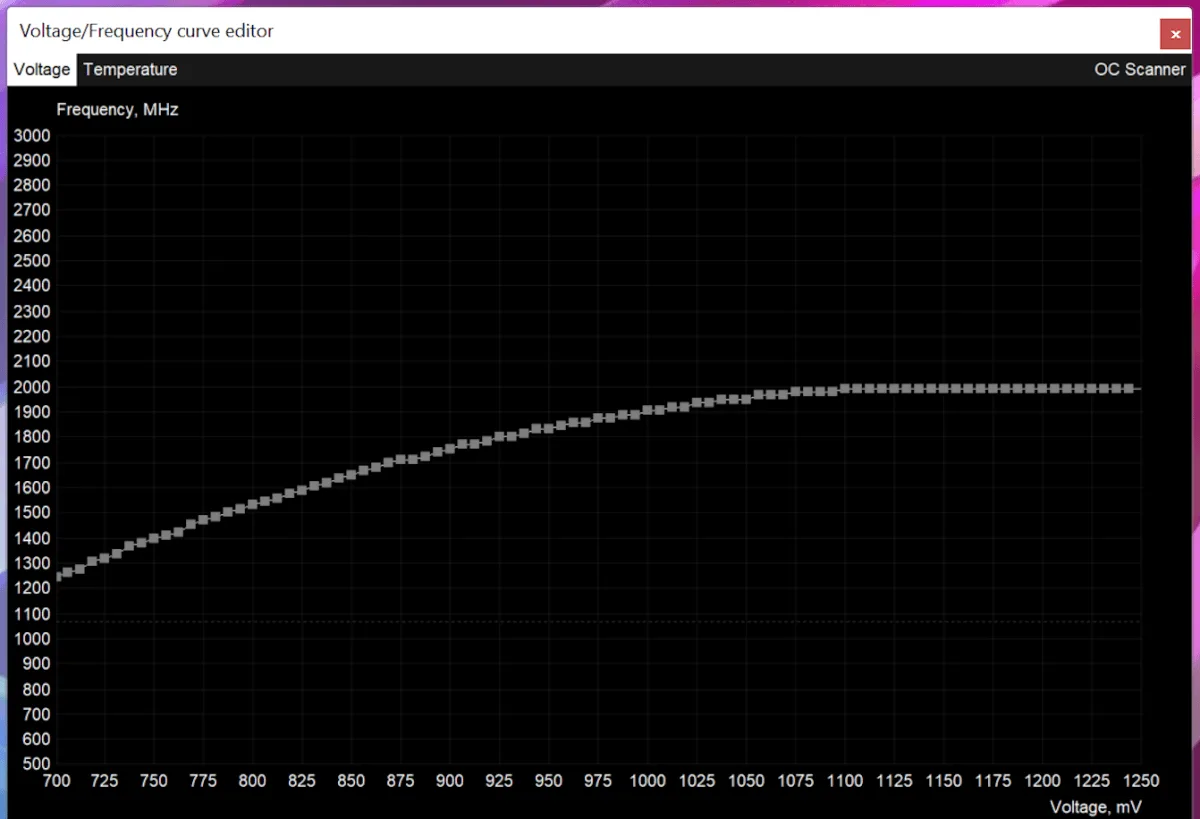
Open MSI Afterburner and press Ctrl+F to open the Voltage/Frequency curve editor.
Read the graph: core clock in MHz runs up the left side and voltage in mV runs along the bottom.
Find the point on the curve that matches your card’s boost clock from the baseline step. Note the voltage at that point.
Choose a target voltage below it. A conservative first try is roughly 50 to 100 mV under the stock voltage for that clock.
Click the point at your target voltage and drag it up until it reaches your boost clock (or a little above it).
Select every point to the right of it and drag them down so the curve goes flat from your target point onward. This stops the card from ever requesting more voltage than your limit.
Click the checkmark in the main Afterburner window to apply the curve. The curve editor can be fussy about how points line up, so re-open it and confirm the line is flat after your target point.
Click the save icon and store the setting in one of Afterburner’s profile slots, so you can reload it quickly if you need to go back.
The Voltage/Frequency curve editor opens with Ctrl+F. You flatten the curve after your chosen voltage point. (Image: PCWorld)
Run your benchmark again and compare it with your baseline. If it finishes cleanly and the clock holds, you can lower the voltage point by a small step (around 25 mV) and repeat. If it crashes or shows artifacts, move the voltage point back up one step. Stop at the lowest voltage that stays stable.
To make the undervolt survive a reboot, open Afterburner’s settings, enable Start with Windows and Start minimized, and set your saved profile to apply at startup.
How to Undervolt an AMD GPU in Adrenalin
Radeon cards from the RX 6000 series onward have a voltage slider inside AMD’s own software, so you do not need Afterburner. The steps below follow AMD’s support documentation.
Open AMD Software: Adrenalin Edition, search for “Tuning” and open Performance Tuning.
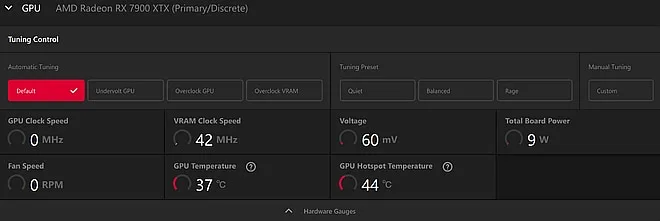
Under the GPU section, look at Automatic Tuning. On select cards there is a one-click Undervolt GPU option that lowers voltage while keeping clock speeds. It is the fastest way to try an undervolt, and you can stop here if the result is stable.
The GPU tab of Performance Tuning lists the automatic Undervolt GPU option on supported cards. (Image: AMD)
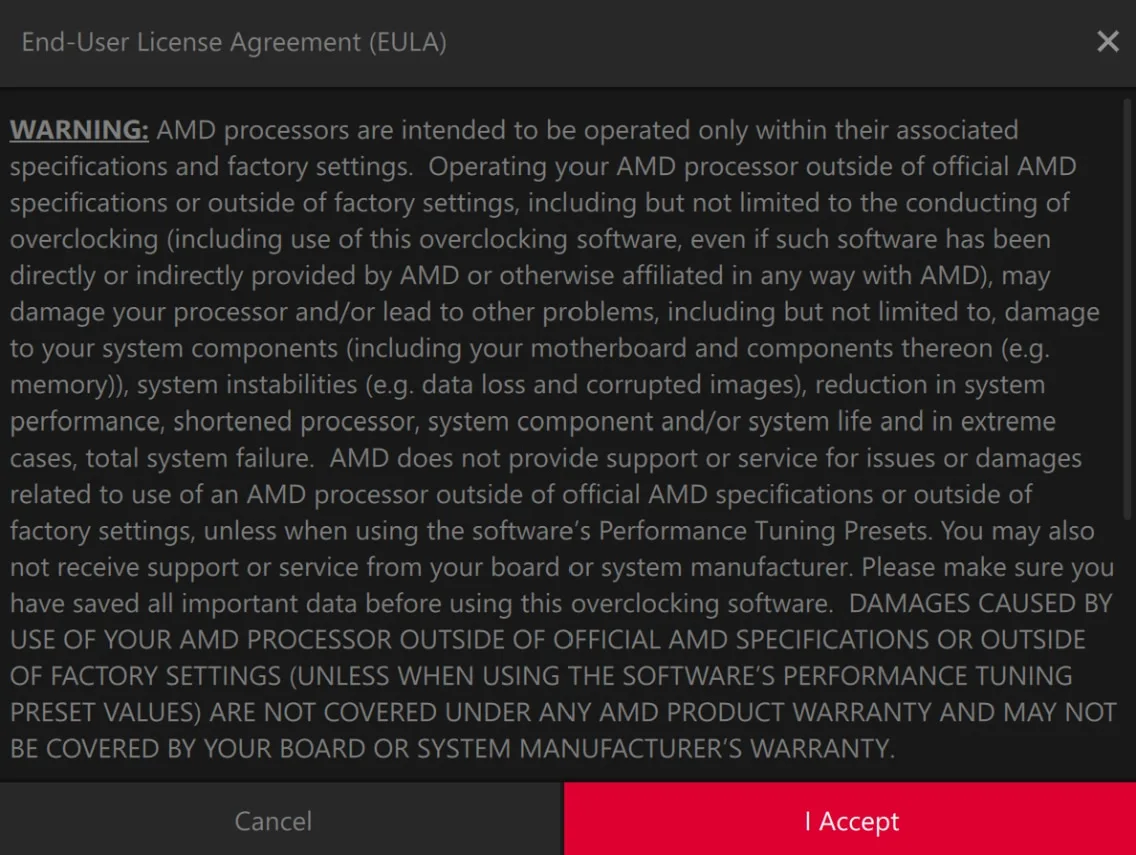
For manual control, switch to Manual Tuning and choose Custom. Read the warning and click I Accept to continue.
Manual Tuning shows a warning first. Click I Accept to continue. (Image: AMD)
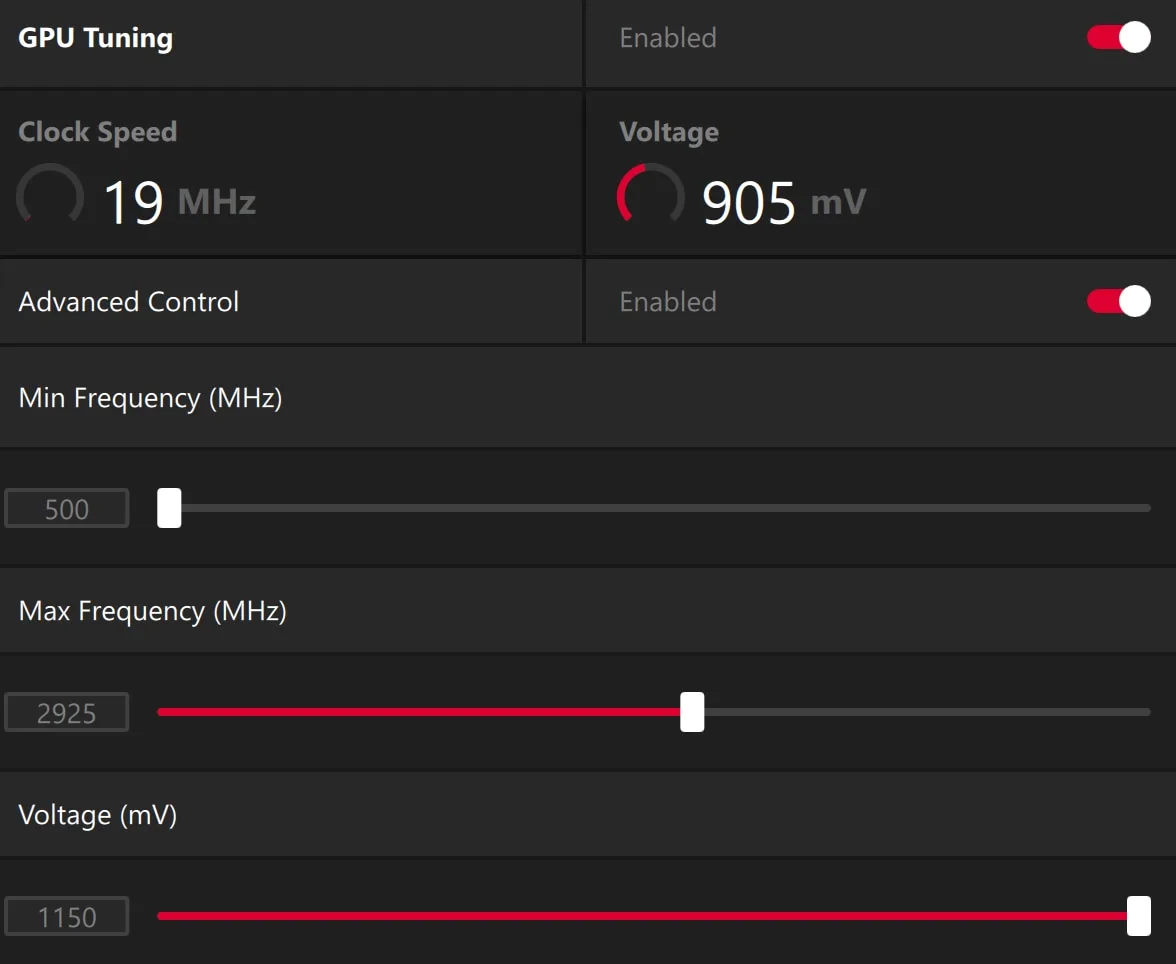
Turn on GPU Tuning. Turn on Advanced Control if you want to enter values in MHz and mV.
Lower the Voltage slider a little. The slider applies an offset to the whole voltage and frequency curve: with a 1150 mV default, setting 1125 mV applies a -25 mV offset everywhere.
With GPU Tuning and Advanced Control on, the Voltage slider sets the offset for the whole curve. (Image: AMD)
Click Apply Changes. Use the reset arrow icon at any time to return to defaults.
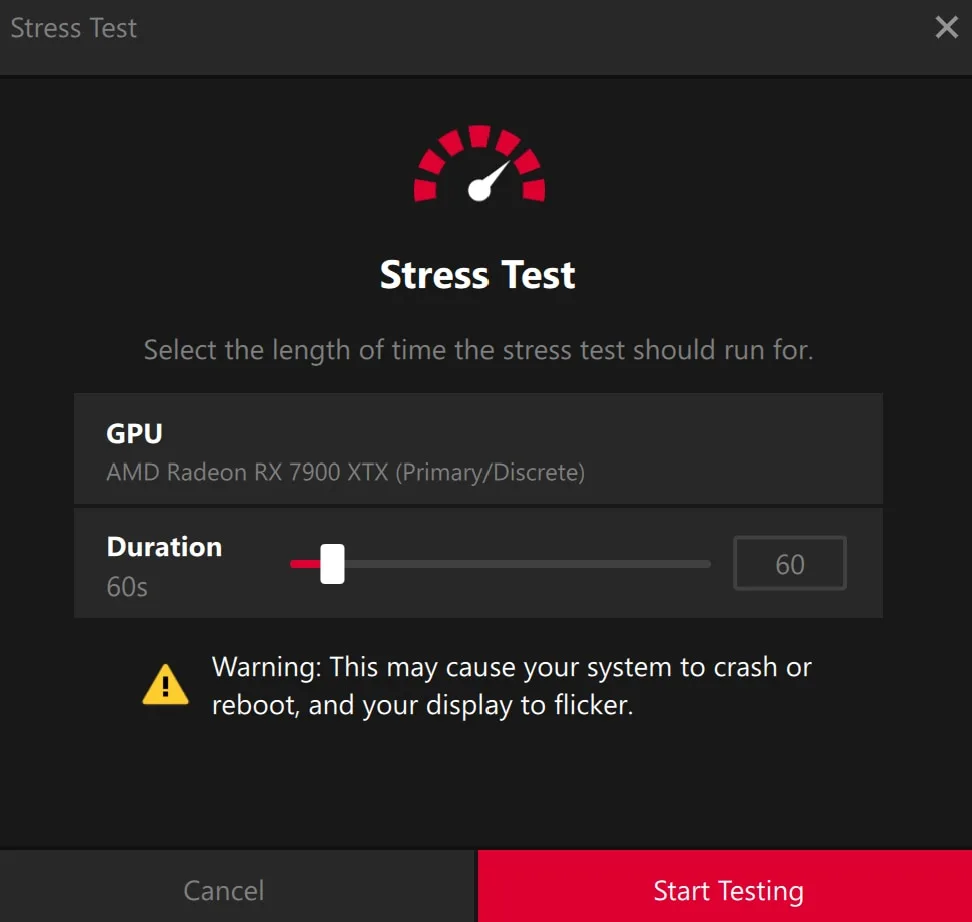
Run the built-in stress option (default length 60 seconds) and then your own benchmark. If the stress run crashes or reboots the PC, AMD Software resets the tuning settings to defaults, so start again with a smaller voltage drop.
Run the built-in stress option after every voltage change. (Image: AMD)
Click Export Profile to save the working settings as a named tuning profile you can import later.
If your Radeon card only shows a Max Frequency slider, or you own an older card, the options differ by generation. AMD notes that the voltage and frequency sliders are available on RX 6000 series and newer cards, and that some features appear only on select GPUs.
The Easy Option: Lower the Power Limit
If the curve editor feels like too much, lowering the power limit is a simpler way to cut heat and noise. It caps how many watts the card can draw instead of reshaping the voltage curve, so it is not a true undervolt and it can cost a little more performance. ASUS GPU Tweak III works with graphics cards from any maker, and it also has a built-in voltage-frequency tuner.
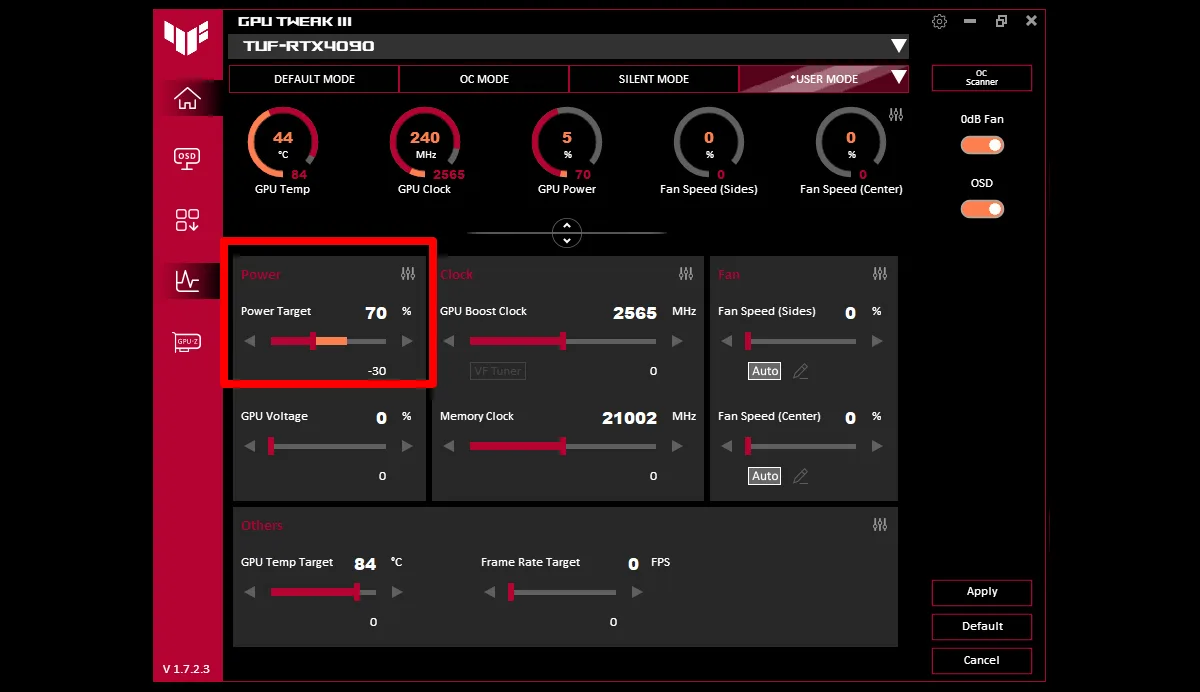
Open GPU Tweak III and find the Power Target slider.
Move it down by 5 to 10 percent and click Apply.
Run your benchmark again and write down the score, temperature and fan noise.
Repeat until the performance drop gets bigger than you want to accept, then go back one step.
The Power Target slider sits in the Power panel of GPU Tweak III. (Image: ASUS ROG)
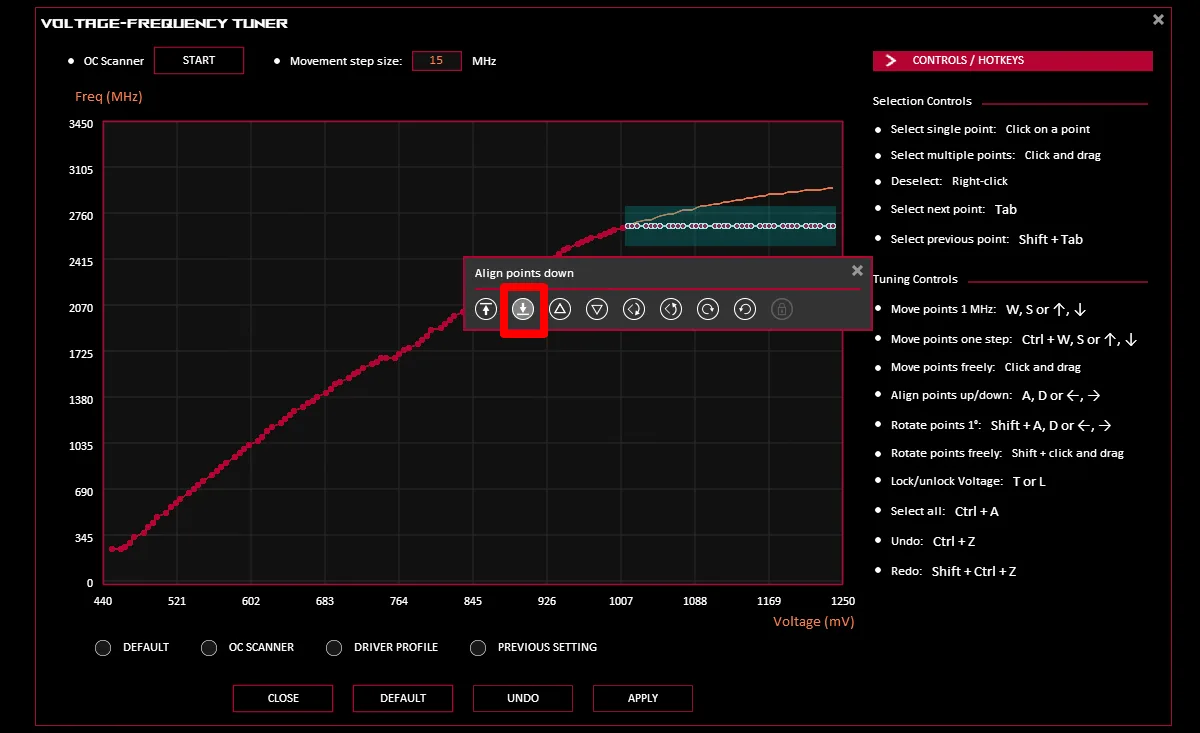
On a high-end card, a large power cut can cost only a small share of frame rate, which makes this a good first step. If you want to go further, GPU Tweak III has a VF Tuner: raise the GPU Boost Clock about 20 MHz, open the tuner, select every point to the right of your target frequency, click Align Points Down, then Apply and Save. Repeat with a slightly higher boost each round until the card becomes unstable, then return to the last stable curve.
Select the points right of your target and use Align Points Down to flatten the curve. (Image: ASUS ROG)
How to Check That Your Undervolt Is Stable
Run a demanding benchmark or game scene for 10 to 15 minutes while watching clock speed, temperature and power draw.
Play two or three different games you actually own for 20 to 30 minutes each. A setting that survives a synthetic load can still crash in a game that loads the card differently.
Try lighter games too. Some undervolts are stable when the GPU is fully loaded but crash at lower clock speeds, and if that happens you need to dial the curve back a little.
Leave a longer looping run going for a few hours before you call the setting final.
Undervolt GPU Problems and Fixes
Driver crash or black screen during a run: the voltage is too low for the clock you set. Load your previous profile and raise the voltage a step.
Game crashes but the benchmark passes: back off the voltage a step and recheck in that specific game.
Changes will not apply: run Afterburner or Adrenalin as administrator.
Settings vanished after a driver update: reopen your tuning software and reapply or import the saved profile.
Temperatures did not drop: confirm the curve is flat to the right of your target point, since a single moved point leaves the card free to request more voltage.
Afterburner shows a different voltage than you set: the card still boosts dynamically below the ceiling you set, so the live reading can sit under it.
Laptops, NVIDIA App and Intel Arc
Many laptop makers lock voltage control in firmware, so the curve editor may open but refuse to apply changes. Lowering the power limit is more often available. The NVIDIA App has picked up some basic tuning features but is not a full replacement for Afterburner’s curve editor. On Intel Arc, Intel’s own tools only expose a positive voltage offset, so a true undervolt needs third-party tools. If you mainly want a quieter Arc card, a lower power limit gets part of the way there.
Is It Worth It to Undervolt Your GPU?
For most gamers with a card that runs hot or loud, yes: a careful undervolt is free, reversible and often keeps frame rates close to stock while the fans calm down. If you want the quickest win, lower the power limit first, then move to the voltage curve in Afterburner or Adrenalin once you are comfortable. If you want guaranteed stability with zero tinkering, or you are on a laptop with locked voltage, leave the settings alone and work on case airflow instead. Whatever route you pick, change one thing at a time, save a profile for every stable step, and keep the last setting that survived real games when you finish learning how to undervolt GPU hardware on your own card.
If tuning cannot tame the heat and noise, our best graphics card for gaming guide lists current cards by budget and resolution.
I'm Iain, and I write the step-by-step guides on GameCuki. I cover game tips and walkthroughs, PC gaming how-tos like settings, performance and troubleshooting, and practical guides for Steam, PlayStation, Xbox and Nintendo Switch. I build each guide from official game and platform documentation, write the steps in plain language and check them against the source before publishing. When a game or platform changes how something works, I update the guide. You can read my full process on our How We Review page.