Before you buy a game, a new GPU or a driver update, you need to know what is actually inside your PC. Here is how to check what graphics card you have in under a minute on Windows, without opening the case. This guide covers four built-in tools, a free app for the card maker, what to do on a laptop with two GPUs, and how to read the model name once you find it.
Prefer to watch first? This video shows the Windows steps:
How To Check Which Graphics Card Is In Your Window PC | A Quick & Easy Guide
How to Check What Graphics Card You Have in Task Manager
Task Manager is the fastest route because it shows the model, the video memory and the driver version on one screen. These steps work on Windows 10 and Windows 11.
Press Ctrl + Shift + Esc to open Task Manager. You can also press Ctrl + Alt + Delete and pick Task Manager.
Open the Performance tab.
Click GPU in the left pane.
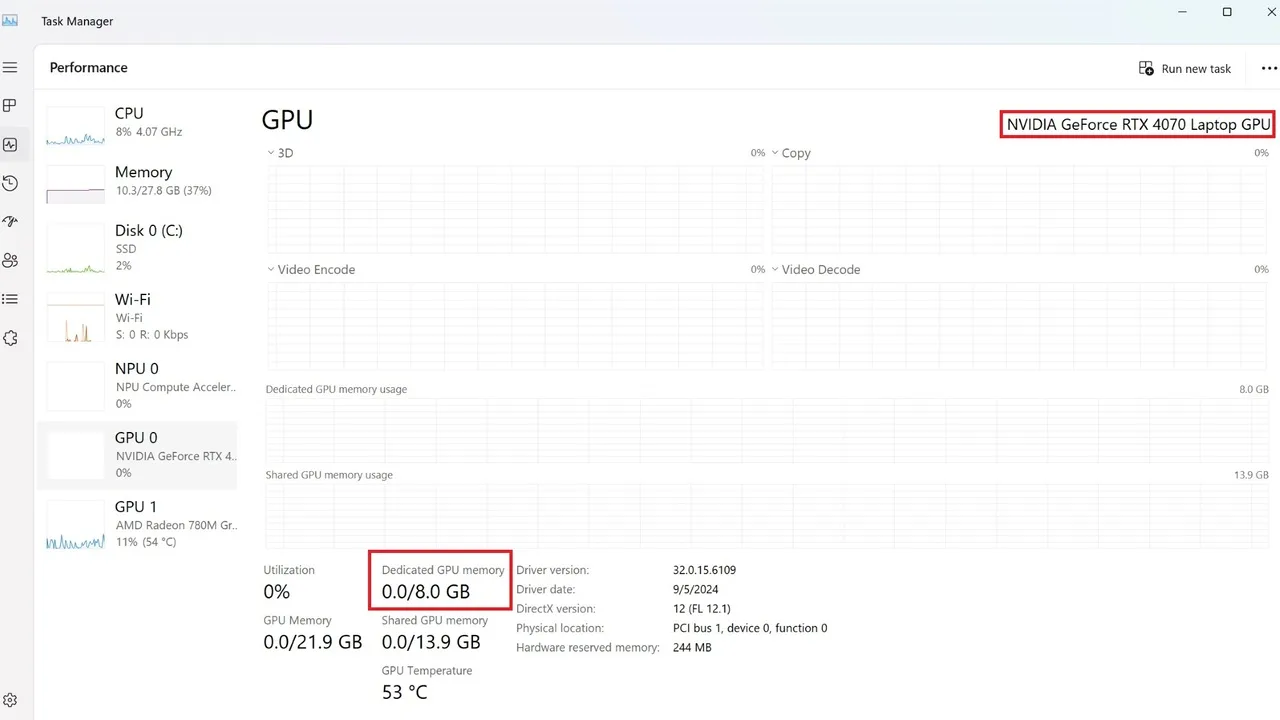
Read the card name in the top right corner of the panel. Below the graphs you also get the driver version and the dedicated GPU memory.
The GPU name sits top right, and Dedicated GPU memory is your video memory (VRAM). (Image: ASUS ROG)
If you see GPU 0 and GPU 1, your PC has two graphics chips. That is normal on gaming laptops, which often pair a small integrated GPU with a dedicated one. The dedicated chip is the one that matters for games, so look at the entry with the NVIDIA GeForce or AMD Radeon name.
When you read the memory numbers, use Dedicated GPU memory. Shared GPU memory is borrowed from your system RAM and is not the card’s own VRAM.
How to See What Graphics Card You Have in Device Manager
Device Manager lists every graphics chip in the PC, which makes it the easiest way to spot a second GPU.
Click the Start button, type Device Manager, and press Enter.
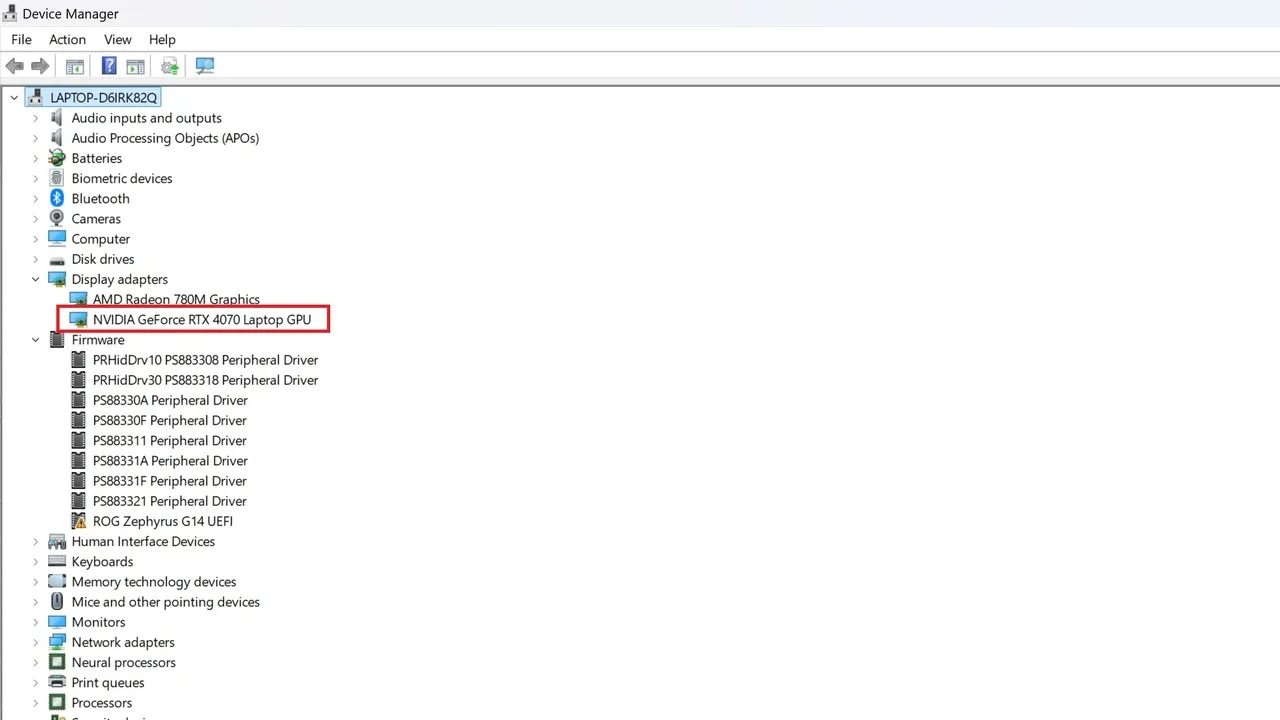
Click the arrow next to Display adapters.
Your graphics card name appears under that heading. A PC with two chips lists both.
Display adapters shows every graphics chip, here an AMD integrated GPU and an NVIDIA card. (Image: ASUS ROG)
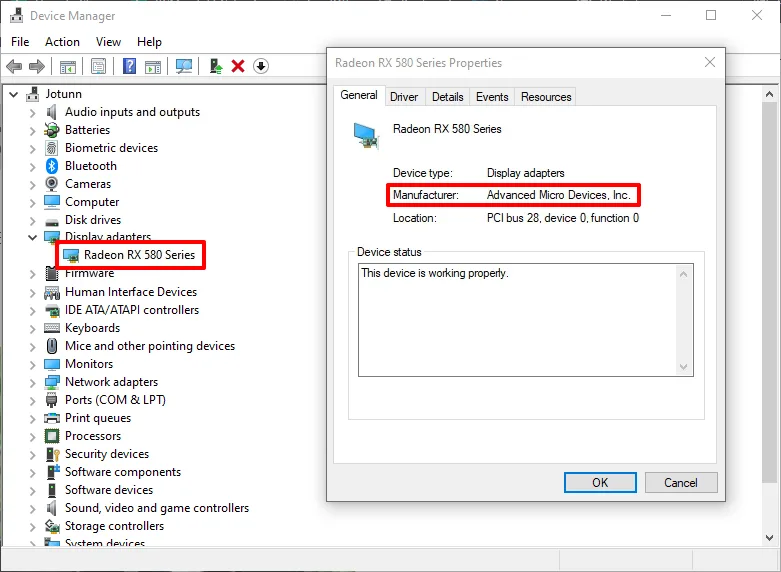
Not sure who made the chip? Right-click the entry, choose Properties, and check the Manufacturer line on the General tab.
The Properties window names the chip maker, here Advanced Micro Devices. (Image: PCMag / Microsoft)
Device Manager reads the name through your graphics drivers. If you suspect the wrong driver is installed, use one of the methods below to double-check, then follow our guide on how to update GPU drivers.
Check Your Graphics Card With DxDiag
DxDiag is the DirectX Diagnostic Tool, and it also reports how much video memory the card has.
Press Windows + R to open the Run box.
Type dxdiag and press Enter.
Open the Display tab. The card name and its memory appear in the Device section.
Find Your Graphics Card in Windows Settings and System Information
Two more built-in routes are useful when you want a quick look without opening a separate tool.
Windows Settings.
Open Settings, then System, then Display.
Scroll down and click Advanced display (called Advanced display settings on Windows 10).
Under Display information, the card driving that screen is listed next to Connected to.
System Information.
Click Start, search for System Information, and open it.
Expand Components in the left pane and click Display.
The adapter name and details appear on the right.
Check the NVIDIA or AMD Software
If the card maker’s software is installed, it names the card too. For NVIDIA, open the NVIDIA Control Panel from the Windows Control Panel or by right-clicking the desktop. For AMD, open AMD Software (Radeon Settings) from the Start menu or by right-clicking the desktop. If neither app is installed, stick to Task Manager or Device Manager.
How to Find the Exact Graphics Card Model and Maker
Windows usually shows the chip, such as GeForce GTX 1060. For warranty claims or tech support you may need the exact card, such as a specific brand’s overclocked version of that chip, and that takes a little more work.
Download the free version of the Speccy system information app and open it.
Click Graphics in the left sidebar.
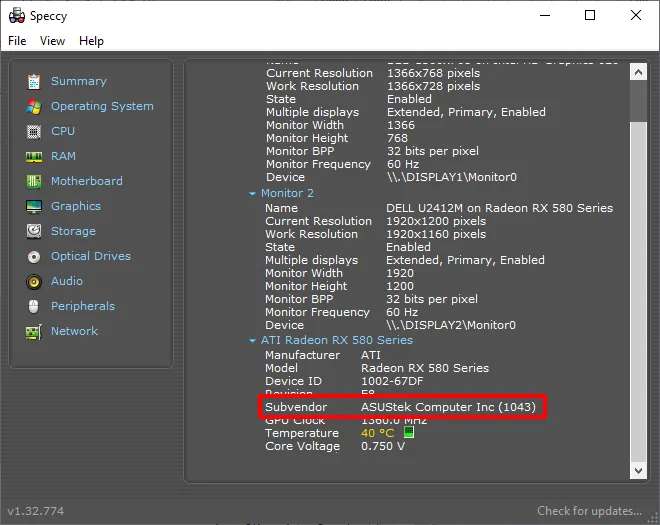
Scroll down to the Subvendor line. It names the company that built your card, along with the video memory and other details.
Speccy’s Subvendor line names the company that made the card, here ASUS. (Image: PCMag / Speccy)
Speccy will not give you the exact model number. For that, check the email receipt if you bought the card online. Otherwise you have to power down the desktop, unplug it, open the case, and read the sticker on the card, then write the number down so you do not have to open the case again.
What Your Graphics Card Name Means
Once you have the name, the numbers tell you where it sits in the lineup. Using NVIDIA’s GeForce RTX 4070 as an example:
GeForce: NVIDIA’s gaming brand.
RTX: the card supports ray tracing.
40: the generation. A higher number is newer.
70: the performance class. In one generation, an 80 is faster than a 70, and a 70 is faster than a 60.
Ti or SUPER: a step up from the base card of the same class.
AMD works the same way. In Radeon RX 7900 XTX, RX is the product line, 7 is the generation, 9 is the performance class, and XT or XTX marks a stronger version, with XTX above XT. Intel’s Arc line is the third maker you may see.
A newer generation usually beats an older one in the same class, but a higher-class older card can still outrun a lower-class newer one. For a precise comparison, look up benchmarks for the games you play.
Integrated vs Dedicated Graphics
An integrated GPU is built into the processor and shares memory with the system RAM. A dedicated GPU is a separate chip with its own video memory, and it is the one that does the heavy lifting in games. Ultra-thin laptops often have only integrated graphics. In a desktop, the dedicated card is the separate board with fans, and in a laptop it cannot be swapped.
What to Do After You Know Your Graphics Card
Compare the card name with the minimum and recommended requirements on the game’s store page. A card that is far below the minimum is unlikely to run that game well. If your card is the weak link, see our best GPU under $500 picks, or update your GPU drivers if the card is fine and the game stutters or crashes.
Final Thoughts on How to Check What Graphics Card You Have
For almost everyone, Task Manager is the answer: Ctrl + Shift + Esc, Performance, GPU, and you have the name, the VRAM and the driver in one place. Use Device Manager if you suspect a second GPU, DxDiag when a game support page asks for it, and Speccy only when you need the card maker. Now that you know how to check what graphics card you have, write the exact name down once, because every driver download and game requirements check starts with it.
I'm Iain, and I write the step-by-step guides on GameCuki. I cover game tips and walkthroughs, PC gaming how-tos like settings, performance and troubleshooting, and practical guides for Steam, PlayStation, Xbox and Nintendo Switch. I build each guide from official game and platform documentation, write the steps in plain language and check them against the source before publishing. When a game or platform changes how something works, I update the guide. You can read my full process on our How We Review page.