Your frame rates drop after a big game launch, a new title crashes on startup, or a black screen flickers mid-match, and the first fix worth trying is a fresh graphics driver. Knowing how to update GPU drivers takes about five minutes and works the same way on a desktop or a laptop. This guide covers NVIDIA, AMD and Intel on Windows 11 and Windows 10, then shows the built-in Device Manager route, how to roll a driver back, and how to do a clean reinstall when an update goes wrong.
The Right Way to Update Nvidia, AMD, and Intel Drivers on Windows 11
This guide covers Windows only. Linux handles graphics drivers through the distribution’s own package tools, so those steps differ by distro.
Every update method starts with the same question: is your graphics card made by NVIDIA, AMD or Intel? Many laptops and some desktops have two, an Intel or AMD integrated GPU plus a dedicated card, so check the whole list.
Press the Windows key, type Control Panel, and open it.
Select Hardware and Sound, then Device Manager under Devices and Printers. Approve the admin prompt if Windows asks.
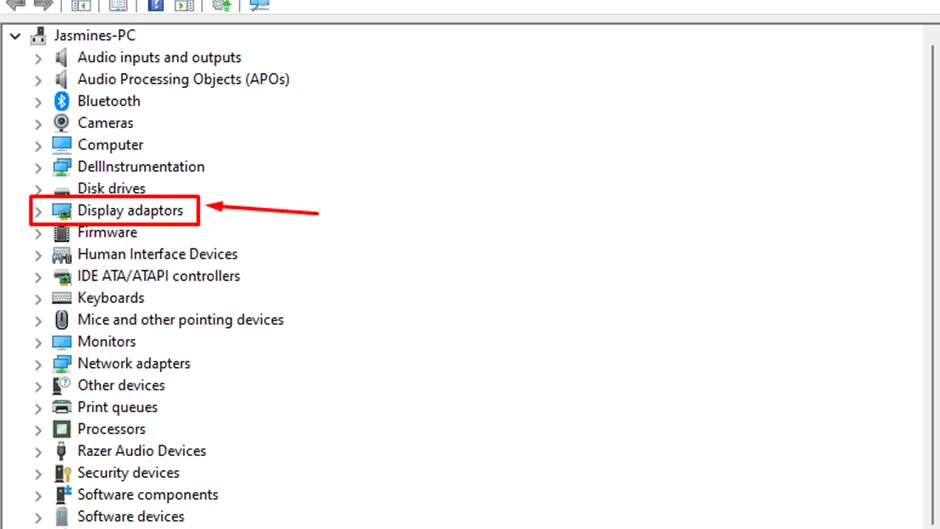
Double-click Display adapters. Each graphics chip in your PC appears in the list with its brand and model name.
Display adapters in Device Manager lists every graphics chip in the PC. (Image: TechRadar)
Write down the exact model, such as GeForce RTX 4070 or Radeon RX 9070, because the manual download pages ask for it. Then jump to the section for your brand.
How to Update NVIDIA GPU Drivers
The NVIDIA app is the quickest way to update GeForce drivers. It is free, it checks for new drivers for you, and it replaces the older GeForce Experience. You need an NVIDIA account to sign in.
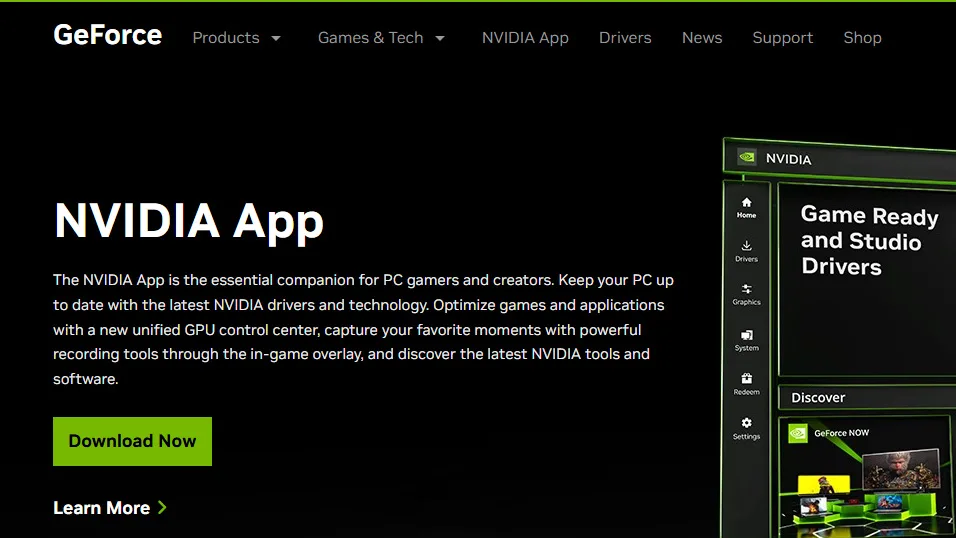
Download the NVIDIA app from NVIDIA’s website and run the installer. Allow it to make changes to your PC when Windows asks.
The NVIDIA app download page on the GeForce site. (Image: NVIDIA via Tom’s Guide)
Open the app and sign in or create an account if prompted.
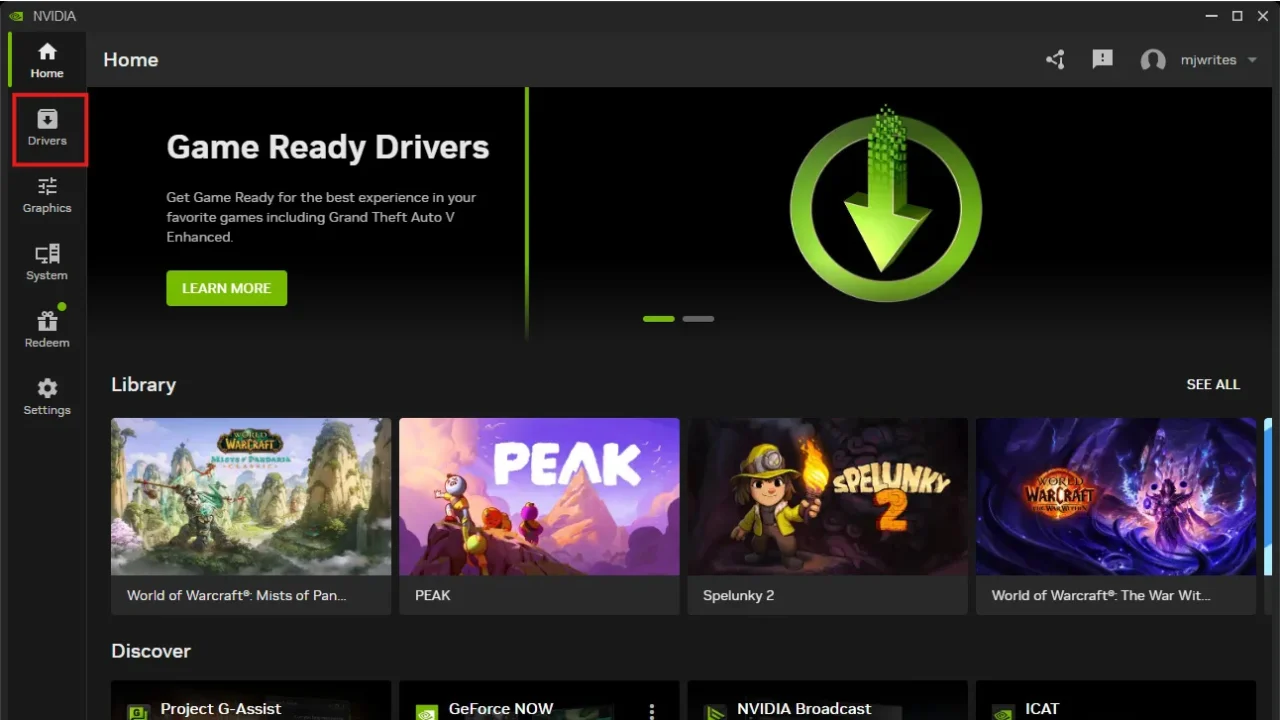
Select the Drivers tab in the left-hand menu.
The Drivers tab sits in the left-hand menu of the NVIDIA app. (Image: Tom’s Guide)
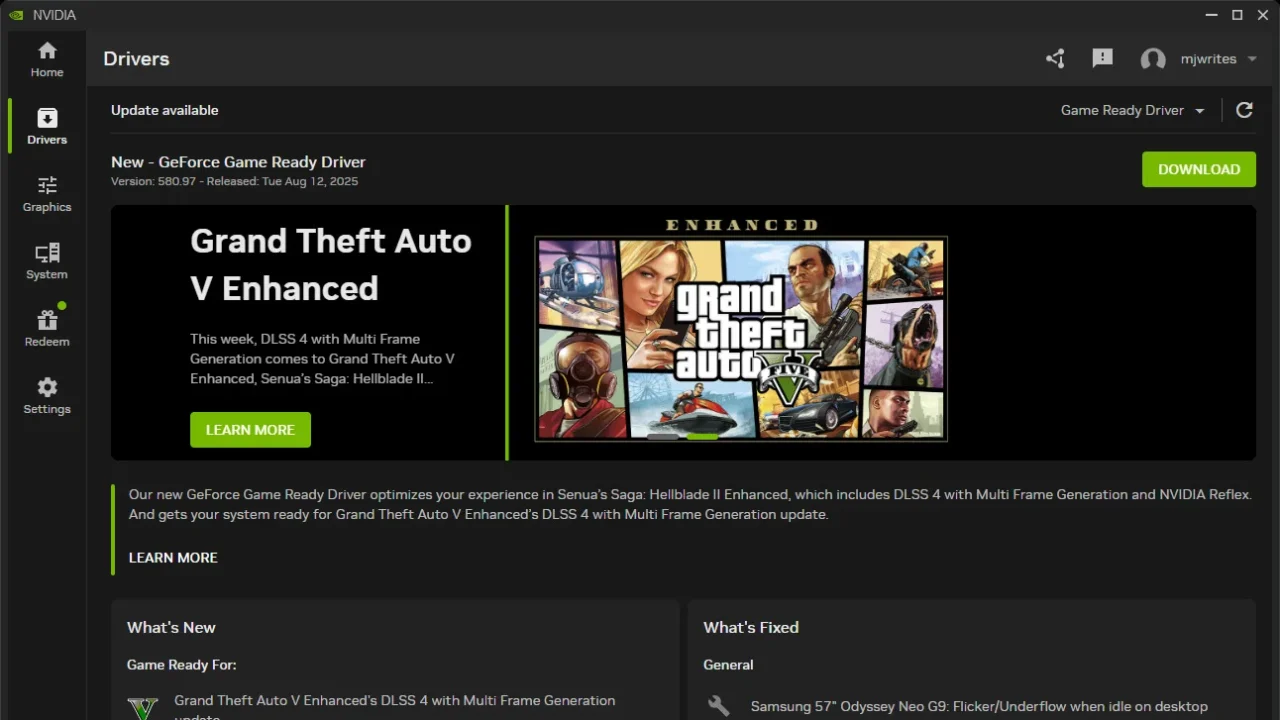
If a new driver is available, the page says Update available. Click Download. Use the refresh button in the top right if the page does not show the newest driver.
Click Download when the Drivers page shows an available update. (Image: Tom’s Guide)
Close your other programs, wait for the download to finish, then click Install.
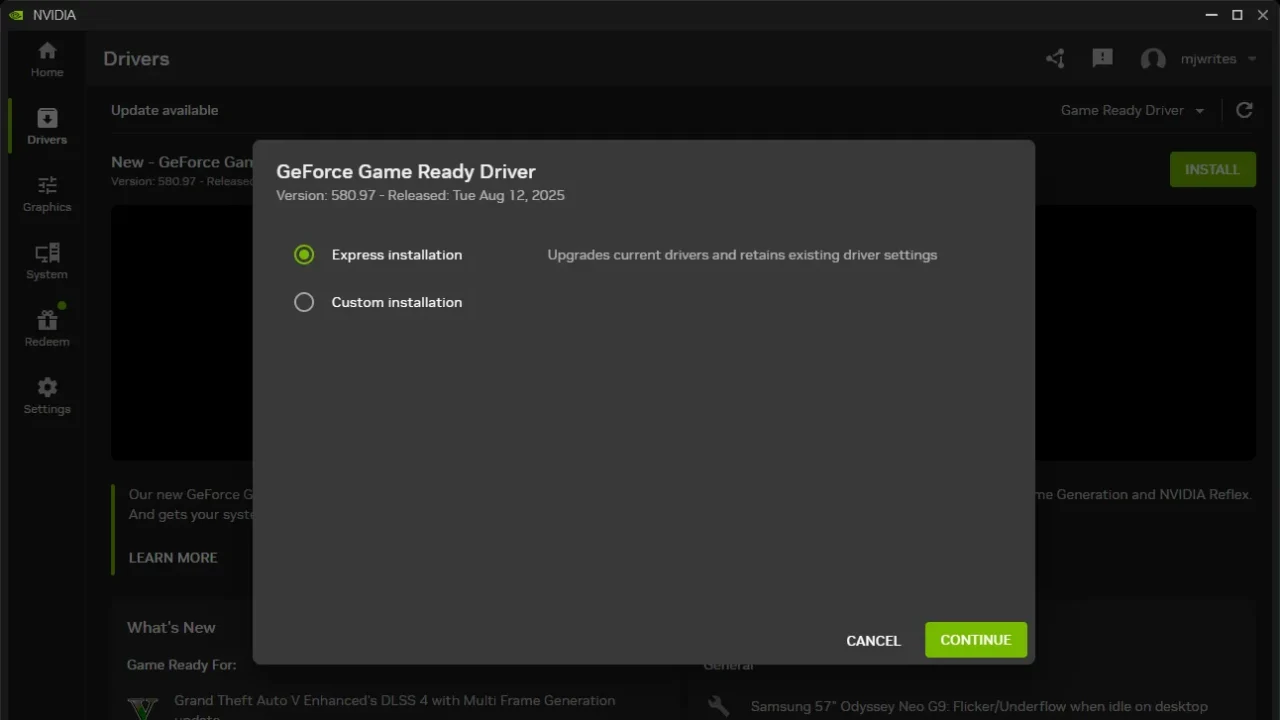
Choose Express installation to upgrade the current driver and keep your existing driver settings, or Custom installation if you want a clean installation that resets driver settings to default. Click Continue.
Express keeps your settings, Custom lets you do a clean install. (Image: Tom’s Guide)
Wait for the install to finish. The screen can go black for a moment while the driver loads, which is normal. Restart the PC if the installer asks you to.
Two choices in the app are worth knowing. The dropdown at the top right of the Drivers page switches between Game Ready and Studio drivers, and Settings, then Drivers has a toggle that downloads new drivers automatically so you only click Install.
Update NVIDIA Drivers Manually Without the App
If you would rather not install the app, you can download the driver yourself.
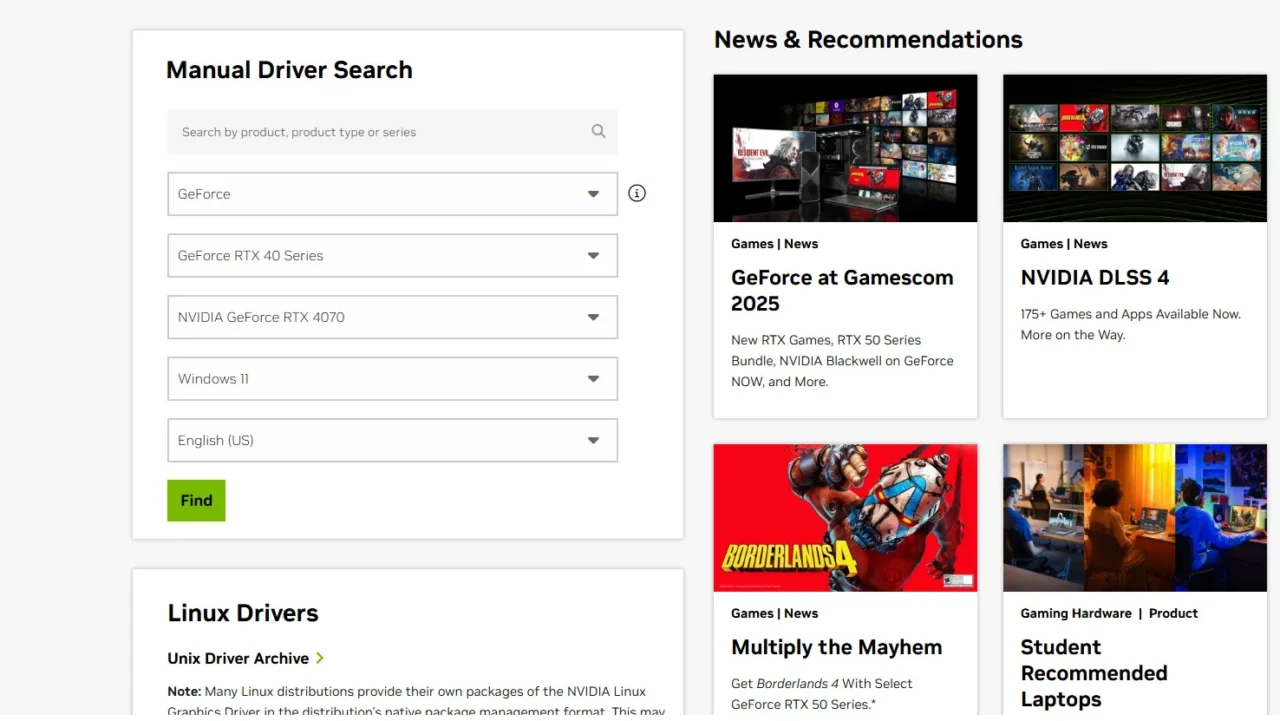
Open NVIDIA’s driver download page and find the Manual Driver Search box.
Pick your product type, product series, exact product and operating system, then choose your language and click Find.
Download the file, run it, and follow the same Express or Custom steps as above.
The Manual Driver Search form on NVIDIA’s download page. (Image: Tom’s Guide)
How to Update AMD GPU Drivers
Radeon cards update through AMD Software: Adrenalin Edition, which installs with the driver. It checks for updates from time to time and hands the download to AMD Install Manager.
Click Start, type AMD Software, and open the app from the best match.
In the search box inside AMD Software, type System and open System Settings.
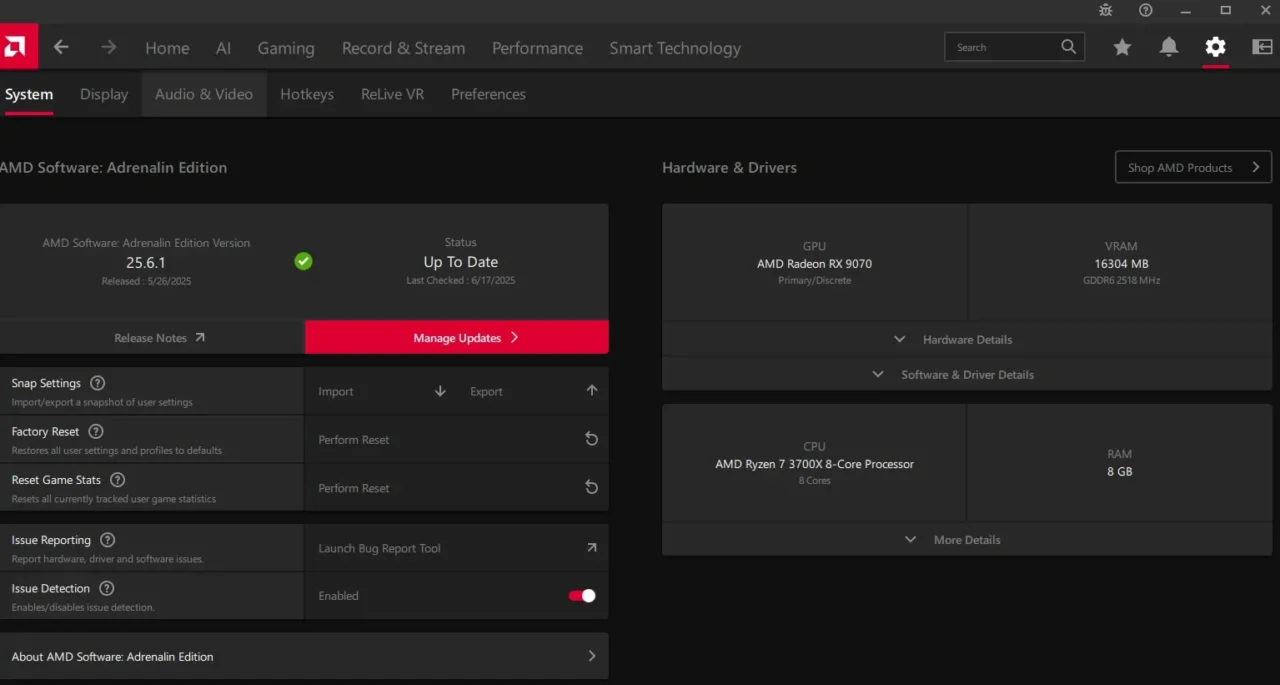
On the System page, read the status next to your Adrenalin version. If it says Up To Date you are done. If not, click the red Manage Updates button.
Manage Updates on the System page opens AMD Install Manager. (Image: AMD)
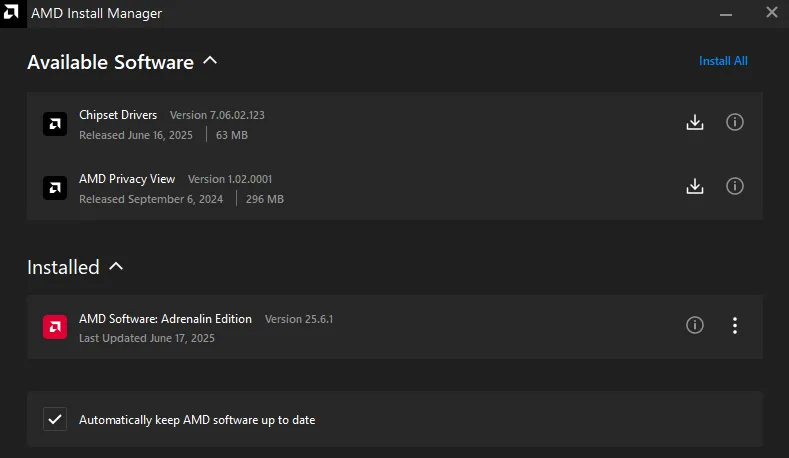
In AMD Install Manager, look under Available Software. Click the down arrow beside an item to download it, or click Install All to update everything listed.
Leave Automatically keep AMD software up to date ticked if you want future updates handled for you. Untick it to turn that off.
Restart the PC when the installer finishes.
AMD Install Manager lists available software and the automatic update option. (Image: AMD)
If the AMD app is not installed yet, or it will not open, AMD’s Auto-Detect and Install Tool scans the PC for a compatible Radeon card and Windows version, then downloads the matching driver. You can also pick your exact card on AMD’s driver download page and run the installer yourself.
How to Update Intel Graphics Drivers
Intel graphics cover integrated graphics in Intel processors and Intel Arc cards. The easiest route is Intel Driver & Support Assistant, a free tool from Intel that scans the PC and flags newer Intel drivers, including the graphics driver.
Download Intel Driver & Support Assistant from Intel’s website and install it.
Open it and let it scan. It checks which Intel drivers are installed and whether newer versions exist.
When a graphics driver update appears in the results, choose the option to download and install it.
Restart the PC when it finishes.
Prefer to pick the file yourself? Go to Intel’s Download Center, choose Graphics, and work through the options to find the driver for your exact processor or Arc card.
Laptop Owners: Check the Maker First
Laptop makers often ship customized graphics drivers. For Intel graphics in particular, check your laptop maker’s support page for a driver before installing a generic one, and use the generic Intel driver if the maker has nothing newer.
How to Update GPU Drivers in Device Manager
Device Manager works for any brand and needs no extra software, which makes it a handy backup when a vendor app will not open. It only looks in Windows’ own driver sources, so it can report that you already have the best driver when a newer one sits on the maker’s site. Treat it as a quick check, not the final word.
Open Device Manager and double-click Display adapters, as in the first section.
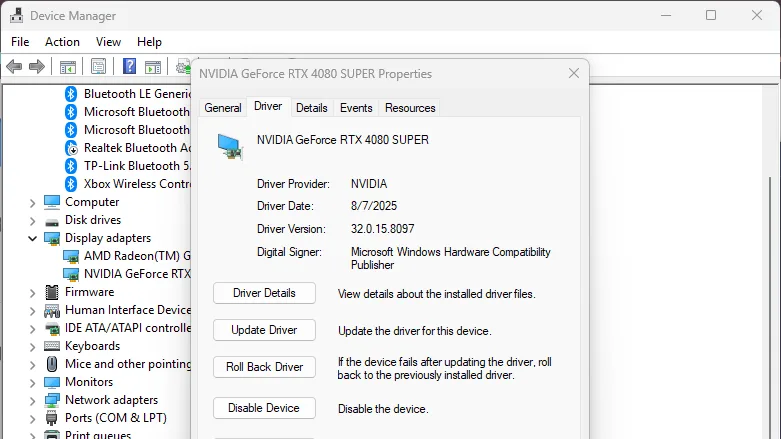
Double-click your graphics card to open its properties window.
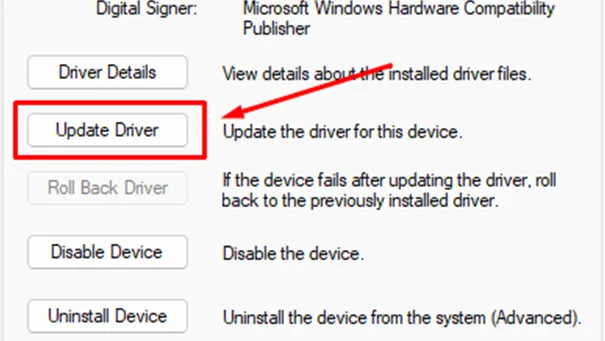
Open the Driver tab and click Update Driver.
The Update Driver button on the Driver tab. (Image: TechRadar)
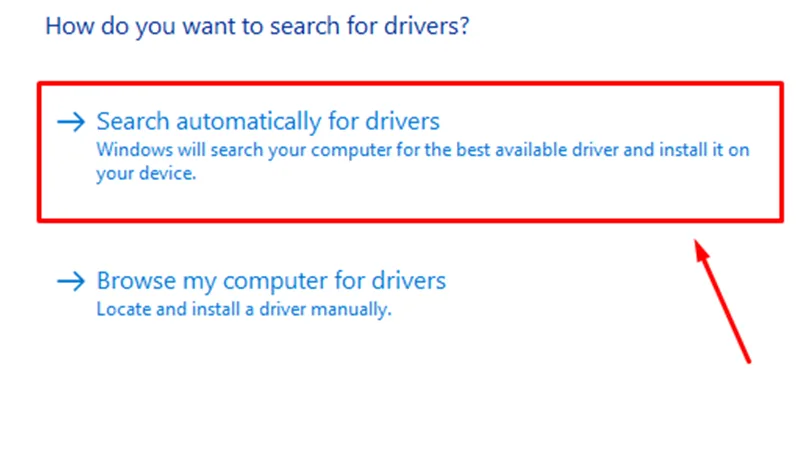
Choose Search automatically for drivers. Windows installs a newer driver if it finds one, or tells you the best driver is already installed.
Search automatically for drivers is the first option in the prompt. (Image: TechRadar)
How to Roll Back or Clean Install a GPU Driver
Drivers update often, and graphics cards see at least one new release a month, so an update now and then causes a problem. If a new driver brings crashes or lower performance, you have three ways out.
Roll Back in the NVIDIA App
Open the Drivers tab and scroll below the newest driver details.
Click the three dots beside the older driver you want and choose Reinstall.
Roll Back in Device Manager
Open Device Manager, expand Display adapters, and double-click your card.
Open the Driver tab and click Roll Back Driver. This restores the previously installed version. The button is greyed out when Windows has no earlier version stored.
Roll Back Driver sits under Update Driver on the Driver tab. (Image: Tom’s Guide)
Do a Clean Install With Display Driver Uninstaller
Display Driver Uninstaller (DDU) is a free tool that removes the existing driver completely, so the next install starts fresh. It suits people stuck with crashes or poor performance after the other methods fail, and it is more involved than the options above.
Download the driver you want to install from the maker’s website first.
Disconnect from the internet so Windows cannot auto-install another driver in the middle of the process.
Run DDU, select your GPU type, and click Clean and restart.
After Windows restarts, run the driver installer you downloaded.
Reconnect to the internet and restart the PC again.
A clean install is possible without unplugging the internet, but Windows may then pull its own driver and undo the clean slate.
Which Way Should You Update GPU Drivers?
For most gamers, the brand’s own app is the best way to update GPU drivers: the NVIDIA app for GeForce, AMD Software for Radeon, and Intel Driver & Support Assistant for Intel graphics. They find the right file for you and flag new releases. Keep Device Manager for quick checks, use the manual download pages when an app will not cooperate, and save DDU for a crash that survives a normal update. Whatever you pick, restart afterward, and give the card a few minutes in your favorite game to confirm it settled. If a fresh driver does not help because the card itself is aging, a compact gaming mini PC is one upgrade path worth a look.
Planning an upgrade instead of a driver refresh? Our best graphics card for gaming guide sorts current cards by budget and resolution.
I'm Iain, and I write the step-by-step guides on GameCuki. I cover game tips and walkthroughs, PC gaming how-tos like settings, performance and troubleshooting, and practical guides for Steam, PlayStation, Xbox and Nintendo Switch. I build each guide from official game and platform documentation, write the steps in plain language and check them against the source before publishing. When a game or platform changes how something works, I update the guide. You can read my full process on our How We Review page.