Wondering how to check CPU temperature on a Windows PC? Windows will not show it for you, so you need either your BIOS or a small free monitoring app. This guide walks through both, explains which number to read, and tells you what counts as normal for gaming.
Both Windows 10 and Windows 11 work the same way here. Task Manager shows CPU usage and clock speed but no temperature, so the steps below fill that gap.
How to Check CPU Temperature With a Free App (Easiest Way)
A monitoring app reads the temperature sensors built into your processor and updates the number live, so you can watch it climb while a game is running. Pick one of these free tools. You only need one.
Core Temp: a tiny app that shows the temperature of every core in one small window. Best if you only care about the CPU.
HWiNFO: shows far more detail than most free tools, including fan speeds and power draw. Best if you want to dig deeper.
HWMonitor: a simple tree list of temperatures, voltages and fan speeds, with current, minimum and maximum values.
Open Hardware Monitor: an open-source monitor with a clean, customizable window.
NZXT CAM: a free option popular with gamers that can also show readings in game.
Download from the developer’s own website, not a mirror, because monitoring tools ask for deep access to your hardware sensors.
Check CPU Temperature With Core Temp
Download Core Temp from its official site and run the installer.
Open Core Temp. It starts reading right away.
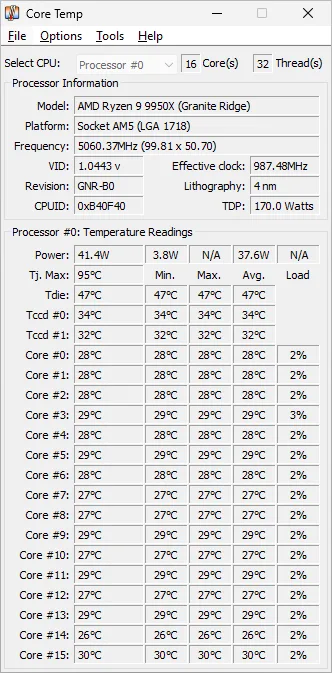
Look under “Processor #0: Temperature Readings”. Each core has its own row, with Min, Max and Avg columns beside the current temperature.
Look at the “Tj. Max” value above the readings. That is the temperature at which your CPU starts slowing itself down to protect itself.
Core Temp lists each core’s temperature plus the Tj. Max limit. (Image: Core Temp)
Check CPU Temperature With Open Hardware Monitor
Download Open Hardware Monitor from its official site and unzip it.
Open the app. Windows may ask for permission, which it needs to read the sensors.
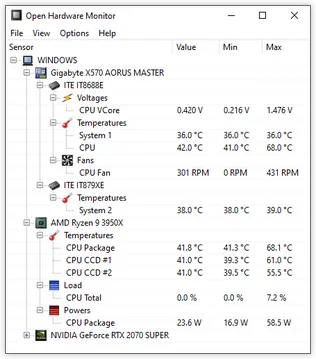
Expand your processor in the list. Under Temperatures you will see entries such as CPU Package and individual cores.
Read the Value column for the current temperature. Min and Max show the lowest and highest readings since you opened the app.
Read the Value column for the current CPU Package temperature. (Image: Open Hardware Monitor)
Check CPU Temperature With HWiNFO
Download HWiNFO from its official site.
Launch it and open the sensor window, which lists live readings for every component.
Scroll to your CPU and find the temperature rows. Read the Current column, then check Maximum after a gaming session.
How to Check CPU Temperature in the BIOS or UEFI
Every motherboard keeps a temperature reading in its firmware, so you can check without installing anything. The catch is that you only see an idle number, because Windows is not running.
Restart your PC.
As it powers on, press the setup key repeatedly. Common keys are Del, F2, F10 and Esc. Many PCs flash a “Press Del/F2 to enter Setup” message.
Inside the BIOS or UEFI, look for a menu named Hardware Monitor, PC Health Status, Monitor or H/W Monitor.
Find the line labeled CPU Temperature and let the screen sit for a minute or two so the reading settles.
If you cannot catch the setup key, Windows 10 can boot into firmware for you: open Settings, go to Update & Security, then Recovery, select Restart now under Advanced startup, then choose Troubleshoot, Advanced options and restart into UEFI settings. Menu names vary by PC maker.
An idle reading above about 60°C (140°F) in the BIOS usually points to a cooling problem such as dust, poor airflow or old thermal paste.
What Is a Normal CPU Temperature?
Modern desktop processors are built to run warmer than chips from a few years ago, so a number that looks scary is often fine. Use these ranges as a guide for a typical desktop:
Idle or light use (35 to 60°C, 95 to 140°F): desktop, web browsing, video streaming.
Gaming and multitasking (65 to 80°C, 149 to 176°F): temperatures in the 70s are normal and safe.
Heavy multi-threaded work (80 to 95°C, 176 to 203°F): rendering or compiling on a high-core-count chip can reach the mid-80s to low 90s.
95°C (203°F) and above: this is the throttling boundary. Your CPU slows itself down to stay under its limit.
Laptops run hotter than desktops because everything is packed into a thin body. Sustained 90 to 95°C under heavy use is common on gaming and creator laptops. Check your exact CPU model’s maximum temperature on its spec page, because limits differ between chips.
Which CPU Temperature Number Should You Read?
Monitoring apps show several readings. The CPU Package temperature is the one to watch for overall thermals. Individual core readings can differ because some cores work harder than others depending on the game or program.
Check Idle, Light and Heavy Load
One reading tells you little. Check three situations: idle with only Windows running, light use such as browsing or streaming, and heavy load such as a demanding game. Keep the monitoring app open while you play, then check the maximum value afterward. A brief spike right when you open a program is normal, because the CPU boosts its clock speed instantly.
What to Do If Your CPU Runs Too Hot
Clean the dust: blocked fans and vents are one of the most common causes. Use compressed air and a soft brush.
Improve airflow: keep vents clear. On a laptop, avoid beds and blankets and consider a cooling pad. On a desktop, check that your CPU cooler and case fans are seated and facing the right way.
Return overclocks to stock: if you overclocked, go back to default speeds, then raise them in small steps while watching temperatures.
Close background programs: fewer running apps and lower in-game settings reduce CPU load.
Replace old thermal paste: dried paste leaves tiny air gaps between the chip and cooler. If idle temperatures jump by 10°C or more, it is worth checking. See our guide to the best thermal paste for options.
If your cooler is simply too small for your chip, a bigger cooler is the lasting fix. If you are planning a new processor anyway, our best CPU for gaming list covers the current options.
Frequently Asked Questions
Does Windows 11 have a built-in CPU temperature monitor?
No. Task Manager can show GPU temperature on the Performance tab, but it does not show the CPU temperature. You need the BIOS or a third-party app.
Is 80°C safe for a CPU while gaming?
Yes. Current Intel and AMD processors are designed to sustain temperatures in the 70s and low 80s during gaming without damage.
What is TJMax?
TJMax is the maximum temperature the manufacturer allows. On recent chips it is usually around 95°C (203°F) for AMD Ryzen and 100 to 105°C (212 to 221°F) for Intel Core. At that point the CPU lowers its speed automatically instead of burning out.
How often should I replace thermal paste?
A general rule is every two to three years. Replace it sooner if idle temperatures climb noticeably.
Why does CPU temperature spike when I open a program?
The CPU jumps to its top clock speed for a moment to finish the work quickly, which produces a short heat spike. It settles back down within seconds.
Final Thoughts on How to Check CPU Temperature
For most people, the simplest way to check CPU temperature is a free app such as Core Temp or HWiNFO running while you play, with the BIOS as a backup when Windows will not start. Aim for the 60s to 80s in games and treat sustained readings near the 90s on a desktop as a reason to clean the PC, improve airflow or look at a better cooler.
I'm Iain, and I write the step-by-step guides on GameCuki. I cover game tips and walkthroughs, PC gaming how-tos like settings, performance and troubleshooting, and practical guides for Steam, PlayStation, Xbox and Nintendo Switch. I build each guide from official game and platform documentation, write the steps in plain language and check them against the source before publishing. When a game or platform changes how something works, I update the guide. You can read my full process on our How We Review page.