Sony does not call it gameshare, which is why the menu is hard to find. If you want to know how to gameshare on PS5, the feature you are looking for is Console Sharing and Offline Play, a setting that lets other people on one PS5 play the digital games tied to your account. This guide walks through the setup on your friend’s console, what PlayStation Plus does and does not share, the risks of handing over your account, and how to turn it all off again.
Prefer to watch first? This short video shows the menu path on the console:
How to Enable Console Sharing and Offline Play on PS5 – Easy
Console Sharing and Offline Play works through the console, not through a link between two accounts. Once it is on, anyone who uses that PS5 can play the games and media you bought and downloaded, even when the console is offline, and can use some PlayStation Plus benefits. Sony turns it on automatically for the first PS5 you ever signed in on. Because your account can have it active on only one PS5 at a time, sharing with a friend means moving it off your own console and onto theirs.
How to Gameshare on PS5 With a Friend
Work through the three parts in order. The first part switches the feature off on your own console, the second signs you in on your friend’s PS5, and the third downloads the games.
Part 1: Turn Off Sharing on Your Own PS5
Turn on your PS5 and sign in to your PlayStation Network account.
Select Settings, the gear icon in the top right of the home screen.
Select Users and Accounts.
Select Other.
Select Console Sharing and Offline Play.
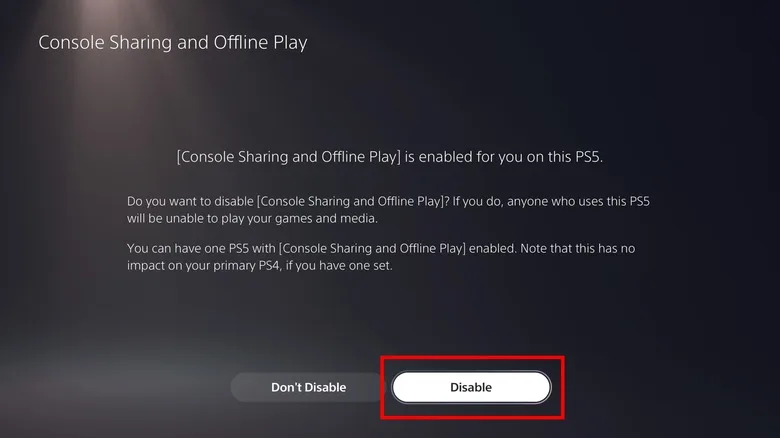
If the screen says the feature is enabled, select Disable. If it already offers Enable, choose Don’t Enable and go back to the home screen.
Select Disable if the screen says sharing is enabled on this PS5. (Image: SlashGear)
Your own PS5 will no longer share your games with anyone who uses it. If other people in your home play your digital games under their own profiles, they lose that access until you turn it back on there.
Part 2: Sign In and Enable Sharing on Your Friend’s PS5
On your friend’s PS5, press the PS button on the controller to open the control center.
Select the user avatar, then select Switch User.
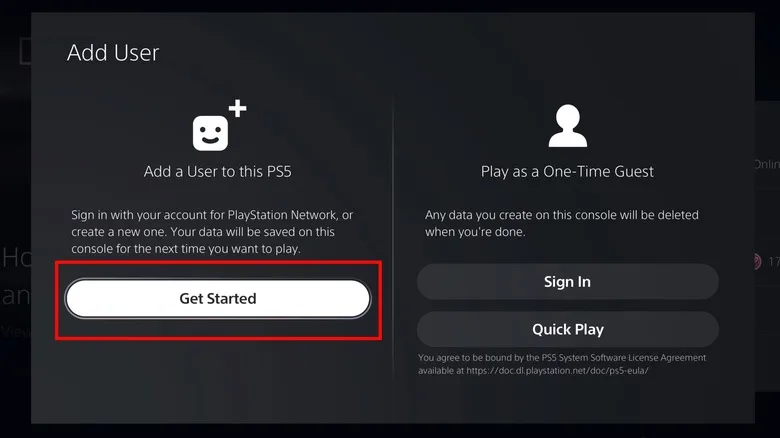
Select Add User, then select Get Started.
Get Started adds a PlayStation Network account to the console. (Image: SlashGear)
Enter the email address and password for your PlayStation Network account, then finish the account prompts.
Open Settings from the gear icon, then select Users and Accounts and Other.
Select Console Sharing and Offline Play, then select Enable.
Part 3: Download Your Games on That PS5
While you are still signed in to your own account on your friend’s PS5, open your Game Library.
Download each digital game you want to share.
Return to the home screen. Your friend can now switch to their own profile and play those installed games.
Your friend keeps their own saves, trophies, and parental controls. The games stay licensed to your account, so they only work on a console where sharing is turned on.
How to Gameshare on PS5 to Another PS5 You Own
The same menu moves sharing between two of your own consoles, for example from an old PS5 to a new one. Disable it on the console that currently has it, then sign in on the new PS5 and select Enable under Settings > Users and Accounts > Other > Console Sharing and Offline Play. Sony says you must turn sharing off on the previous console before a new PS5 can be activated. If you no longer have access to the old console, Sony lets you deactivate all devices from Account Management, but only once every six months.
Can You Gameshare on PS5 to PS4?
They are two separate settings. Console Sharing and Offline Play applies to a PS5 only, and the PS5 confirmation screen notes that turning it on has no effect on a primary PS4 if you have one set. PS5 games do not run on a PS4, so a PS4 can only share the PS4 games in your library. Gameshare from a PS5 means sharing to another PS5.
What PlayStation Plus Does and Does Not Share
Only some PlayStation Plus benefits carry over to the console where sharing is enabled. Games that come with PlayStation Plus, such as the monthly games and the game catalog, only work while your subscription is active, and a catalog title can leave the service. Check the PlayStation Plus games list before promising a friend a specific game. Your friend does not get your cloud storage or the ability to buy things at your member discount.
Does Gameshare on PS5 Work With Disc Games?
Only digital downloads are shared. A disc game still needs its disc in the drive of whichever console runs it, so you would have to lend the physical disc to your friend, and you cannot play it yourself while they have it. A friend can download the digital version in advance if you own it digitally.
Risks of Gameshare on PS5 and How to Lower Them
Signing in on someone else’s console puts your PlayStation Network account on it, and that includes your payment details. Share only with someone you trust completely. These are the main risks:
Purchases: Anyone using your signed-in account on that console can buy from the PlayStation Store.
Losing access: If you enable sharing on your own PS5 again, it switches off on your friend’s console and they lose your games until it is turned back on there.
Housemates: Turning sharing off on your console and on for a friend’s also removes access for anyone at home who plays your digital games under their own profile.
One console only: Your account can have sharing active on one PS5 at a time, so you cannot share with two friends at once.
A login passcode is the strongest protection on the account you leave on the other console:
Sign in to your account on your friend’s PS5.
Open Settings, then select Users and Accounts.
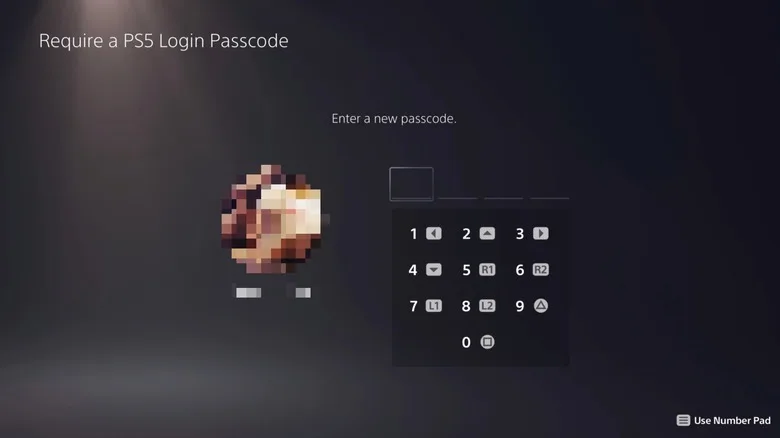
Select Login Settings, then Require a PS5 Login Passcode.
Enter a four-digit passcode, enter it again to confirm, and keep it to yourself.
The passcode screen asks for four digits. (Image: SlashGear)
Turning on two-step verification on your PlayStation Network account adds another layer.
How to Turn Off Gameshare on PS5
Sign in to your account on the PS5 that currently has sharing enabled.
Go to Settings > Users and Accounts > Other > Console Sharing and Offline Play.
Select Disable.
If you cannot reach that console, go to Account Management on the PlayStation website and choose to deactivate all devices. This turns sharing off everywhere, and Sony allows it only once every six months.
Gameshare on PS5 Not Working or Showing a Padlock
A padlock beside a game usually means the console cannot confirm a license. Work through these fixes in order:
Make sure Console Sharing and Offline Play is turned off on any other PS5 tied to your account, because only one console can have it on.
Check that the person who owns the game is the one who enabled sharing on that console.
Confirm the account that bought the game did buy it, using the purchase history in your account.
For a game that comes with PlayStation Plus, check that the subscription is still active and the game is still in the catalog.
Install the latest PS5 system software.
Turn off your router, wait at least five minutes, turn it back on, then restart the PS5.
Sony also lists the PlayStation Network status page as a check. If a controller drops out while you are doing all this, our guide on how to connect a PS5 controller covers the reset steps.
Gameshare on PS5 FAQ
How many people can I gameshare with on PS5?
One console at a time. Sharing is tied to the PS5 where it is enabled, so everyone who plays on that console can use your downloaded games, but you cannot enable it on a second PS5 at the same time.
Is Share Play the same as gameshare?
No. Share Play is a temporary online session in which a friend plays or watches your game from their own console. Console Sharing and Offline Play lets people play your installed digital games on one PS5.
Can I gameshare on PS5 offline?
Yes for downloaded games on the console where sharing is enabled, but a game that needs an online connection still needs one.
Can I play at the same time as my friend?
Usually, yes. Sony’s only stated restriction is that sharing can be on for one PS5 at a time, so you can keep playing on your own console while your friend plays on theirs. Online multiplayer rules vary by game, so check the game itself if you both want to join the same match.
Is Gameshare on PS5 Worth the Trouble?
Gameshare on PS5 is a good deal between two people who already trust each other, like a partner, a sibling, or a close friend, and a poor one for anyone you do not know well. You save on duplicate purchases, but you hand over your account to do it, and only one console can hold your games at a time. Set a login passcode before you walk away from the console, and turn sharing off the day you stop needing it.
I'm Iain, and I write the step-by-step guides on GameCuki. I cover game tips and walkthroughs, PC gaming how-tos like settings, performance and troubleshooting, and practical guides for Steam, PlayStation, Xbox and Nintendo Switch. I build each guide from official game and platform documentation, write the steps in plain language and check them against the source before publishing. When a game or platform changes how something works, I update the guide. You can read my full process on our How We Review page.