Your Mac does not need a dongle or a driver to talk to a DualSense, which makes it easy to forget that the controller still has to be introduced to it first. This guide shows how to connect PS5 controller to Mac with a cable or over Bluetooth, which macOS version you need, how to set it up for Steam, and what to try when the Mac sees the controller but will not connect.
Prefer to watch first? This short video shows the Bluetooth pairing on a MacBook:
How to pair DualSense PS5 controller with MacBook 2024
Sony lists macOS Big Sur 11.3 or later as the minimum for DualSense Bluetooth and USB connections. To see what you are running, click the Apple menu in the top left corner and choose About This Mac. If you are on something older, update macOS first. Apple also says to install the latest software updates for both the controller and the Mac if a USB connection does not work.
Some DualSense features do not carry over to a Mac. Sony notes that haptic feedback, the built-in microphone and the built-in speaker are not compatible with Mac computers. The headset jack works only with a wired connection. Adaptive triggers work when the game supports them.
How to Connect a PS5 Controller to a Mac With a USB Cable
The wired route is the simplest. Apple says DualSense controllers pair and connect automatically when plugged straight into the Mac.
Use a USB cable that supports both data and charging.
Plug one end into the controller and the other into a USB port on your Mac. If your Mac only has USB-C ports and your cable has a USB-A end, use a USB-C adapter.
Wait a few seconds. The Mac recognizes the controller on its own and it is ready to use.
If nothing happens, try a different cable first, because charge-only cables are a common culprit. You can also pair over Bluetooth instead.
How to Connect a PS5 Controller to a Mac With Bluetooth
Bluetooth pairing needs the controller in pairing mode. Sony and Apple give the same button combination.
If the controller is on, press and hold the PS button until it turns off. If a USB cable is plugged in, unplug it.
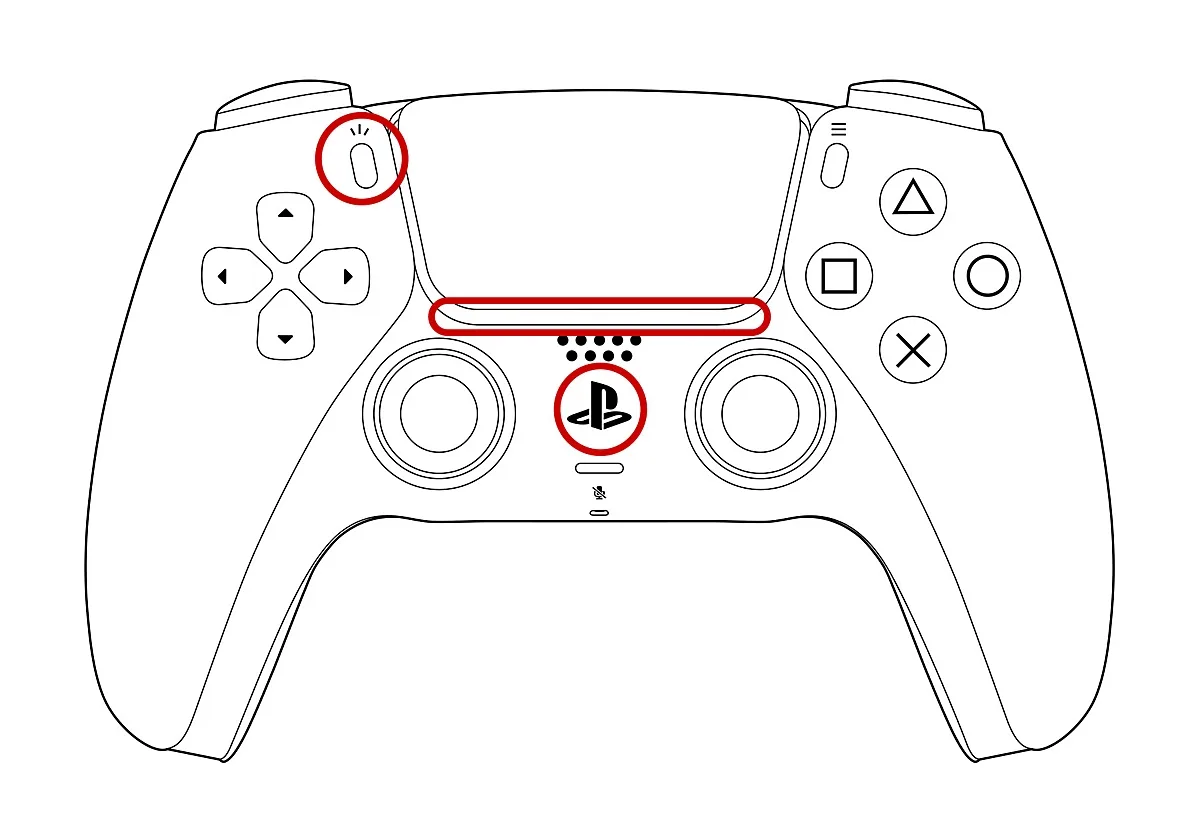
On the controller, press and hold the Create button and the PS button together until the light bar flashes. The Create button is next to the upper-left corner of the touchpad and the PS button sits between the analog sticks.
Hold the Create button (top left) and the PS button (center) until the light bar blinks. (Image: Sony)
On your Mac, open the Apple menu, then System Settings (System Preferences on older versions of macOS) and select Bluetooth. Make sure Bluetooth is on.
While the controller is in pairing mode, it shows up in the list of nearby devices, usually as DualSense Wireless Controller. Select it, then click Connect.
When pairing is complete, the light bar blinks and the player indicator lights up.
If the controller pairs but does not connect, press and release the PS button on the controller.
Each time you move the controller to a different device, it has to be paired with that device. A DualSense can remember up to four pairings, so one controller can switch between a Mac and a PC without starting over. Sony covers the slot system in its support page, and our guide to connecting a PS5 controller to a PC walks through the same idea on Windows.
How to Change the PS Button and Create Button Settings on Mac
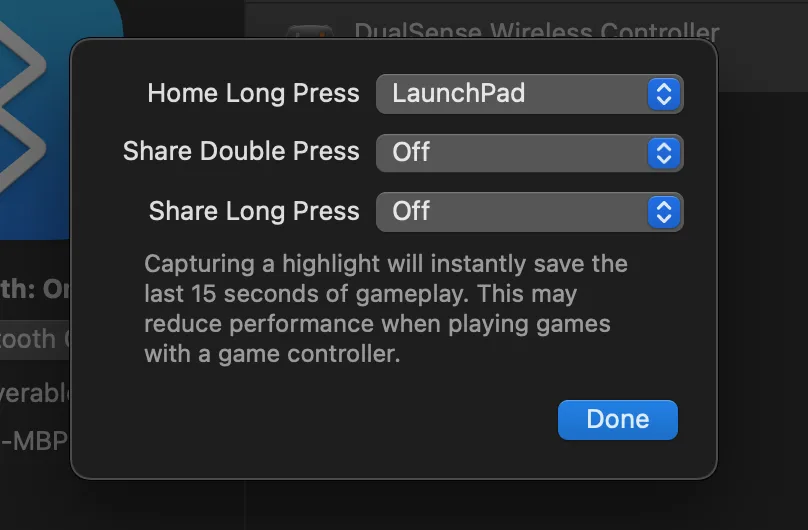
Once the controller is connected over Bluetooth, an Options button appears next to it in the Bluetooth list. It lets you choose what a long press of the PS (Home) button does and what the Create (Share) button does with a double or long press. By default the Create settings are off. Setting the Home long press to Launchpad lets you move around Launchpad with the D-pad or sticks, press the Cross button to open an app and press Circle to leave.
The Options window for a connected DualSense in macOS Bluetooth settings. (Image: EasyOSX)
How to Use a PS5 Controller With Steam on Mac
Games from the Mac App Store and Apple Arcade work with a connected controller when the game supports one, so just launch the game. Steam needs one more step.
Connect the controller with the USB cable. Bluetooth works for Steam menus, but if a game does not respond to a wireless DualSense, the cable is the reliable fix.
In Steam, open the Steam menu in the menu bar and choose Preferences.
Select Controller in the left sidebar, then General Controller Settings.
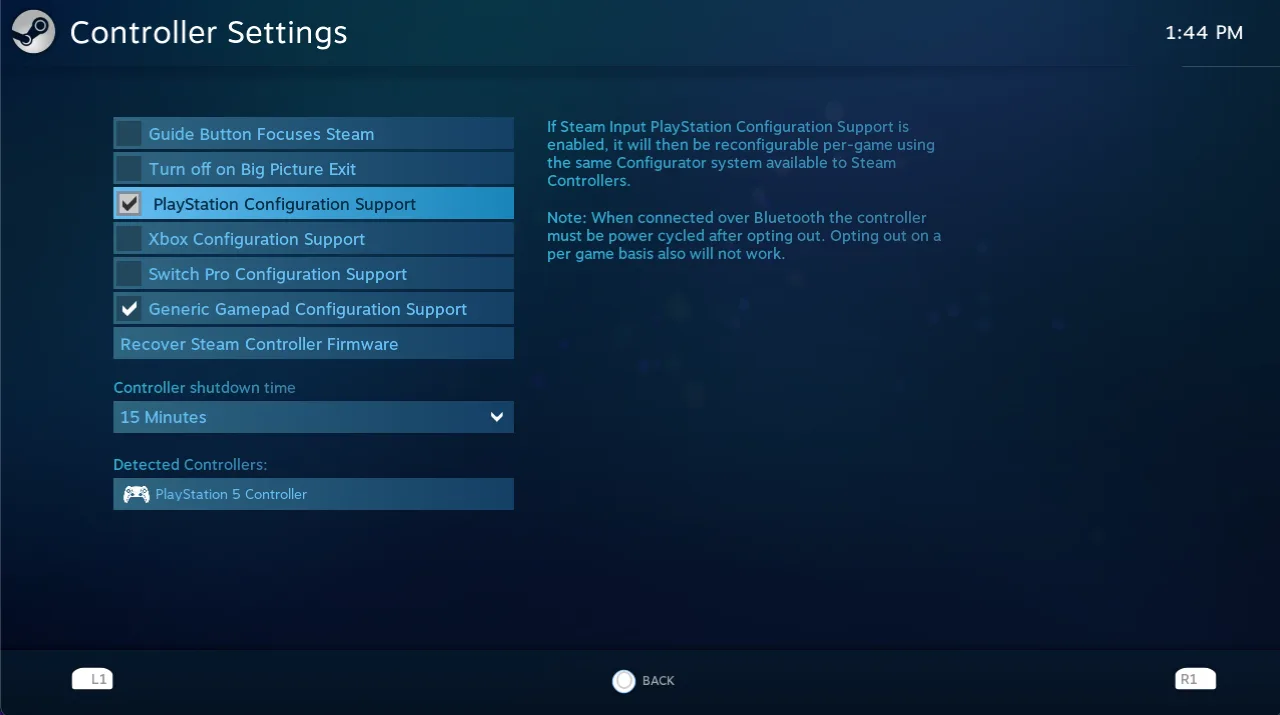
Check that the controller is listed under Detected Controllers, then tick PlayStation Configuration Support.
Tick PlayStation Configuration Support and confirm the controller is detected. (Image: EasyOSX)
Steam lists “Full Controller Support” or “Partial Controller Support” on each game’s store page, so check it before you buy. Support can still vary from game to game.
What to Do When the PS5 Controller Will Not Connect to Your Mac
The controller is not in the Bluetooth list. Turn it off with the PS button, unplug any cable, and repeat the Create plus PS button hold until the light bar flashes.
It pairs but will not connect. Press and release the PS button on the controller.
USB does nothing. Swap to a cable that carries data and charge, then install the latest macOS and controller updates.
You see a firmware update message. Follow Sony’s instructions for updating the controller, which uses the PlayStation Accessories app on a PC.
A game ignores the controller. Not every game supports controllers. Check the game’s description or Steam page, or use a mapping app such as Joystick Mapper from the Mac App Store.
Is It Worth Using a PS5 Controller on a Mac?
If you only need to connect PS5 controller to Mac for Apple Arcade or the Mac App Store, Bluetooth is the quicker route and works well once the controller is paired. For Steam, plug in the cable. You give up haptics, the mic and the speaker on a Mac, but for most games the DualSense is a comfortable way to play away from a keyboard.
I'm Iain, and I write the step-by-step guides on GameCuki. I cover game tips and walkthroughs, PC gaming how-tos like settings, performance and troubleshooting, and practical guides for Steam, PlayStation, Xbox and Nintendo Switch. I build each guide from official game and platform documentation, write the steps in plain language and check them against the source before publishing. When a game or platform changes how something works, I update the guide. You can read my full process on our How We Review page.