Your Steam name is the one thing every friend, teammate and stranger sees, and it takes less than a minute to swap. This guide shows how to change Steam name on a PC or your phone, what to do with your custom profile URL, and why your login name stays locked no matter what.
All you really need is the Steam client on a computer, the Steam mobile app, or a browser signed in to your account. Prefer to watch first? This video walks through the process:
Steam Profile Name vs Account Name: What You Can Change
Steam keeps two different names on every account, and mixing them up is the main reason people get stuck.
Profile name (also called your display name or username): the nickname friends and other players see on your profile, in chat and in multiplayer games. You can change it whenever you like.
Account name: the private name you type to sign in. It is permanent, and even Steam Support cannot change it.
SteamID: the number tied to your account. It cannot be changed either, although you can set a custom URL (covered below) so your profile link looks cleaner.
If you only want a new name in games and on your friends list, the profile name is the one to edit.
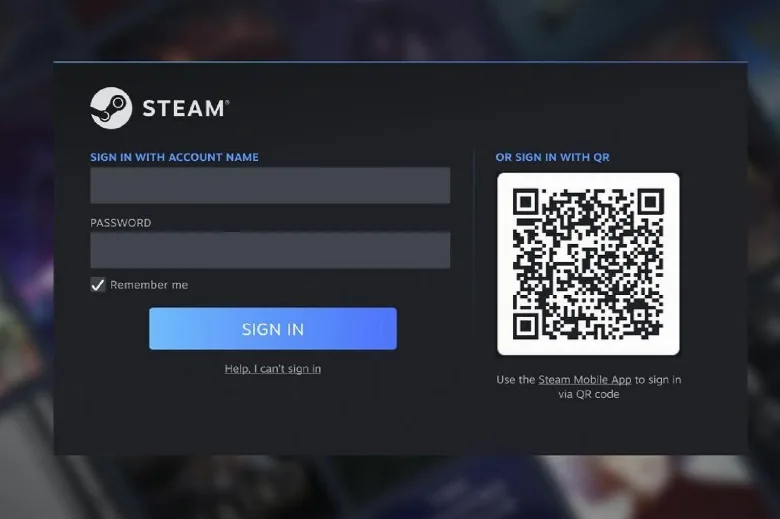
The account name is the login field on this screen, and it cannot be edited. (Image: Pocket-lint)
How to Change Steam Name on PC
These steps work in the Steam desktop client and on the Steam website.
Open Steam and sign in. On the website, go to steamcommunity.com and sign in with your account name and password.
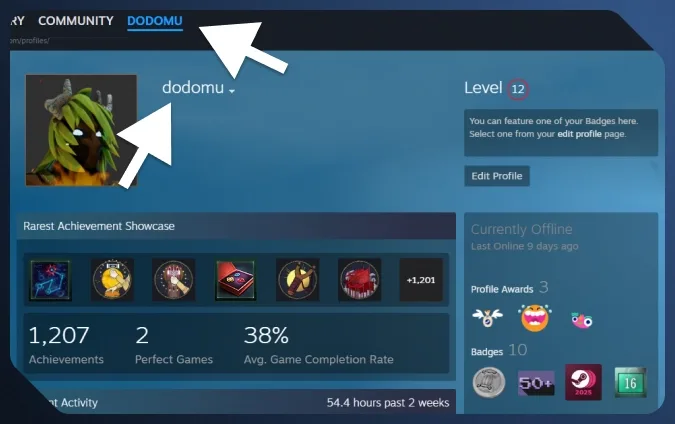
Click your current profile name in the top menu, next to Store, Library and Community.
Choose Profile if a drop-down menu appears.
Click your name in the top menu to open your profile. (Image: DMarket)
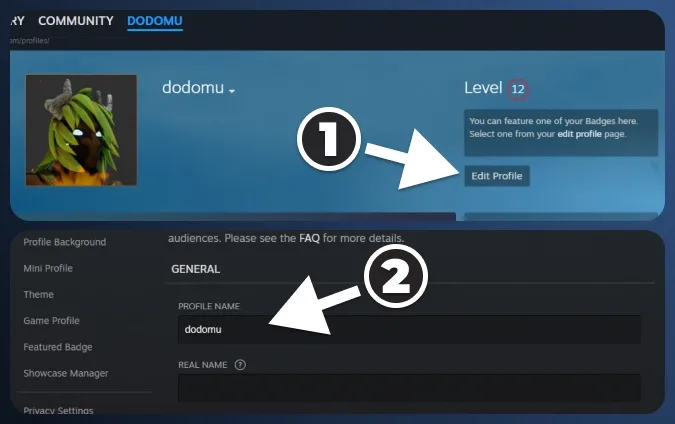
Click the Edit Profile button on the right side of your profile page.
Under the General tab, click the Profile Name field and type your new name.
Edit Profile (1) opens the General tab, where the Profile Name field (2) sits. (Image: DMarket)
Scroll to the bottom of the page and click Save.
Your new name shows up on your profile and friends list right away.
How to Change Steam Name on Mobile
The Steam mobile app for iOS and Android uses almost the same path.
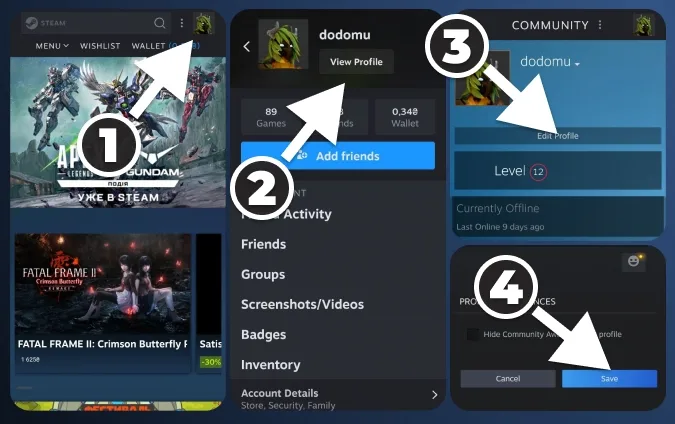
Open the Steam app and tap your avatar icon in the top right corner.
Tap View Profile.
Tap Edit Profile.
Clear the Profile Name field and type the new name.
Scroll down and tap Save.
The mobile route in four taps: avatar, View Profile, Edit Profile, Save. (Image: DMarket)
Steam Name Rules and Limits
A profile name can be up to 32 characters long.
Steam blocks names that break its rules for appropriate content. If a name is rejected, try a different one, because some words are flagged even when they do not look offensive.
There is no cooldown worth planning around: you can change your Steam profile name as many times as you want.
Steam keeps a list of your previous profile names (aliases) so friends can recognize you. You can clear that history from the small drop-down arrow next to your name on your profile page.
How to Change Steam Name in Game and on Your Profile URL
Games that use Steam for sign-in pull your profile name from Steam, so there is no separate setting to change in most of them. After you save, restart the game if the old name still shows. A few older or third-party titles keep their own account system, and in those you may have to update or relink the name in the game’s own settings.
Your profile link is a separate setting. To make it readable, open Edit Profile, stay on the General tab, scroll to Custom URL, enter a new one and click Save. If someone already uses it, Steam asks you to pick another.
Steam Name Not Changing or Not Saving
Check for a blocked name. Try a plainer variation if Steam refuses the change.
Check the length. Anything over 32 characters will not fit.
Make sure you clicked Save. The button sits at the very bottom of the Edit Profile page, so scroll all the way down.
Restart the game or client. A game that still shows the old name usually updates after a full restart.
Can You Change Your Steam Account Name?
No. The account name you sign in with is locked to your account, and Steam Support cannot change it either. The only way to get a different one is to create a new account, which means starting over with your library, because games and progress cannot be moved or merged between accounts. For almost everyone this does not matter, since only you ever see the account name. If a fresh start is tempting because of a game you regret buying, check whether it still qualifies to refund a game on Steam first.
Steam Name FAQ
Is it possible to change a Steam account name?
Not the sign-in account name. Your profile name, the one other players see, can be changed any time under Edit Profile.
Is changing your Steam name free?
Yes. Editing your profile name does not cost anything.
Is my Steam ID the same as my username?
No. Your SteamID is a number tied to the account, your account name is the login, and your profile name is the public nickname. Only the profile name and the custom URL are editable.
Final Thoughts: The Quickest Way to Change Steam Name
If you just want a fresh name, the quickest way to change Steam name is Edit Profile on whichever device is closest: click your name, hit Edit Profile, type, save. Do not waste time hunting for a way to rename the login, because it does not exist. Pair the new name with a clean custom URL and your profile looks like a fresh start without losing a single game.
I'm Iain, and I write the step-by-step guides on GameCuki. I cover game tips and walkthroughs, PC gaming how-tos like settings, performance and troubleshooting, and practical guides for Steam, PlayStation, Xbox and Nintendo Switch. I build each guide from official game and platform documentation, write the steps in plain language and check them against the source before publishing. When a game or platform changes how something works, I update the guide. You can read my full process on our How We Review page.