

Bought a game on Steam that you don’t enjoy, runs badly on your PC, or you simply clicked by mistake? Valve has one of the most generous refund policies in gaming, and in most cases you can get your money back in a few minutes. In this guide, you’ll learn how to refund a game on Steam step by step, which purchases qualify, how long the money takes to arrive, and what to do if your request gets denied.
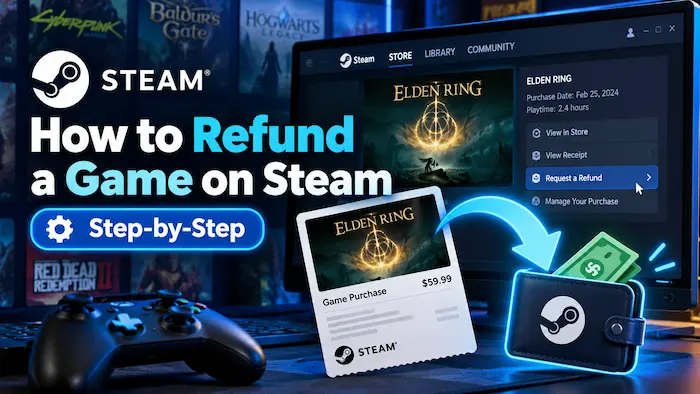
How to Refund a Game on Steam (Step-by-Step)
By Daniel Hayes
In this article
Steam Refund Requirements
According to Steam’s official refund policy, you can request a refund for almost any game for any reason, as long as both of these are true:
- You bought the game within the last 14 days.
- You’ve played it for less than 2 hours in total.
If you’re outside those limits, you can still send a request. Valve says it will take a look anyway, but approval is decided case by case and isn’t guaranteed.
A few special cases are worth knowing:
- Bundles: refundable as long as the combined playtime of every game in the bundle is under 2 hours and none of the items have been transferred.
- Pre-orders: you can cancel and get a refund any time before release. After launch, the normal 14-day / 2-hour rule starts from the release date.
- Early Access and Advance Access: any time you play before the full release counts toward the 2-hour limit.
- Gifts: you can refund a gift the recipient hasn’t redeemed yet. If they already redeemed it, they have to start the refund themselves, and the money goes back to you, the buyer, not to them.
How to Refund a Game on Steam (Step by Step)
You can request a refund from the Steam desktop app (Help > Steam Support) or from any web browser, including on your phone. The steps are the same either way.
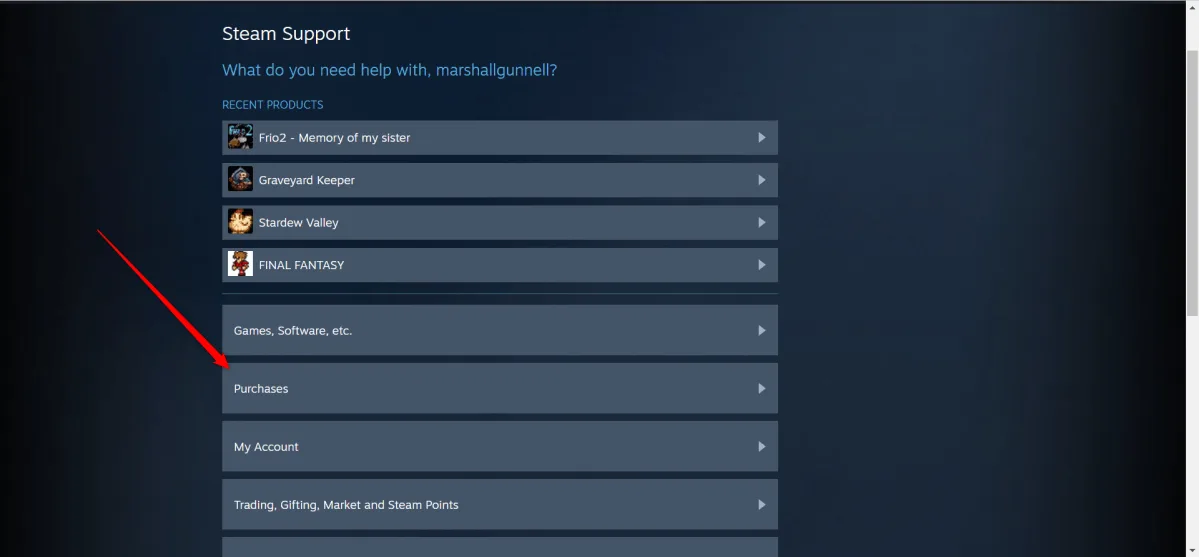
Step 1: Open Steam Support and click “Purchases”
Go to Steam Support and log in with the account you used to buy the game. From the list of help topics, click “Purchases”.
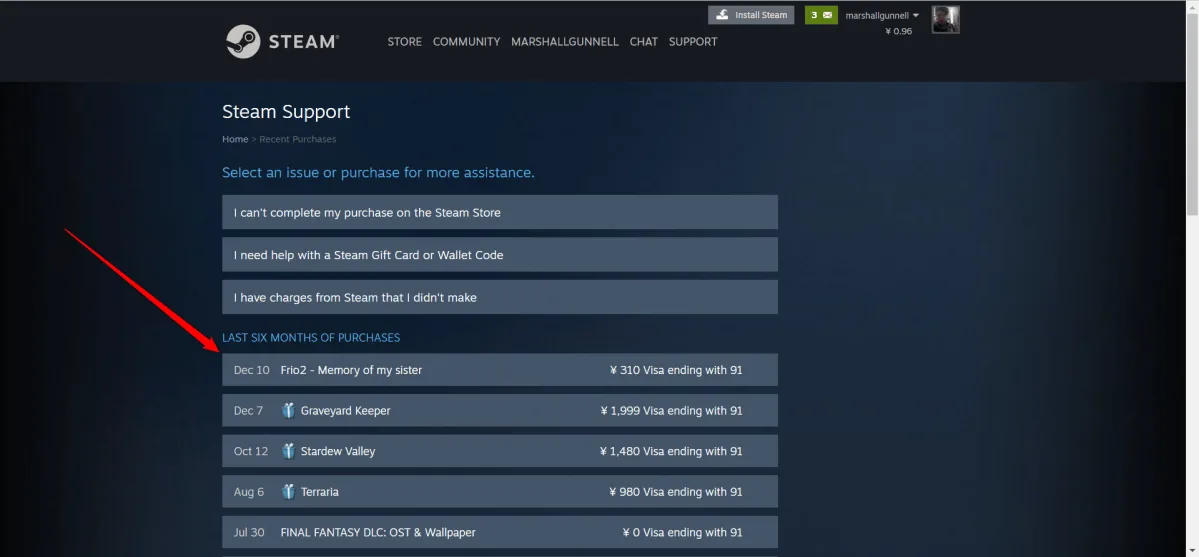
Step 2: Choose the game you want to refund
Your recent purchases appear at the top of the list. Click the game you want to return. If you don’t see it, check your full purchase history further down the page.
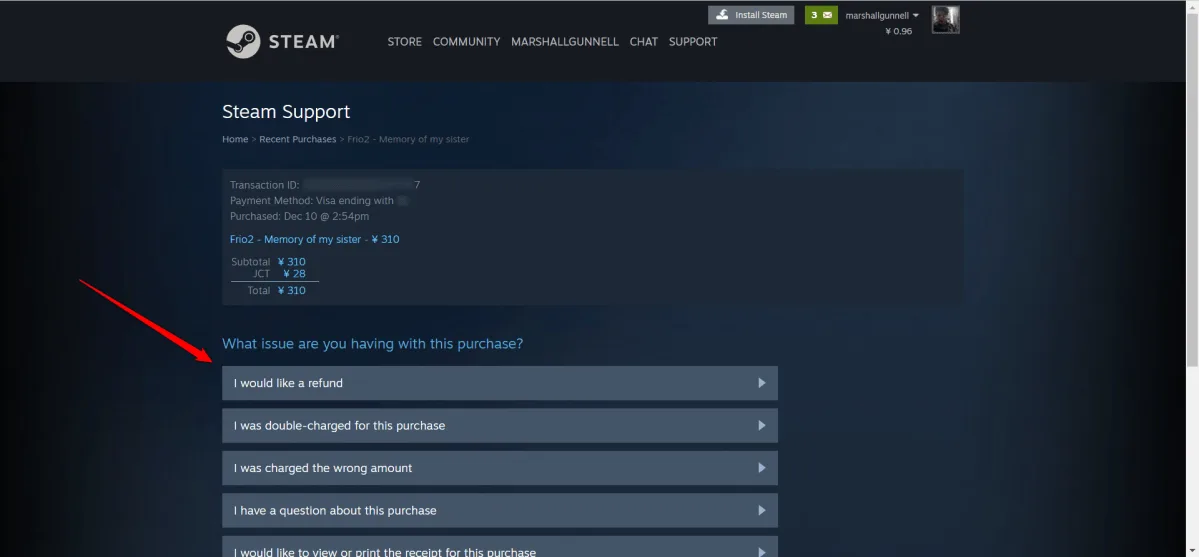
Step 3: Click “I would like a refund”
Steam now shows the transaction details: the date, price and payment method. Check that it’s the right purchase, then click “I would like a refund”.
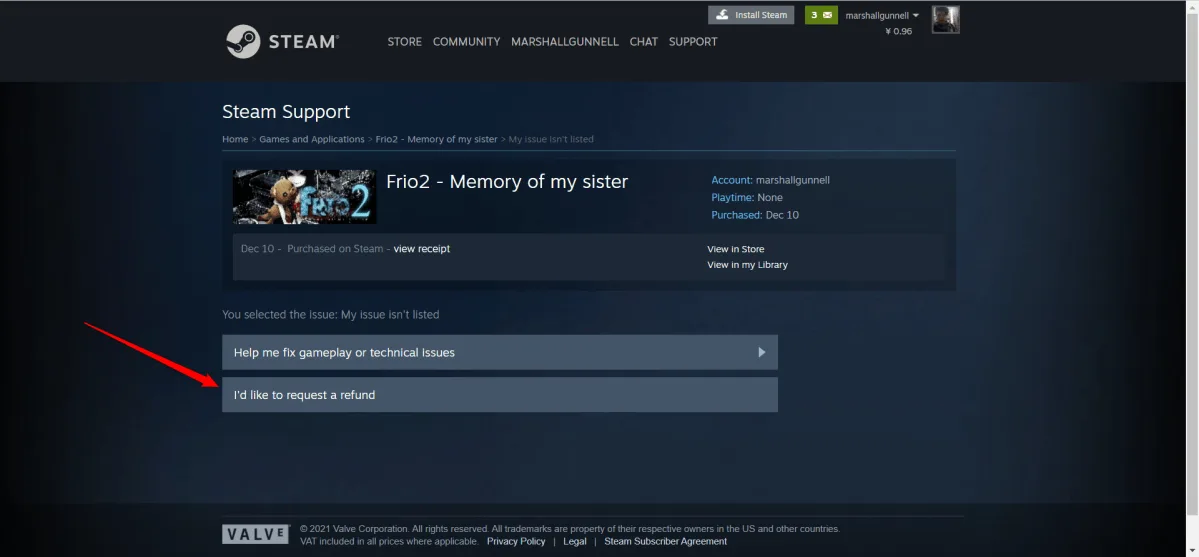
Step 4: Click “I’d like to request a refund”
The next screen confirms the game and when you bought it. Click “I’d like to request a refund” to continue.
Step 5: Choose where the money goes
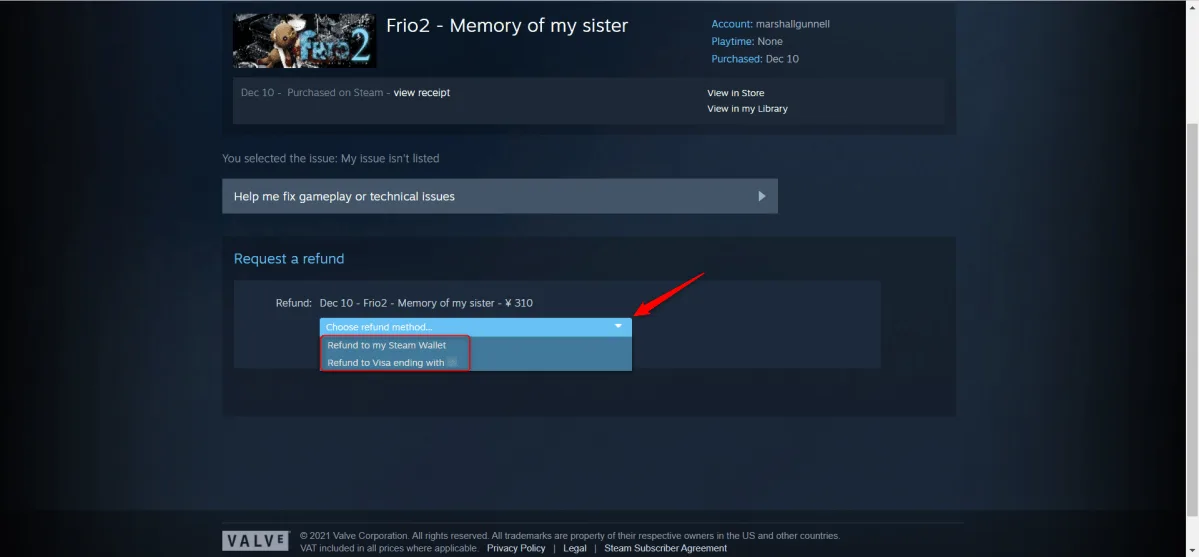
Use the drop-down menu to pick your refund method: your Steam Wallet or the original payment method (for example, your card or PayPal). Wallet refunds are usually faster and can be spent on any other game right away.
Step 6: Pick a reason and submit
Select the reason that fits best, such as “It wasn’t fun”, “Purchased by accident” or “Gameplay or technical issue”. You can add a short note too. If you’re within 14 days and under 2 hours, a one-line explanation is enough. If you’re outside the limits, explain clearly what went wrong, since that note is what Steam support will read. Then click “Submit Request”.
Step 7: Wait for the confirmation email
Steam shows a confirmation screen and sends an email to the address on your account. Once your refund is approved, the game is removed from your library and the money is sent to the method you chose.
How Long Does a Steam Refund Take?
Valve says you’ll receive the full refund within a week of approval. Steam Wallet refunds usually show up faster, while cards and other payment methods can take a few extra days depending on your bank. If your original payment method can’t receive refunds, Steam credits your Steam Wallet with the full amount instead.
Can You Refund DLC, In-Game Items and Wallet Funds?
- DLC: refundable within 14 days of purchase if you’ve played the base game for less than 2 hours since buying the DLC, and the DLC hasn’t been consumed, modified or transferred.
- In-game items: purchases in Valve games (like Counter-Strike 2 or Dota 2) can be refunded within 48 hours if the item hasn’t been used, modified or traded. For other developers’ games, it’s up to the developer, and Steam tells you at checkout.
- Steam Wallet funds: refundable within 14 days of purchase, but only if you haven’t spent any of them.
- Not refundable: game keys or Steam gift cards bought from third-party stores (ask the seller instead), games you’ve been VAC-banned in, and video content such as movies or series.
What to Do If Your Steam Refund Is Denied
Denials usually happen when you’re past 14 days or 2 hours of playtime, or when your account has requested a lot of refunds. If you believe your case is fair, for example the game crashes constantly or doesn’t match its store page, open a new request from the same purchase and explain the problem in more detail. Mentioning specific issues (error messages, your PC specs, crashes on launch) gives support a better reason to make an exception.
Tips for a Smooth Steam Refund
- Not sure about a game? Check your playtime in your Library before you hit the 2-hour mark.
- Bought a game right before it went on sale? Steam doesn’t treat refunding it and rebuying at the sale price as abuse.
- Pick the most accurate reason and keep your note honest and specific.
- Don’t use refunds as free trials. Valve may stop offering you refunds if it sees a pattern of abuse.
The Problem With Steam’s Refund Policy
Steam’s refund policy is great for players, but it isn’t always fair to small developers. Short indie games can be finished in under two hours and then refunded, which is exactly what happened to Emika Games and its horror game Summer of ’58. Many players completed the roughly 90-minute game and asked for their money back, which pushed the developer to step away from game development.
Friends! Thank you for your support! I'm leaving game development for an indefinite time to collect my thoughts. pic.twitter.com/q93NxWjyUI
— EMIKA_GAMES (@EmikaGames) August 26, 2021
So if you’ve genuinely enjoyed a short indie game all the way to the credits, consider keeping it. Using the policy fairly is what keeps it this generous for everyone.
FAQ
Can I refund a Steam game after playing more than 2 hours?
You can still submit a request, but it’s no longer automatic. Steam reviews it case by case, so explain clearly why you want the refund.
Will the game be removed from my library?
Yes. Once the refund is approved, the game disappears from your library, and you’ll need to buy it again to play.
Who gets the money when a gift is refunded?
Always the person who bought the gift, never the person who received it.
Can I refund a game key I bought from another website?
No. Steam can only refund purchases made on Steam. For keys bought elsewhere, contact the store that sold you the key.
Can I refund a Steam game from my phone?
Yes. Open help.steampowered.com in your mobile browser or the Steam mobile app, sign in and follow the same steps.
That’s everything you need to know about how to refund a game on Steam: request it within 14 days, keep your playtime under 2 hours, pick where you want the money to go, and you’ll usually have it back within a week. Use the policy fairly, and it stays one of the best safety nets PC gamers have when a game isn’t what they expected.
About Daniel Hayes
Daniel writes the step-by-step guides on GameCuki: game tips, walkthroughs and practical how-tos for platforms like Steam. He builds each guide from official game and platform information, patch notes and community knowledge, with one simple goal: get you unstuck fast.