Minecraft will happily run a world for your friends, but only if someone hosts it. If you want to know how to make a Minecraft server, the answer depends on the edition you play and how much setup you are willing to do. This guide covers the full Java Edition server on a Windows PC or Mac, port forwarding so friends outside your home can join, the Bedrock Dedicated Server, Realms, and paid hosting, so you can pick the route that fits.
Prefer to watch the steps first? This walkthrough covers a Java server from download to joining:
How to Make a Minecraft Server from Start to Finish
There is no single way to make a Minecraft server, and the easiest option is not always the one that suits your group. Pick from these before you download anything.
Open to LAN: the quickest option. From the pause menu in Java Edition, press Open to LAN and your world shows up for anyone on the same network. It is temporary and only works while you are playing.
Java Edition server on your PC: free, runs when you start it, and supports Paper plugins or Forge and Fabric mods. It takes the most setup and needs port forwarding for friends who live elsewhere.
Bedrock Dedicated Server: Mojang’s free server software for Bedrock Edition on Windows and Linux.
Realms: Mojang’s subscription service, managed from inside the game with no files or router settings.
Third-party hosting: you pay a host to run the server, which keeps it online around the clock without exposing your home network.
How to Make a Minecraft Java Server on Windows
This is the standard way to make a Minecraft server for free if you own Java Edition. The server software is a single .jar file from Minecraft.net, and the steps below follow Mojang’s own setup guide.
Step 1: Install the Right Version of Java
The server needs a Java version that matches the Minecraft version. Use the newest one the download page asks for, and install a build of OpenJDK or Oracle Java.
Minecraft 26.1 and later needs Java 25.
Minecraft 1.20.5 and later needs Java 21.
Minecraft 1.18 and later needs Java 17.
Minecraft 1.17 needs Java 16, and 1.16 and earlier needs Java 8.
Older Minecraft versions can run on a newer Java, but not the other way around.
Step 2: Download the Server and Start It Once
Create a new folder for the server anywhere on your computer. On Windows, avoid the OneDrive folder. This folder will hold your world and every config file.
Download the server .jar from Minecraft.net’s server download page and place it in that folder.
Rename the file to server.jar.
Open Notepad and paste this line, then add the word pause on a second line: java -Xmx2G -Xms1G -jar server.jar --nogui
Choose Save As, set the file type to All files, and name it start.bat inside the server folder.
Double-click start.bat. A command window opens and the server stops almost at once. That is expected, because it will not run until you accept the EULA. Press any key to close the window.
The -Xmx2G part caps the memory the server may use at 2 GB, which is enough for a small group on default settings. Raise it if the console starts printing “Can’t keep up!” messages.
Step 3: Accept the EULA
Open the server folder. New files, including eula.txt, now sit next to the jar.
Open eula.txt in a text editor and read the Minecraft EULA.
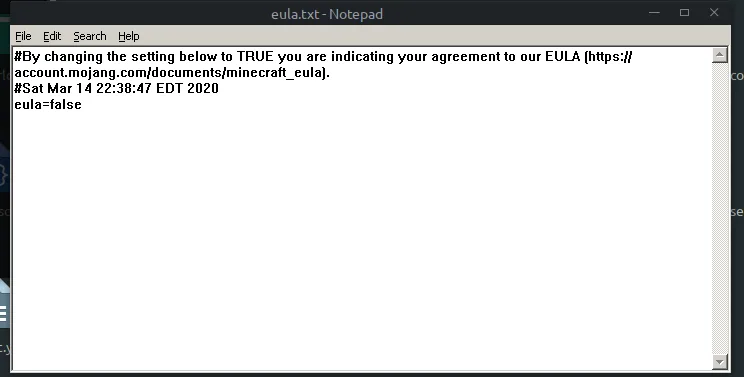
Change eula=false to eula=true and save the file.
Change eula=false to eula=true, then save the file. (Image: Minecraft Hopper)
Run start.bat again. The console now shows the server loading the world. When it finishes, the server is ready and you can type commands into the window.
To give yourself operator rights, type op YourUsername into the console without a slash. To shut the server down safely, run save-all, wait for it to finish, then run stop.
How to Make a Minecraft Server on Mac and Linux
The download and EULA steps are the same. Only the start script changes.
Rename the downloaded jar to server.jar and keep it in its own folder.
Open TextEdit and make a new document. If formatting tools appear at the top, press Shift, Command, and T to switch to plain text.
Paste these lines: #!/bin/bash, then cd "$(dirname "$0")", then exec java -Xms1G -Xmx2G -jar server.jar
Save the file as start.command in the server folder. Make sure it does not save as start.command.txt.
Double-click the file. If you see “Permission denied”, open Terminal, type chmod +x followed by a space, drag start.command into the window, and press Enter. Then run it again.
Accept the EULA the same way as on Windows, then start the script a second time.
On Linux, a start.sh file with the same java line works the same way. Run chmod a+x start.sh once, then ./start.sh. A server you plan to leave running can live inside the screen utility, so the console keeps running after you close the terminal window.
How to Make a Minecraft Server for Friends to Join
A running server is only half the job. How your friends connect depends on where they are.
Friends on Your Home Network
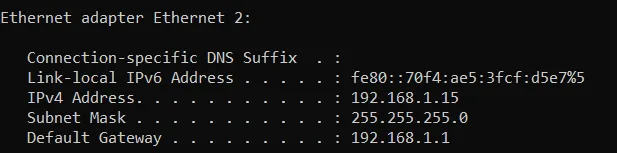
On the server computer, open Command Prompt and type ipconfig, then press Enter.
Find the IPv4 Address line. That number is your server’s local address.
The IPv4 Address is what players on your network type in. The Default Gateway is your router. (Image: Minecraft Hopper)
Start the server. In Minecraft, your friend opens Multiplayer and selects Add Server or Direct Connection.
They enter your IPv4 address as the server address and join.
If you are playing on the same computer that hosts the server, type localhost as the address instead.
Friends Anywhere Else: Port Forwarding
People outside your home reach the server through your public IP address, and your router has to pass that traffic to the server computer. Router menus differ by brand, so treat the steps as a general outline and use your router’s manual or PortForward.com for the exact screens.
Run ipconfig again and note two values: the IPv4 Address of the server computer and the Default Gateway, which is your router’s address.
Type the Default Gateway address into a web browser and sign in to your router. If that does not load, common router addresses are 192.168.0.1, 192.168.1.1, and 10.0.0.1.
Find the port forwarding page. It may be called Port Forwarding, Virtual Servers, or Firewall.
Add a new rule and name it Minecraft.
Enter the server computer’s IPv4 address as the internal IP address.
Enter 25565 for the start and end port, or the internal and external port, depending on your router.
Set the protocol to TCP/UDP or Both. If neither choice exists, make one rule for TCP and a second for UDP.
Save the rule. If Windows asks whether to let “OpenJDK Platform binary” through the firewall, allow it.
Search “what is my IP” in a browser to find your public IP address, and give that address to your friends. They enter it in Add Server or Direct Connection.
Keep the server running while you check that the port is open with a port checker site, because the port only answers while Minecraft is listening. If you have two routers, forward the port on the one that connects directly to the internet.
Keep the Server Address From Changing
Most home internet plans use a dynamic IP, so your public address can change every few days or weeks. Two settings help. Give the server computer a static local IP in your router so the forwarding rule never points at the wrong device. Then use a dynamic DNS service, which gives you a name that follows your public IP, or ask your internet provider about a static IP. A custom domain name also works. Point an A record at your public IP, and add an SRV record if you changed the port from 25565.
No Port Forwarding? Use a VPN Instead
If your provider blocks port forwarding, a virtual LAN program such as Hamachi, Radmin VPN, or ZeroTier lets friends join as if they were on your network. Everyone, including you, installs the same program and joins the same private network. Friends then connect to your address on that network. Download these only from the maker’s official site. If you use ZeroTier, set the network to Private so strangers cannot join.
How to Make a Minecraft Bedrock Server
Mojang offers free Bedrock Dedicated Server software for Windows and Linux. It runs a world for Bedrock Edition players.
Check that you meet the minimum requirements: Windows 10 version 10.0.15063 or later, or Windows Server 2016 or later. Linux needs Ubuntu 22.04 or later. Plan on at least 4 GB of memory.
Download the Bedrock server ZIP from Minecraft.net’s server download page and extract it to its own folder.
Run bedrock_server.exe on Windows, or bedrock_server on Linux.
Edit server.properties in the folder to set the world name, game mode, and difficulty. Restart the server after any change, because Bedrock Dedicated Server does not support reloading.
Players join with the server’s IP address and port. The default port is 19132, and it uses UDP, not TCP.
To let friends outside your home join, forward UDP port 19132 on your router, using the same steps as the Java section above.
Console players on Xbox, PlayStation, and Nintendo Switch cannot type a server address into the game. They can only join through a custom DNS or a LAN connection, which makes Realms the simpler route for a console group. The Bedrock server also has limits compared with Java. It has no invite system, no RCON, and weaker plugin support.
How to Make a Minecraft Server With Realms
Realms is the no-setup option. The owner pays for a subscription, creates the Realm from inside the game, and invites friends, who join for free. There is no router, jar file, or command window involved.
Open Minecraft and choose Realms on the main menu in Java Edition, or the Realms tab on the Play screen in Bedrock Edition.
Pick a subscription plan and complete the purchase with your Microsoft account.
Create a new world, or upload one from your computer.
Open the member settings and invite players by name in Java Edition, or by Xbox friend in Bedrock Edition. Bedrock owners can also share an invite link.
Realms has limits. In Java Edition, a Realm can have up to 10 other players, and in Bedrock Edition the cheaper Realms Core plan allows 2 other players while Realms Plus allows 10. Mods and plugins cannot be installed, and console players need an active Xbox, PlayStation Plus, or Nintendo Switch Online subscription to join. Pricing changes, so check the current plans in the game or on your Minecraft account page.
How to Make a Minecraft Server on Mobile
You cannot host a Java or Bedrock server from a phone or tablet with Mojang’s own software, because the Bedrock Dedicated Server runs only on Windows and Linux. You have two practical choices. Subscribe to Realms and manage it from Bedrock Edition, so nothing has to run on your own hardware. Or make a server on a PC or a paid host as described here, and have phone players join it with the server address. Java and Bedrock are different editions, so Bedrock players can only join a Java server through a bridge such as GeyserMC.
How to Make a Minecraft Server With Mods or Plugins
The vanilla jar from Minecraft.net runs the unmodified game. For a modified server, download a different jar into the same kind of folder and follow the same steps.
Plugins: download Paper, a server jar that supports plugins.
Mods: download the Forge or Fabric server files. Forge uses an installer, so run it, choose Install server, and point it to your server folder.
Every player who joins a modded server usually needs the same mods installed on their own game. A Paper server with plugins does not ask players to install anything extra.
How to Make a Minecraft Server With a Hosting Company
A paid host runs the server on its own hardware, so it stays online when your computer is off. You skip port forwarding and keep strangers from seeing your home IP address. When you compare hosts, check these points:
Single-core CPU speed matters more than core count, because a Minecraft server mostly uses one core.
Whether the RAM and CPU are guaranteed or shared with other customers.
A datacenter close to most of your players, to keep ping low.
Support for the server software you want, such as vanilla, Paper, Fabric, or Forge, and for the Minecraft version you need.
File access, console access, and backups you can download.
A trial period or a refund window, so you can see real performance before you commit.
How Much Hardware Does a Minecraft Server Need?
A survival server with 4 to 8 players runs on most modern hardware. A budget Intel 8th generation or Ryzen 2000 series CPU is enough for a small server, and a GPU is not needed. Plan on 2 GB of RAM for a small Java server and 4 GB or more as it grows, plus at least 5 GB of free disk space for the world. A wired connection works better than Wi-Fi. Player count and world size drive the load, and redstone machines and mob farms add to it.
How to Keep Your Minecraft Server Safe
A server open to the internet attracts bots and griefers who scan for the default port. These habits cut the risk:
Turn on the whitelist in server.properties or with the /whitelist command so only approved players can join.
Leave online-mode on. The whitelist stops working when it is off.
Consider a different port, and use an SRV record so players do not need to type it.
Open only the one port your server uses, and close it when the server is off.
Back up the server folder regularly and keep the server software up to date.
Add plugins and mods from trusted sources only.
Minecraft Server Troubleshooting
The Command Window Opens and Closes Right Away
A batch file closes as soon as it runs out of instructions, so you cannot read the error. Right-click start.bat, choose Edit, add a line that says pause, then run it again. If the message mentions an invalid path, Windows cannot find Java or your jar file. Check that the jar is named exactly as your script expects.
“Failed to Bind to Port”
This usually happens when an IP address is typed into the server-ip line of server.properties. Leave that line blank. The error also appears when another program already uses the port. In that case, change server-port=25565 to another number above 1024.
“Can’t Save Server Properties” on Windows
Run the server as an administrator by right-clicking the jar or script and choosing Run as administrator.
Friends Cannot Connect From Outside Your Home
Check that the server is running, the rule points to the right local IP address, the port is 25565, and the firewall allows Java. Some internet providers hide the port forwarding option or block it, and a VPN program is the workaround. If your public IP changed, give your friends the new one.
Which Way to Make a Minecraft Server Should You Choose?
If you play Java Edition with a few friends and do not mind an afternoon of setup, make the Java server on your own PC. It costs nothing, gives you the most control, and the steps above get you there. Pick Realms when your group includes console players or you would rather never touch a router, and go with a paid host when the server must stay online all day. New to the game and still deciding between it and something else? Our Minecraft vs Terraria comparison helps you decide whether Minecraft is the right fit for your group. Whichever route you take, the best way to make a Minecraft server is the one your friends can actually join without help.
I'm Iain, and I write the step-by-step guides on GameCuki. I cover game tips and walkthroughs, PC gaming how-tos like settings, performance and troubleshooting, and practical guides for Steam, PlayStation, Xbox and Nintendo Switch. I build each guide from official game and platform documentation, write the steps in plain language and check them against the source before publishing. When a game or platform changes how something works, I update the guide. You can read my full process on our How We Review page.