

Your stock gaming board works, but you have probably wondered what a keyboard tuned to your own taste would feel like. Here is how to build a custom keyboard even if you have never opened one: you choose a case, a circuit board, switches and keycaps, then snap them together. With a hot-swap board you need no soldering and not much more than a few small tools.
How to Build a Custom Keyboard: A First-Timer’s Guide
GameCuki is reader-supported. When you buy through links on our site, we may earn an affiliate commission at no extra cost to you. As an Amazon Associate I earn from qualifying purchases. Learn more.
Table of Contents
What You Need to Build a Mechanical Keyboard: Parts and Tools for Your First Custom Board

Keychron Q2 Barebone Keyboard Kit
A 65% aluminum kit with a hot-swap PCB that takes 3-pin and 5-pin MX style switches without soldering.
Check Price on Amazon
Gateron Zero Linear Switches (35 pcs)
A 35-switch pack of 45gf linear switches with a 3.6mm total travel, enough to fill a 65% board with spares left over.
Check Price on Amazon
Keychron OSA PBT Keycap Set (141 keys)
A double-shot PBT set that fits 60%, 65%, 75%, TKL and full-size layouts.
Check Price on Amazon
Gateron Twins Switch and Keycap Puller
One tool that pulls both keycaps and switches out of a hot-swap board.
Check Price on Amazon
Glorious GMMK 3 PRO Barebones Keyboard Kit
A 75% barebones kit with a CNC-machined aluminum body, a modular gasket system, 5-pin MX hot-swap support and an aluminum switch plate, so it covers the case, PCB and plate in one box.
Check Price on Amazon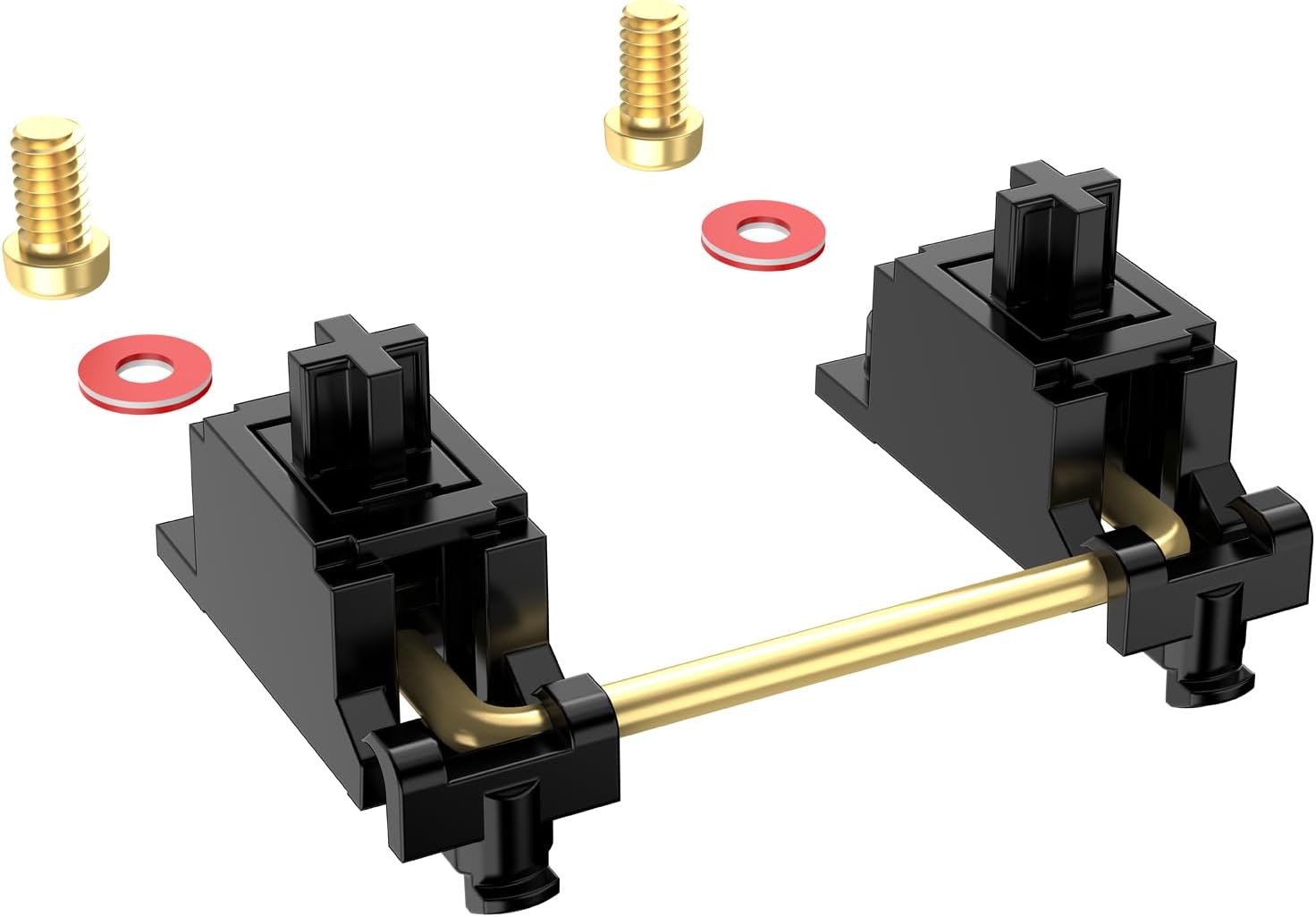
DUROCK V3 Screw-In Stabilizers (80% Kit)
PCB-mount screw-in stabilizers with washers and a tuning kit, including 2u wires and 6.25u and 7u space bar wires.
Check Price on Amazon
Keychron K Pro Banana Tactile Switches (110 pcs)
A factory pre-lubed tactile set with 57gf operating force, a good contrast to the linear Gateron Zero pack above.
Check Price on Amazon
Keychron Double Shot Cherry PBT Keycap Set (219 keys)
A Cherry profile PBT set with double-shot legends that fits layouts from 60% to 100%.
Check Price on Amazon
Glorious G-Lube Switch Lubricant
A 10g vial of synthetic grease made for both switches and stabilizers, so one purchase covers the lube steps.
Check Price on AmazonPrefer to watch first? This video walks through a first build from start to finish:
How To Build Your FIRST Custom Keyboard… (It's Easy.)
Choose Your Parts Before You Build
A custom board is a handful of separate parts, so it pays to decide on each one before you order anything.
Case
The case is the outer shell around everything, and it can be one piece or several. It also decides the mounting style, which shapes both feel and sound. A top mount screws the assembly into the top of the case and tends to feel stiffer and louder. A gasket mount isolates the plate and PCB from the case, so you get less case feedback and a feel that runs from stiff to very soft. Tray mount is common on cheaper prebuilts, stiff out of the box and the most fun to modify.
Other styles exist, such as a gummy o-ring that holds the assembly with no screws for a soft, higher-pitched sound, or a sandwich mount that clamps the plate between the top and bottom case. Some cases need a universal PCB bought separately, and some need a daughter board, so confirm what a case includes before you add it to the cart. A barebones kit that bundles case, PCB and plate is the simplest way to avoid mismatches.
PCB
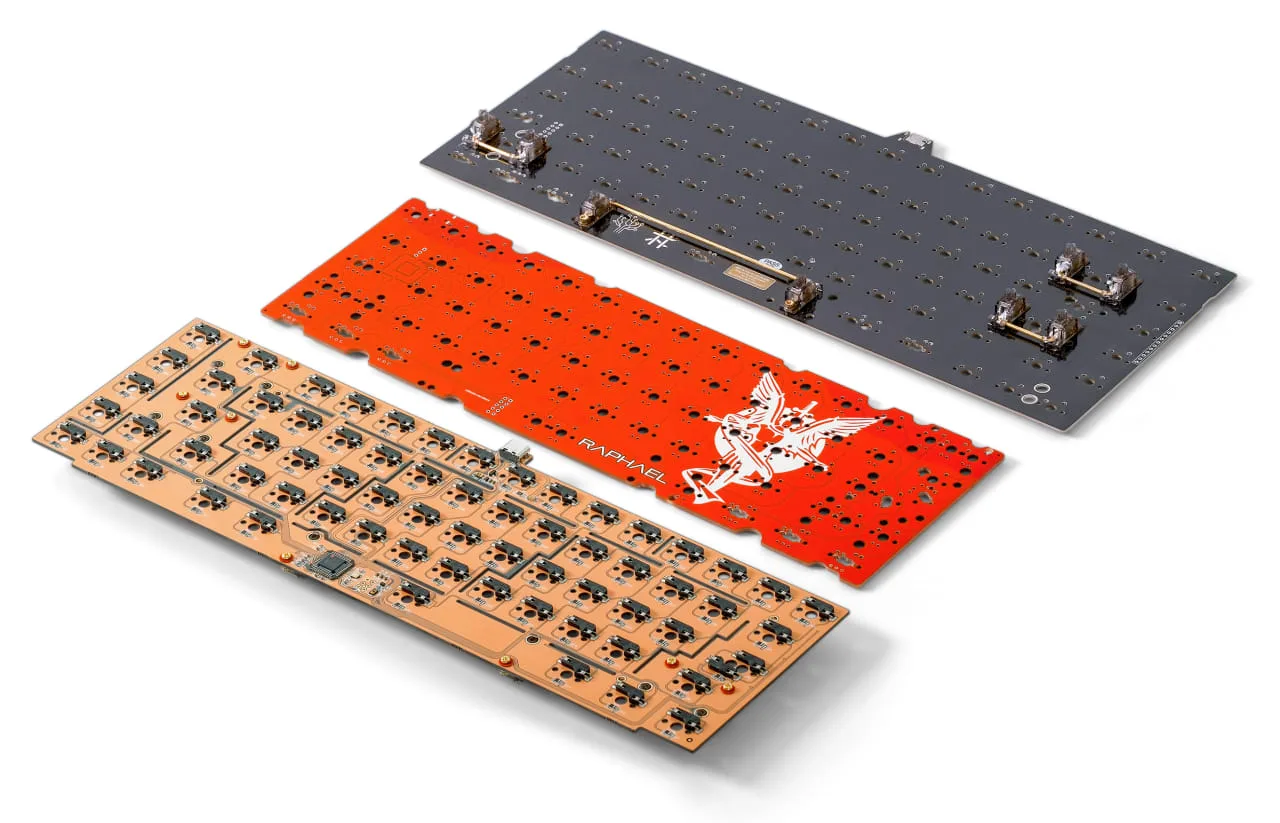
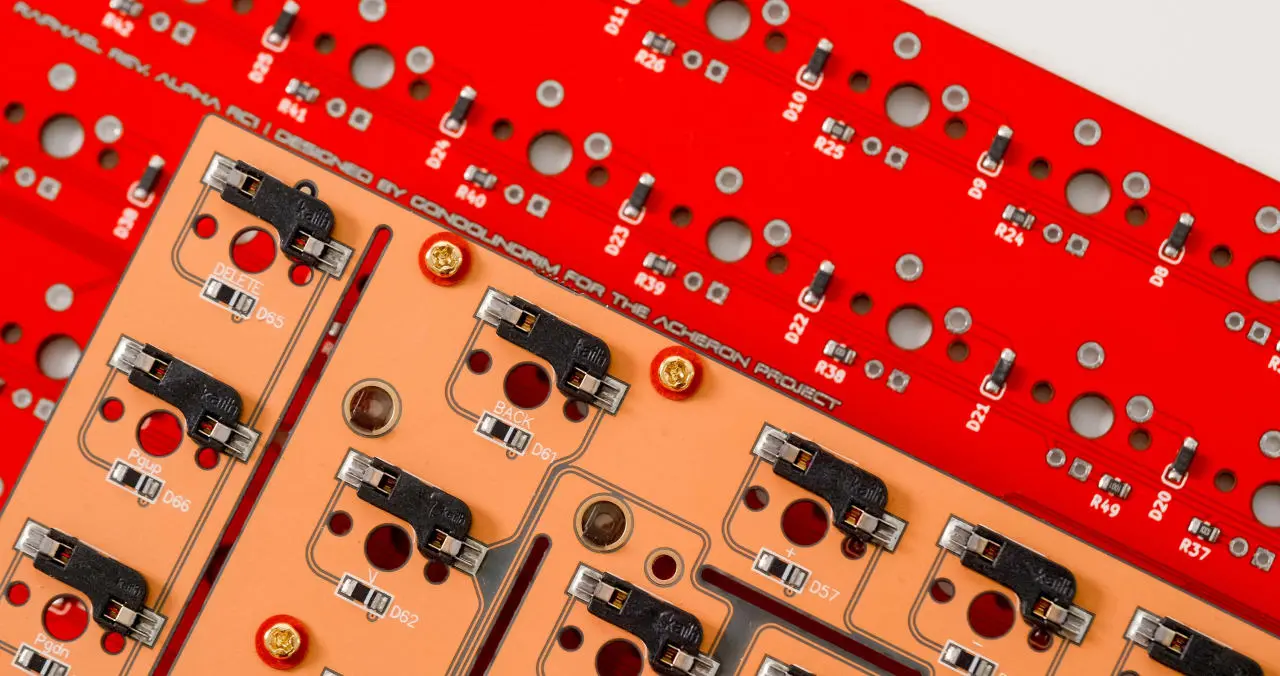
The PCB is the circuit board that registers each press, and it comes hot-swap or solderable. Hot-swap boards need no soldering, which suits a first build, anyone who finds soldering difficult and anyone who plans to rebuild the board several times. Solderable boards open up many more layout options, but a mistake means desoldering, which is tedious. Whichever you pick, many cuts in the board, called relief or flex cuts, give a softer typing feel and a thinner sound.
Switch pins matter too. A 3-pin switch has two metal contact pins and a central plastic post, while a 5-pin switch adds two plastic legs for a steadier fit, and 5-pin switches work in more PCB designs. Check which your board accepts before buying switches. To confirm a board works, plug it in and touch each pad with tweezers while watching VIA or VIAL.
Plate
The plate locks the switches in place and has to match your PCB layout if you buy it separately. Material is the main choice. Aluminum and FR4 are balanced and good value, so they are the recommended place to start. Brass is stiffer, while POM and polycarbonate are softer and give a deeper sound.
Stiffness changes pitch: a stiffer plate generally sounds higher and a softer one deeper. If your build already sounds quiet, a soft POM or polycarbonate plate can make it quieter still, and if the finished board feels too firm, swapping the plate is a fair fix. When you use plate foam, install it before the switches go in. Without foam, a plate fork helps stop the plate from bending down as you press switches in.
Stabilizers
Stabilizers support the longer keys such as Shift, Enter, Backspace and the space bar, and rattle from them is one of the most noticeable flaws in a build. Plate-mount stabilizers clip into the plate, are quick to fit and common on mass-produced boards, but they are more prone to wobble and harder to tune. Screw-in stabilizers fasten to the PCB, which is more stable and easier to mod, though they cost more and need a PCB made for them.
Confirm the space bar size and how many stabilizers your layout needs. Durock is a common recommendation for beginners. Lube them before they go on, using a syringe and a brush, and if you use screw-ins, add washers and do not overtighten. If rattle appears later, a little more lube from a syringe can fix it without taking the board apart.
Switches
Linear switches go straight down, so you press all the way to actuate them. Tactile switches have a bump partway down, and you can lift off right after it. Clicky switches add an audible click. Within each type, stem and housing change the sound: a long-pole linear is loud and clacky, a regular or silent stem is tamer, and a nylon housing sounds deeper. Tactile switches range from a light bump to a large, loud one.
Actuation force is rated in grams. A Cherry MX Red is a linear switch rated at 45 g, and a Cherry MX Speed has the same force but actuates at 1.2 mm instead of the usual 2 mm, which suits fast repeated presses in MOBA and MMO games. Linear and tactile both work for gaming and typing, so pick by feel. Pre-lubed switches save a lot of time, since lubing your own takes a while.
Keycaps
Keycaps come mostly in ABS or PBT. ABS is cheaper and more common, but it shines sooner. PBT has thicker walls and a matte finish that resists a greasy look, wears better and gives a richer, deeper sound. Doubleshot legends, where the letters are molded in a second color, hold up to wear and let backlighting through for RGB boards.
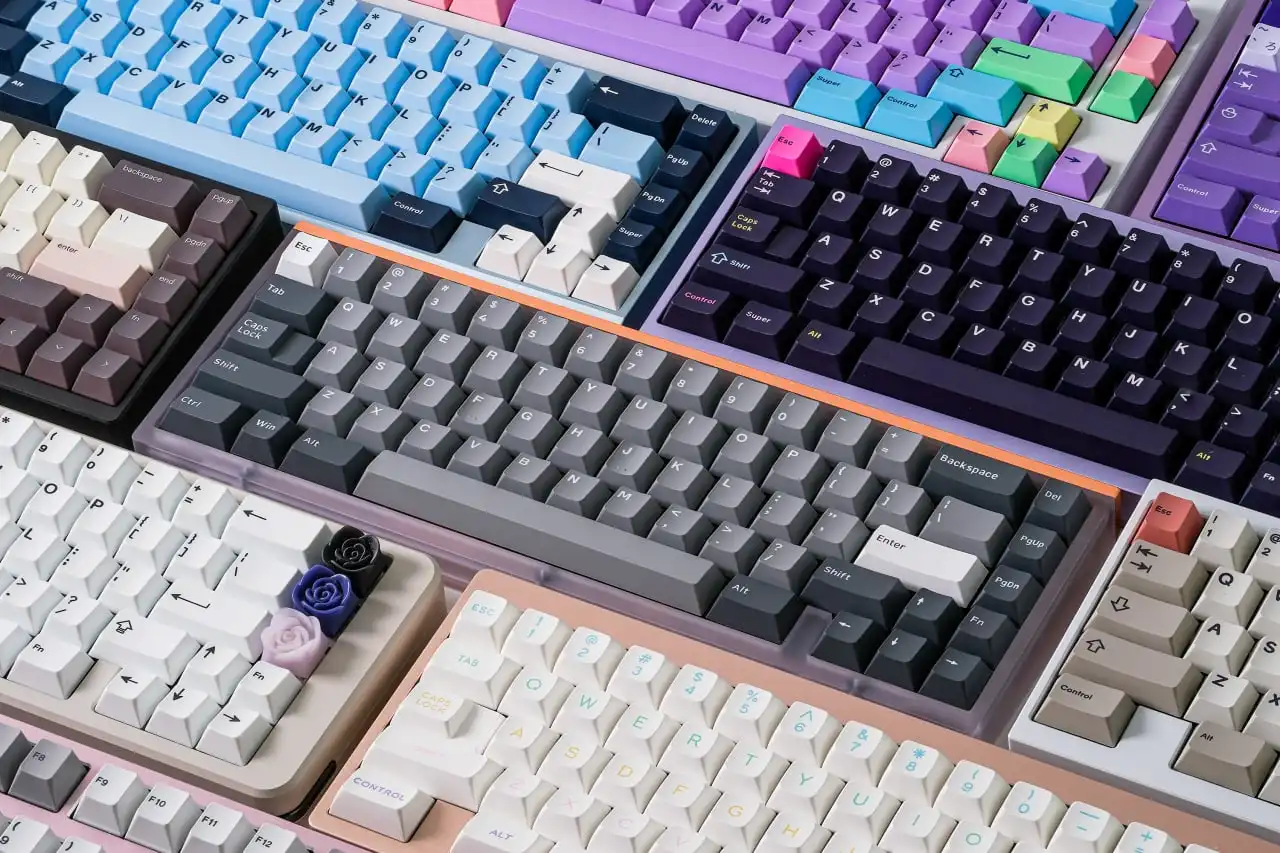
Profile sets the shape and height. Cherry is the most popular, sculpted and low, and a solid pick for gaming because your fingers stretch less. OEM is slightly taller and common on prebuilt boards. SA is tall and spherical, and DSA is flat and uniform. Keycaps are sold separately from most kits, so check your layout and bottom row, and note that boards with north-facing LEDs may not support Cherry profile.
Pick a Layout That Fits Your Desk
Layouts run from 60% up to full size. If you want a board that is small but still keeps the arrow keys, 65% is the most popular choice. A TKL or 75% layout is a good first build if you want room to grow. Our best 60 percent keyboards for Fortnite guide shows what a compact board looks like in practice. Check that your keycap set covers your layout before you buy, and ask the kit seller if you are unsure.
Keep Your First Build Simple
A hot-swap PCB, an aluminum or FR4 plate and a set of pre-lubed or lubed stabilizers cover almost everything a first-timer needs. Lubing your switches is optional if they come pre-lubed, but it takes a long time otherwise, so buy pre-lubed if you want to be typing sooner.
How to Build a Custom Keyboard Step by Step
Lay everything out on a clean, flat surface. Many beginners also keep tweezers, a small screwdriver and a bit of lube nearby.
- Check the PCB first. Plug the bare PCB into your computer, open VIA or VIAL and gently touch each switch contact pad with tweezers. Each pad should register as a keypress in the software.
- Prep the stabilizers. Lube the stabilizer parts before they go on the board, since it is much easier now than later. Make sure each stabilizer hook is seated properly, then attach them to the PCB or plate as your kit’s instructions show.
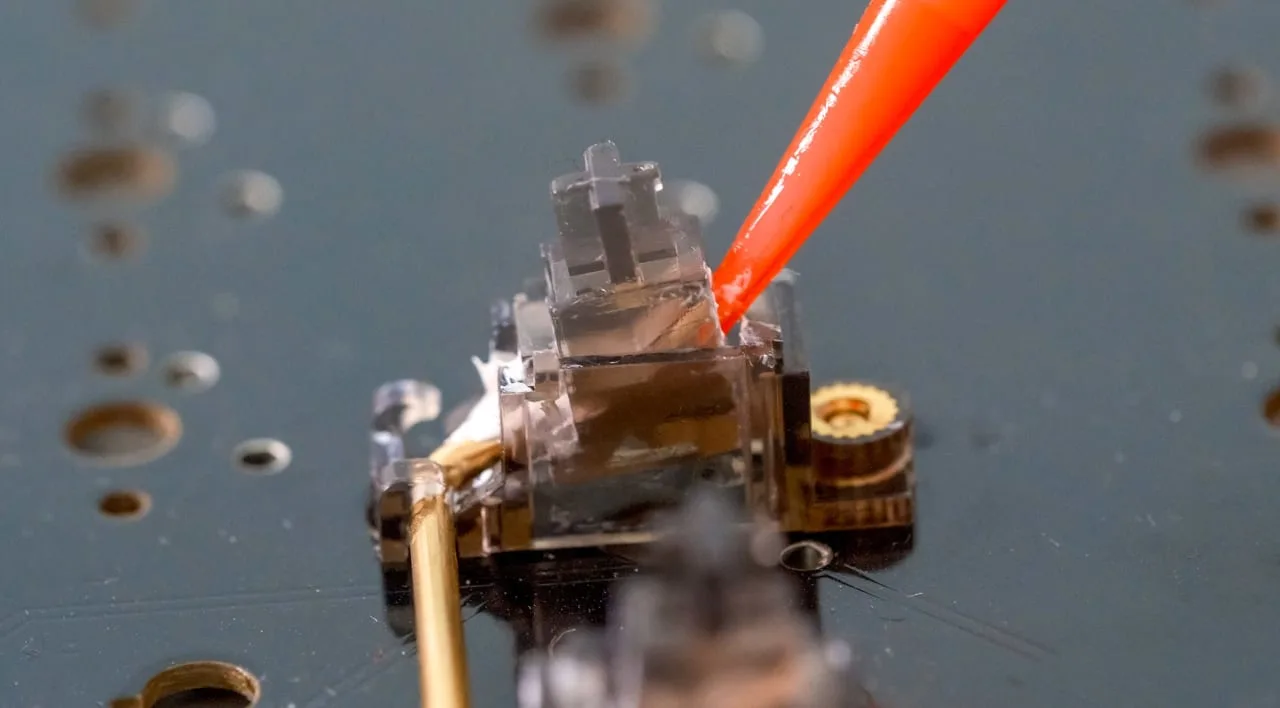
- Install the plate. Set the plate on the PCB so the switch holes line up with the sockets.
- Install the switches. Push each switch straight down into the plate until it clicks into the hot-swap socket. Do not do this with the board sitting in the case. Instead, support the PCB from underneath so the sockets are not pushed around. Start with the corners to hold the plate in place, then fill in the rest.
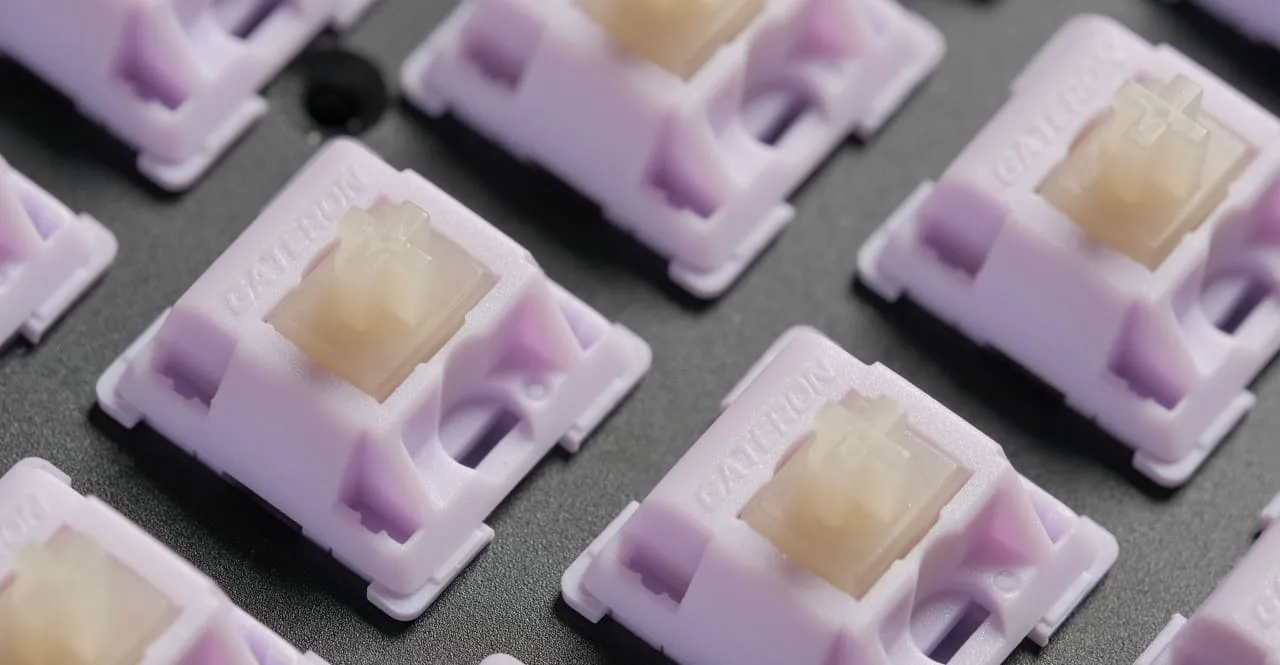
- Straighten any bent pins. If a switch does not sit flat, pull it out, straighten the bent pin with tweezers and push it back in.
- Prep the case. Add any foam or dampening your case calls for. Our keyboard foam mod guide covers what goes where.
- Put the board in the case. Seat the PCB and plate assembly into the case and secure it with the screws that came with the kit.
- Add the keycaps. Press each one down firmly onto its switch stem.
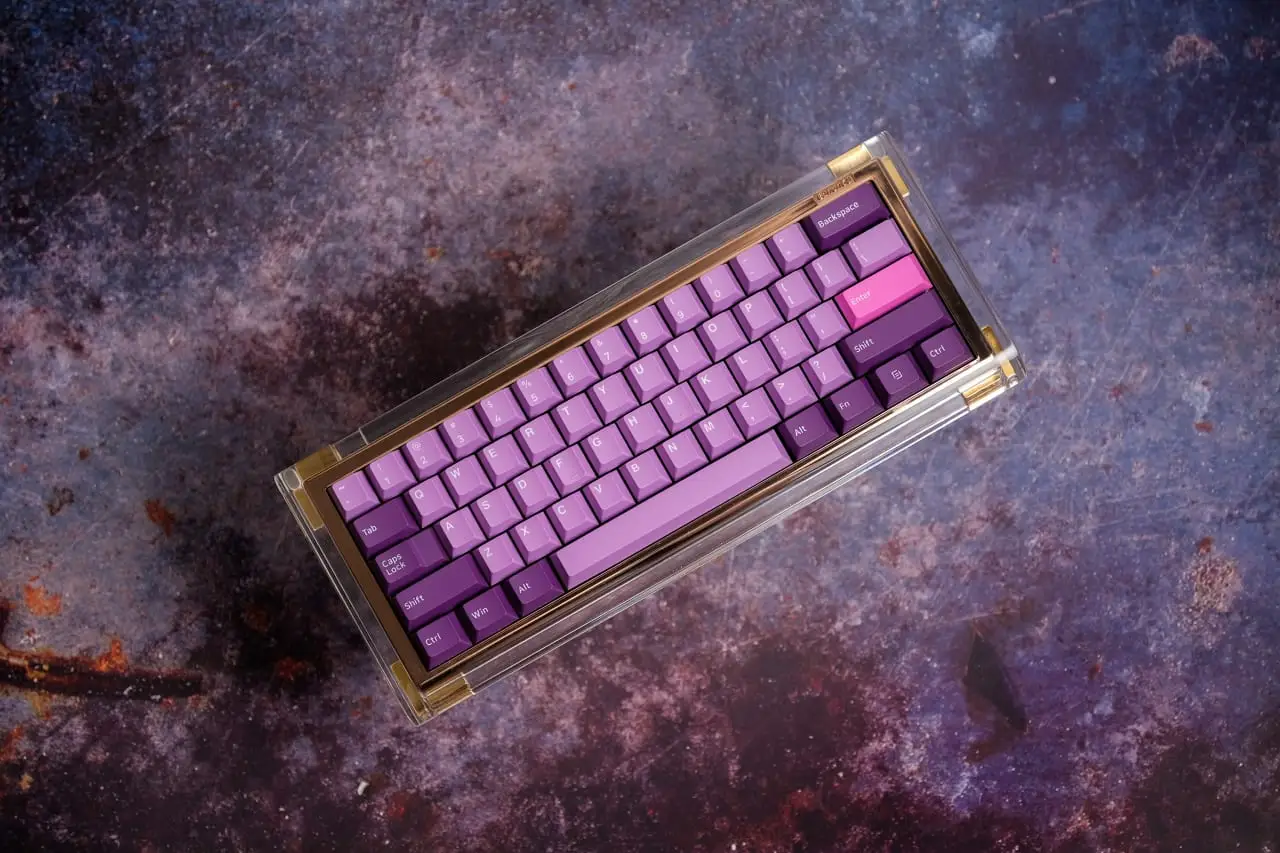
- Plug in and use it. Connect the keyboard, then remap keys in VIA or VIAL if the kit supports it.
How to Check Your Build
Spend a few minutes going over the finished board before you call it done. Check the PCB before assembly and again after the switches are in, so you can tell which step caused a fault.
- Feel: every switch should press and return smoothly, with no scratchy keys.
- Bent pins: if a key does not register or a switch sits crooked, pull it out, straighten the hot-swap pin with tweezers and push it back in.
- Stabilizer rattle: tap Shift, Enter and the space bar. Rattle usually means the stabilizers need more lube. A loose keycap stem can also cause it, and if the stabs are lubed properly but still rattle, a thin piece of plastic can close a loose stem gap. Before final assembly you can also place a switch between the stabilizers, add a keycap and listen.
- Key registration: open the key tester in VIA or VIAL, or any online key tester, and press every key to confirm each one works.
How to Tune the Sound of Your Custom Keyboard
A board can sound hollow or too quiet straight from the build. A hollow sound can often be tamed with PolyFil, which is light and reduces resonance inside the case, or with poron foam, which mutes the overall sound. A small amount of PolyFil under the PCB is enough. Different keycap materials and profiles also change how loud the board is, and a louder switch such as a long-pole linear adds volume.
If the board is too quiet, one or two layers of painter’s tape on the back of the PCB is another cheap option. It can be undone, but it tends to make boards sound alike, so you can learn the details in our tape mod guide. On a gasket-mount board you can remove a gasket, and on a top mount you can skip the screw near the space bar to change the sound. For more ideas once your board is running, see our list of mechanical keyboard mods.