

The default setup is the weakest part of playing Fortnite on a controller, and a few minutes in the menus changes how every fight feels. The best controller settings for Fortnite share one idea: slow, steady aim for gunfights, and a faster camera for building and editing. This guide walks through each group in the order you will find them in Settings, with a starting value for each one and the reason it works, so you can adjust from a sensible base instead of guessing.
Best Controller Settings for Fortnite: Sensitivity, Deadzone and Layout
GameCuki is reader-supported. When you buy through links on our site, we may earn an affiliate commission at no extra cost to you. As an Amazon Associate I earn from qualifying purchases. Learn more.
Table of Contents
- Controllers That Work Well With These Fortnite Controller Settings
- Where to Find the Fortnite Controller Settings
- Best Fortnite Game Settings for Controller Players
- Controller Input Settings
- Best Sensitivity Settings for Fortnite on Controller
- Fortnite Controller Deadzone Settings
- Best Button Layout for Fortnite Controller
- Final Thoughts on the Best Controller Settings for Fortnite
Controllers That Work Well With These Fortnite Controller Settings

Xbox Wireless Controller (Carbon Black)
Textured grips on the triggers, bumpers and back case, plus button remapping in the Xbox Accessories app, which is handy if you move edit off the stick click.
Check Price on Amazon
Xbox Elite Series 2 Core
Adjustable-tension thumbsticks, shorter hair trigger locks and three on-controller profiles, with extra components sold separately.
Check Price on Amazon
Flydigi Vader 5 Pro
Four detachable rear buttons plus fixed rear buttons for edit and build binds, and Hall effect sticks with adjustable tension. It is aimed at PC, Switch and Android rather than Xbox or PlayStation consoles.
Check Price on Amazon*NEW* Best Controller Settings + Sensitivity For Fortnite Chapter 7 (PS4/PS5/XBOX/PC)
Where to Find the Fortnite Controller Settings
Open Fortnite, select the menu icon, then Settings. Most of what follows sits in the controller settings tab, and a few quality-of-life toggles live in the Game tab. These settings work on every controller. The one exception is a controller with back paddles, which may need extra binding, covered in the layout section below.
Treat every number here as a starting point. Hands, thumbs and playstyle differ, so change one value at a time, play a few matches, then keep or revert it.
Best Fortnite Game Settings for Controller Players
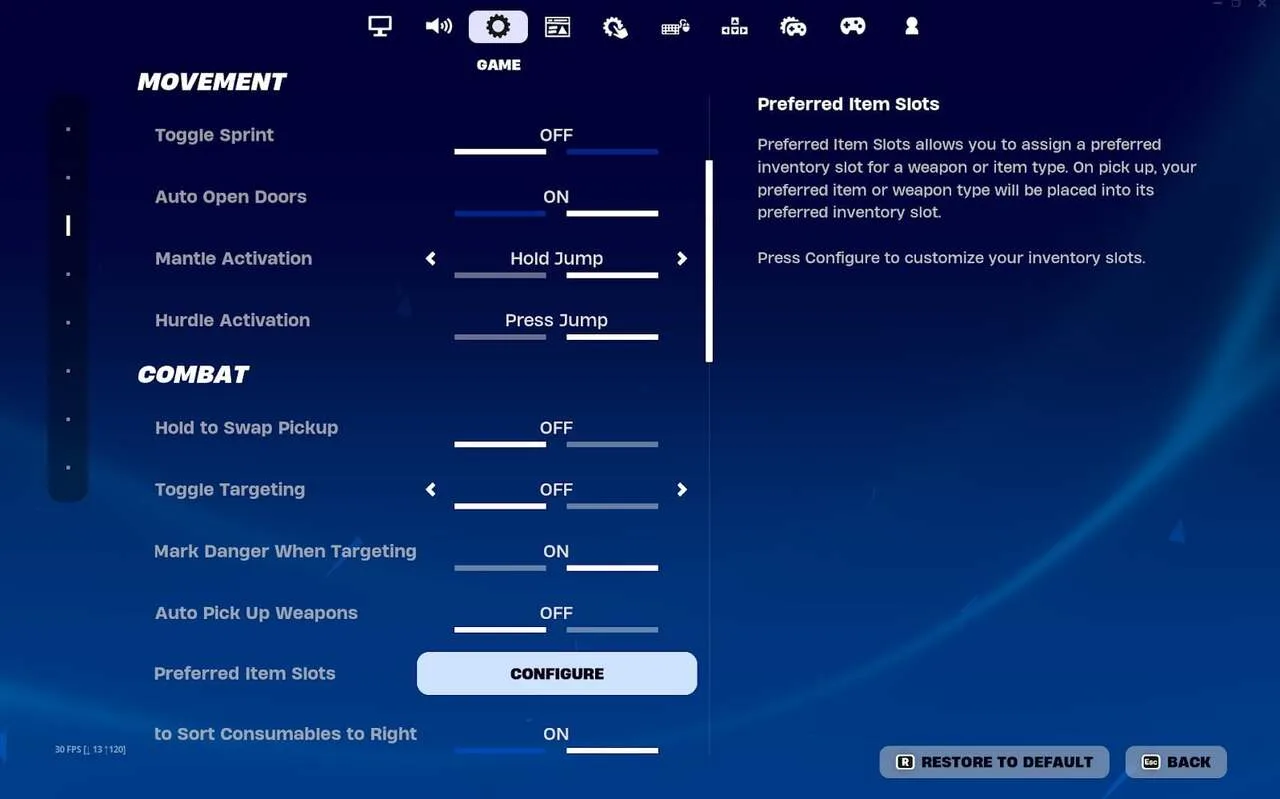
These are in the Game tab. They are not controller-only, but they remove friction that hurts controller players most.
Movement
| Setting | Recommended | Why |
|---|---|---|
| Toggle Sprint | Off | Pairs with Controller Auto-Run below, so sprinting needs no extra input. |
| Auto-Open Doors | Off | Stops doors from opening when you do not want them to. |
| Mantle Activation | Hold Jump | Prevents accidental mantles in the middle of a build fight. |
Combat
| Setting | Recommended | Why |
|---|---|---|
| Hold To Swap Pickup | Off | A tap picks up items instead of requiring a hold. |
| Toggle Targeting | Off | You aim only while the trigger is held, which gives more control. |
| Mark Danger When Targeting | On | Pings the enemy for your squad as you aim. |
| Auto Pick-Up Weapons | Off | Avoids swapping a weapon you meant to keep. |
| Preferred Item Slots | Personal preference | See the item slot table later in this guide. |
| Auto Sort Consumables to Right | Off | Keeps your slot order predictable. |
Building
| Setting | Recommended | Why |
|---|---|---|
| Reset Build Choice | Off | Remembers the last piece you used. |
| Disable Pre-Edit Option | Off | Lets you pre-edit a piece before placing it. |
| Turbo Building | On | Lets you hold the button to place pieces quickly. |
| Confirm Edit On Release | On | Confirms the edit as soon as you let go, which speeds up editing. |
Controller Input Settings
This group controls how the buttons behave. Defaults here are slow for building, so these changes pay off quickly.
| Setting | Recommended | Why |
|---|---|---|
| Controller Auto-Run | On | You sprint by pushing the left stick, which frees the stick click for another job such as edit. |
| Build Immediately (Builder Pro) | On | Places the piece the moment you select it, so walls and ramps go down in one input. |
| Edit Hold Time | 0.100 seconds | A short hold opens edit mode fast but still avoids accidental edits. |
| Slide Hold Time | 0.150 seconds | Makes sliding quick without triggering it by mistake. |
| Vibration | Off | Rumble can nudge your thumbs off target while aiming. |
Best Sensitivity Settings for Fortnite on Controller
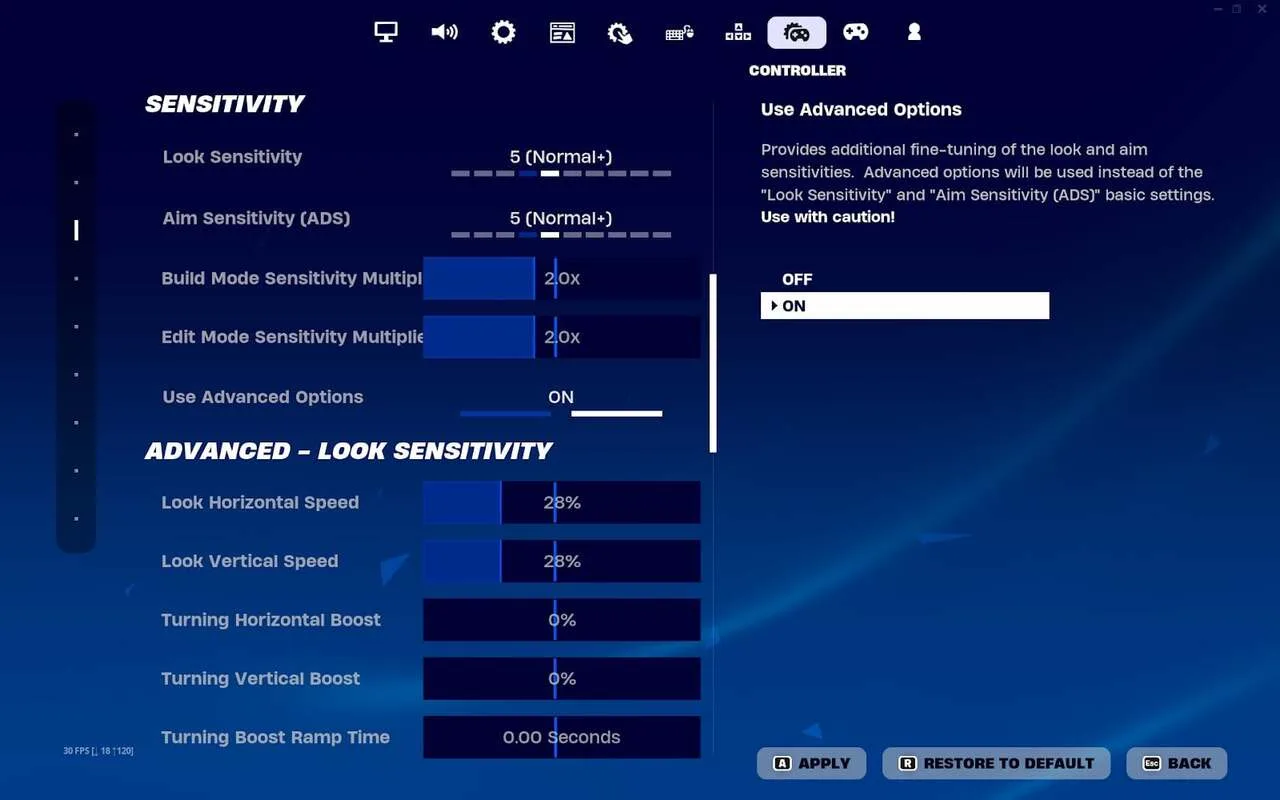
Sensitivity is the setting that shapes your aim, your building and your editing, and it also changes how aim assist feels. The usual approach is a lowish look sensitivity with a higher multiplier in build and edit modes. That keeps gunfights steady while still letting you build and edit fast.
Basic Sensitivity
| Setting | Starting value | Why |
|---|---|---|
| Look Sensitivity | 4 to 6 | Mid-range turning, fast enough to track a moving player and slow enough to stay on target. Raise it if the camera feels sluggish, lower it if it feels twitchy. |
| Aim Sensitivity (ADS) | 4 | A lower value while aiming down sights steadies long-range shots. |
| Build Mode Sensitivity Multiplier | 2.0x to 2.2x | Multiplies your look speed while building, so you can turn quickly between pieces. |
| Edit Mode Sensitivity Multiplier | 2.0x to 2.3x | Faster movement over the edit grid, so you can select tiles precisely and quickly. |
| Use Advanced Options | On | Switches to the finer controls below. When it is on, the basic Look Sensitivity number is not used. |
Advanced Look Sensitivity
| Setting | Starting value | Why |
|---|---|---|
| Look Horizontal Speed | 40% to 60% | A middle range you can nudge up or down in small steps. |
| Look Vertical Speed | 40% to 60% | Keeping it close to horizontal speed makes your aim feel even. |
| Turning Horizontal Boost | 0% | Removes the extra speed-up when you hold the stick to the edge, which makes flicks more predictable. |
| Turning Vertical Boost | 0% | Same reason, for the vertical axis. |
| Turning Boost Ramp Time | 0.00 seconds | No ramp, so speed does not change over time. |
| Instant Boost When Building | Off | Keeps your building speed tied to the multipliers above. |
Advanced ADS Sensitivity
| Setting | Starting value | Why |
|---|---|---|
| ADS Look Horizontal Speed | 15% to 17% | Slow aiming down sights makes small corrections easier at range. |
| ADS Look Vertical Speed | 15% to 17% | Matches the horizontal value for consistent tracking. |
| ADS Turning Horizontal Boost | 0% | No extra speed-up while scoped or aiming. |
| ADS Turning Vertical Boost | 0% | Same reason, vertical. |
| ADS Turning Boost Ramp Time | 0.00 seconds | Keeps ADS speed constant. |
Look Curve, Dampening and Aim Assist
| Setting | Starting value | Why |
|---|---|---|
| Look Dampening Curve | 0.20 seconds | Smooths out sudden stick movement. Drop it to 0.10 seconds if you want a snappier feel. |
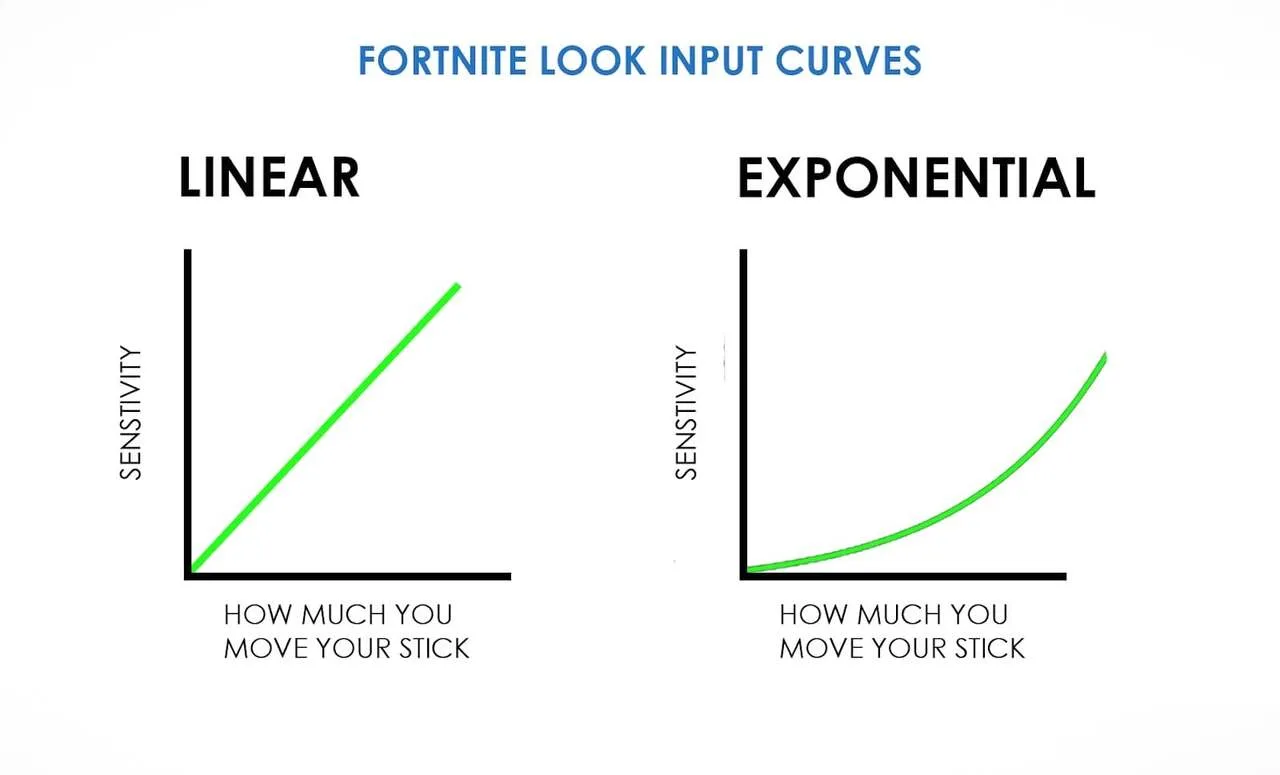
| Look Input Curve | Exponential | Small stick movements stay precise and big ones turn faster. See the comparison below. |
| Aim Assist Strength | 100% | Aim assist is built for controller players, and full strength gives the most help in close, chaotic fights. |
Linear or Exponential Look Curve
Linear turns at a constant rate no matter how far you push the stick, a bit like playing a mouse with acceleration off. It reacts quickly and works well up close, but it is harder to control at distance because the speed never eases down. Exponential turns faster the further you push, so small nudges stay precise for long-range shots. The trade-off is that building and editing can feel slower, which is why the build and edit multipliers above are set higher.
Exponential is the better starting point for most players, and you can switch to Linear if you win most of your fights up close or find the ramp-up hard to learn. In Zero Build you can lean the other way, with look sensitivity at roughly 7 or 8 and a Linear curve, since there is no building to offset.
Fortnite Controller Deadzone Settings
The deadzone is the small circle at the center of each stick that the game ignores. A bigger deadzone means you must push further before anything happens, so keep it as low as you can. Raise it only if your stick drifts and moves the camera on its own.
| Setting | Starting value | Why |
|---|---|---|
| Left Stick Deadzone | 5% | Small enough for responsive movement, with a little margin for stick wear. |
| Right Stick Deadzone | 5% | Gives the quickest aim response. If the camera creeps, try 6% to 8%. |
If a controller needs a deadzone much higher than that just to stay still, the sticks are likely worn, and a replacement can be a better fix than a bigger deadzone. The Foot Controller options in the same menu can stay at default unless you actually use a foot pedal.
Best Button Layout for Fortnite Controller
Fortnite offers several layout presets, and Builder Pro is the one to start with. It gives each building action its own button, and with Build Immediately turned on you can place pieces quickly. Then customize from there.
- Standard grip: Move edit to the left stick click (L3 or LS). With Controller Auto-Run on, you never need that click to sprint, and your right thumb stays on the aim stick, so you can shoot right after an edit.
- Claw grip: With a claw grip, edit works well on the right face button (B or Circle) or the top one (Y or Triangle), since your index finger can reach them while your thumb stays on the stick.
- Back paddles: If your controller has them, bind edit and your most-used build pieces to the back, so your thumbs never leave the sticks. This is where a paddle controller earns its price.
Preferred Item Slots
Preferred Item Slots decide where Fortnite puts each weapon you pick up, so your hand always knows where things are. A common arrangement puts the shotgun first. When you switch from the pickaxe or a build piece, the game then goes back to the first slot, which means your shotgun is ready.
| Slot | Suggested item |
|---|---|
| Slot 1 | Shotgun |
| Slot 2 | Sniper rifle or SMG |
| Slot 3 | Consumables |
| Slot 4 | Explosives or deployable items |
| Slot 5 | Assault rifle |
Final Thoughts on the Best Controller Settings for Fortnite
The best controller settings for Fortnite are the ones you can repeat without thinking, and the values above are a solid base. If you build a lot, keep the build and edit multipliers high, Builder Pro on and edit on a comfortable button. If you mostly fight in Zero Build, leave the multipliers alone and spend your time tuning look and ADS speed and the curve. Change one setting per session, and if you play on PC as well, our picks for the best gaming mouse for Fortnite, the best 60 percent keyboard for Fortnite and the best gaming monitor for Fortnite cover the rest of that setup.