GameCuki is reader-supported. When you buy through links on our site, we may earn an affiliate commission at no extra cost to you. As an Amazon Associate I earn from qualifying purchases. Learn more.
GameCuki VerdictRecommended
What Our Verdicts Mean
GameCuki Top PickThe best option in its class, with no serious, repeated problems.
RecommendedA good buy for most people. Weaknesses are minor or only matter to some players.
Buy With CaveatsRight for a specific kind of player only, because of a significant drawback.
Skip ItNot recommended. A better option exists at a similar price.
The Bottom LineA wireless 75% Hall Effect board with adjustable actuation, Rapid Trigger and a genuinely premium feel, held back by a narrow switch pool and the lack of a volume knob.
Gateron double-rail magnetic switches feel smooth and stable out of the box
Actuation adjustable per key from 0.2 to 3.8 mm in 0.1 mm steps, with Rapid Trigger and Dynamic Keystrokes
2.4 GHz at 1000 Hz, Bluetooth for up to three devices and a USB-C wired mode
Browser-based Keychron Launcher, nothing to install
Wood side frames and a heavy build that stays put on a desk
Battery lasts well over a week of mixed use
Cons
Only Gateron double-rail magnetic switches fit, so regular mechanical switches will not work
No volume knob
Bluetooth polls at only 125 Hz, so use the dongle or cable for games
Keychron K2 HE Specs
Layout
75%
Switches
Gateron double-rail magnetic (Hall Effect), hot-swappable with compatible switches only
Actuation
0.2 to 3.8 mm, 0.1 mm sensitivity
Rapid Trigger
Yes
Connectivity
2.4 GHz, Bluetooth, USB-C
Polling rate
1000 Hz (2.4 GHz and wired), 125 Hz (Bluetooth)
Battery
4000 mAh
Keycaps
Double-shot PBT (OSA in Special Edition, Cherry profile shine-through in Standard)
Software
Keychron Launcher (web app), QMK
Weight
965 g (2.13 lb)
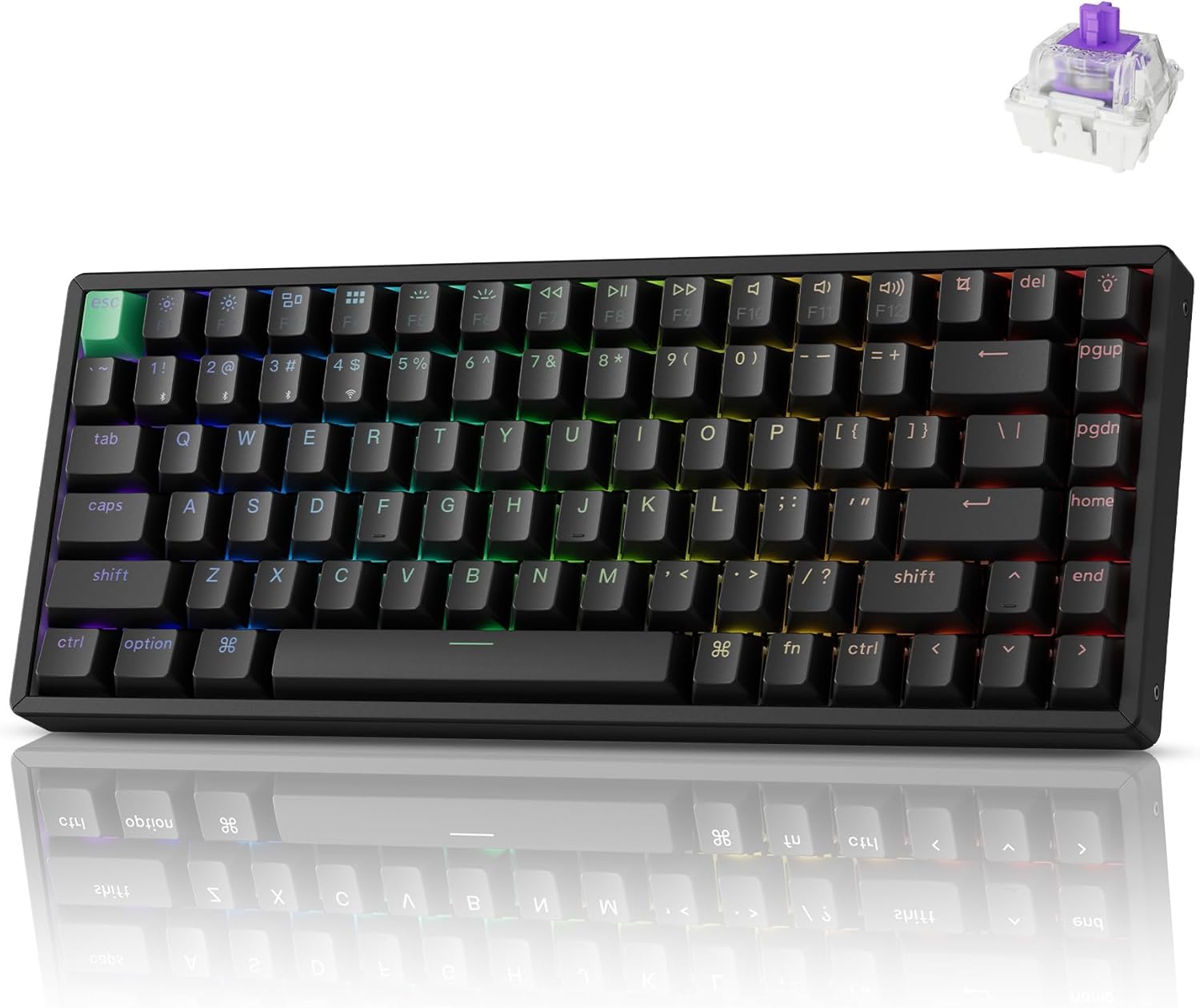
If you have been eyeing a Hall Effect keyboard but do not want it to look like a gaming rig, this Keychron K2 HE review is for you. The K2 HE takes the compact layout Keychron fans know from the original K2 and swaps in magnetic switches, so every key can have its own actuation point and Rapid Trigger setting. It also ships in a Special Edition with wood side frames that make it look more like desk furniture than an esports peripheral. Below we cover the design, the switches, the software and the wireless modes, and who should look at the rivals in our best 75% gaming keyboards list instead.
Design and Build: Wood, Metal and a Planted Feel
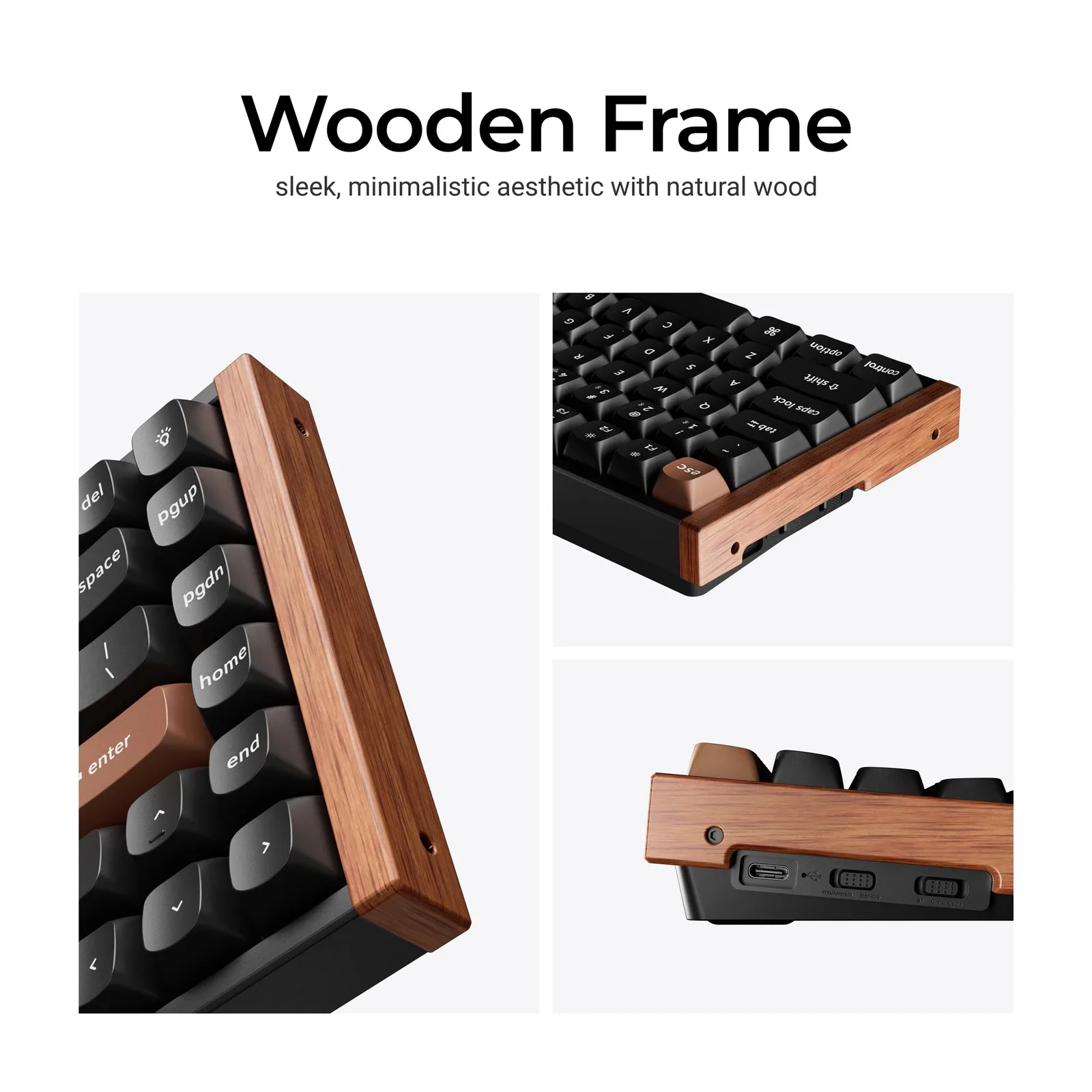
The Special Edition adds solid wood side frames, and the USB-C port and switches sit on the left edge. (Image: Keychron)
The K2 HE comes in two editions. The Special Edition has an aluminum and wood frame with rounded OSA-profile keycaps that are not shine-through, and it comes in white or black. The Standard Edition drops the wood and uses shine-through Cherry-profile keycaps, which lets the RGB backlight show through the legends. Which one you pick is mostly a question of looks, since the switches, software and wireless hardware are shared.
At about 2.13 lb (965 g) the board feels planted, and the rubber pads and weight keep it from sliding around. The main body is plastic under the metal rails and wood, which helps wireless signal but means this is not an all-aluminum board. Two-level flip-up feet adjust the rear height, and the screw-in stabilizers keep the larger keys from rattling. Nearly all the controls live on the left edge: a USB-C port, a Windows/Android and macOS toggle, and a switch for 2.4 GHz, wired or Bluetooth. The box includes a braided cable, the dongle with an extender, spare keycaps for Windows or Mac, a keycap and switch puller and the tools to remove the side panels.
Magnetic Switches and Typing Feel: Smooth Linears, Limited Choice
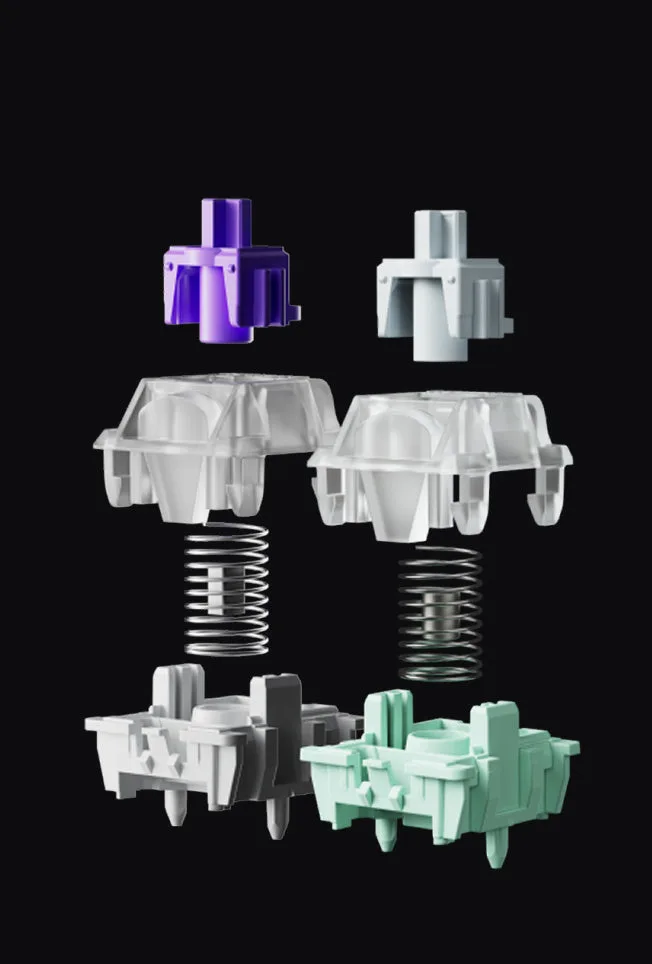
Gateron’s double-rail magnetic switch uses two rails to keep the stem steady as it travels. (Image: Keychron)
The K2 HE uses pre-lubed Gateron double-rail magnetic switches. They are linear, and the two plastic rails hold the top of the stem steady, which keeps keys from wobbling side to side. Combined with the foam inside the case and the PCB-mounted stabilizers, the result is a very smooth linear feel with a thocky, substantial sound.
The catch is the switch pool. The K2 HE is hot-swappable, but only with Gateron’s double-rail magnetic switches, and the lineup of compatible options has been thin. Regular mechanical switches will not work, and neither will every Hall Effect switch on the market. If you like clicky or tactile switches, you cannot drop them in here, and that is the single biggest reason to skip this board.
Gaming Features: Adjustable Actuation, Rapid Trigger and Dynamic Keystrokes
The reason to buy a magnetic keyboard is control, and the K2 HE delivers it. Actuation can be set per key from 0.2 mm to 3.8 mm in 0.1 mm steps. Rapid Trigger resets a key the moment it starts to rise, which helps with quick counter-strafing and repeated taps in shooters. Dynamic Keystrokes let a single key trigger up to four different actions depending on how far you press it.
Polling is 1000 Hz over the 2.4 GHz dongle and over USB-C, which is what you want for competitive play. For a keyboard that also doubles as a work board, that is a strong combination. The feel works across genres, including strategy games and slower single-player titles, so it does not have to be a shooters-only purchase. If you want to compare it against other compact magnetic boards, our best gaming keyboards for small hands list covers several.
Keychron Launcher: Customization in a Browser Tab
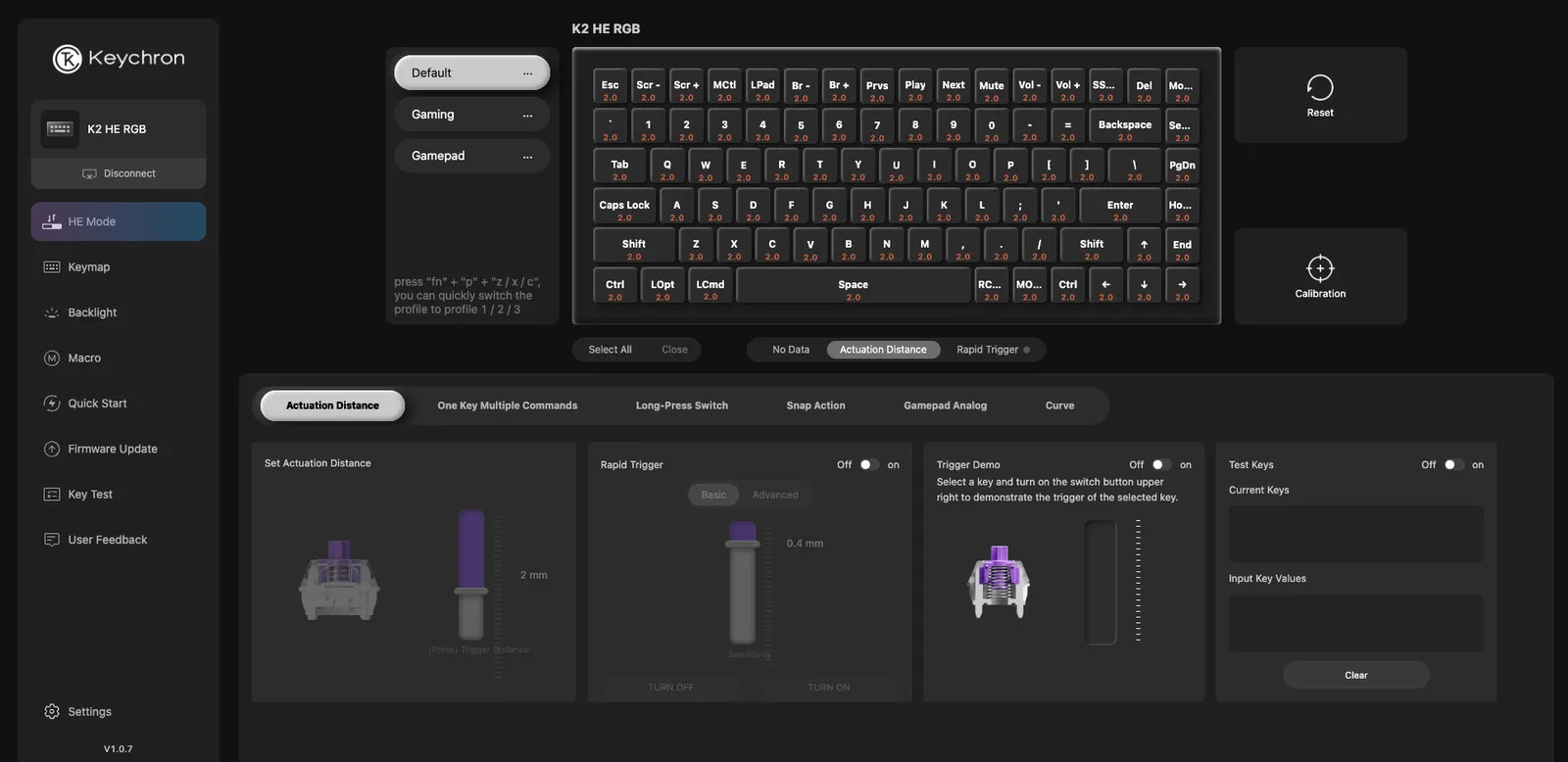
The HE Mode tab in Keychron Launcher sets actuation distance, Rapid Trigger and the other magnetic-switch options. (Image: Keychron)
There is no desktop program to install. Keychron Launcher is a web app, so you open it in a compatible browser, plug the keyboard in over USB, and remap keys, record macros, set the backlight and tune the magnetic switch options. The HE Mode tab holds actuation distance, Rapid Trigger, Snap Action and Dynamic Keystrokes, and the keyboard stores three profiles on board. Changes apply right away, with no save button to hunt for.
There are limits. The multi-action feature works with standard keys and macros, but it does not work with media controls, so you cannot put a light press on volume up and a full press on volume down. The function row has media keys, but there is no knob, and many people will miss one. Lighting presets are plentiful, though the Special Edition’s solid keycaps hold back how much of the glow escapes.
Wireless and Battery: Three Modes, Over a Week of Use
The K2 HE connects over a 2.4 GHz dongle, Bluetooth with up to three paired devices, or a USB-C cable. Bluetooth polls at only 125 Hz, so keep it for a laptop or tablet and use the dongle or the cable for games. The 4000 mAh battery runs for well over a week of work and gaming with the backlight on part of the time, and longer with it off. The keyboard works with Windows, macOS and Linux.
Is the Keychron K2 HE Worth It?
Keychron K2 HE
GameCuki VerdictRecommended
What Our Verdicts Mean
GameCuki Top PickThe best option in its class, with no serious, repeated problems.
RecommendedA good buy for most people. Weaknesses are minor or only matter to some players.
Buy With CaveatsRight for a specific kind of player only, because of a significant drawback.
Skip ItNot recommended. A better option exists at a similar price.
The Keychron K2 HE is worth it if you want a wireless 75% keyboard with real Hall Effect features and a typing feel that holds up for work as well as play. The Special Edition's wood and OSA keycaps add a distinctive look, and the Standard Edition suits anyone who wants brighter RGB. Skip it if you want to use regular mechanical switches, need a volume knob, or would rather spend less on a cheaper magnetic board.
I'm Fraser, and I write the reviews on GameCuki. That covers consoles and handhelds, PC gaming hardware, controllers, headsets and accessories, from big purchases like gaming laptops to small add-ons like screen protectors and grips. I build each review from the manufacturer's specs, professional reviews and verified owner feedback, and I check long-term issues like comfort, battery life and durability against several sources before they make it into the pros and cons. Every review ends with who the product is for and who should skip it. I don't accept free products or paid placements, and what I write comes from research, not my own use of the products. You can read my full process on our How We Review page.