

Your Xbox Series X can output up to 4K at 120 Hz, but a stream or YouTube recording still needs a box between the console and your TV or monitor. Choosing the best capture card for Xbox Series X mostly comes down to three questions: how sharp the capture needs to be, whether you prefer a USB box or a card inside your PC, and whether your display relies on VRR. The seven cards below cover each of those setups, and every one of them also works with the Series S.
Best Capture Card for Xbox Series X in 2026
GameCuki is reader-supported. When you buy through links on our site, we may earn an affiliate commission at no extra cost to you. As an Amazon Associate I earn from qualifying purchases. Learn more.
Our Top Picks

Best for Xbox 4K120 Setups
Elgato 4K X
Bottom line: An HDMI 2.1 USB box that passes VRR through and captures up to 4K144, built for Series X owners who play at high refresh rates and want recordings to match.
- Captures true 4K or 1440p at up to 144 fps, above anything the Series X outputs
- Records 1080p at up to 240 fps
- VRR and ALLM pass through to your display
- HDMI 2.1 in and out matches the console's output
- Plug and play, with no drivers to install
- Works with OBS, Streamlabs, Twitch Studio and Restream
- 3.5 mm line-in can carry party chat with Elgato's Chat Link Pro cable
- Runs on Windows, Mac and iPad
- Needs a fast USB 3.2 Gen 2 port to run at full speed
- 4K120 passthrough is limited on monitors that use Display Stream Compression
- Costs noticeably more than the 1080p60 boxes in this list

Best for 1080p60 Streaming
Elgato HD60 X
Bottom line: A compact USB box with HDR10 and VRR passthrough that streams 1080p60 cleanly, the straightforward choice for a Series X streamer on a laptop or PC.
- Passes HDR10 and VRR through to your display
- 4K60 HDR10 passthrough while you capture 1080p60
- Captures 4K30 when you want sharper footage
- Driverless setup on Windows and Mac
- Works with OBS, Streamlabs, vMix, Zoom and Microsoft Teams
- Streams to YouTube, Twitch and Facebook Gaming
- No watermarks, time limits or subscriptions
- Small enough to leave on a desk
- Elgato's own capture software is not the strongest, so most players use OBS instead
- Needs a computer, so it cannot stream on its own
- 4K capture is limited to 30 fps

Best for Xbox and Mac or iPad
Elgato Game Capture 4K S
Bottom line: A compact 4K60 USB-C box that names the Xbox Series X and S as supported sources and runs on Windows, Mac and iPad, ideal when your streaming computer is not a Windows tower.
- 4K60 capture over one USB-C cable
- Plays and captures 1440p120 or 1080p240
- Passes 4K60 HDR10 through to your display
- VRR and ALLM pass through
- Tone mapping brings HDR content into recordings on Windows
- 3.5 mm analog input for in-game chat or commentary
- Works on Windows, Mac and iPad
- Passthrough stops at 4K60, below the Series X's 4K120 mode
- HDR capture on Windows is limited to 1080p60
- Costs more than a basic 1080p60 box

Best for Getting Started
Elgato Game Capture Neo
Bottom line: A pocket-size USB box that passes 4K60 HDR through and captures 1080p60, the simplest way to start recording or streaming a Series X.
- Passes 4K60 HDR through without lowering the console's resolution
- Captures and streams 1080p60
- Small enough to carry anywhere
- Records from PlayStation, Xbox, Switch or any HDMI console
- No time limits, watermarks or subscriptions
- Low latency for a responsive preview
- Works with Elgato software, OBS Studio, Discord, Zoom and Microsoft Teams
- Connects to a computer or an iPad
- Capture tops out at 1080p60, so there is no 4K footage
- Passthrough is 4K60, which leaves the Series X's 120 Hz modes unused
Best Internal Card for Xbox
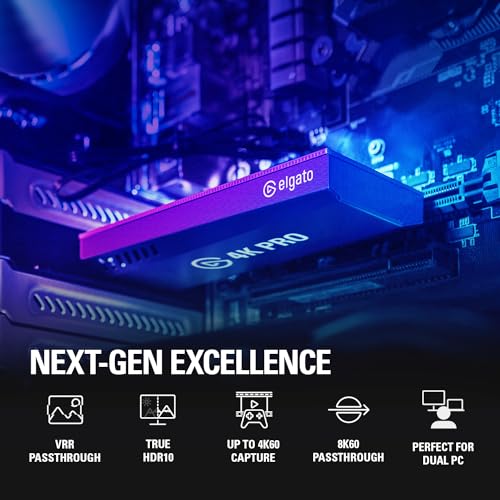
Elgato Game Capture 4K Pro
Bottom line: An internal PCIe card with 4K60 HDR10 capture, 8K60 passthrough and VRR, the cleanest choice for a Series X on a desktop streaming PC.
- 4K60 HDR10 capture by default
- Highest SDR capture of Elgato's three Xbox cards, up to 4K120
- Passthrough up to 8K60 HDR10 leaves room for future displays
- VRR and ALLM pass through
- Records 1080p at up to 240 fps
- Onboard tone mapping converts HDR gameplay for SDR recordings
- No USB cable or extra box on the desk
- Ultra-low latency
- Needs a desktop PC with an open PCIe slot, so it cannot be used with a laptop
- Windows only
- More card than a 1080p60 stream requires

Best for Xbox Party Chat
AVerMedia Live Gamer Ultra 2.1
Bottom line: HDMI 2.1 passthrough, up to 4K144 capture on Windows and two headset-ready audio ports make it the most complete way to put Xbox party chat on stream.
- Dual 3.5 mm four-pole ports capture headset and gamepad audio for party chat
- Passes HDR and VRR through at up to 4K144
- Captures 4K144 on Windows, 4K60 on macOS
- 5.1-channel audio support on compatible Windows setups
- Passes 1440p240 or 1080p360 on compatible displays
- Lists Xbox Series X and S as supported consoles
- Works with OBS through the AVerMedia plugin or Streaming Center
- 10 Gbps USB-C link
- Monitors that use DSC may limit 4K passthrough to 4K120
- Capture on macOS is limited to 4K60
- Costs more than the 1080p60 boxes
Best Lower-Cost Internal Card
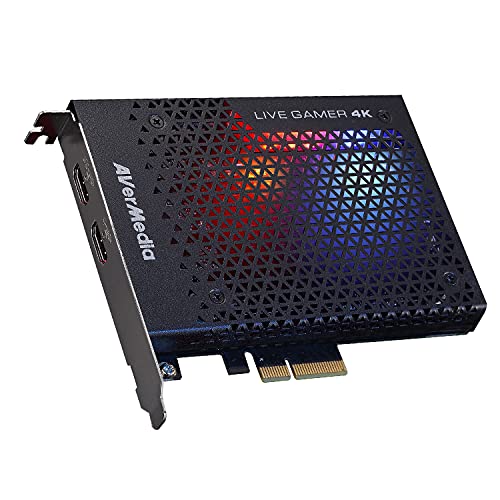
AVerMedia Live Gamer 4K (GC573)
Bottom line: A long-running internal card that captures 4K60 HDR10 with zero-lag passthrough, a solid way to get PCIe quality for a Series X without the newest flagship.
- 4K60 HDR10 capture for the Xbox Series X and S
- Zero-lag passthrough to your display
- Capture at up to 240 fps at lower resolutions
- Works with OBS, Streamlabs and XSplit
- AVerMedia Gaming Utility lets you pick the resolutions and frame rates you preview and record
- Three RGB lighting presets
- Leaves your USB ports free
- Passthrough stops at 4K60, so the Series X's 120 Hz modes are not passed to your display
- Desktop PC and Windows only
Table of Contents
What to Look for in a Capture Card for Xbox Series X
The Series X and Series S send a signal over HDMI 2.1 that can reach 4K120, so the first spec to check is passthrough, which is what your TV or monitor receives while you play. Capture is a separate number: it is what lands in your recording or stream. Many cards pass 4K60 or higher to your screen while capturing 1080p60, and that pairing is a sensible target for a first setup.
Two details matter more on Xbox than the headline resolution. The console outputs HDR10, so a card with HDR10 passthrough keeps your display looking the way it does without a card in the chain. And if your screen uses VRR, pick a card that passes VRR through, otherwise screen tearing can come back the moment you plug it in.
Setup is simpler than on PlayStation. Xbox does not enforce HDCP on games, so there is no toggle to turn off for most content, which removes the most common black-screen fix on other consoles. Connect the console to the card’s HDMI In port, run a second HDMI cable from the card’s HDMI Out to your display, then plug the card into your computer over USB-C. If the picture looks wrong, check the resolution and refresh rate under Settings > General > TV & display options. Streaming from a PS5 as well? Our guide to the best capture card for PS5 streaming covers that console’s HDCP quirk, and the best capture card for Nintendo Switch 2 does the same for Nintendo’s dock output.
Best Capture Card for Xbox Series X: Our Picks in Detail
1
Best for Xbox 4K120 Setups
Elgato 4K X
Bottom line: An HDMI 2.1 USB box that passes VRR through and captures up to 4K144, built for Series X owners who play at high refresh rates and want recordings to match.
Most Xbox capture setups are built around 1080p60. The 4K X is the card for players who want to keep the console at its higher refresh rates and still capture the result.
Pros & Cons
Pros
- Captures true 4K or 1440p at up to 144 fps, above anything the Series X outputs
- Records 1080p at up to 240 fps
- VRR and ALLM pass through to your display
- HDMI 2.1 in and out matches the console's output
- Plug and play, with no drivers to install
- Works with OBS, Streamlabs, Twitch Studio and Restream
- 3.5 mm line-in can carry party chat with Elgato's Chat Link Pro cable
- Runs on Windows, Mac and iPad
Cons
- Needs a fast USB 3.2 Gen 2 port to run at full speed
- 4K120 passthrough is limited on monitors that use Display Stream Compression
- Costs noticeably more than the 1080p60 boxes in this list
Why We Picked It
Series X games that run at 120 fps are the reason this card exists. It passes the HDMI 2.1 signal to your display with VRR and ALLM intact, so the game you play looks the same with or without the card in line, and it captures at a frame rate the console cannot exceed. That headroom also makes it a card you keep if you upgrade your PC or add another source later.
Who It's For
You play shooters or racers on a Series X at 120 fps on a VRR monitor and refuse to drop to 60 just to stream. You edit on a fast PC or a recent laptop with a USB 3.2 Gen 2 port, and you want one external box that handles recordings now and a high-refresh PC later.
Specs & Configurations
- Type
- External USB 3.2 Gen 2
- Capture
- up to 4K144 or 1080p240
- Passthrough
- HDMI 2.1 with VRR and ALLM
- Works with
- Windows, macOS, iPadOS
- Audio
- 3.5 mm line-in
Get It Now
Check Price on Amazon
2
Best for 1080p60 Streaming
Elgato HD60 X
Bottom line: A compact USB box with HDR10 and VRR passthrough that streams 1080p60 cleanly, the straightforward choice for a Series X streamer on a laptop or PC.
The HD60 X is the long-standing answer to what to buy for an Xbox. It keeps the HDMI 2.1 console signal intact on the way to your screen and records the part of it that streaming platforms actually use.
Pros & Cons
Pros
- Passes HDR10 and VRR through to your display
- 4K60 HDR10 passthrough while you capture 1080p60
- Captures 4K30 when you want sharper footage
- Driverless setup on Windows and Mac
- Works with OBS, Streamlabs, vMix, Zoom and Microsoft Teams
- Streams to YouTube, Twitch and Facebook Gaming
- No watermarks, time limits or subscriptions
- Small enough to leave on a desk
Cons
- Elgato's own capture software is not the strongest, so most players use OBS instead
- Needs a computer, so it cannot stream on its own
- 4K capture is limited to 30 fps
Why We Picked It
Our priority for a first Xbox streaming card is a clean picture on your own display and a trouble-free preview. The HD60 X delivers both: HDR10 and VRR pass through, and the preview stays under about 100 ms behind, which is short enough to watch the capture window while you play. It also asks very little of the PC, since 1080p60 is a modest load.
Who It's For
You stream Series X games to Twitch or YouTube at 1080p60 and own a VRR or HDR display you do not want to downgrade. You have a laptop or desktop with OBS installed, and you would rather spend on a mic than on 4K capture you will not use on stream.
Specs & Configurations
- Type
- External USB
- Capture
- 4K30 HDR10 or 1080p60 HDR10
- Passthrough
- 4K60 HDR10, 1440p120, 1080p120 with VRR
- Latency
- sub 100 ms
- Works with
- Windows and Mac
Get It Now
Check Price on Amazon
3
Best for Xbox and Mac or iPad
Elgato Game Capture 4K S
Bottom line: A compact 4K60 USB-C box that names the Xbox Series X and S as supported sources and runs on Windows, Mac and iPad, ideal when your streaming computer is not a Windows tower.
This is the easiest 4K-capable Elgato card to travel with. One cable carries the picture to the computer, and the analog jack takes a mic or a chat feed.
Pros & Cons
Pros
- 4K60 capture over one USB-C cable
- Plays and captures 1440p120 or 1080p240
- Passes 4K60 HDR10 through to your display
- VRR and ALLM pass through
- Tone mapping brings HDR content into recordings on Windows
- 3.5 mm analog input for in-game chat or commentary
- Works on Windows, Mac and iPad
Cons
- Passthrough stops at 4K60, below the Series X's 4K120 mode
- HDR capture on Windows is limited to 1080p60
- Costs more than a basic 1080p60 box
Why We Picked It
Plenty of streamers edit and broadcast from a MacBook or an iPad, and this card behaves the same on all of them. The 4K60 capture gives you sharper recordings than the 1080p60 cards, while the HDR10 passthrough keeps what you see on your own screen intact.
Who It's For
You record Series X gameplay on a MacBook, an iPad or a Windows laptop and want 4K60 footage for YouTube. You play mostly at 60 fps, and you want a box small enough to keep in a backpack.
Specs & Configurations
- Type
- External USB-C 5 Gbps
- Capture
- 4K60 SDR
- Passthrough
- 4K60 HDR10, VRR, ALLM
- Audio
- 3.5 mm analog input
- Works with
- Windows, macOS, iPadOS
Get It Now
Check Price on Amazon
4
Best for Getting Started
Elgato Game Capture Neo
Bottom line: A pocket-size USB box that passes 4K60 HDR through and captures 1080p60, the simplest way to start recording or streaming a Series X.
The Neo is the entry point in Elgato's lineup. It does less than the cards above, but what it does is exactly what a first Xbox stream needs.
Pros & Cons
Pros
- Passes 4K60 HDR through without lowering the console's resolution
- Captures and streams 1080p60
- Small enough to carry anywhere
- Records from PlayStation, Xbox, Switch or any HDMI console
- No time limits, watermarks or subscriptions
- Low latency for a responsive preview
- Works with Elgato software, OBS Studio, Discord, Zoom and Microsoft Teams
- Connects to a computer or an iPad
Cons
- Capture tops out at 1080p60, so there is no 4K footage
- Passthrough is 4K60, which leaves the Series X's 120 Hz modes unused
Why We Picked It
A new streamer rarely needs 4K capture, and a bigger card adds cost without changing what viewers see at 1080p60. The Neo keeps the console's picture sharp on your own TV through 4K60 HDR passthrough while the stream goes out in 1080p60.
Who It's For
You are starting out on Twitch or YouTube with a Series X or Series S, a modest PC or an iPad, and a tight budget. You mainly want clips and a stable 1080p60 stream, not 4K masters.
Specs & Configurations
- Type
- External USB
- Capture
- 1080p60
- Passthrough
- 4K60 HDR
- Size
- about smartphone size
- Works with
- Elgato software, OBS Studio, QuickTime, Discord, Zoom
Get It Now
Check Price on Amazon
5
Best Internal Card for Xbox
Elgato Game Capture 4K Pro
Bottom line: An internal PCIe card with 4K60 HDR10 capture, 8K60 passthrough and VRR, the cleanest choice for a Series X on a desktop streaming PC.
A PCIe card sits inside the tower, so there is no box to place and no USB port to share. It handles everything the Series X sends and has bandwidth to spare.
Pros & Cons
Pros
- 4K60 HDR10 capture by default
- Highest SDR capture of Elgato's three Xbox cards, up to 4K120
- Passthrough up to 8K60 HDR10 leaves room for future displays
- VRR and ALLM pass through
- Records 1080p at up to 240 fps
- Onboard tone mapping converts HDR gameplay for SDR recordings
- No USB cable or extra box on the desk
- Ultra-low latency
Cons
- Needs a desktop PC with an open PCIe slot, so it cannot be used with a laptop
- Windows only
- More card than a 1080p60 stream requires
Why We Picked It
High-bitrate 4K HDR capture asks a lot of a connection, and an internal slot has the bandwidth for it. If your streaming PC is a desktop, this removes cables and gives the Series X its strongest hardware path to a recording.
Who It's For
You run a desktop streaming or editing PC with a free PCIe slot and want 4K60 HDR10 footage of Series X games. You plan to keep the same hardware for years and want the cleanest desk setup.
Specs & Configurations
- Type
- Internal PCIe 2.0 x4
- Capture
- 4K60 HDR10, up to 1080p240
- Passthrough
- HDMI 2.1 up to 8K60 HDR10, VRR and ALLM
- Works with
- Windows desktop with an open PCIe slot
Get It Now
Check Price on Amazon
6
Best for Xbox Party Chat
AVerMedia Live Gamer Ultra 2.1
Bottom line: HDMI 2.1 passthrough, up to 4K144 capture on Windows and two headset-ready audio ports make it the most complete way to put Xbox party chat on stream.
Party chat is usually the fiddly part of an Xbox stream. This AVerMedia card builds the answer into the hardware with two 3.5 mm ports for headset and controller audio.
Pros & Cons
Pros
- Dual 3.5 mm four-pole ports capture headset and gamepad audio for party chat
- Passes HDR and VRR through at up to 4K144
- Captures 4K144 on Windows, 4K60 on macOS
- 5.1-channel audio support on compatible Windows setups
- Passes 1440p240 or 1080p360 on compatible displays
- Lists Xbox Series X and S as supported consoles
- Works with OBS through the AVerMedia plugin or Streaming Center
- 10 Gbps USB-C link
Cons
- Monitors that use DSC may limit 4K passthrough to 4K120
- Capture on macOS is limited to 4K60
- Costs more than the 1080p60 boxes
Why We Picked It
Its passthrough matches what the Series X can send, up to 4K with HDR and VRR, and the capture side goes further than the console needs. Combined with OBS support through AVerMedia's plugin, the setup stays short and does not need an external power supply.
Who It's For
You stream with friends on voice chat and want game audio and party chat in the same mix without a mixer on the desk. You use a Windows PC for the best capture options and are happy with one box that covers the console now and a faster source later.
Specs & Configurations
- Type
- External USB 3.2 Gen 2 Type-C
- Capture
- up to 4K144 on Windows, 4K60 on macOS
- Passthrough
- HDMI 2.1, up to 4K144 HDR/VRR
- Audio
- dual 3.5 mm four-pole ports, 5.1 audio on Windows
- Works with
- Windows, macOS, iPadOS
Get It Now
Check Price on Amazon
7
Best Lower-Cost Internal Card
AVerMedia Live Gamer 4K (GC573)
Bottom line: A long-running internal card that captures 4K60 HDR10 with zero-lag passthrough, a solid way to get PCIe quality for a Series X without the newest flagship.
This AVerMedia card is the older, simpler internal option. It records 4K60 HDR10 and passes the same signal to your display without added delay.
Pros & Cons
Pros
- 4K60 HDR10 capture for the Xbox Series X and S
- Zero-lag passthrough to your display
- Capture at up to 240 fps at lower resolutions
- Works with OBS, Streamlabs and XSplit
- AVerMedia Gaming Utility lets you pick the resolutions and frame rates you preview and record
- Three RGB lighting presets
- Leaves your USB ports free
Cons
- Passthrough stops at 4K60, so the Series X's 120 Hz modes are not passed to your display
- Desktop PC and Windows only
Why We Picked It
It brings the internal-card benefits, a clean desk and plenty of bandwidth, to a lower tier than the newest HDMI 2.1 cards. Its low preview delay also helps when you watch the capture window while you play.
Who It's For
You have a desktop PC and want internal capture for a Series X that you play at 4K60. You are comfortable with Windows and the AVerMedia utility, and you do not need 120 Hz passthrough.
Specs & Configurations
- Type
- Internal PCI Express
- Capture
- 4K60 HDR10, up to 240 fps at lower resolutions
- Passthrough
- 4K60 HDR10, zero lag
- Lighting
- three RGB presets
- Works with
- Windows, OBS, Streamlabs, XSplit
Get It Now
Check Price on AmazonXbox Series X Capture Card FAQ
Do I need to turn off HDCP on Xbox Series X?
Usually not. Xbox does not enforce HDCP on games, so most content passes through a capture card without any setting change. If you see a black screen, check the cable order first: the console goes into HDMI In and your display into HDMI Out.
Should I buy a 4K capture card for Xbox Series X?
It depends on what you do with the footage. Series X consoles handle 4K easily, so a card with 4K passthrough keeps your own picture sharp. Cards that capture 4K cost more, so if you mostly stream at 1080p60 you can skip 4K capture and still keep 4K60 HDR passthrough on your screen.
Does a capture card work with VRR on Xbox Series X?
Yes, on cards that pass VRR through. The Elgato 4K X, 4K S, 4K Pro and HD60 X all list VRR passthrough, so the display keeps adjusting its refresh rate while you record.
What software works with an Xbox capture card?
OBS Studio is the usual choice. It is free and works with most capture hardware, and every card here also works with other streaming apps such as Streamlabs.
Which Capture Card for Xbox Series X Should You Buy?
If you are starting out, the Elgato Game Capture Neo or the HD60 X covers the 1080p60 streams that most platforms show. If you play at 120 fps on a VRR monitor, the Elgato 4K X is the one that keeps up. A desktop streamer with a free slot should look at the internal 4K Pro, and anyone who puts party chat on stream will get the most from the AVerMedia Live Gamer Ultra 2.1. In the end, the best capture card for Xbox Series X is the one that matches your computer and your display, not the one with the biggest number on the box. Need audio to go with it? See our best headset for Xbox Series X.